Using Apollo.io with Nicoka
Apollo.io is a database of business contacts. Once your Apollo account is connected to Nicoka, you can:
- find the email and phone of your candidates and contacts with the Enrich the data action, using the credits of your Apollo account;
- import your Apollo contact lists into the Nicoka CRM, without using any credit.
Before you start
- You have access to Customizing > Integrations in Nicoka.
- You have an Apollo account with credits, and the right to create an API key in it.
- On each record to enrich: the first name and the last name, plus at least the company, the LinkedIn profile or an email. Apollo cannot find anyone from the name alone.
- Cost stated by Apollo: 1 credit per email found, 8 more credits per mobile phone.
1. Create an API key in Apollo
- In Apollo, open Settings > Integrations > API.
- Create a new key and give it a name (for example "Nicoka").
- Give it access to the people/bulk_match and webhook_result endpoints for enrichment, plus labels and contacts/search to import your lists. You can also make it a master key, which gives access to everything.
- Copy the key.
This key is confidential: do not send it by email or in a ticket, and enter it into Nicoka yourself.
2. Connect Apollo.io in Nicoka
- In the side menu, open Customizing > Integrations.
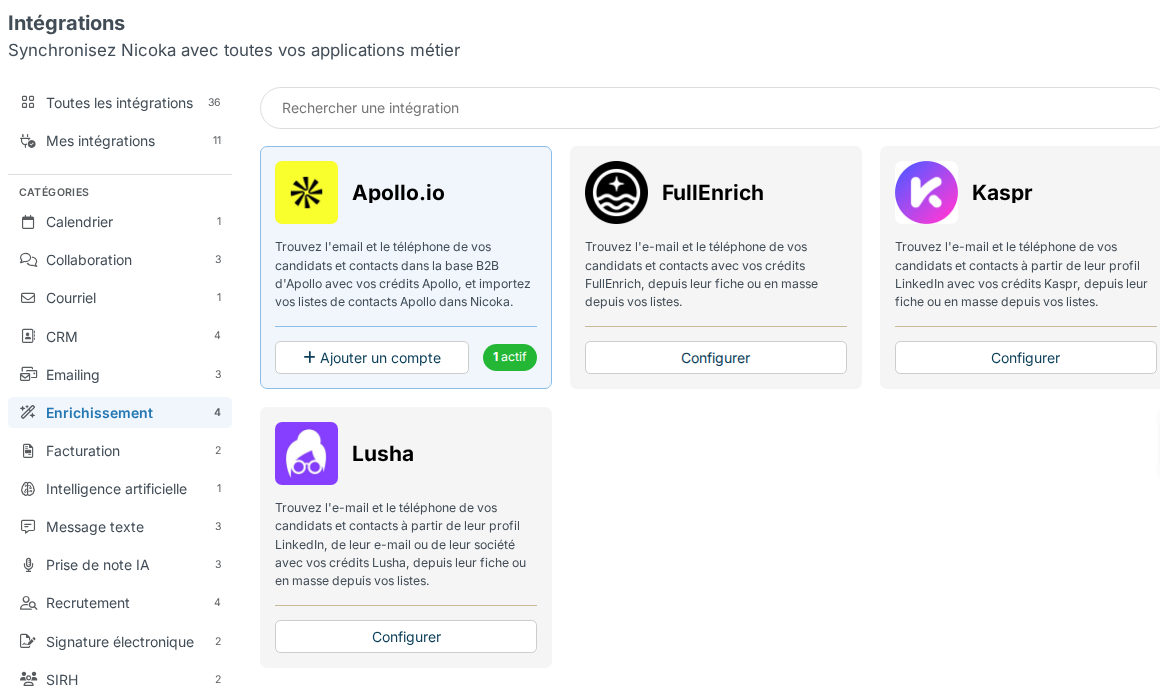
- Click the Enrichment category, then Add an account on the Apollo.io card. From the page of the integration, the button is called Connect Apollo.io.
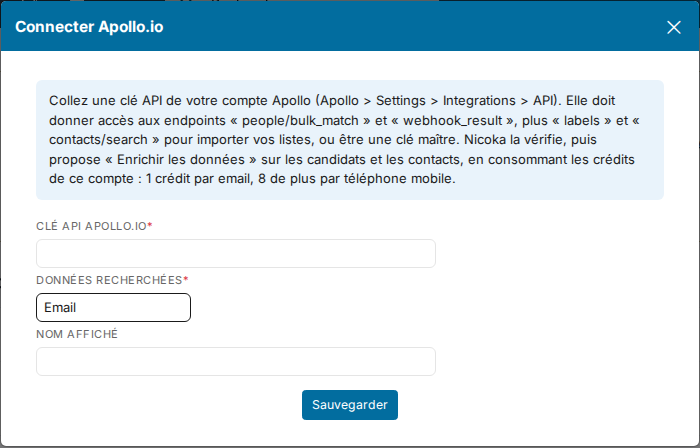
- Paste the key copied from Apollo into the Apollo.io API key field.
- In Data to find, choose Email (offered by default), Phone + Email or Phone. This choice is the default value of every enrichment.
- If needed, give a Name shown, useful when several enrichment services are connected, then click Save.
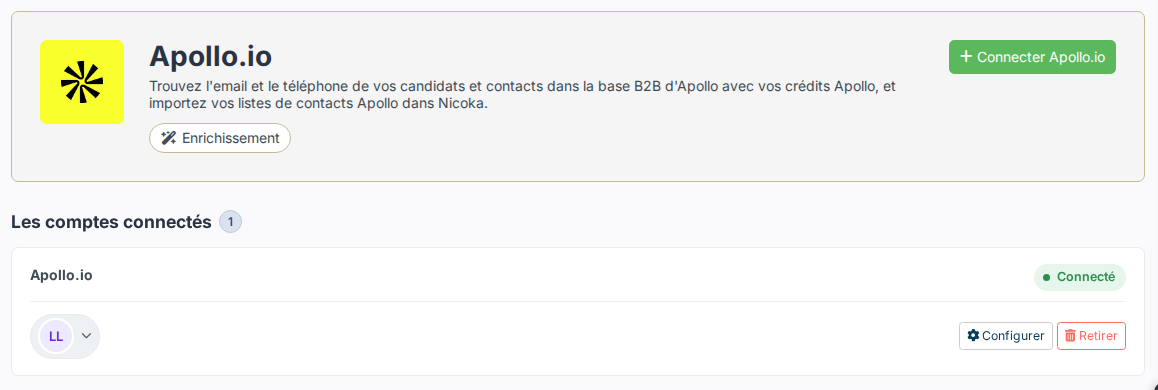
Nicoka checks the key with Apollo. The message "Apollo.io is connected." confirms the connection, and the account appears in the list of connected accounts with the Connected status.
If the Apollo.io card does not appear, write to support@nicoka.com so that it is enabled on your workspace.
3. Manage the connection
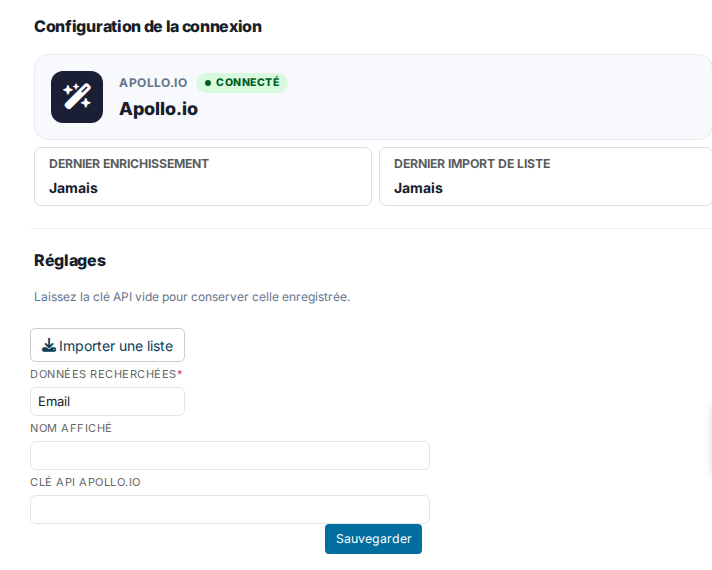
- Configure opens the connection configuration panel: date of the Last enrichment and of the Last list import, Import a list button, Data to find, Name shown and replacement of the key. Leave the key field empty to keep the one already saved.
- The button with the initials shows the owner of the account; its menu lets you choose who can use it.
- Remove deletes the connection.
4. Enrich a candidate or a contact
Once the account is connected, the Enrich the data action appears:
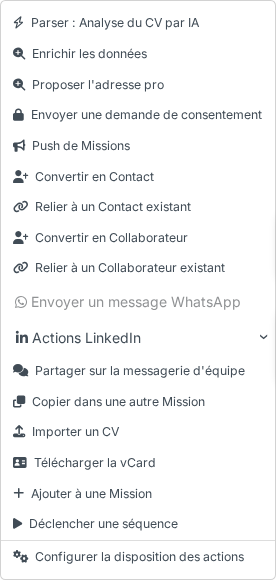
- on a candidate record, in the … menu (Other actions);
- on a contact record, in its actions menu;
- in the candidate and contact lists, as well as in the candidates of a job, to enrich several checked records at once (100 at most per run).
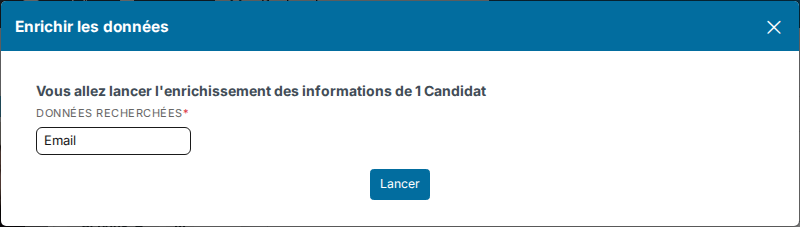
In the window that opens, check the Data to find, then click Launch.
If several enrichment services are connected, the name of the service is shown next to each action.
What the enrichment does
- Nicoka sends Apollo the first name, the last name, the company, the LinkedIn profile and the email already known for the person.
- Emails: they come with Apollo's answer and are added to the addresses of the record. An email already entered is never replaced.
- Phones: Apollo provides them a little later, usually within a few minutes. Nicoka collects them in the background and fills an empty phone field, the mobile first.
- An activity is added to the timeline of the record with the data found, or to state that Apollo found nothing.
- If Apollo returns a person with another name (for example from a shared email address), the result is set aside and nothing is written on the record. The activity says so; Apollo may have used a credit for this search.
- At the end, you receive a "Apollo.io enrichment finished" notification that sums up the records enriched, those where nothing was found and those left without an answer.
To enrich without a click, with the Enrichment step of a sequence: see How to automate the enrichment of candidates or contacts.
5. Import an Apollo list
- In the list of connected accounts, click Configure, then Import a list.
- In the Import an Apollo list window, choose the Apollo list (its number of contacts is shown in brackets), then confirm.
- The contacts of the list are created in Nicoka with their account, created as a lead when it does not exist.
- A contact already in Nicoka (same email, same LinkedIn profile, or imported before) only gets the email and phone it lacks: it is never duplicated.
- No Apollo credit is used.
- An import is limited to 5,000 contacts: split a larger list in Apollo.
- The outcome is shown in Last list import: contacts created, already in Nicoka and skipped, with the reason of the first ones skipped (for example a contact without a name).
The import requires the right to create contacts and the right to manage the connection (its owner or an integrations administrator).
Troubleshooting
- "Apollo rejects this API key.": the key was revoked or copied wrongly. Check it in Apollo > Settings > Integrations > API, then paste it again in Configure.
- "This Apollo API key does not give access to this action": the key lacks an endpoint. Create one with people/bulk_match, webhook_result, labels and contacts/search, or a master key.
- "Apollo cannot find a person from the name alone": add the company, the LinkedIn profile or an email to the record, then run it again.
- "Your Apollo.io account has no credits left.": top up your credits in Apollo.
- "Apollo.io refuses new calls: the request limit of your plan is reached.": Nicoka lists the persons not enriched; run them again later.
- "You cannot enrich more than 100 … at once": check fewer records and run in several times.
- "Your Apollo account has no contact list.": first create a contact list in Apollo.
Need help?
If you would like support setting this up, contact Nicoka support.