Using Brevo with Nicoka
Brevo sends your bulk emails to the contacts and candidates you select in Nicoka, from your Brevo senders. Nicoka creates the list in Brevo, starts the campaign and logs the send on each record; in return, Brevo reports unsubscribes and failing addresses to Nicoka.
Before you start
- You have a Brevo account that can send email campaigns, with at least one validated sender.
- You are an administrator of your Nicoka workspace.
Step 1: Get your Brevo API key
Sign in to your Brevo account and create your Brevo API key from your account settings. If you cannot find this option, see Brevo's help. This information is confidential: do not send it by email or in a ticket, and enter it into Nicoka yourself.
Step 2: Create the service in Nicoka
- In the side menu, open Customizing > Administration, then, under Cross Application, click Services.
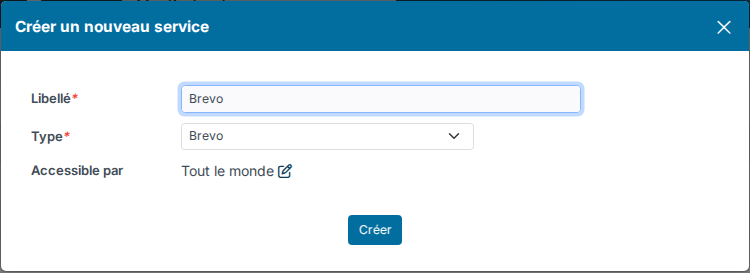
- Click Create a new service.
- Enter a Label (for example "Brevo"), choose the Type Brevo and, if needed, restrict who can use the service with Available for.
- Click Create. The service is created disabled.
Step 3: Enter your Brevo credentials
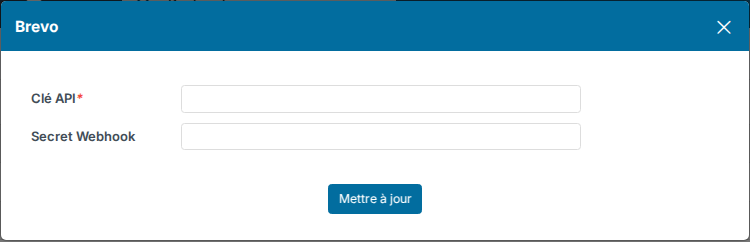
- On the line of the service, click the padlock in the Pwd column.
- Paste your key into API Key.
- Leave Webhook Secret empty: Nicoka generates it.
- Click Update.
When you save, Nicoka automatically registers its webhook with Brevo: this is how Brevo reports unsubscribes to Nicoka. If the message "Authentication saved, but webhook upsert failed" appears, check the credentials you copied.
Step 4: Set up the service
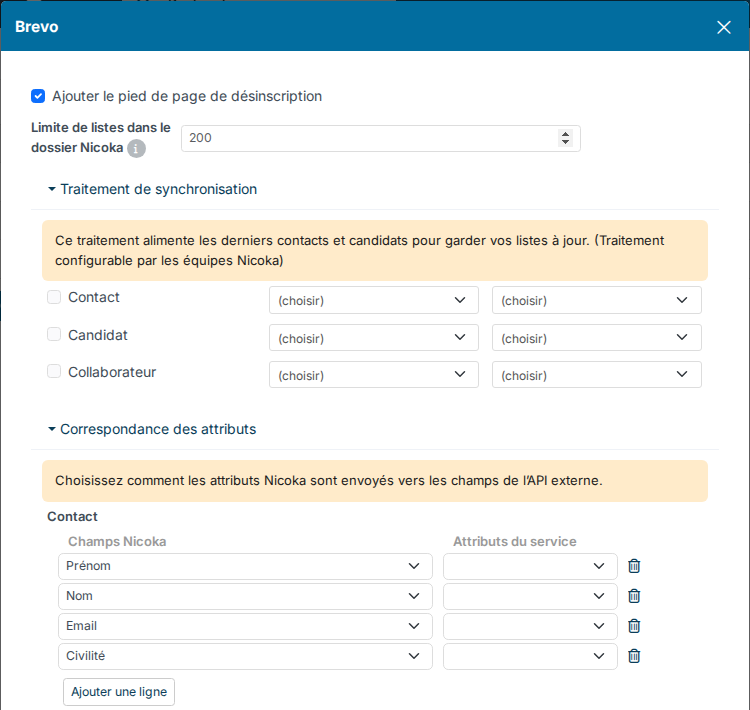
Click the gear icon in the Customize column, then click Update once you have made your choices.
- Add unsubscribe footer (ticked by default): adds an unsubscribe link to emails that do not contain one.
- Synchronization treatment: for contacts, candidates and employees, choose a list variant and the Brevo list to keep up to date. This treatment runs in the background; its frequency is set by the Nicoka team, contact support to set it up.
- Attribute mapping: for each Nicoka fields entry, the Brevo attribute that receives it (Service attributes). First name, last name, email and title are always sent; an attribute missing in Brevo is created there.
- Sender access: reserve a Brevo sender for some users, groups or profiles. A sender without a rule stays available to everyone.
- Nicoka folder list cap: Nicoka files its lists in a "Nicoka" folder of your Brevo account. When this number is reached, Nicoka deletes the oldest lists of that folder, except those chosen in the synchronization treatment. So do not keep a list you want to preserve in that folder.
Step 5: Activate the service
Click in the Active column of the line: the check mark appears. Without a key, Nicoka shows "They are missing the login information, please click on the padlock to add them".

Send a bulk email
- In a contact or candidate list, select the people, then choose the Send a message action.
- Choose Email marketing service instead of Email inbox.
- In From, choose the Brevo sender. In Target, choose Selection (the ticked records) or Entire variant (all the records of the displayed list).
- Write the subject and the message, then send.
Nicoka creates a list in Brevo, imports the recipients into it and starts the campaign. The message "Email sent via the email marketing service. Campaign #…" gives the number of the campaign in Brevo.
- People without a valid email and people who opted out of email marketing are excluded from the send.
- The subject and the message must not contain Nicoka tags, and the preview is not available in this mode.
- A send is capped in number of recipients: above it, Nicoka shows the limit and the number of people targeted.
- Only one attachment is accepted, under 4 MB; a send with an attachment is limited to 5,000 recipients.
Add people to a Brevo list
- In a contact or candidate list, select the people, then choose the Add to an email marketing list action.
- In List Brevo, choose an existing list or New list.
- Click Add to send the selected records, or Synchronize to send all the records of the displayed variant.
People who opted out of email marketing are not added.
What you get in Nicoka
- An activity on each recipient's record, with the number of the Brevo campaign.
- When Brevo reports an unsubscribe, a hard bounce, a spam report or a blocked address, the Has opted out of email box is ticked on every record (contacts, candidates, employees) with that address. These people are then excluded from sends.
- Open and click statistics stay in Brevo: find them with the campaign number.
See also
Nicoka also offers bulk sending with Mailjet, and lists the good practices for bulk email.
Need help?
If you would like help with the setup, contact Nicoka support.