Using Mantiks with Nicoka
Mantiks monitors the job ads published on the market to spot the companies that are hiring and find their decision-makers. Once connected to Nicoka, it lets you search for these companies from Nicoka, save searches that run regularly, then turn the companies found into customers or opportunities.
Before you start
- A Mantiks subscription and the API key (token) of your Mantiks account. You get it from your Mantiks space; if in doubt, see the Mantiks help.
- Admin rights on Nicoka to connect the account.
1. Connect your Mantiks account
- In the side menu, open Customizing > Integrations.
- On the Mantiks tile (Recruitment category), click Configure.
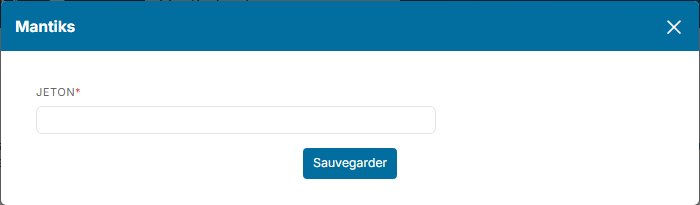
- Click Add your account.
- Paste your Mantiks API key in the Token field, then click Save.
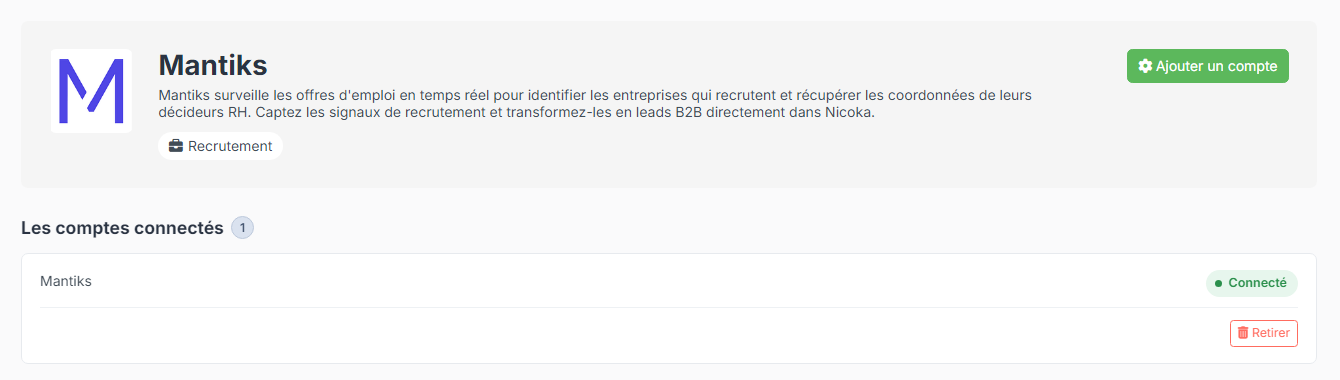
The account appears in the list of connected accounts, and the Mantiks entry appears in the menu, under Recruitment. Nicoka does not check the token when saving it: to make sure it is correct, open the Mantiks page and check that the number of credits is displayed.
2. The Mantiks page
In the side menu, click Mantiks. The page has three columns: your criteria on the left, the job ads found in the middle and the details of the selected ad on the right.
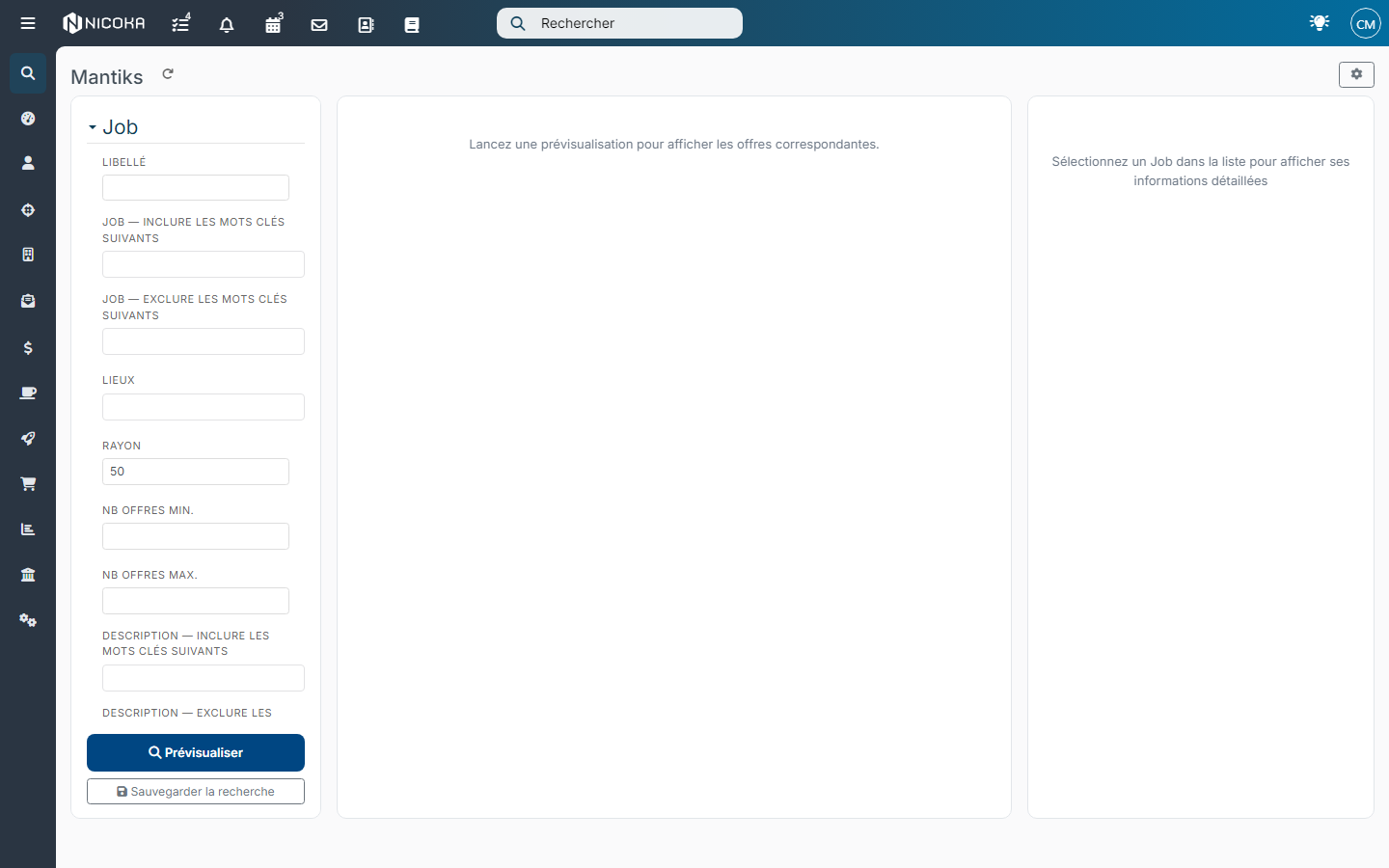
- Next to the title, the counter shows your remaining Mantiks Credits; the refresh icon updates it. Some actions use credits, as stated in their label.
- At the top right, the cog button gives access to the Search list of saved searches and to the Exports.
3. Set your criteria
The criteria are grouped in three blocks:
- Job: label, keywords to include or exclude in the ad title, Location and Radius, minimum and maximum number of ads per company (Min. jobs, Max. jobs), keywords to include or exclude in the description, age of the ad (Published since) and Republished ads.
- Customer: company size (Min. volume, Max. volume), sectors to include or exclude, and the Exclude consulting/recruiting box to leave out agencies.
- Profile: the contacts to look for in each company (Best match or All matches), with the Valid email, Allow missing contacts and Phone required options.
Click Preview to display the matching job ads and check your criteria before saving the search.
4. Save a search
Click Save search. The New search window repeats your criteria and adds the Settings block:
- the Name of the search;
- Max leads per run;
- Run frequency (days): the interval between two runs; 0 disables scheduling;
- Lead refresh cadence (days): leave empty to disable the refresh of leads;
- Allow duplicates between exports;
- Generate an icebreaker: a personalized opening line for each lead. This option uses 1 extra credit per lead.
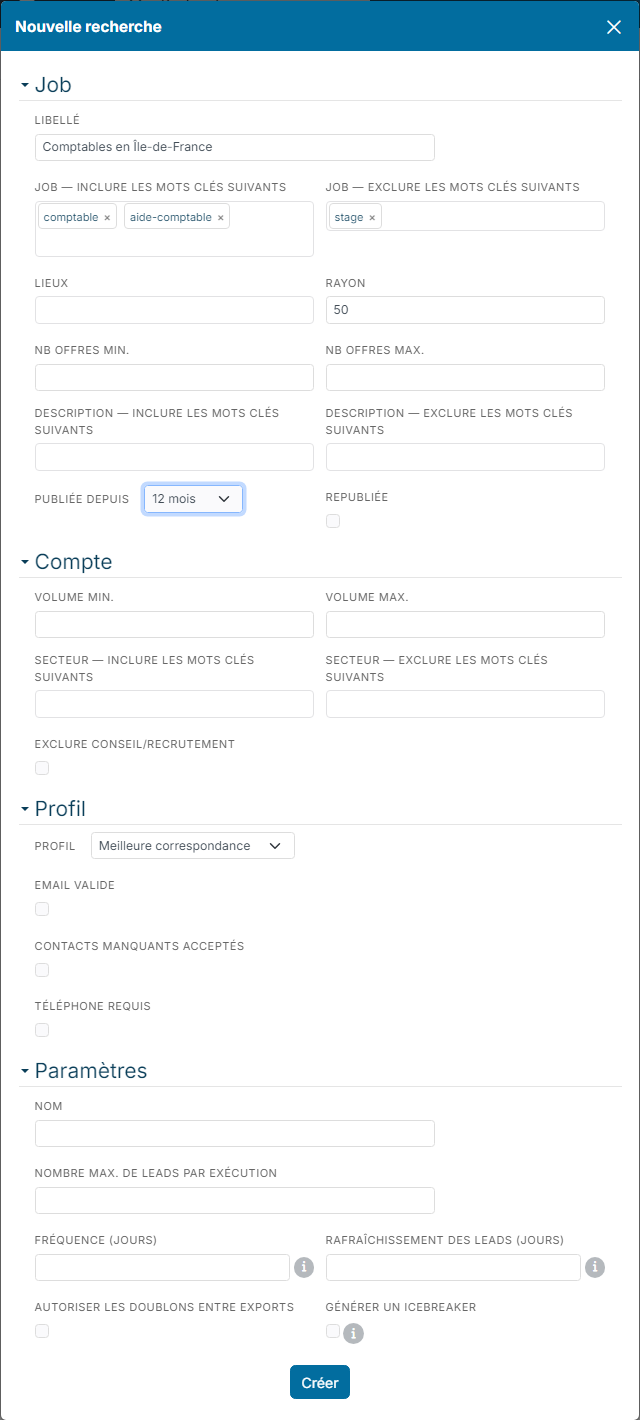
Click Create. You find your searches in the Search list, where you can edit them.
5. Use the results
When a scheduled search has finished running, Nicoka sends you a notification "Mantiks – Your search … is ready". Click it to display the results; you also find them in Exports.
The companies found are not imported automatically. For each of them, buttons let you:
- link it to an existing customer in Nicoka;
- create a new customer, prefilled with its information;
- create a new opportunity;
- Show the last 100 job offers (1 credit) of the company, or the Job history (1 credit).