Using Trimoji in Nicoka
Trimoji is a test of about fifteen minutes that brings out a candidate's main personality traits, soft skills and ideal work environment. Once Trimoji is connected to Nicoka, you send the invitation from the candidate's record and the report lands in their documents. You need a Trimoji account.
Step 1 — Get your Trimoji API key
Log in to your Trimoji space and copy your API key, available in the section about the integration with your ATS. If in doubt, ask your Trimoji contact for it.
Step 2 — Create the Trimoji service in Nicoka
- In the side menu, open Customizing > Store.
- On the ATS card, click Customize.
- In the left-hand menu, click External Services. You can also type "Services" in the menu's search field.
- Click Create a new external Service.
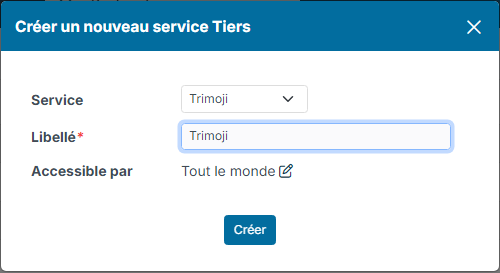
- Choose the Trimoji Service, enter a Label (for example "Trimoji"), then click Create.
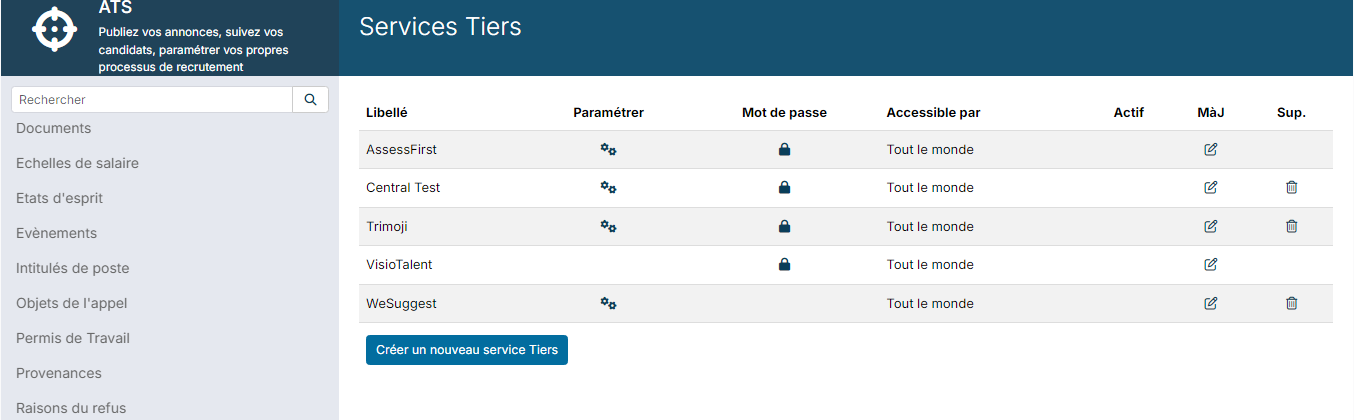
The service appears in the list, still inactive. Trimoji needs no login or password: leave the padlock in the Password column empty.
Step 3 — Paste the key and activate the service
- On the Trimoji row, click the gear in the Customize column.
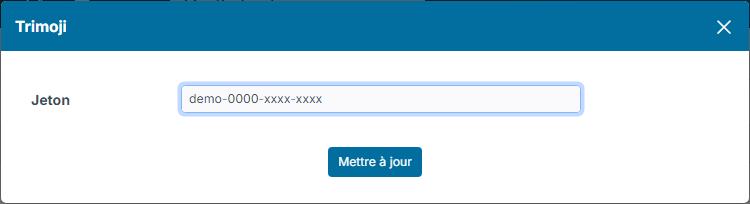
- Paste your API key into the Token field, then click Update.
- Still on the Trimoji row, click in the Active column: the tick appears.
Sending an invitation
- Open the candidate's record, from the candidate list or from a job's applications.
- In the record's actions, click Send invitation Trimoji, then confirm.
The candidate needs an email address: Trimoji sends them the invitation by email. The sending is logged in the candidate's history, and you can remind the candidate as often as needed.
Getting the report
As soon as the candidate has completed the test, Nicoka receives the result: the report is saved in the candidate's documents, an activity is added to their history and the candidate's owner receives a notification.