Using WeSuggest in Nicoka
WeSuggest is a customizable personality test that compares a candidate's personality traits with the expectations of the position. Once WeSuggest is connected to Nicoka, you link a WeSuggest campaign to a job, then add your candidates to it from the job's application list. The report then lands in the candidate's documents.
Step 1 — Get your WeSuggest API key
Ask WeSuggest for your API key, for example at support@wesuggest.io.
Step 2 — Create the WeSuggest service in Nicoka
- In the side menu, open Customizing > Store.
- On the ATS card, click Customize.
- In the left-hand menu, click External Services. You can also type "Services" in the menu's search field.
- Click Create a new external Service.
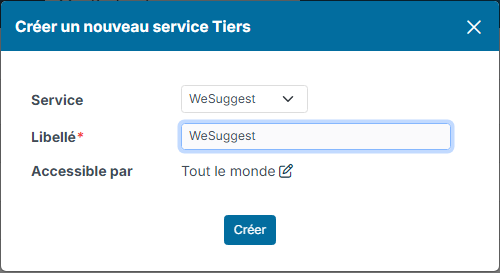
- Choose the WeSuggest Service, enter a Label, then click Create.
Step 3 — Paste the key and activate the service
- On the WeSuggest row, click the gear in the Customize column.
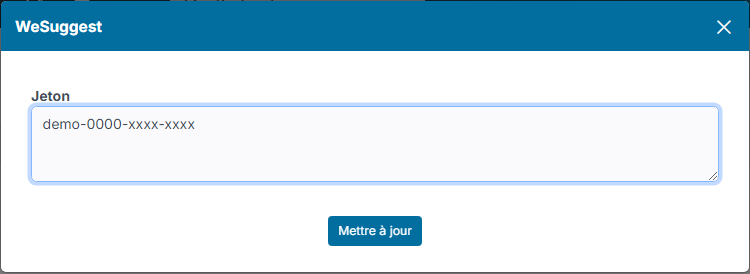
- Paste your API key into the Token field, then click Update.
- Still on the WeSuggest row, click in the Active column: the tick appears. Nicoka refuses the activation as long as the token is empty.
Linking a campaign to a job
A WeSuggest campaign corresponds to a test model. You can reuse a campaign already created in your WeSuggest space or create one from Nicoka.
- Open the job, then click Campaign WeSuggest.
- In the Bulk actions list, choose:
- Select a WeSuggest campaign to reuse an existing campaign;
- or Create a WeSuggest campaign, then fill in the Campaign's Name and the Model type.
- Click Link campaign to the Job.
As long as no invitation has been sent, the campaign is not yet synchronized with WeSuggest: you can reopen the window and change it. From the first invitation on, the campaign is registered with WeSuggest and can no longer be changed for this job.
Sending the invitations
- Open the job's application list.
- Tick one or more candidates.
- Click Actions, then Add to WeSuggest campaign, and confirm.
WeSuggest sends the invitation by email, so each candidate needs an email address. If a candidate has already received the invitation for this campaign, Nicoka tells you instead of inviting them a second time. The sending is logged in the candidate's history.
Getting the report
As soon as the candidate has completed the test, Nicoka receives the result: the report is saved in the candidate's documents, an activity is added to their history and the candidate's owner receives a notification.