Access token expiry
Did you receive one of these emails: "API Token is going to expire in one week" or "API Token has expired"? A tool that connects to Nicoka through the API uses an access token that is reaching the end of its validity. This article explains how to renew it.
What is an API access token?
An external tool (Power BI, Zapier, Excel…) that reads or writes data in Nicoka through the API identifies itself with an access token, not with an email and a password. Each token has:
- a Token name, so you know which tool uses it;
- Permissions: Read and write or Read only;
- a Token validity, chosen when it is created: 15 days, 30 days, 90 days, 1 year or No expiry.
Who receives these emails, and when?
- The emails are sent to the administrators of your Nicoka space.
- They concern the tokens of API users: technical accounts that are linked to no employee, contact or candidate.
- "is going to expire in one week": the tool called the API with a token that expires in less than 7 days. It still works.
- "has expired": the tool is still trying to use an expired token. Its calls are refused: it no longer receives any data.
The email gives the token name, the date and IP address of the last call, and the expiry date. The Manage tokens button opens the record of the API user concerned.
Renewing the token
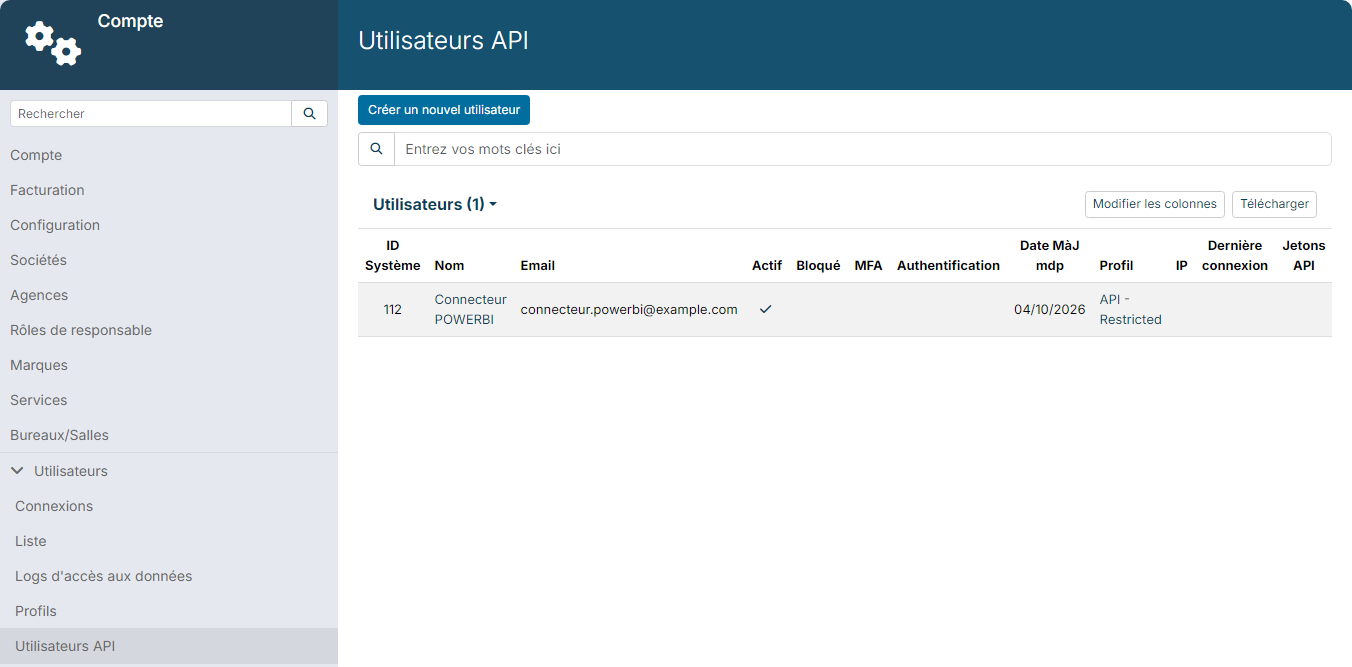
- Click Manage tokens in the email. You can also open Customizing > Admin, expand Users in the left-hand menu, click API Users, then the user's name.
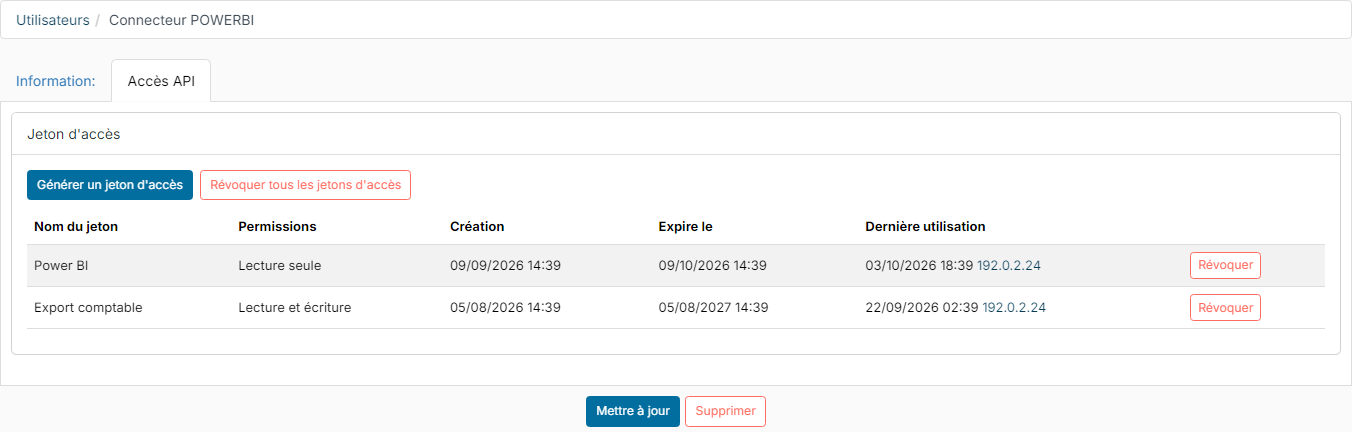
- Open the API access tab. For each token, the list shows the Token name, the Permissions, the creation date, the Expires date and the Last used date and IP address.
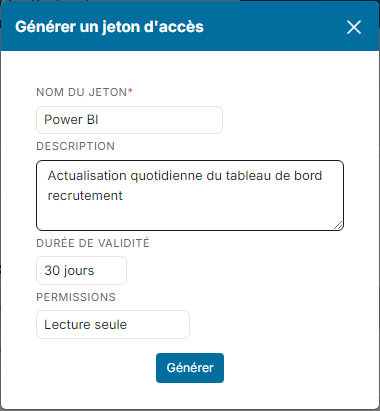
- Click Generate an access token. Enter the Token name (required) and, if you wish, a Description. Choose the Token validity and the Permissions, then click Generate.
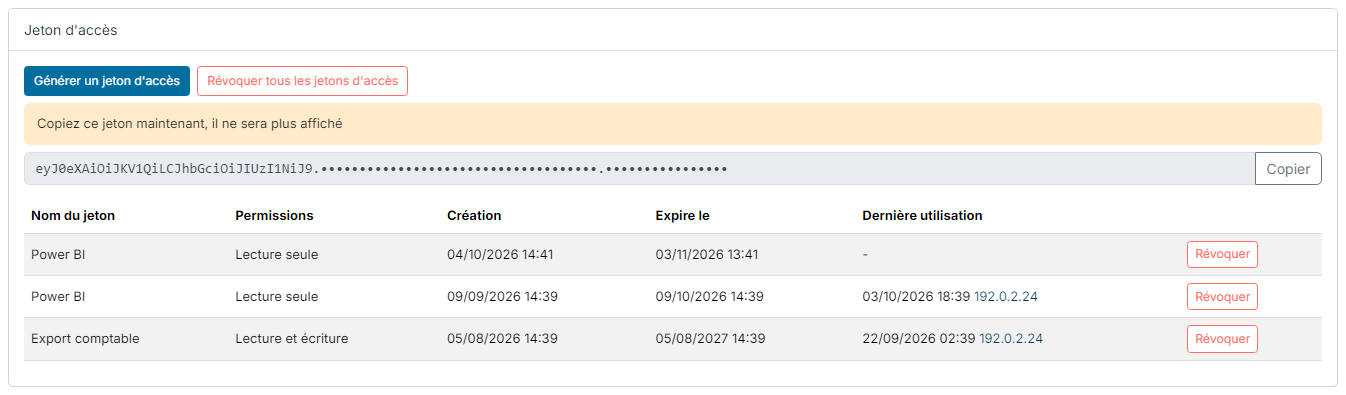
- The new token is shown above the list, with the message "Copy this token now, it will not be shown again". Click Copy, then paste the token into the external tool, in place of the old one.
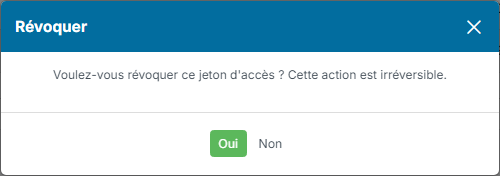
- Once the tool works with the new token, click Revoke on the row of the old token, then confirm. This action cannot be undone.
If you did not copy the token in time, simply generate another one: a token is never shown a second time. As long as the external tool uses the old token, the alert emails keep coming.
The Revoke all access tokens button makes all the user's tokens unusable at once, for example if a token may have been disclosed.
The Generate an access token button is missing
Token generation depends on the profile of the user who holds the token: it needs the Creatable right on API Access Token. Without this right, the user can neither generate a token nor call the API, even with an existing token. To change the rights of a profile, see Define access profiles in Nicoka.
What about the Nicoka extension for Chrome?
The extension is not concerned by these emails: they only cover the tokens of API users. If the extension asks you to log in again, open its ⋮ menu, click Logout, then log in to your Nicoka space again. See Nicoka Plugin - Candidate and Contact Import.