Nicoka Plugin - Candidate and Contact Import
The Nicoka extension for Google Chrome and Microsoft Edge saves you time when sourcing: on a profile page (LinkedIn, Hellowork, APEC…), it reads the person's information, lets you check and complete it, then creates the candidate or the contact in Nicoka. It also creates customers, jobs and opportunities, and imports your LinkedIn conversations.
The screenshots below show the extension in French; the buttons are in the same place in English.
1. Supported sites
- LinkedIn, LinkedIn Recruiter and LinkedIn Sales Navigator
- Hellowork
- CVaden
- APEC
- France Travail
- Turnover-IT
- Indeed
- Meteojob
- Agefiph
- Pappers (company pages)
On Indeed, the extension opens in the browser's side panel instead of inside the page, but it works the same way.
2. Installing the extension
- Google Chrome: open the Nicoka Extension page on the Chrome Web Store, then click Add to Chrome.
- Microsoft Edge: open the Nicoka Extension page on Microsoft Edge Add-ons, then click Get.
You can also start the installation from Nicoka: see Step 4: Install the Chrome extension and import a candidate. To check that you have the latest version: Is my Nicoka plugin up to date?
3. Logging in
Open a profile page on one of the supported sites, then open the extension:
- by clicking the Nicoka icon in the browser toolbar (under the puzzle-piece icon);
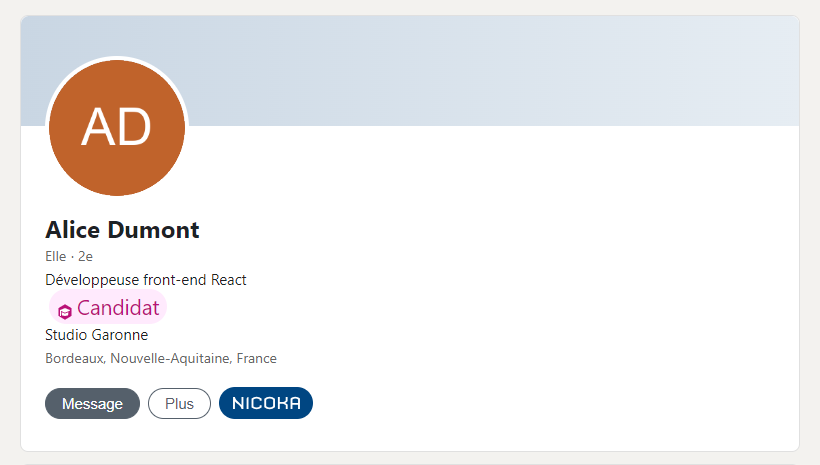
- or, once logged in, by clicking the Nicoka button added to the profile page. If the person already exists in Nicoka, a badge (here, Candidate) also appears under their headline.
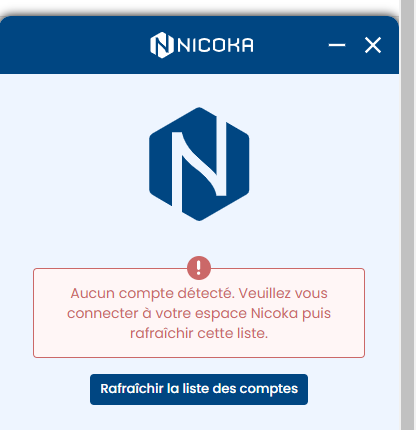
The extension uses your Nicoka session: first log in to Nicoka in another tab of the same browser. If no account is found, do so, then click Refresh accounts.
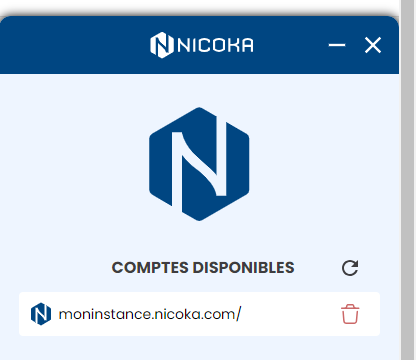
- Under Available accounts, click the address of your Nicoka space. The circular arrow refreshes the list; the trash icon logs you out of that space and removes it from the list.
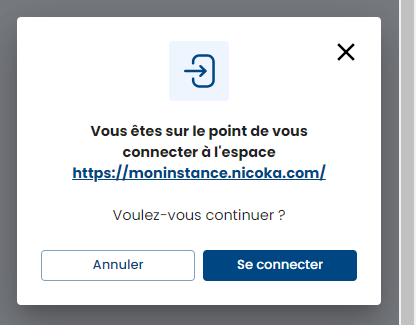
- Confirm by clicking Login.
The ⋮ button, at the top left of the extension, shows your name and the space you are logged in to. It also offers:
- Refresh parameters: use it after changing the settings in Nicoka (form fields, plugin options), then refresh the page;
- Logout.
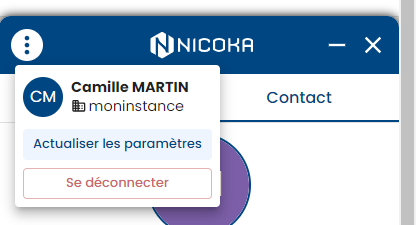
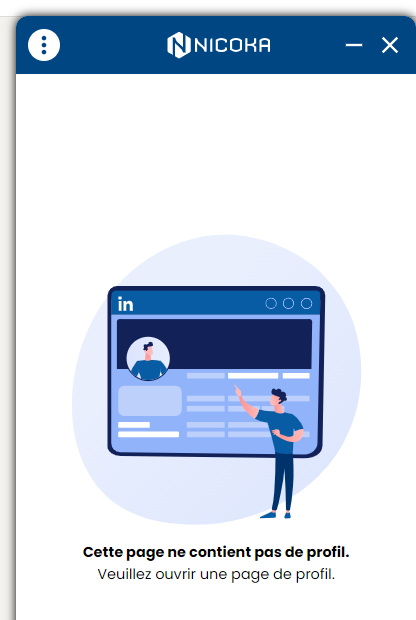
At the top right, the dash shrinks the extension to the bottom of the screen (click again to restore it) and the cross closes it. On a page with no profile, the extension shows "This page does not contain any profile": open a profile page to continue.
4. Candidates
Creating a candidate
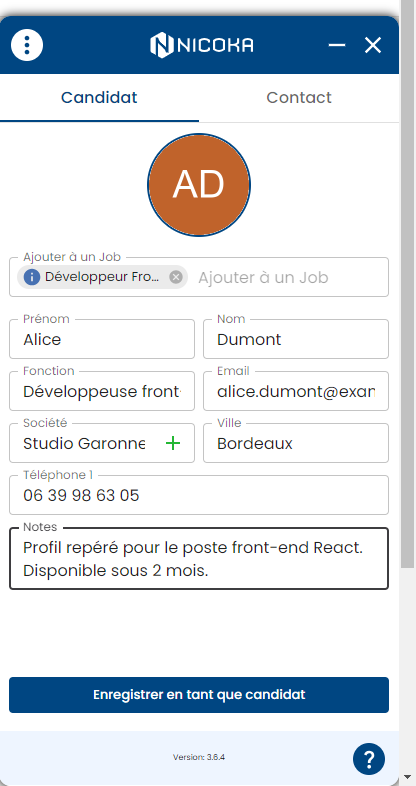
- On the profile page, open the extension and stay on the Candidate tab: the form is pre-filled with the information on the page.
- Check and complete the fields. In Assign to a Job, type a few letters to add the candidate to one or more active jobs. The notes entered in the notes field will appear on the candidate's record.
- Click Save as candidate.
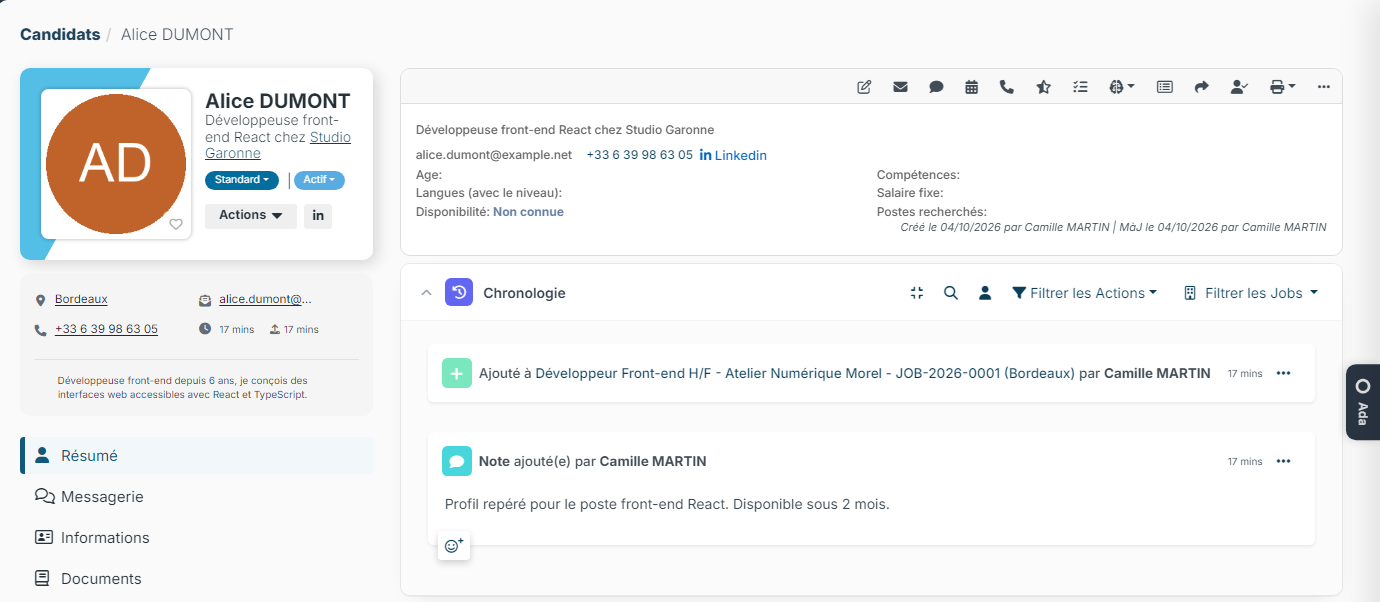
Wait until the save is complete before leaving the page: the resume and the picture are sent to Nicoka right after the creation. The extension then shows the candidate's summary. In Nicoka, the record contains the information, the link to the profile, the job and the note.
The form fields depend on your space's settings (see part 7). If the Autofill tags or Autofill jobs options are on, the extension suggests the last tags or jobs used.
Viewing an existing candidate
If the candidate is already in Nicoka, the extension shows a summary of the record: status, position, contact details, jobs and timeline. The Show profile in Nicoka link opens the record.
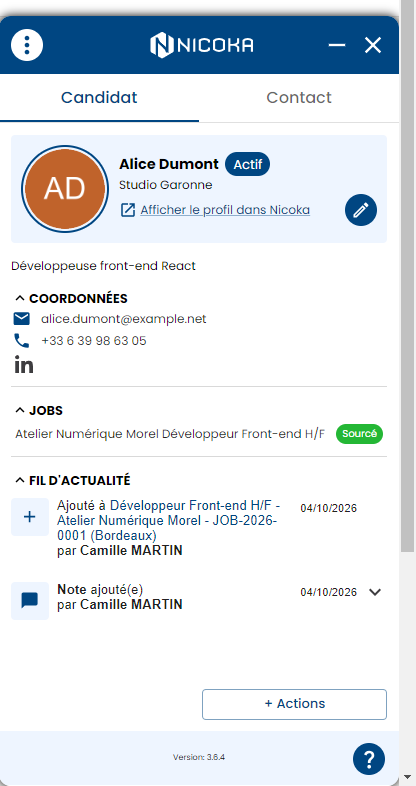
Editing an existing candidate
Click the pencil icon in the header, correct the fields, then click Update data. Cancel takes you back to the summary.
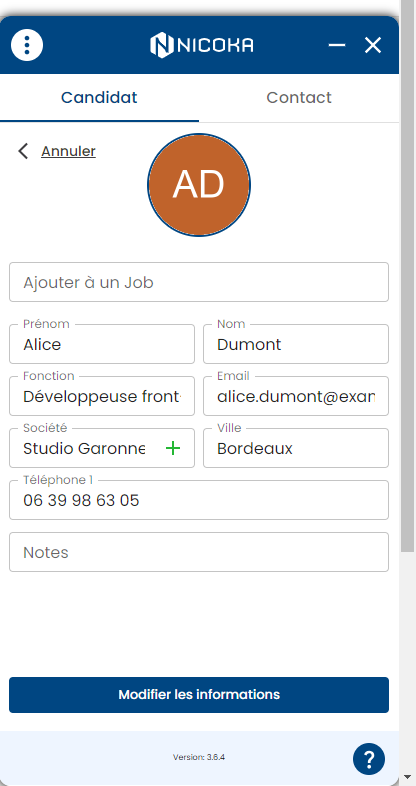
Creating a company from a candidate
In the candidate form, click the + of the company field. Enter the name and the industry, then click Create company.
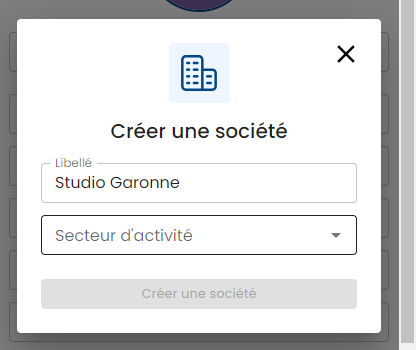
Choosing the step when adding to a job
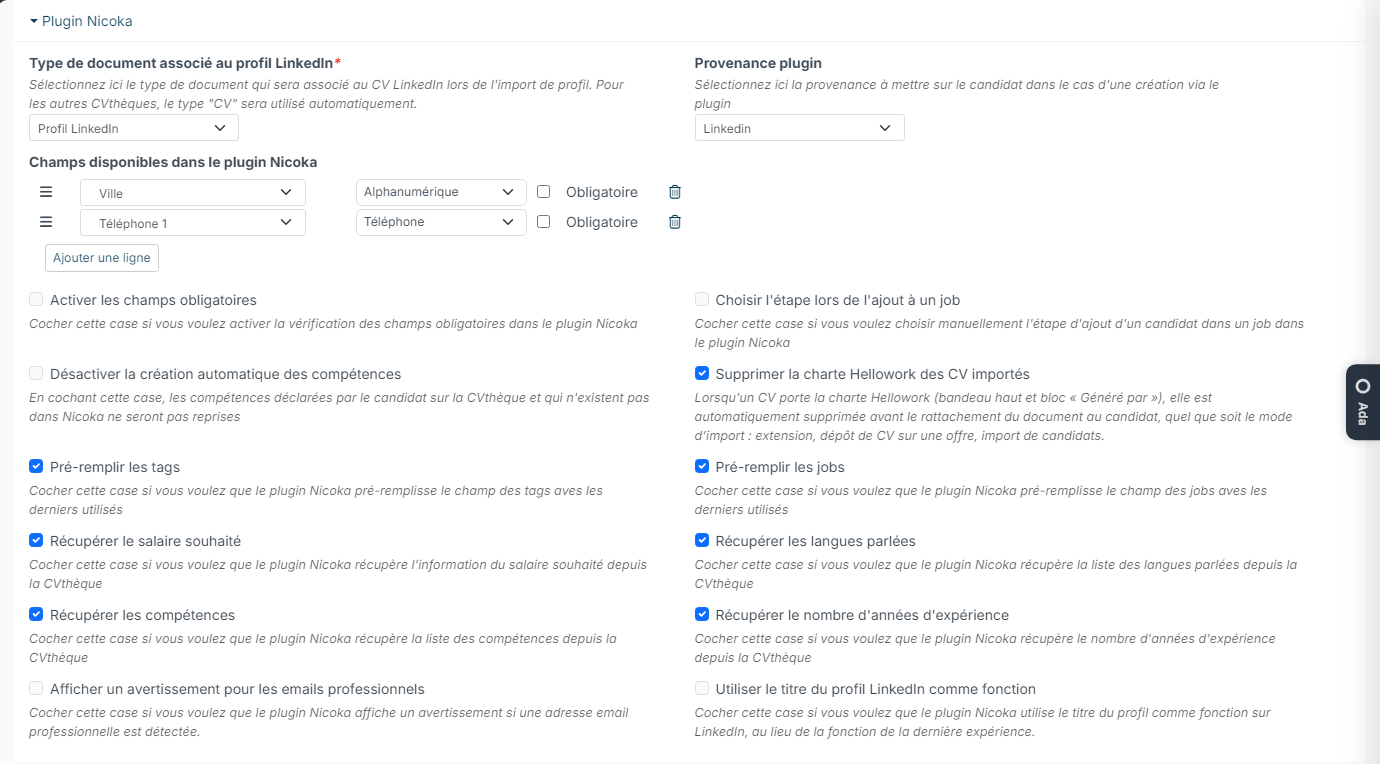
By default, a candidate added to a job from the extension goes to the first Sourcing step of the recruitment process. To be able to choose the step (this setting applies to every user of your space):
- In Nicoka, open Customizing > Store. On the ATS card, click Customize, then Customizing Points.
- Expand the Nicoka Plugin section, tick Choose the step when adding to a job, then click Save at the bottom of the page.
- In the extension, click ⋮ > Refresh parameters, then refresh the page.
When you choose a job, you can then choose the step; the first Sourcing step is still suggested by default.
Adding a task, a note or a document
The candidate must already exist in Nicoka. Click Actions at the bottom of the extension, then choose the action. Assign to a Job adds the candidate to other jobs.
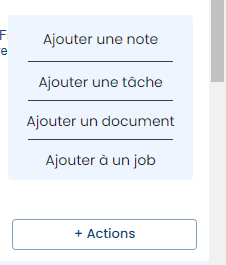
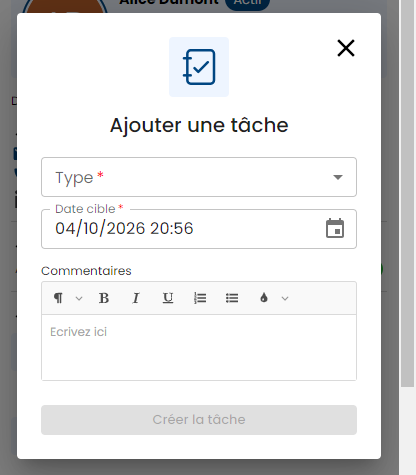
- Add task: choose the type and the target date, add a comment if needed, then click Create task.
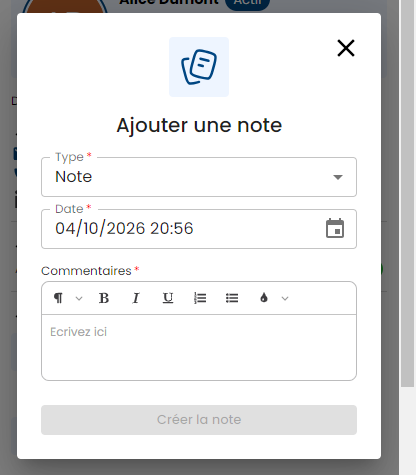
- Add note: choose the type and the date, write the comment, then click Create note.
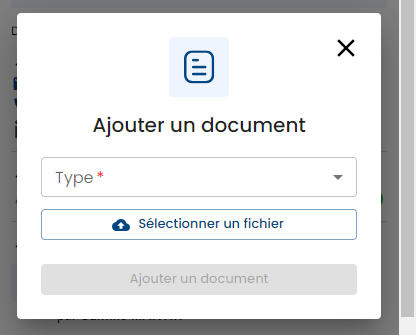
- Add a document: choose the type, click Select a file, then Add a document.
The task, note or document then appears on the candidate's record in Nicoka.
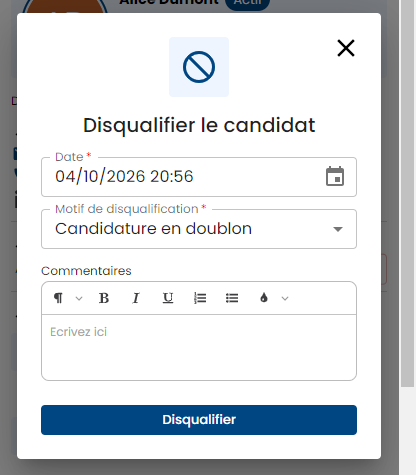
Disqualifying a candidate on a job
- In the candidate's summary, hover over a job in the jobs section, then click Disqualify.
- Choose the Disqualification reason, add a comment if needed, then click Disqualify.

Warning for professional emails
In the Nicoka Plugin section of the ATS customizing points, tick Display warning for professional email, then save. After Refresh parameters in the extension, a message warns you when the email entered for a candidate looks like a professional address.
5. Contacts
Creating a contact
- On the profile page, open the extension, then the Contact tab.
- In Customer, type the company name: pick it if it exists in Nicoka, otherwise choose Create a new Customer to create it at the same time.
- Check the other fields, add notes if needed, then click Save as contact.
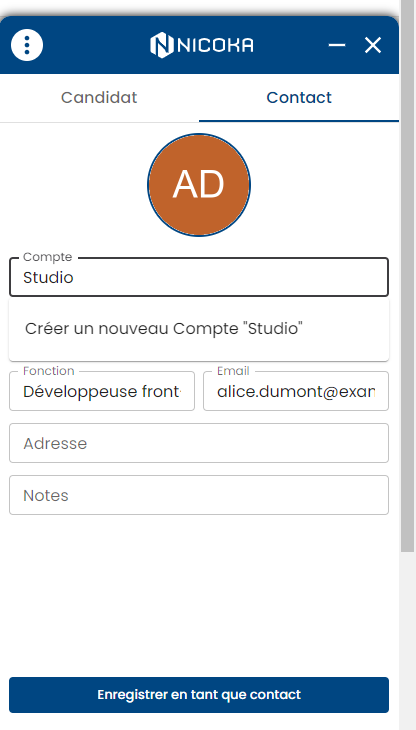
As for a candidate, an existing contact is shown as a summary, with the link to the record and the pencil icon to edit it. The Actions menu also offers Add opportunity: enter the label, choose the type and the stage, then click Create opportunity.
CRM settings
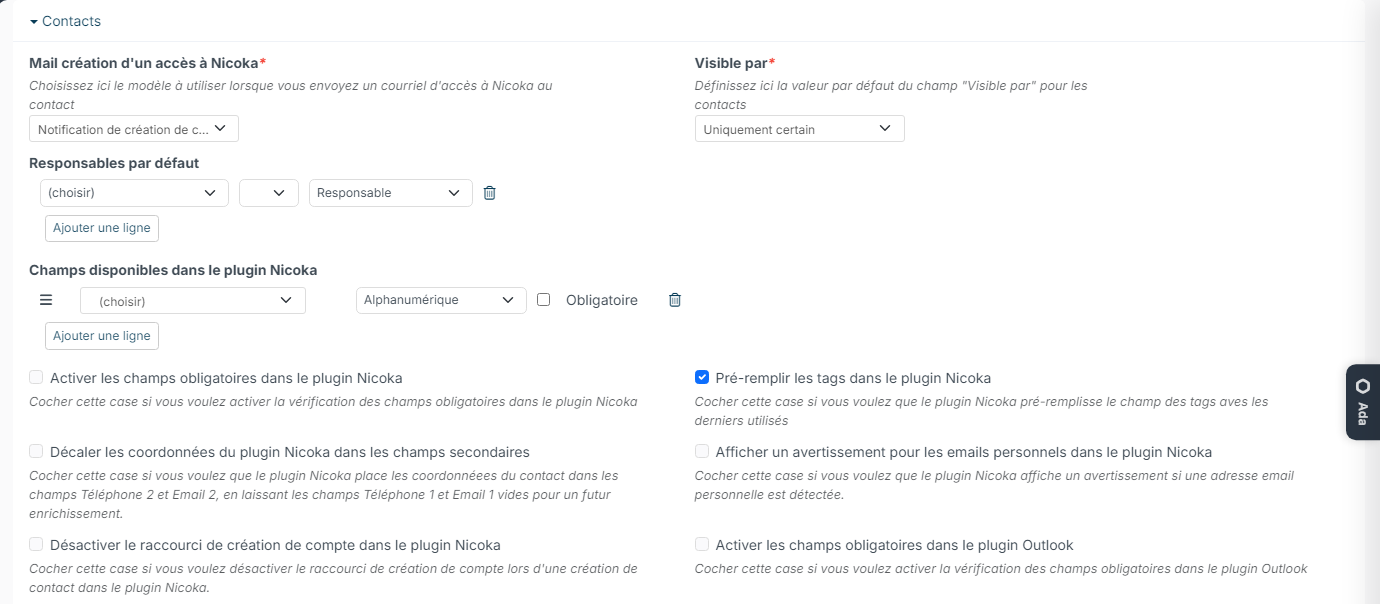
In Nicoka, open Customizing > Store, CRM card, Customize, then Customizing Points, Contacts section:
- Shift contact details in the Nicoka plugin in secondary fields: the email and phone number collected are saved in Email 2 and Phone 2. The first fields stay free for the details obtained with an enrichment tool.
- Display warning for personal email in the Nicoka plugin: a message warns you when the email entered for a contact looks like a personal address.
- Disable customer creation shortcut in the Nicoka plugin: the customer field no longer offers to create a customer.
After saving, click ⋮ > Refresh parameters in the extension.
6. Customers
On a company or school page (LinkedIn) or on a Pappers page, the extension offers a pre-filled customer creation form. If the customer already exists, it shows its summary: status, contact details, timeline, with the link to the record and the pencil icon to edit it. The Actions menu lets you add a note, a task or an opportunity. For Pappers, see also Linking a Nicoka account to Pappers.
Alerts on profile pages
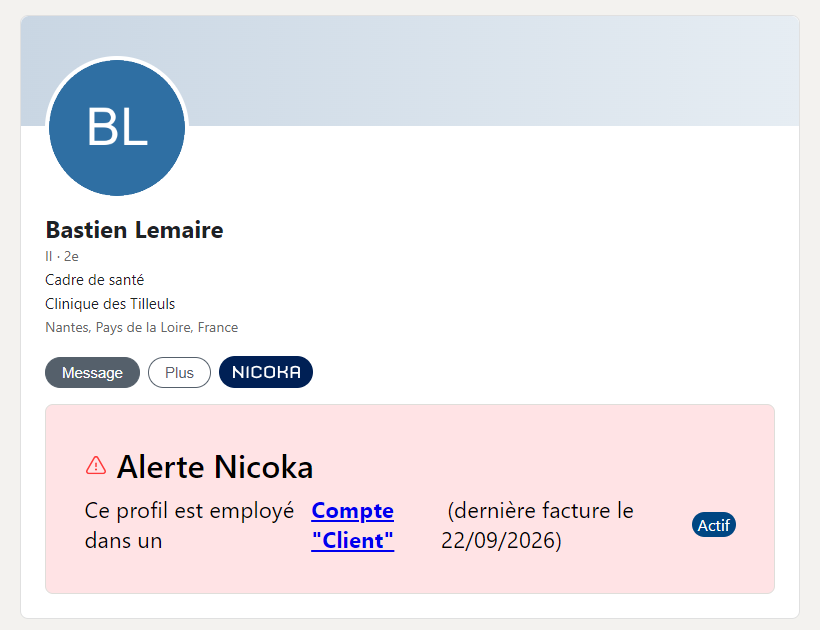
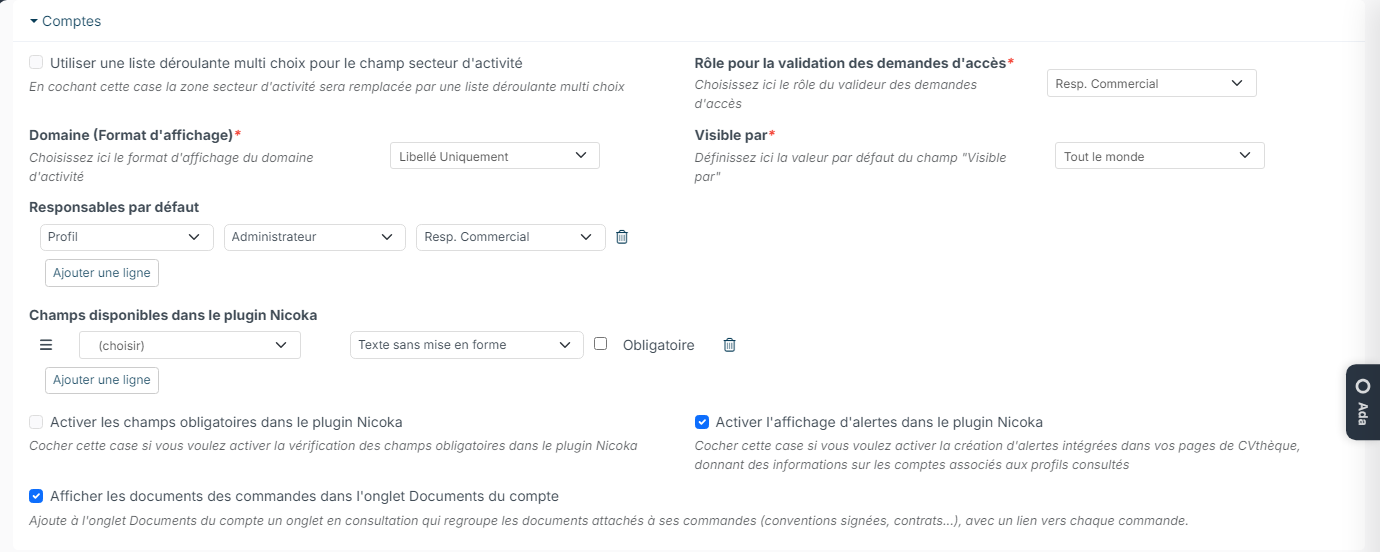
When Activate the display of alerts in the Nicoka plugin is ticked (CRM customizing points, Customers section), the extension adds a "Nicoka alert" box on the page of a company that is in your CRM, and on the profile of a person who currently works there. The alert shows the customer's type and status and, for a billed customer, the date of the last invoice when there is one. The link opens the customer in Nicoka.
7. Customizing the form fields
Fields are shared by every user of your space: a change applies to everyone.
Some fields are always shown. For a candidate: the job field, first name, last name, job title, email, company and notes. By default, the form also contains civility, position title, industry, two phone numbers, years of experience and tags. As soon as you customize the list, these default fields are removed: add every field you need.
The Nicoka plugin fields block is in the customizing points:
- candidates: ATS module, Nicoka Plugin section;
- jobs: ATS module, Nicoka Plugin - Job section;
- contacts: CRM module, Contacts section;
- customers: CRM module, Customers section;
- opportunities: CRM module, Opportunities section.
- Click Add a new row, choose the field, then how it is displayed. Drag the rows by their handle to change the order of the fields.
- Tick Required to make a field mandatory. For this box to be taken into account, also tick the Activate mandatory fields option of the same section.
- Click Save at the bottom of the page, then ⋮ > Refresh parameters in the extension.
8. Linking an existing record to its profile page
A person created by hand or imported into Nicoka is not yet linked to their profile page. There are two ways to tell Nicoka:
Homonym search (candidates and contacts)
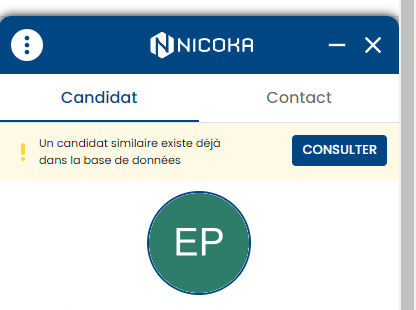
- When a profile page opens, the extension looks for potential duplicates. If it finds some, it says that a similar candidate already exists in the database. Click See.
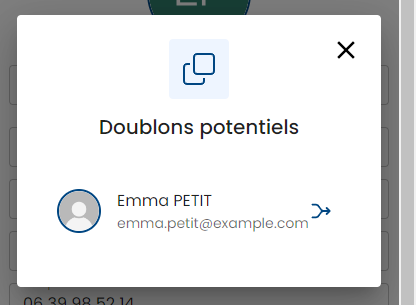
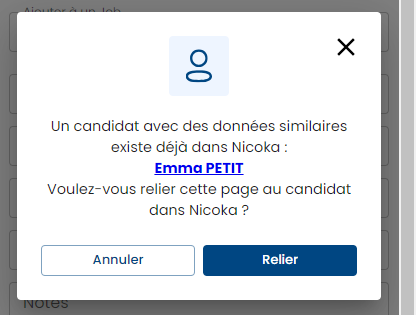
- The list of potential duplicates opens. Click a name to open the record in Nicoka, or the arrow on the right to link the page to that record.
Manual merge
Copy the email saved in Nicoka and paste it into the extension's email field. When you leave the field, the extension looks for this email in Nicoka; if it finds it, click Link to attach the page to the existing record. For a customer, this also works with the name and website fields.
9. Importing profiles in bulk from LinkedIn Recruiter
With LinkedIn Recruiter or Recruiter Lite, you can import several profiles at once from a project, in the pipeline or in the talent pool search results:
- Open the extension with the Nicoka button shown at the top of the page.
- Tick the profiles to import in LinkedIn Recruiter: they appear in the extension.
- On the Candidate tab, add them to one or more jobs if needed; on the Contact tab, link them to a customer if needed.
- Click Add, and stay on the page until the import is complete: the time depends on the number of profiles.
Afterwards, hover over the icon at the end of each row to see the import result; each person's name becomes a link to their record in Nicoka. Watch the demonstration video: bulk import from LinkedIn Recruiter.
10. Importing your LinkedIn conversations
If you have connected your LinkedIn account in Customizing > Integrations, your conversations are imported automatically, without the extension: new messages exchanged with a candidate or a contact who exists in Nicoka reach their record, and a synchronization runs every hour. A conversation with a person who does not exist in Nicoka yet is not imported: create their record first. In that case, do not also use the extension's buttons, or each message is saved twice. To keep importing with the extension, turn off the Import LinkedIn conversations option of your LinkedIn account in Customizing > Integrations.
With the extension:
- Open your LinkedIn messaging (LinkedIn, LinkedIn Recruiter or Sales Navigator), then a conversation. Two Nicoka buttons appear above the messages.
- The first one sends the messages to Nicoka, then shows that the conversation is up to date. The second one opens the person's record in Nicoka.
If the buttons are greyed out, the person does not exist in Nicoka yet: open their profile and add them as a candidate or a contact. Attachments in conversations are not imported.
11. Job offers
Filling in a job offer on LinkedIn Recruiter or France Travail
- First create the job in Nicoka.
- Open the job posting form on LinkedIn Recruiter or in your France Travail recruiter space, then open the extension with the Nicoka button shown on the form.
- Search for the job: the extension shows the information that will be used to fill in the form.
- Click Fill out the form. On France Travail, the form has several steps: the extension moves from one to the next (Continue to fill out the form).
For each piece of information, an icon shows whether it was filled in fully, partly or not at all. Complete the flagged fields and the last step yourself, then publish the offer.
Creating a job or an opportunity from a job offer
On a job offer page on LinkedIn, France Travail, APEC, Hellowork, Indeed or Muzzo, open the extension:
- Job tab: check the information taken from the offer, then click Save as a new Job;
- Opportunity tab: choose or create the customer, then click Save as a new Opportunity.
A message confirms the creation; Show in Nicoka opens the job or the opportunity. The fields of these forms are customized like the others (see part 7). Details for LinkedIn: Creating an opportunity from a LinkedIn Jobs offer, and on video: creating an opportunity from LinkedIn Jobs.
12. Troubleshooting
An error is displayed
If the extension shows an unknown error, click Refresh plugin. If the problem persists, check that your browser does not block third-party cookies: in Chrome, Settings > Privacy and security > Third-party cookies; in Edge, Settings > Privacy, search, and services > Cookies. Allow third-party cookies, or add an exception for the sites where you use the extension if your company blocks them.
The profile is not detected, or your space is not in the list
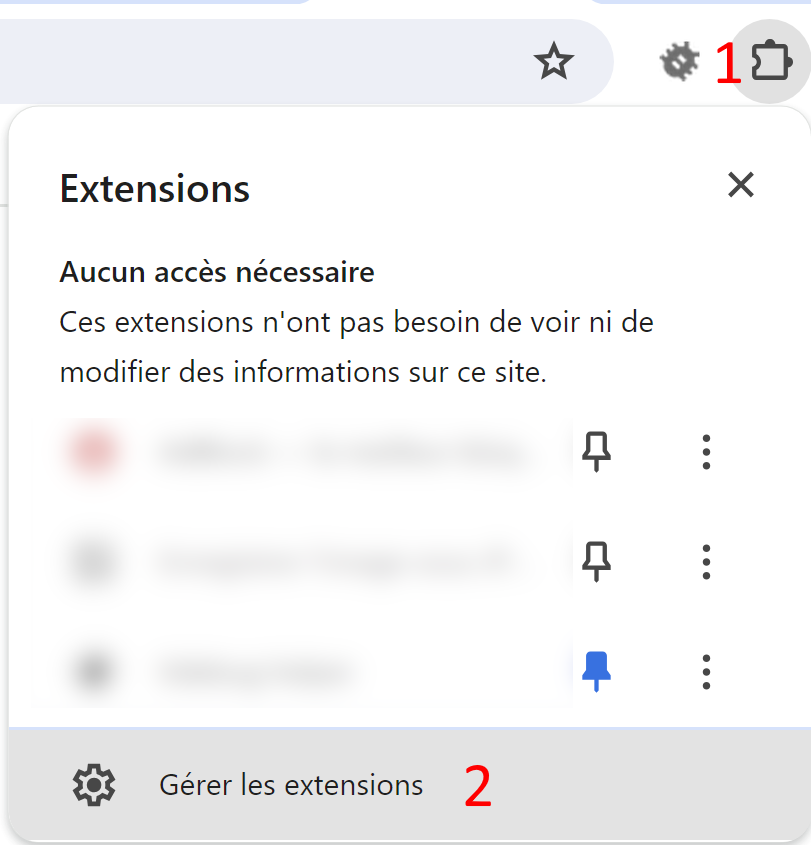
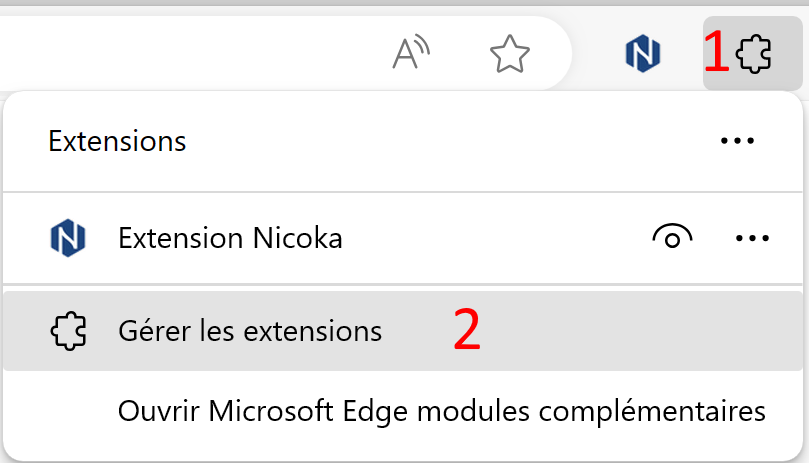
- Check the extension's permissions: click the puzzle piece to the right of the address bar, then Manage extensions. Open the details of the Nicoka extension and, under Site access, choose On all sites.
- Log out and log back in: in Nicoka, then in the extension (⋮ > Logout) after refreshing the page.
- Check that the extension is up to date (see Is my Nicoka plugin up to date?). As a last resort, uninstall it, reinstall it from the Chrome Web Store or Microsoft Edge Add-ons (part 2), and log in again.


The resume is not added to Nicoka
- After creating or updating a candidate, wait until the extension shows the summary before changing profile or page: otherwise the resume upload may be interrupted.
- Check that third-party cookies are not blocked (see above).
- LinkedIn Recruiter limits resume downloads to 200 per month. Profiles added to Nicoka from Recruiter (with the extension or by adding a candidate to the pipeline of a linked job) count towards this limit. When it is reached, the extension tells you.
Nothing happens when I log in
If a Nicoka page opens but the extension does not log in, ask an administrator to check that your access profile has the create right on API Access Tokens: see Access Token Expiry.