Is my Nicoka plugin up to date?
Google Chrome and Microsoft Edge update extensions automatically, but not always right away. If a feature of the Nicoka extension does not behave as expected, check its version and force the update.
The screenshots below show the browsers in French; the steps are the same in English.
Google Chrome
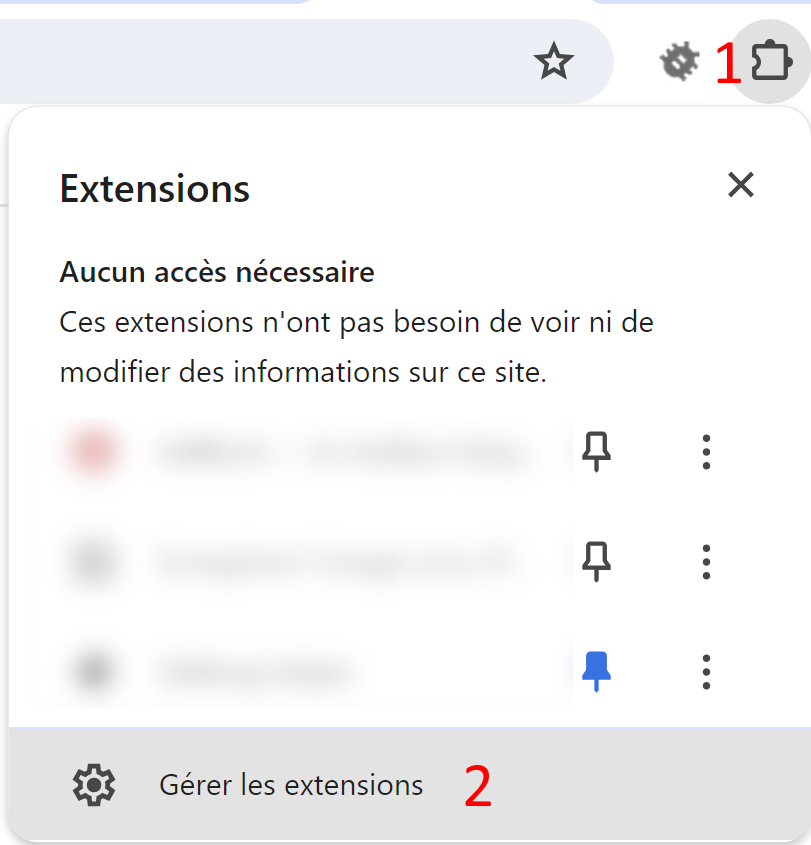
- Click the puzzle piece icon, to the right of the address bar, then Manage extensions.
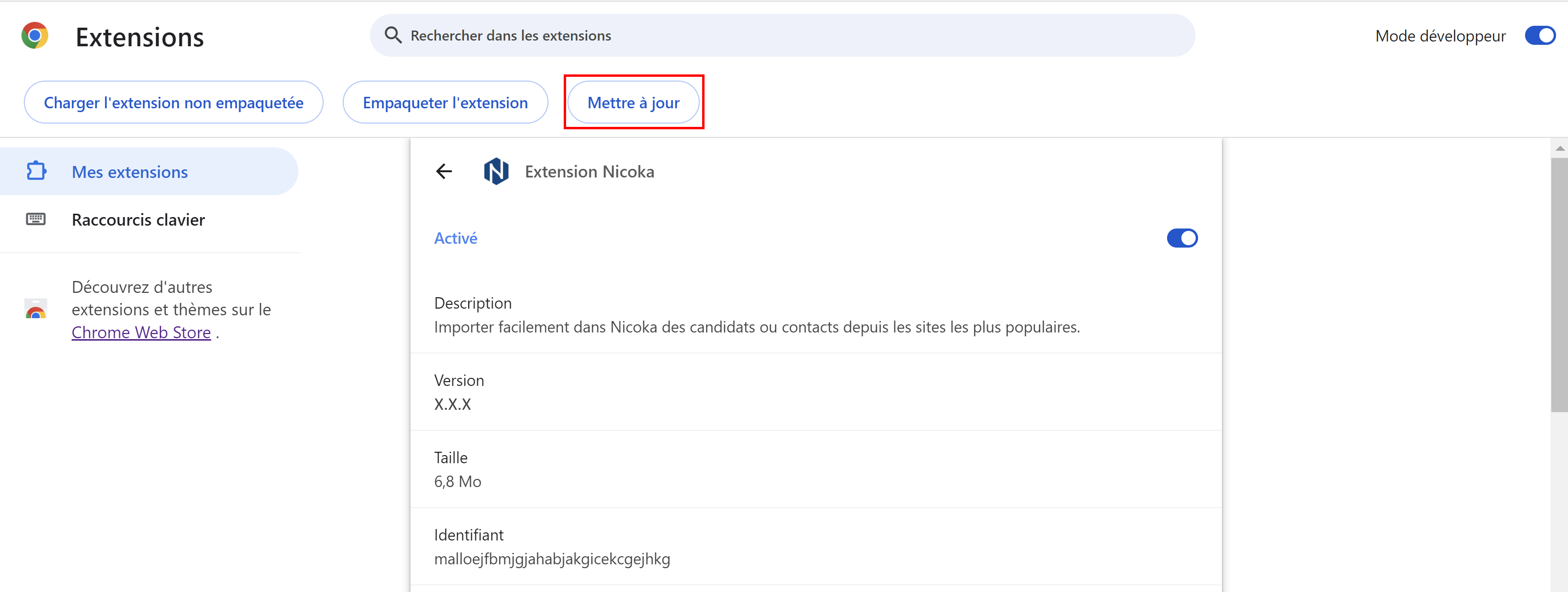
- At the top right of the page, turn on Developer mode.

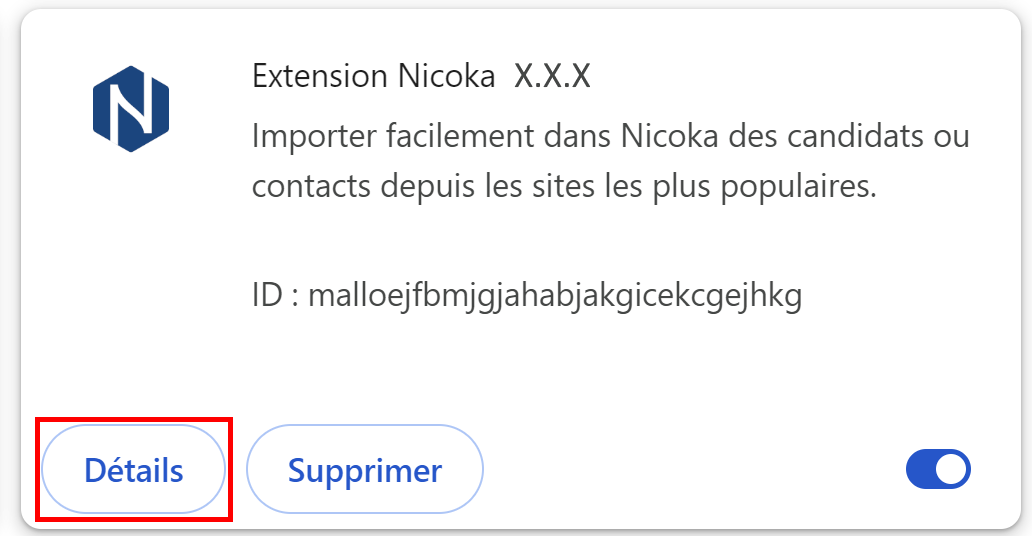
- On the Extension Nicoka card, click Details. The installed version number is shown under Version.
- Click Update, at the top of the page.
Microsoft Edge
- Click the puzzle piece icon, to the right of the address bar, then Manage extensions.
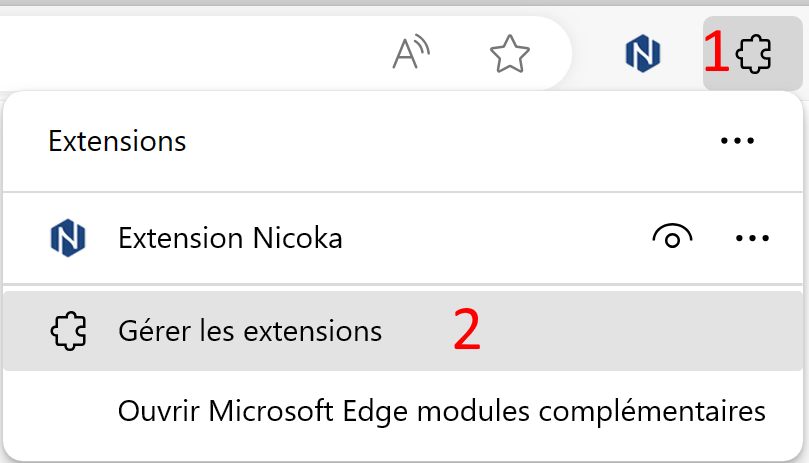
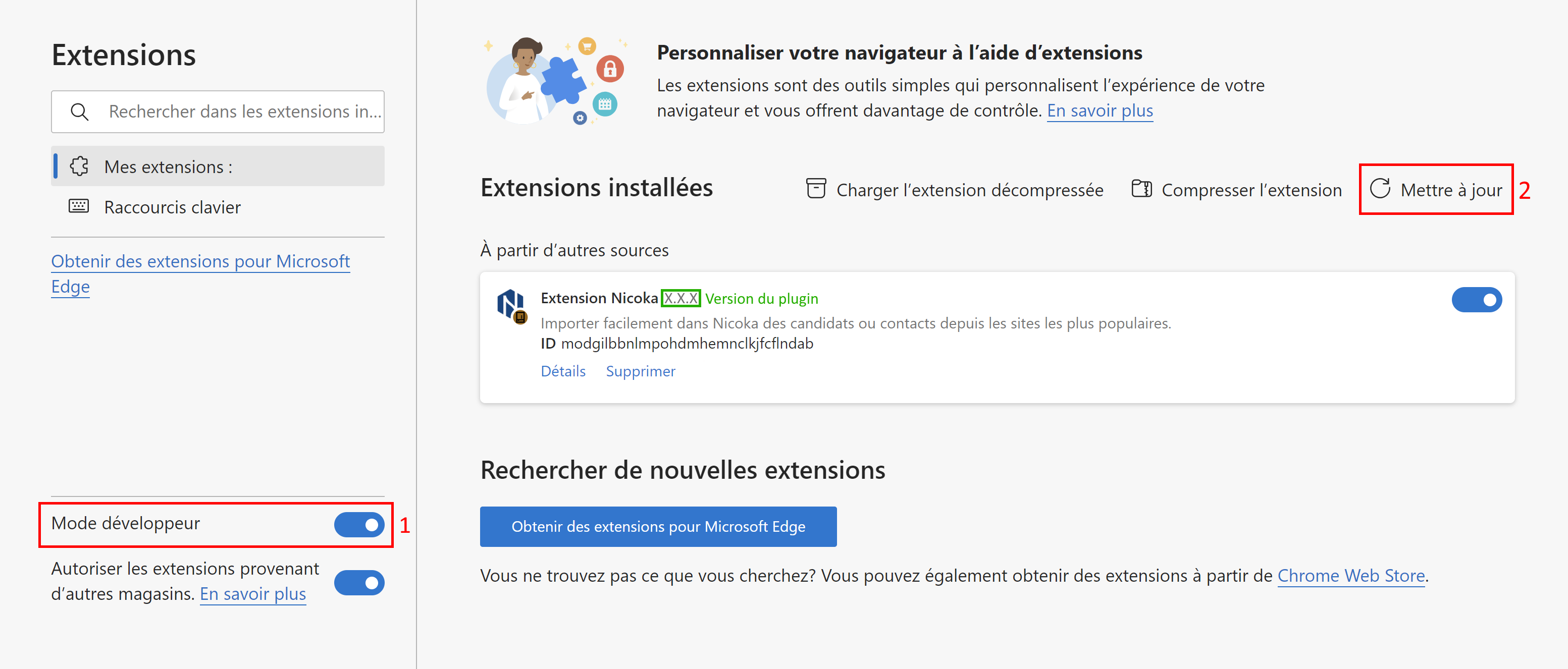
- In the left-hand pane, turn on Developer mode, then click Update. The installed version is shown next to the name of the extension.
Still not working?
Close and reopen the browser. If that is not enough, uninstall the extension and reinstall it: the steps are described in Nicoka Plugin - Candidate and Contact Import.
Were this information helpful?