Show linked jobs on the opportunity pipeline
On the opportunity pipeline, each card can show the jobs linked to the opportunity. You can then spot at a glance the deals for which a recruitment is already open.
What is displayed
When the option is on, a line preceded by a briefcase icon appears on the card and gives the name of the job or jobs linked to the opportunity. An opportunity without a job does not show this line. Hovering over the icon reminds you what it is.
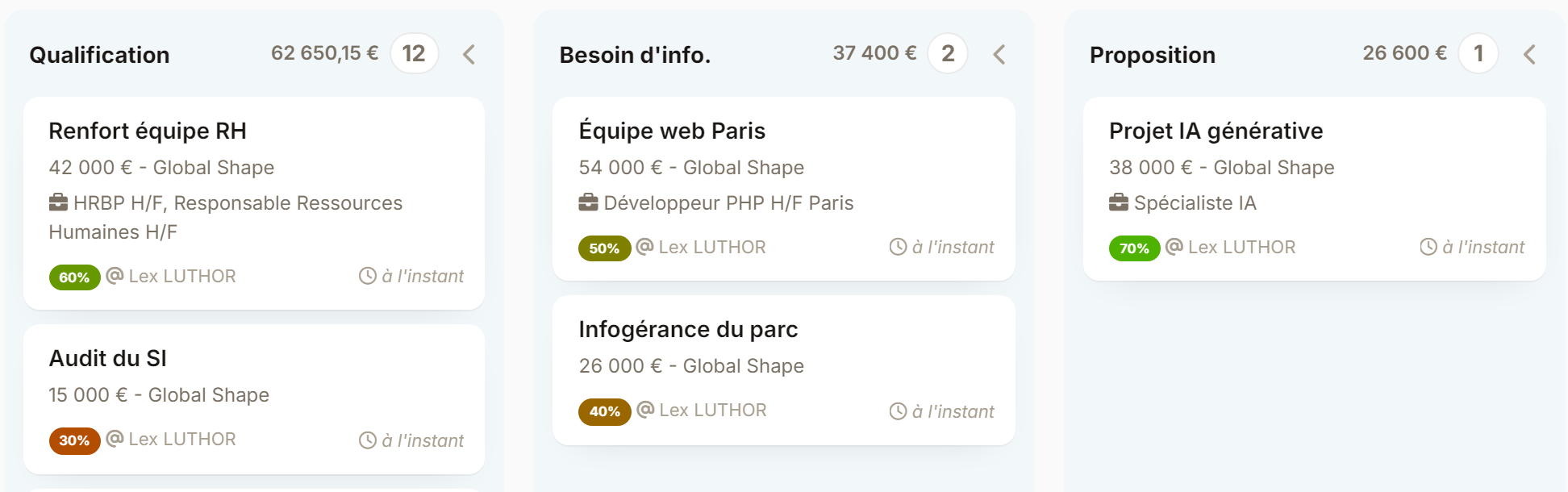
A job is linked to an opportunity from the job record, by picking one of the account's opportunities. The card follows these changes: a job that is unlinked, deleted or renamed is taken into account straight away.
Turn the display on
The setting is made once by an administrator and applies to every user of the pipeline.
- In the side menu, open Customizing > Store, then click Customize on the CRM card.
- In Customizing Points, expand the Opportunities section.
- Under Available Fields in Pipeline tiles, click Add a new row and choose Jobs. The field carries the name your instance gives to jobs, which may differ on yours.
- Drag the row by its handle to place the information before or after the other card fields, then click Save.
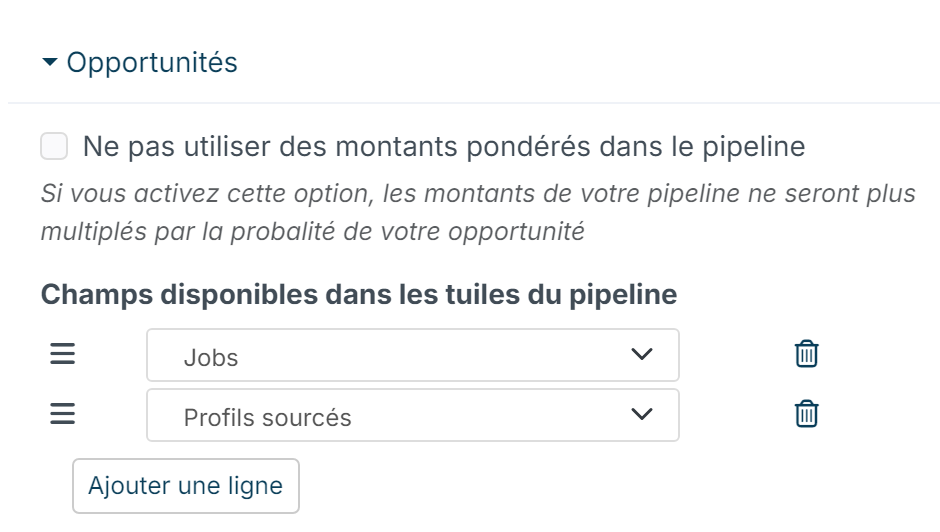
Reload the opportunity pipeline: the cards concerned show their jobs.
Good to know
To hide the information from some profiles, remove their read right on this opportunity field.