Add an email signature
Your signature is added automatically at the end of the emails you send from Nicoka. It is set for each connected mailbox: if you have several mailboxes, you can give each one a different signature.
Open the signature window
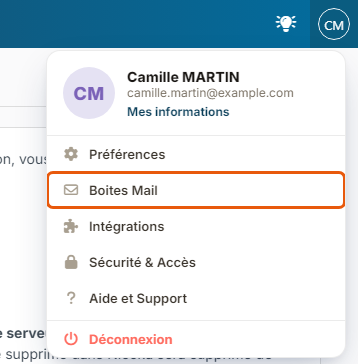
- At the top right, click your initials, then Mail Boxes.
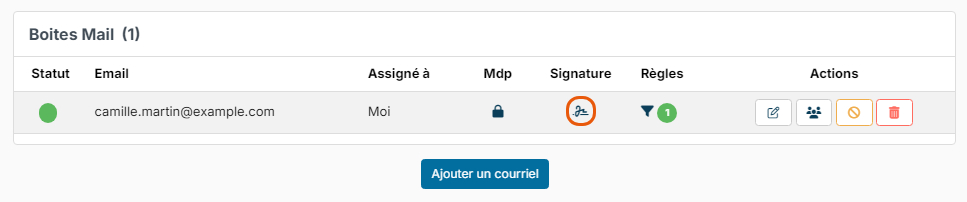
- In the Mail Boxes list, find the mailbox and click the icon in the Signature column.
Write your signature
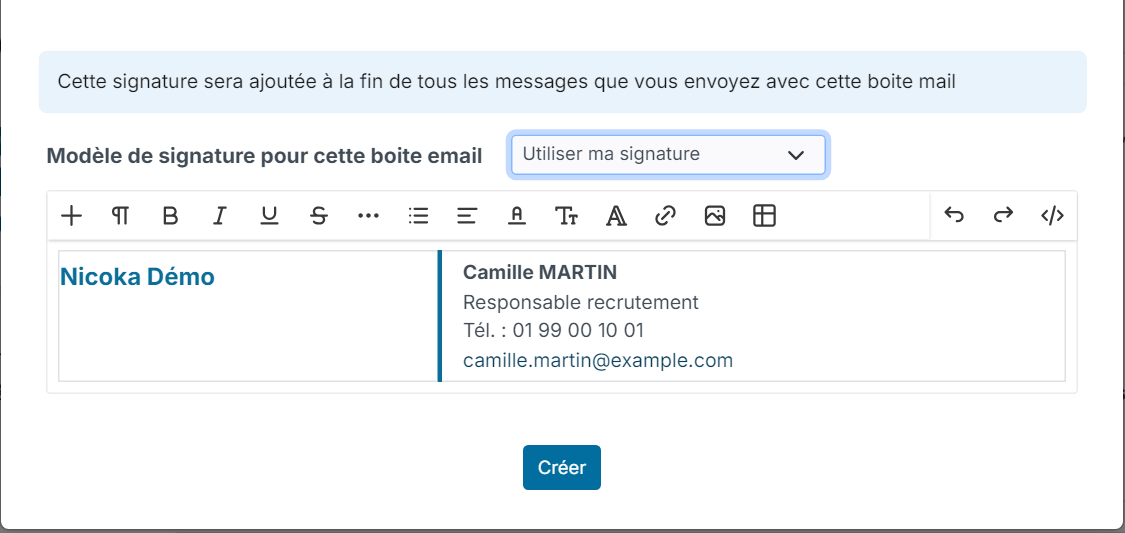
- If your company has created signature templates, the Signature template for this email box list is shown. Choose Use my signature to write your own.
- Write your signature in the editor. It is empty the first time. You can format the text and add an image (a logo, for example), a table or links.
- Click Create. For a mailbox that already has a signature, the button is called Update.
Tips
- Build your signature in a table: the layout stays more stable from one email client to another.
- Use light images. A heavy image slows down the display of your emails for the recipient.
- To change your signature later, click the icon in the Signature column again.
Use a signature template
Your company can offer a shared signature, with its brand guidelines and your details filled in automatically. In that case, choose the template in the Signature template for this email box list instead of writing your signature. To create these templates, see Email Signature Template.
Were this information helpful?