Bridge and bank accounts: statement upload and reconciliation
The Accounting module gathers your bank accounts in the Banks screen. There you find the transactions of each account and reconcile them with your payments. Transactions reach Nicoka in two ways: you upload a statement downloaded from your online banking yourself, or you connect your accounts with Bridge, a bank aggregation service that retrieves the transactions for you. This article describes both methods, then reconciliation.
Before you start
- The Accounting module must be active.
- You need administrator access.
- For Bridge, have the login details of your online banking at hand.
Add a bank account manually
- In the side menu, click Accounting, then Banks.
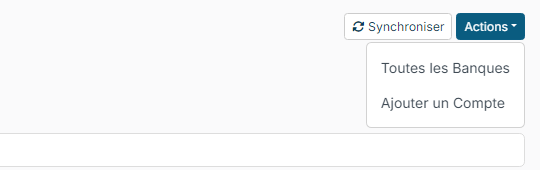
- If no account exists yet, click the Add an account button in the middle of the screen. Otherwise, click Actions, at the top right, then Add an Account.
- If the Bridge service is active, Nicoka asks you to choose your account addition method: click Manually, then Continue. Without Bridge, this step does not appear.
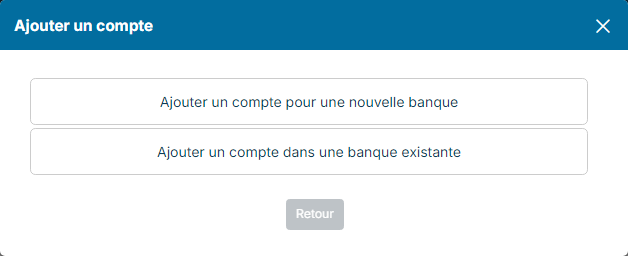
- Choose Add an account to a new bank to create both the bank and the account, or Add an account to an existing bank if the bank already exists in Nicoka.
- Enter the Bank name (or pick the bank from the list for an existing bank) and, for a new bank, who can see it in Visible by.
- Enter the Account name, its Initial Balance and, if needed, a Reference, the Swift code and the IBAN.
- Click Add. For an account in an existing bank, the button is labelled Modifier.
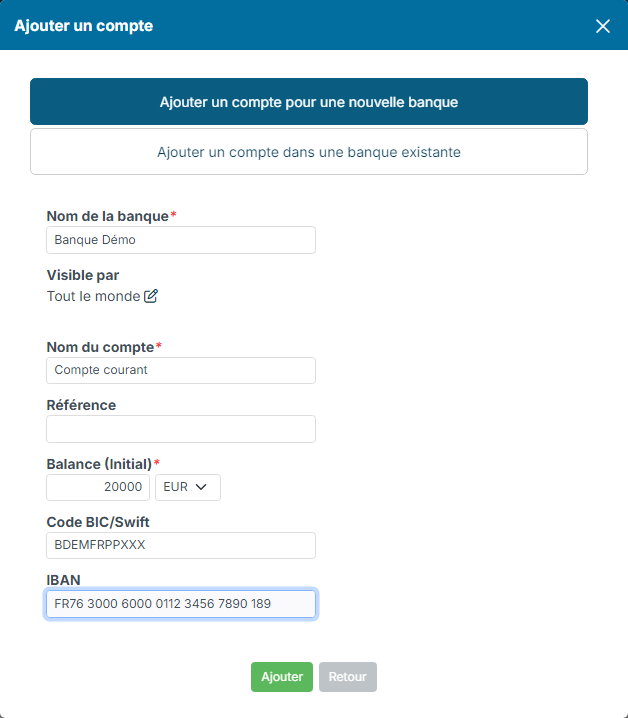
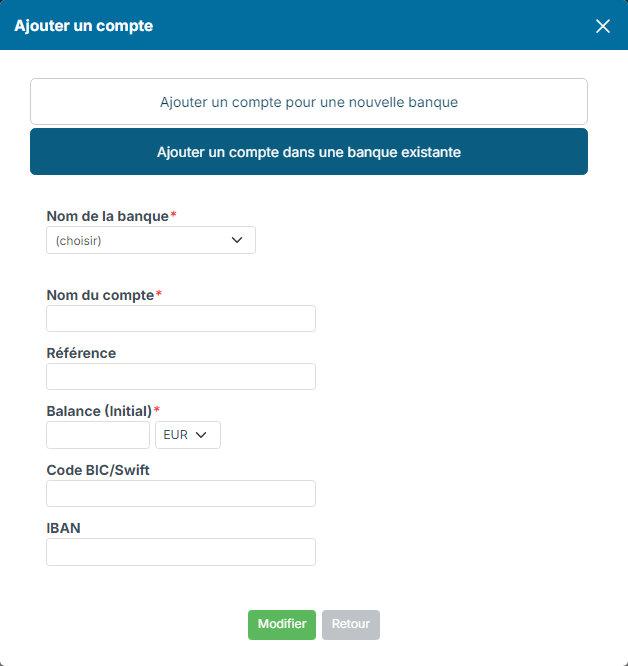
Enter the IBAN when you create the account: it is used to check the statements you upload, and you need it to connect the account to Bridge later.
Each account then appears as a card, with its balance and the date of that balance. Below the cards, the Transactions list shows the transactions of the accounts.
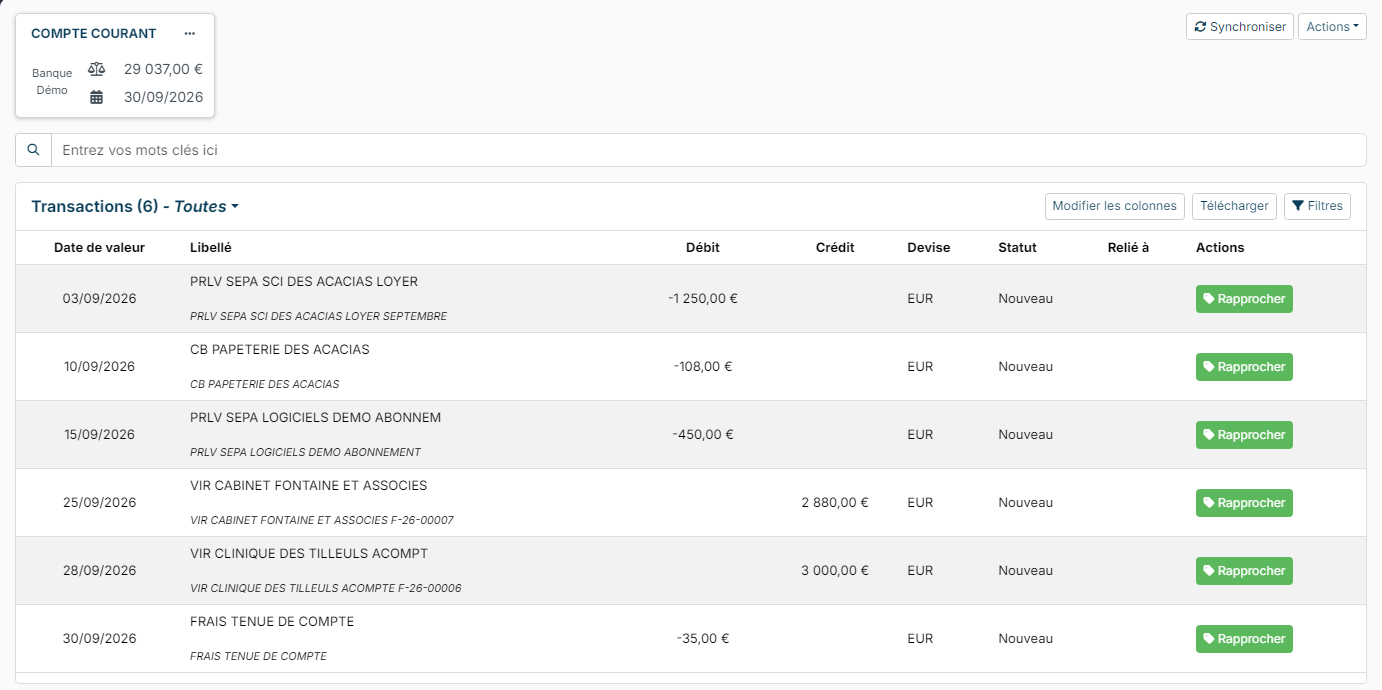
Upload a bank statement
First download your statement from your online banking, in .ofx or .iif format.
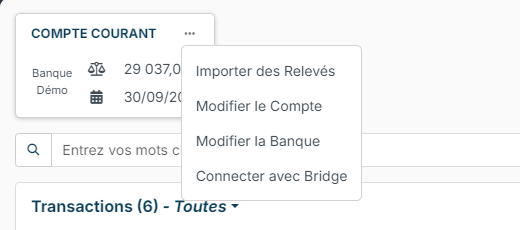
- On the account card, click the three dots …, then Upload Statements.
- Choose the Account, then click the paperclip to attach your file.
- Leave the Preview box ticked and click Upload: Nicoka displays the transactions of the file without saving them.
- If the preview is correct, untick Preview and click Upload again to save the transactions.

For an .ofx file, the account number of the statement must appear in the IBAN or in the reference of the chosen account; otherwise the upload is refused. Transactions that were already imported are detected and are not saved a second time: you can upload overlapping statements.
Connect your accounts with Bridge
With Bridge, you no longer need to upload statements: Nicoka retrieves the accounts and their transactions directly from your bank, with your consent.
1. Activate the Bridge service
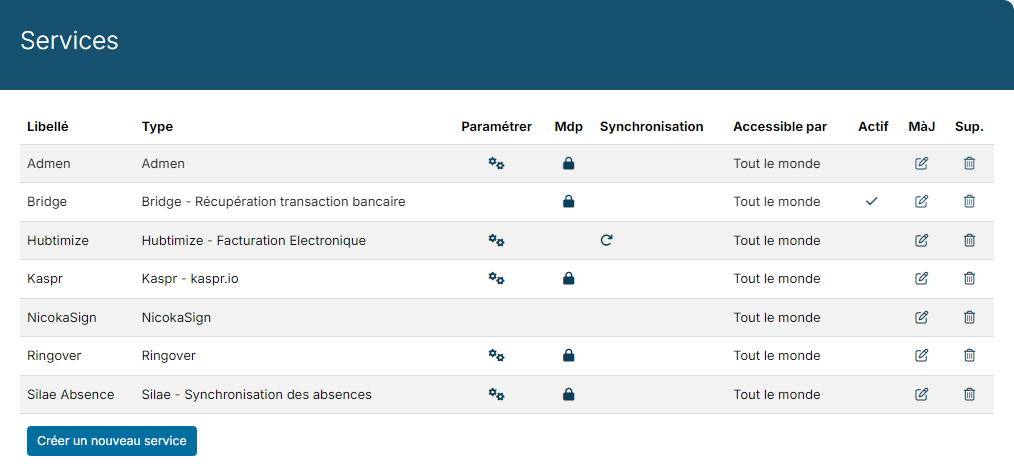
- In the side menu, open Customizing > Admin, then, under Cross Application, click Services.
- On the Bridge row, click in the Active column to activate the service.
2. Connect a bank
- In Accounting > Banks, click Actions, then Add an Account.
- Choose Bridge, read the presentation of the service, then click Continue.
- Click Add an account to a bank not yet connected. Check the email address suggested for the Bridge connection, then click Add.
- You are redirected to Bridge. Choose your bank, log in with your banking credentials, then select the accounts to share with Nicoka.
- Go back to Nicoka at the end of the Bridge steps.
Nicoka creates the bank and its accounts, then imports their transactions. Only current accounts are retrieved. If an account with the same IBAN already exists in Nicoka, it is linked to Bridge instead of being created a second time. Repeat the steps for each bank.
To add more accounts from a bank that is already connected, choose Add an account to an already connected bank, select the bank, then continue on Bridge.
3. Connect an account already created in Nicoka
An account added manually can be linked to Bridge, as long as its IBAN is filled in. On its card, click the three dots …, then Connect to Bridge, and follow the same steps. This entry only appears when Bridge is active and the bank of the account is not connected yet.
4. Retrieve new transactions
To update your connected accounts, click Synchronize, at the top right of the Banks screen: Nicoka retrieves the new transactions and updates the balance of each account.
Reconcile transactions
Bank reconciliation means linking each transaction of your statement to what explains it, for example the payment of an invoice. It makes your cash follow-up reliable.
- In the list of transactions, click Link (the green button of the row) on the transaction.
- Nicoka suggests the payments already recorded with the same amount and not yet reconciled. Click the matching payment: its window opens.
- In the Transaction field, pick the statement transaction, then click Update.
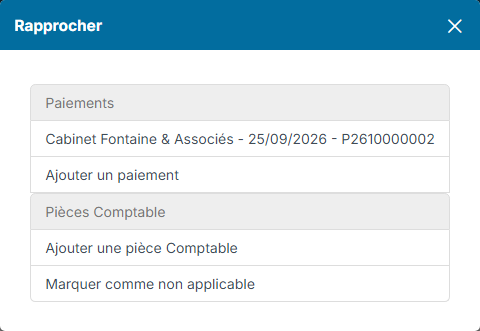
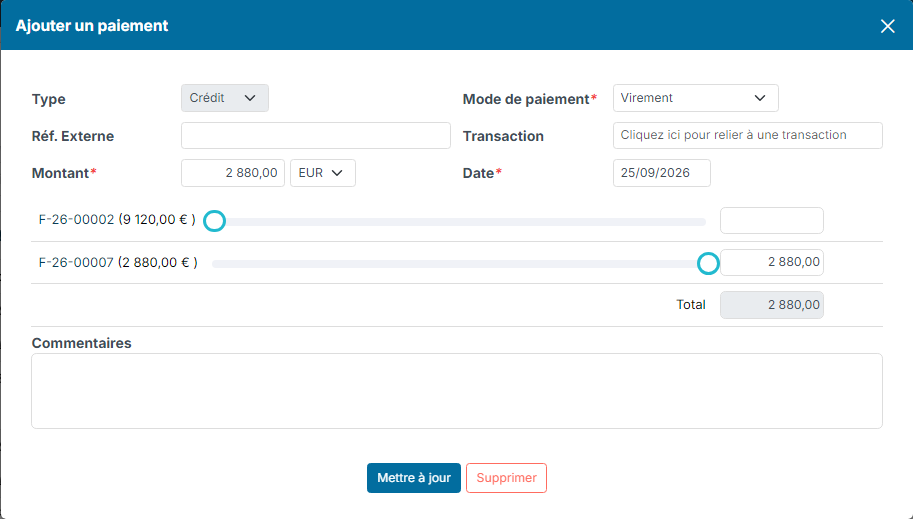
- If no payment matches, click Add a payment to create one from the transaction, or Add a document.
- For a transaction that does not need reconciling, such as bank fees, click Mark as not applicable: it stays visible in your statements, without being reconciled.
A transaction linked to a payment moves to the Linked status. To record the payments of your invoices, see Tracking invoices and payments.