Tracking invoices and payments
Once your invoices are sent, you track their payment: you record the payments received, spot overdue invoices and send reminders to your customers, by hand or automatically. This article explains how.
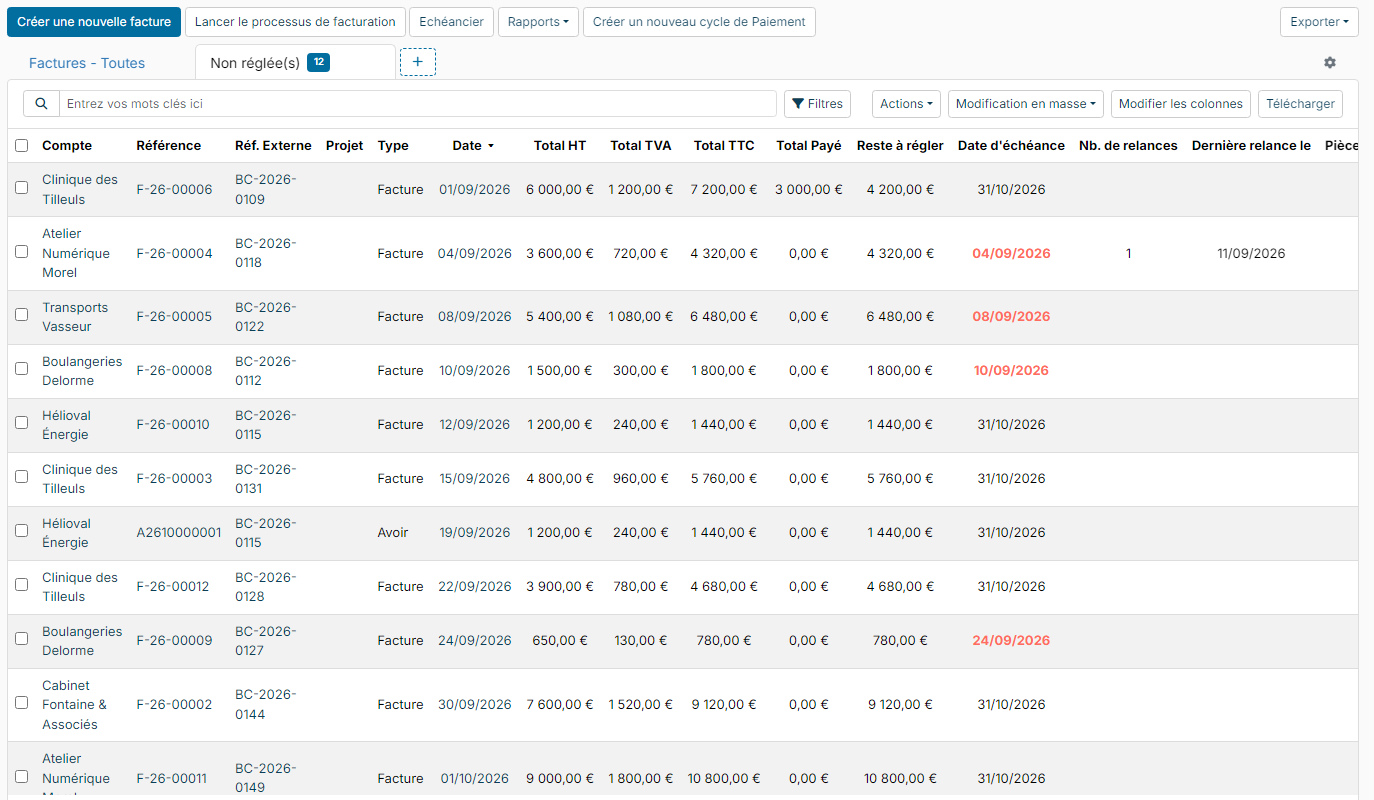
Find unpaid invoices
- In the side menu, click Sales, then Invoices.
- Click +, to the right of the tabs, and choose the Not paid view: it lists the invoices that still have an amount left to pay. The Late view only keeps those whose due date has passed.
A past due date is shown in red. The Total Paid and Left to pay columns tell you where each invoice stands.
Record a payment
- Open the invoice your customer has paid.
- Click Actions, then Add a payment.
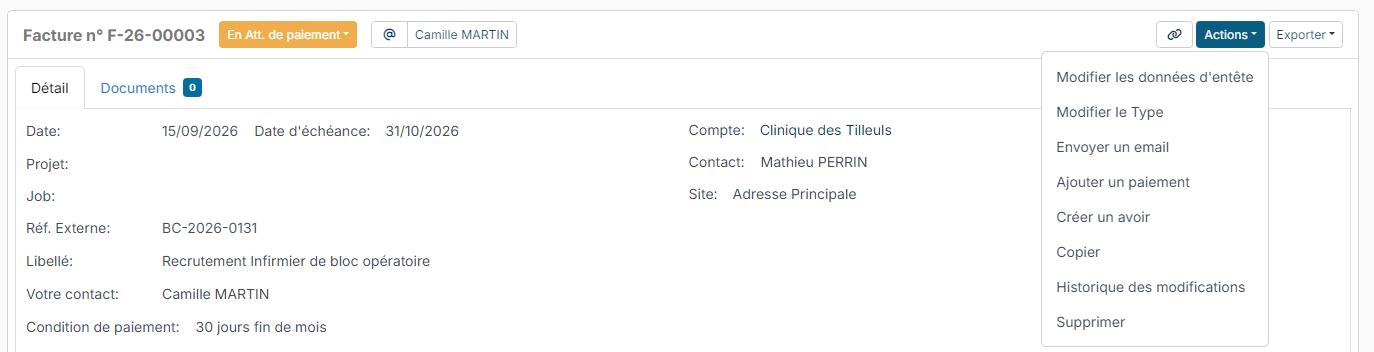
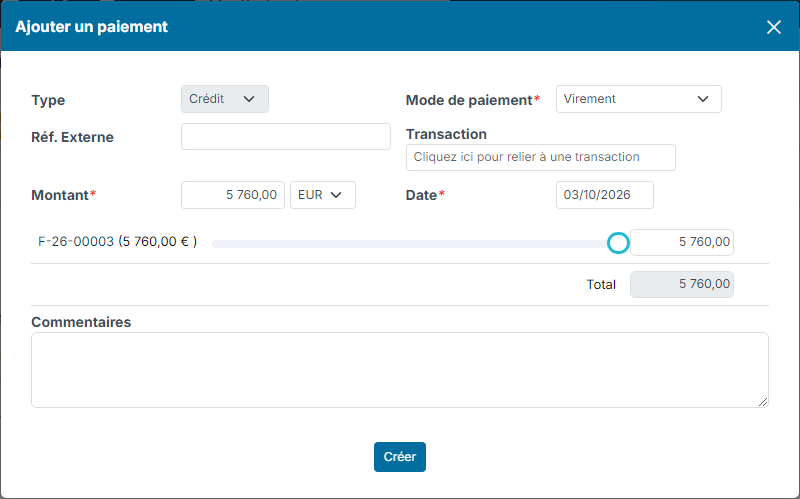
- Check the suggested values: the invoice's Payment Mode, the Amount left to pay and today's Date. Change the amount if your customer has only paid part of the invoice.
- Depending on your modules, the Transaction field lets you link the payment to an entry of your bank statement.
- Click Create.
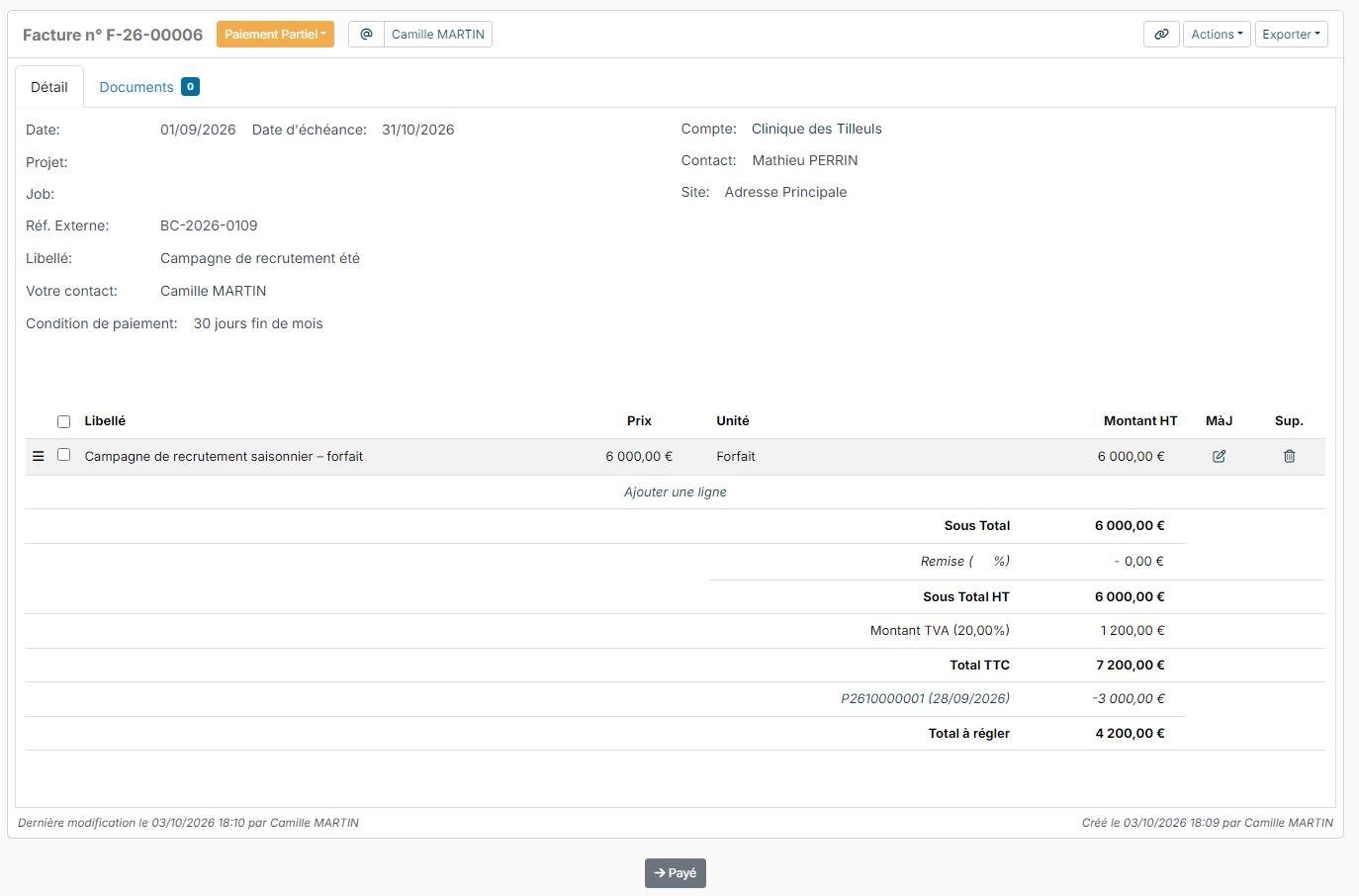
The payment appears under the invoice total, with its number and date, followed by the Total to Pay. The invoice status changes by itself:
- if the payments cover the whole amount including tax, the invoice moves to Paid;
- if they only cover part of it, it moves to Partially Paid and the remaining amount is still due.
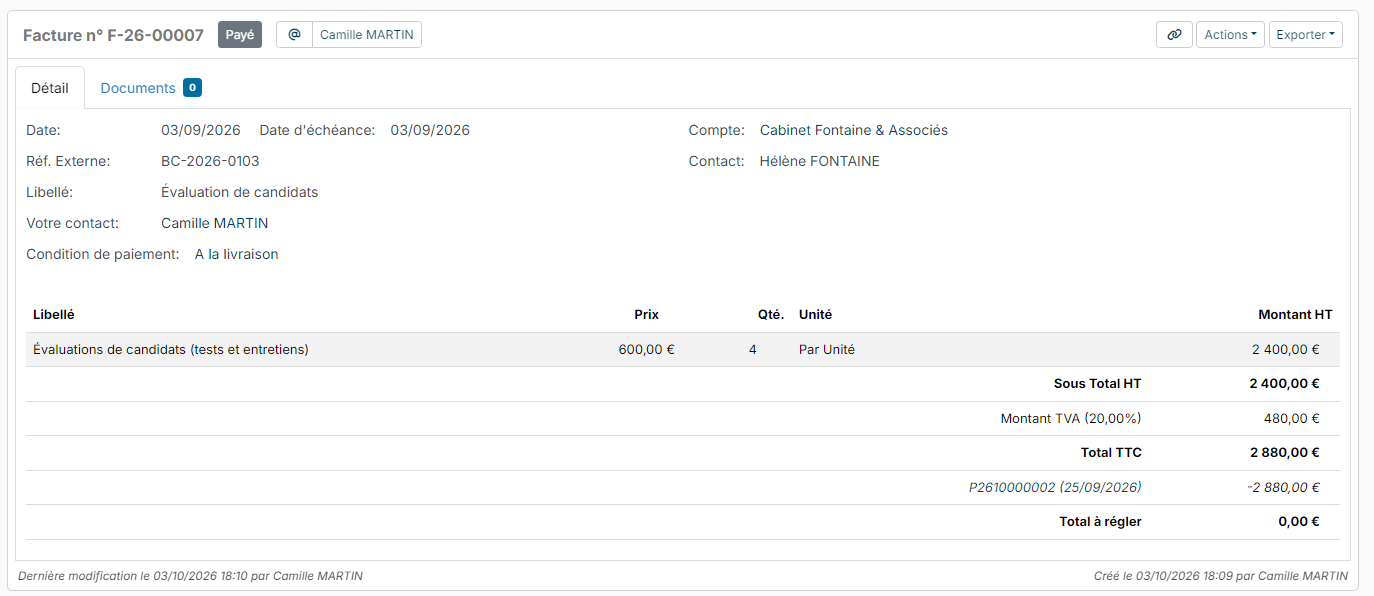
The total of the payments cannot exceed the invoice amount. To correct a payment recorded by mistake on a paid invoice, the Actions menu offers Add payment cancellation.
Electronic invoicing: if the invoice was sent through the certified platform, you have nothing more to do. Every day, Nicoka reports the payments you recorded to the platform. To find out more: Electronic invoicing: how it works in Nicoka
Spot overdue invoices on your dashboard
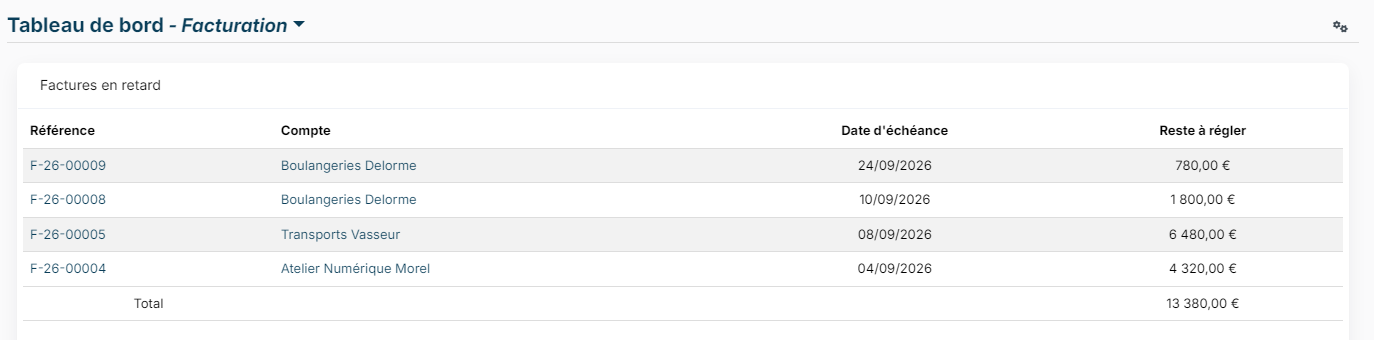
The overdue invoices widget (Late Paiement in the English interface) lists the unpaid invoices whose due date has passed, with the amount left to pay and the total. To add it to your dashboard, see Dashboard - Customization.
Send reminders by email
- In the invoice list, open the Late view and tick the invoices to remind.
- Click Actions, then Send a message.
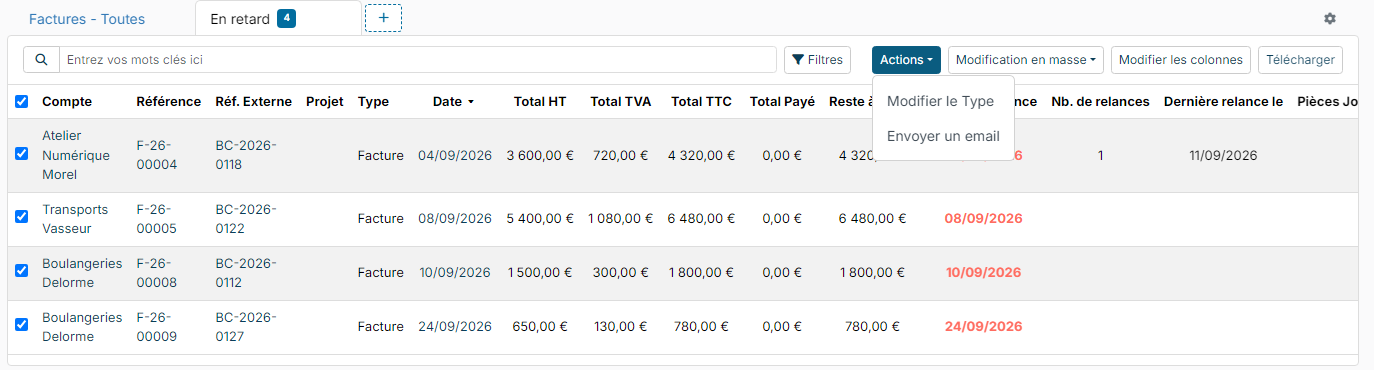
- In Move to the following status, choose the status the invoices will take once the email is sent, for example Dunning. This choice is only offered when all the ticked invoices follow the same workflow.
- Choose the Email Template, for example Invoice Payment Overdue. The subject and message are filled in; adjust them if needed.
- In Attach the following document, choose the PDF template to attach, for example the invoice.
- Click Send.
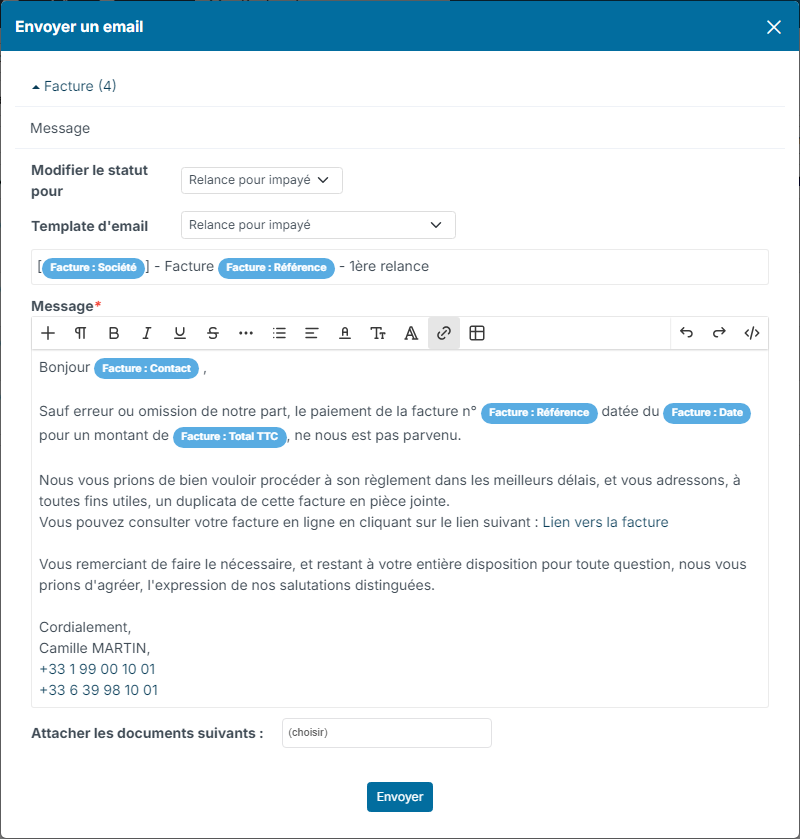
Each invoice is sent in a separate email, with the details of its own invoice. The recipient is the invoice contact (or, failing that, the account's email address); the contacts flagged as Invoicing Contact on the account are copied.
Count reminders
Nicoka counts the reminders sent by email in the Nb. of Dunning and Last Dunning on columns of the invoice list. Only emails sent with a template declared as a reminder template are counted:
- In the side menu, open Customizing > Store, then click Customize on the Sales card.
- Click Customizing Points, then expand the Invoices section.
- In Dunning Templates, select your reminder email templates, then click Save.
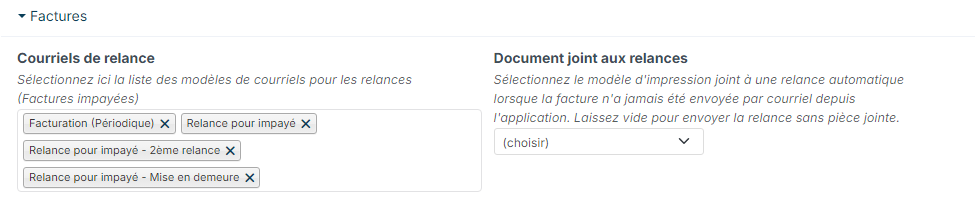
Only declare reminder templates here: a template used for the first sending of your invoices would make that sending count as a reminder. To create your templates, see Manage Email Templates.
Automate reminders
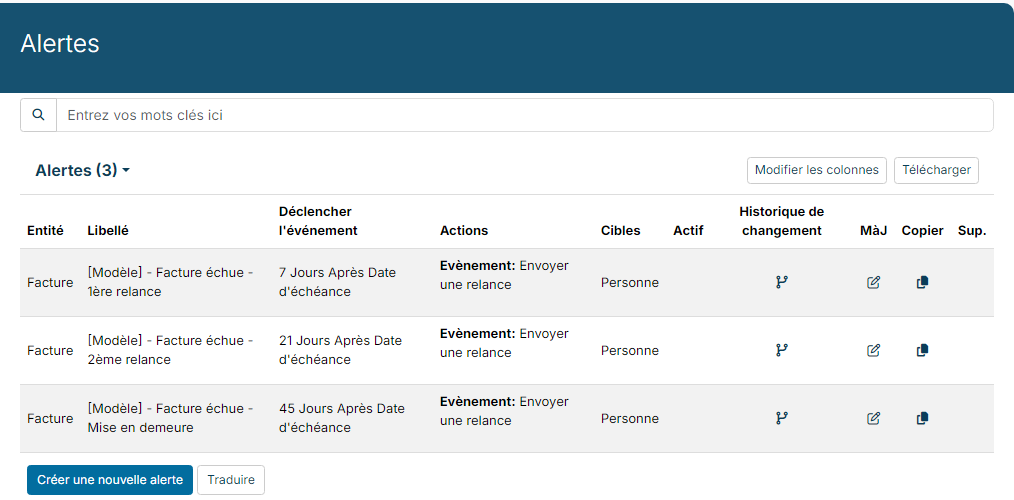
Nicoka provides three ready-made reminder alerts, inactive by default:
- [Model] - Overdue Invoice - 1st Reminder: 7 days after the due date;
- [Model] - Overdue Invoice - 2nd Reminder: 21 days after;
- [Model] - Overdue Invoice - Formal Notice: 45 days after.
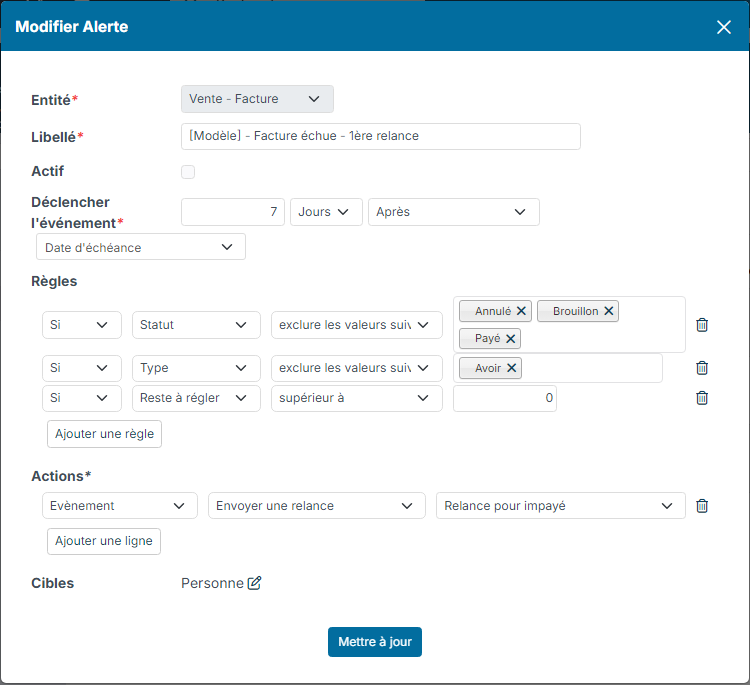
Each one applies only once per invoice, and only to invoices that are not drafts, cancelled or paid, are not credit notes and still have an amount left to pay. To activate them:
- In the Sales customizing, expand the Sales section and click Reminders.
- Click the pencil icon of the alert.
- If needed, adjust the delay, the rules (adapt the list of statuses to your invoicing workflow) and the email template of the Send dunning email action.
- Tick Active, then click Update.
The automatic reminder reuses the recipients, mailbox and attachments of the last email sent from Nicoka for the invoice. If the invoice was never sent from Nicoka, it goes to the account's contacts flagged as Dunning Contact, failing that to the Invoicing Contact contacts, failing that to the invoice contact; it then attaches the template chosen in Document attached to dunnings (no attachment if this point is empty). If its email template is listed in Dunning Templates, the automatic reminder is counted in Nb. of Dunning. To find out more about alerts: Alert and Event.