E-invoicing: how does it work in Nicoka?
The e-invoicing reform gradually requires French companies to exchange their invoices through certified platforms. Nicoka sends your sales invoices to the platform, tracks them until they are paid and receives your supplier invoices, without leaving your management tool.
Before you start
- Your company must be connected to a certified platform: see Setting up the Hubtimize service, or Connecting your Pennylane account to Nicoka if you go through Pennylane.
- Sending is triggered by a step of your sales workflow, which does not exist by default. To add it, see Setting up your invoicing workflows for e-invoicing.
Sending an electronic invoice
On the invoice, click the transition button to the step that carries the sending, for example Sent to certified e-invoicing platform. This move is always made manually.
When sending, Nicoka checks that the mandatory information is filled in:
- the invoice: reference, issue date, payment due date, payment condition (except for a credit note) and at least one line;
- your company: legal name, SIREN, SIRET, VAT number, electronic invoicing identifier and full address;
- the customer: legal name, SIREN, SIRET, VAT number, electronic invoicing identifier and full address.
If information is missing, the Complete the electronic invoice window opens and only shows the fields to fill in, grouped under Invoice, Billing company and Billed customer. Complete them, then go on with the sending.
If the invoice has PDF files attached (timesheets, purchase order…), or a quotation or order with a PDF template, the sending window also offers Documents to include in the invoice: the chosen documents are added as pages after the invoice, in the PDF sent to the platform.
Sending is also refused if the invoice date is later than the day it is sent, or if the customer's electronic invoicing identifier does not contain its SIREN. A credit note must be linked to its original invoice.
How does Nicoka know where to send the invoice?
Nicoka looks the customer up in the national e-invoicing directory using its SIREN or SIRET:
- if a single identifier is found, it is saved automatically on the customer record;
- if several are found, Nicoka asks you to choose the one to use for this invoice;
- if the customer is not connected, Nicoka tells you: enter its identifier manually.
You can also ask your customer for its identifier and enter it on its record, in the E-Invoicing address identifier field. It is its address in the directory, which contains its SIREN, not the name of its platform.
Tracking an invoice
Each invoice sent through Hubtimize gets an eInvoicing activity, shown in the invoice's activity feed. Its Where is the invoice? timeline shows each milestone reached, with its time:
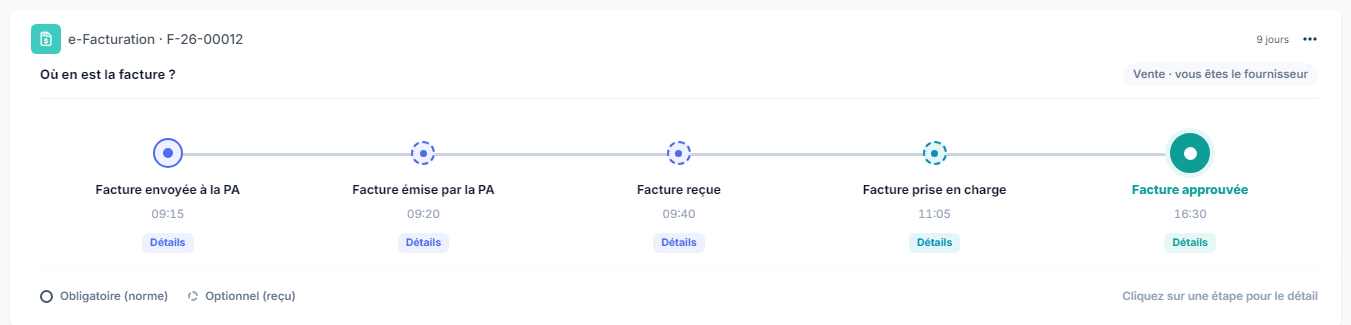
- Invoice sent to the PA: Nicoka submitted the invoice to the certified platform;
- the platform then issues the invoice, and Invoice received and Invoice made available follow its way to the customer;
- Invoice taken in charge, Invoice approved, Dispute declared, Invoice refused, Payment transmitted: your customer's answers;
- Collection: the payment was declared to the platform;
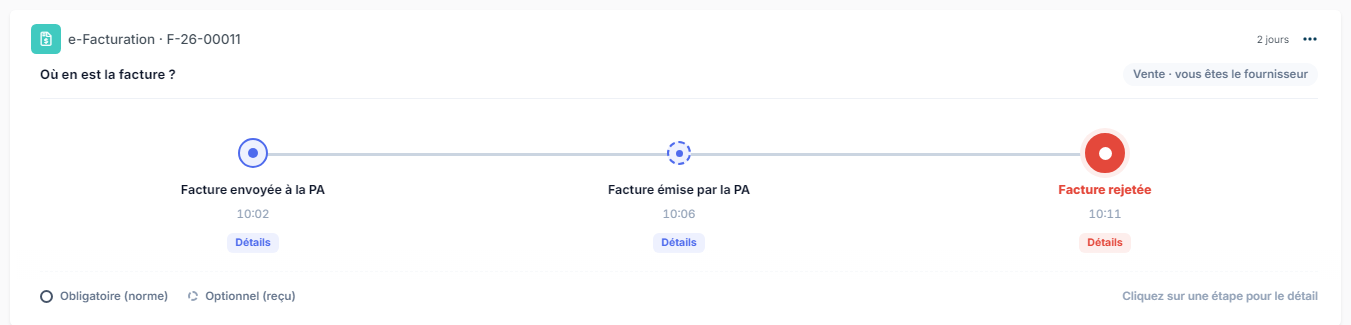
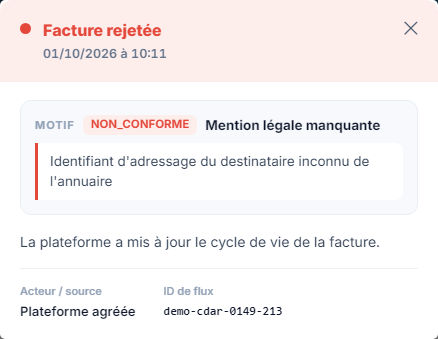
- Invoice rejected: the platform rejected the invoice, which never reached the customer.
Milestones required by the standard have a solid circle (Mandatory (standard)), the others a dotted circle (Optional (received)). Click a milestone to see its details: the reason, if any, and who it comes from (your company, the certified platform or the customer).
Collection
You have nothing to do to declare collection. Every day, Nicoka automatically declares to the platform the payments entered on your invoices sent through Hubtimize. The Collection milestone is then added to the timeline.
What if the platform rejects the invoice?
The timeline tells two cases apart; click the milestone to read the reason.
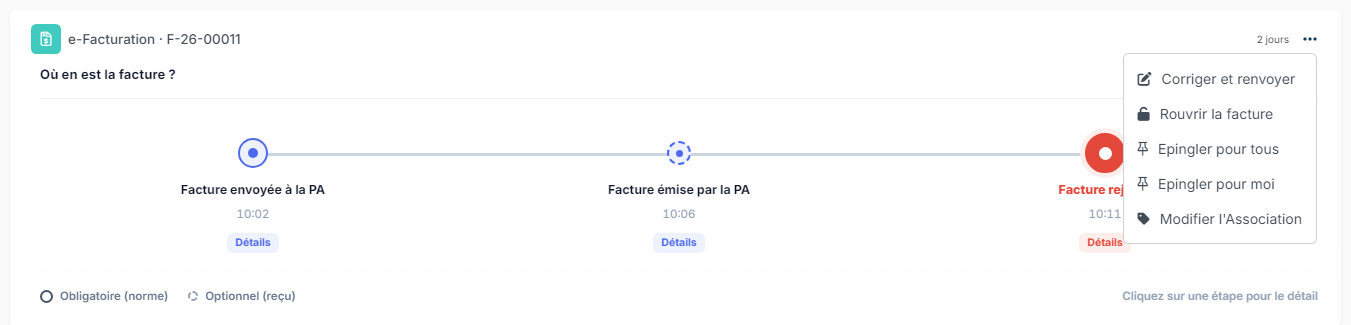
Sending to the PA failed: the platform refused the submission as soon as it was sent. The invoice was never submitted and keeps its number: you correct it and send it again, without a credit note. Click the three dots of the eInvoicing activity and choose:
- Correct and resend: the window shows the rejection reason and lets you correct the invoice date, the due date, the customer's SIRET, VAT number and electronic invoicing identifier, plus any missing information. The invoice is sent again and keeps its number.
- Reopen the invoice: the invoice goes back to the step before sending and can be modified again. Correct it, then send it again with the usual transition. The submission history stays in the timeline.
Invoice rejected: the platform received the invoice, then rejected it (format, data, duplicate…). Its number now counts as used: sending it again under this number would come back as a duplicate. The invoice moves on its own to the Refused by AP status (see below): cancel it with a credit note and issue a new one, in one click with Cancel and reissue (see below). The credit note of a rejected invoice is not sent to the platform, which does not know the invoice: the window of the sending step says so, and the credit note cancels the invoice in your accounts.
What if the customer refuses the invoice?
When your customer refuses the invoice (the timeline shows Invoice refused), the refusal is final. The invoice moves on its own to the Refused by AP status. Click the three dots of the eInvoicing activity and choose Cancel and reissue (see below), or create a credit note if you prefer to issue the new invoice yourself. These actions disappear once the credit note exists. The credit note is linked to the original invoice; here it is sent to the platform like an invoice, since your customer received the invoice it cancels. See Creating and managing a credit note.
Cancel and reissue
On an invoice refused by your customer or rejected by the platform, the menu of the eInvoicing activity offers Cancel and reissue. Choose the credit note type and confirm: Nicoka creates in one go
- the credit note cancelling the invoice, linked to it;
- a new invoice, identical, dated today with a new number, at the starting status of its workflow. The invoiced period stays the original one.
You land on the new invoice: check it, correct what caused the refusal, then send it to the platform with the usual transition. Also take the credit note through its workflow.
The payments already recorded on the original invoice move to the new invoice on the evening it is submitted to the platform, just before the daily payment declaration: the payment is declared on the invoice the platform knows. A payment held in a payment cycle, or larger than the new invoice, stays on the original invoice: move it from the payment screen.
The "Refused by AP" status
An invoice refused by your customer or rejected by the certified platform (AP) moves on its own to this status, whatever its step. The step is present in all your invoice workflows and no transition leads to it: only the platform puts an invoice there. On this status:
- the invoice can no longer receive a payment: it is no longer offered when recording a payment or in payment cycles (direct debits), it leaves a cycle still in draft where it was waiting, and it leaves the overdue invoices; the payments recorded before the refusal follow the new invoice created by Cancel and reissue;
- it no longer counts in your revenue, and neither does its credit note: revenue report, revenue on the customer record, cash flow, project margin and P&L;
- it stays in your accounting exports, together with its credit note: the sales journal keeps every issued invoice, with no gap in the numbering.
In your custom reports and dashboards, do not filter out this status: once the credit note is issued, the invoice and the credit note cancel each other out, whereas a filter would keep the credit note alone.
Receiving electronic invoices
If your Hubtimize service is set to Sending + receiving, the invoices your suppliers send you through the platform arrive automatically in your purchase invoices, with the New status and the supplier's number as reference. No manual import is needed. A credit note sent by a supplier arrives as a credit note, linked to the invoice it cancels when that invoice is in Nicoka. You then process them as usual; to refuse an invoice or put it in dispute, see Setting up your invoicing workflows for e-invoicing.
Do I still need to email a PDF to my customer?
No. The invoice sent through the certified platform is the official invoice: it fulfils your obligation. You can keep sending a copy for information, but it has no additional value under the reform.
What if I use Pennylane?
In the sending step of your workflow, you can choose Pennylane instead of Hubtimize. Nicoka then sends the invoice to Pennylane, which handles the electronic issuing and the exchanges with the platform. Tracking is done in Pennylane: the timeline, the Correct and resend / Reopen the invoice actions and the daily collection declaration only apply to Hubtimize. An invoice refused or rejected as reported by Pennylane also moves to the Refused by AP status.
Frequently asked questions
Do I need to choose my customer's platform?
No. You only need the customer's electronic invoicing identifier: the platform takes care of delivering the invoice to the right recipient.
My customer is not in the directory, what should I do?
Check its SIREN and SIRET on its record. If it is still not found, ask the customer for its electronic invoicing identifier and enter it manually.