Setting up your invoicing workflows for e-invoicing
To send your sales invoices to the certified platform and pass on your refusals or disputes on supplier invoices, your invoicing workflows must carry the right steps. The first part of this article covers sending your sales invoices, the second part passing on the statuses of your purchase invoices.
Sales invoices: adding the sending step
Prerequisite: your company is connected to Hubtimize (see Setting up the Hubtimize service) or to Pennylane (see Connecting your Pennylane account to Nicoka).
- In the side menu, open Customizing > Store, then click Customize on the Sales card.
- In the left menu, click Workflows, then the workflow of your invoices (for example Invoicing Process).
- Below the list of steps, click Add a step.
- In the Step field, choose Sent to certified e-invoicing platform.
- In Linked objects, choose Send electronic invoice, then the provider in the selector next to it: Hubtimize or Pennylane. Tick Required.
- Click Create.
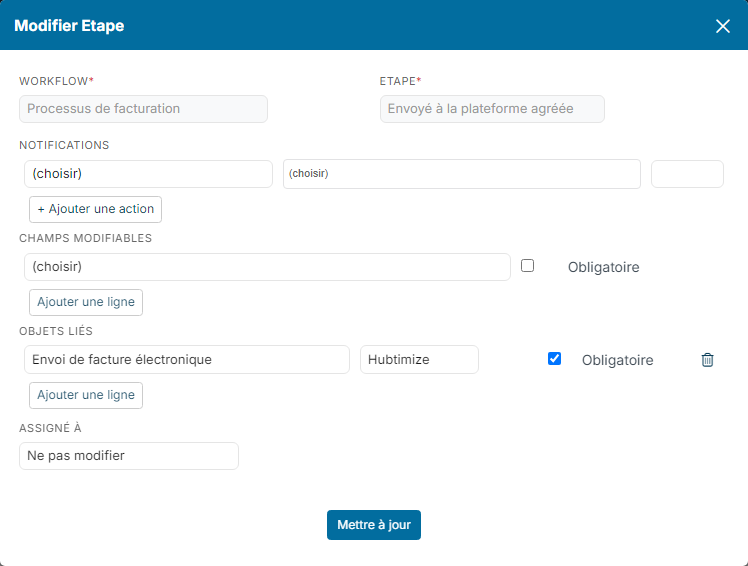
You do not choose a company: when sending, Nicoka uses the Hubtimize service or the Pennylane connection of the invoice's company. One workflow is therefore enough, even if you invoice for several companies; each company simply needs its own connection.
Sales invoices: adding the transitions
- On the step from which you send your invoices (for example To be send to customer), click the + button in the Transitions column.
- In the Target step field, choose Sent to certified e-invoicing platform, then click Create.
- In the same way, add the transitions leaving Sent to certified e-invoicing platform, for example to Paid, Waiting for payment and Dunning.
- Click Update at the bottom of the page to save the workflow.
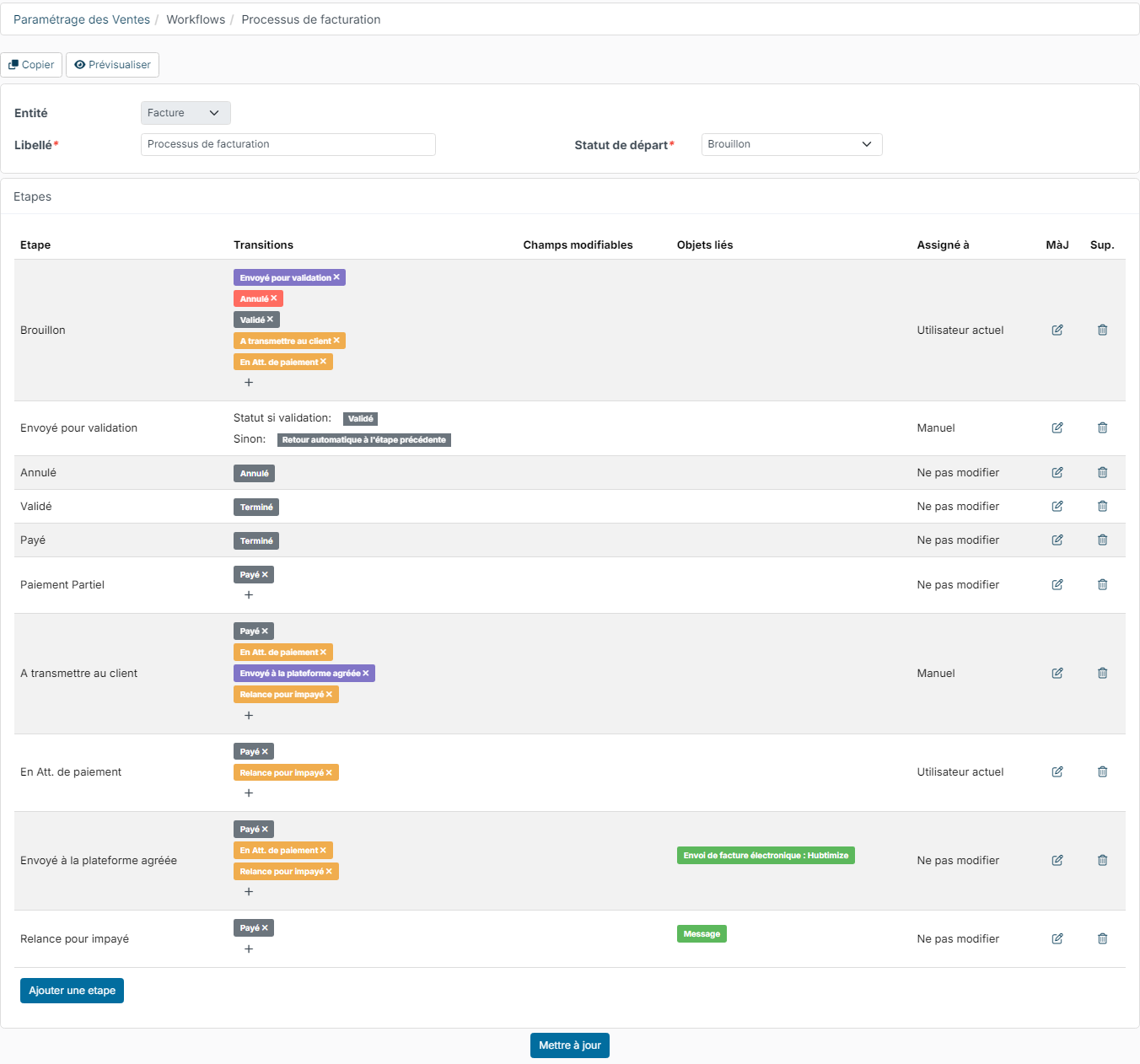
A step carrying an e-invoicing action cannot be the target of a conditional transition: moving to this step must always be triggered manually, from the invoice.
Your workflow is ready. Collections are then declared automatically every day to the platform. A failed submission is corrected from the invoice's e-invoicing activity, and an invoice refused by the customer or rejected by the platform is cancelled with a credit note: see E-invoicing: how does it work in Nicoka?
Sales invoices: the "Refused by AP" step
All your invoice workflows, credit notes included, contain the Refused by AP step (type E-invoice refused), including the ones you create. There is nothing to set up: no transition leads to it or leaves it, Nicoka itself puts there an invoice refused by the customer or rejected by the platform, whatever its step. Keep it in your workflows.
Purchase invoices: passing your statuses on to the platform
The electronic invoices you receive through Hubtimize arrive in your purchase invoices with the New status. When you refuse an invoice or put it in dispute, the reform requires your supplier to be informed through the platform. Nicoka does it in two ways:
- from the e-invoicing activity of the received invoice, with no setup at all (see below);
- from the invoice status, if the matching step of your purchase workflow carries the status synchronization.
Two statuses are passed on:
- Refused: mandatory status of the reform. You refuse the invoice (wrong VAT rate, duplicate invoice, missing order number…). The refusal is final: the supplier must issue a new invoice.
- In dispute: optional status. You report a disagreement on part of the invoice (quantities, amounts) without refusing it. It can still be refused or paid afterwards.
The other lifecycle statuses (taken in charge, approved, payment transmitted…) are optional in the reform and are not passed on by Nicoka.
In the workflow, the Synchronize e-invoicing status linked object is only offered if an active Hubtimize service exists. Invoices entered or imported outside the platform follow the same workflow: they move to Refused or In dispute as usual, without passing anything on.
Purchase invoices: setting up the workflow
This setup is only useful if you want to refuse or dispute your invoices from their status.
- In the side menu, open Customizing > Store, then click Customize on the Purchasing card.
- The Refused and In dispute statuses are provided as standard, and their steps are already in the workflow of your purchase invoices.
- Open Workflows, then the workflow of your purchase invoices.
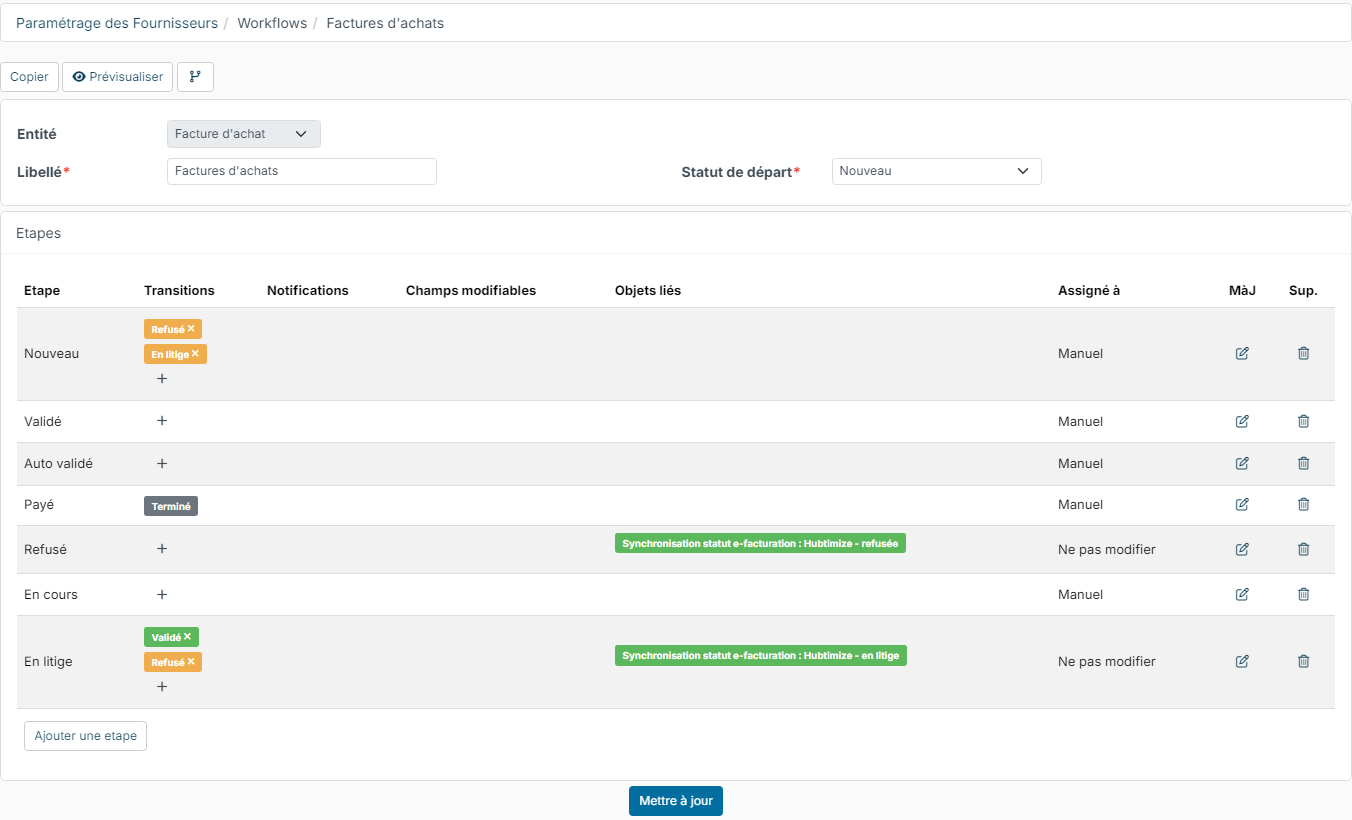
- On the Refused step, click its edit icon. In Linked objects, choose Synchronize e-invoicing status, then Hubtimize - refused in the selector next to it, tick Required and save.
- Do the same on the In dispute step with the Hubtimize - in dispute value.
- On each step from which an invoice can be refused or disputed (for example New), click + and choose the refused or dispute status as Target step. Also think of the transitions leaving the dispute status: to Refused if the disagreement remains, or to your processing step once the dispute is settled.
- Click Update.
The refused and dispute steps then show the synchronization in the Linked objects column:
Day to day: refusing or disputing a supplier invoice
- From the status: on the purchase invoice, click its status, then the refused or dispute status. Choose the Reason code from the standard's list, fill in the E-invoicing refusal reason, then confirm.
- From the e-invoicing activity of the received invoice: click its three dots, then Refuse the invoice or Dispute the invoice. These actions are no longer offered once the invoice is paid, even partially; after a dispute, only the refusal remains. The invoice moves to the Refused or In dispute status.
The status is passed on to Hubtimize, which informs your supplier. You follow the transmission in the invoice's e-invoicing activity. Once the platform has taken the refusal, the invoice can no longer receive a payment: your supplier replaces it with a credit note and a new invoice. It does not go to your accounting exports either, nor does the supplier's credit note that cancels it, unless it was already booked before the refusal. A refused or disputed invoice also leaves a payment cycle still in draft where it was waiting to be paid.