Connecting your Pennylane account to Nicoka
The Pennylane connector syncs your sales and purchase invoices, your customers and your suppliers between Nicoka and Pennylane. It avoids entering the same data twice and keeps your accounting data consistent. This article explains how to connect your Pennylane account and then set up the synchronization.
Step 1 — Connect your Pennylane account
- In the side menu, open Customizing > Integrations.
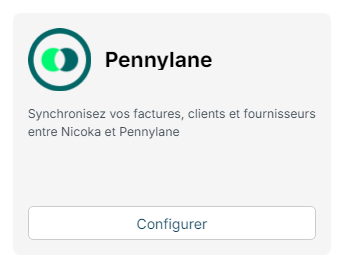
- On the Pennylane tile, click Configure.
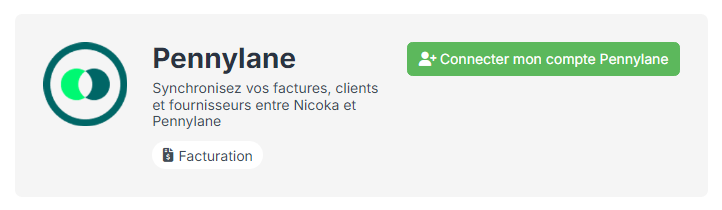
- In the panel that opens, click Connect my Pennylane account.
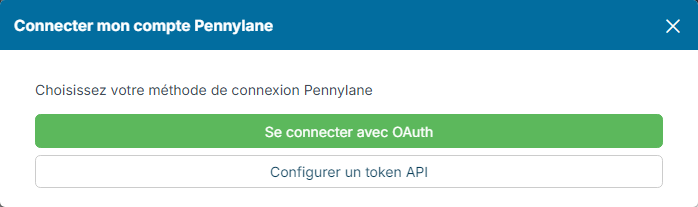
- Choose how to connect:
- Connect with OAuth: you are redirected to Pennylane. Log in with your Pennylane credentials, choose the company to connect and authorize access. Back in Nicoka, the message The Pennylane account is now connected. is displayed.
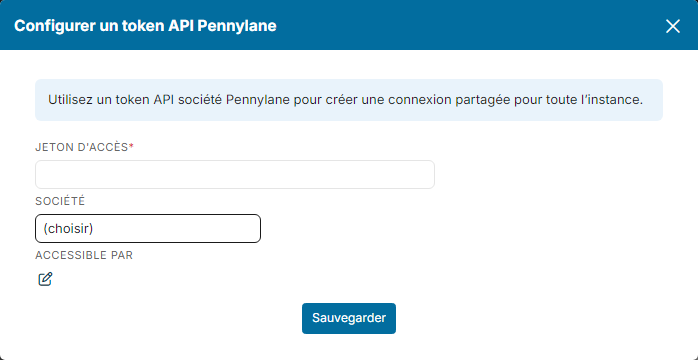
- Configure an API token: use a company API token generated in Pennylane. The connection is then shared by the whole instance.
With an API token, enter the Access Token, choose the Nicoka Company to link and, if needed, restrict the connection to some users with Available for. Then click Save.
A Nicoka company can only be linked to one Pennylane connection. As soon as you connect, Nicoka runs a first synchronization; it then runs automatically in the background.
Step 2 — Complete the configuration
Once connected, your account appears in the Pennylane panel with its status. As long as no Nicoka company is selected, it shows Setup incomplete: click Complete configuration. Later on, the account's Configure button opens the same window again.
The configuration window has five sections. Click Save to store your settings.
- Company: the Nicoka company linked to this Pennylane account.
- Sales invoices: see below.
- Purchase invoices: see below.
- Customer / supplier synchronization: see below.
- Synchronize invoice payments: creates a Nicoka payment dated on the Pennylane bank movement, for your collection statistics. The Simulate payment synchronization option stores nothing and reports what would be created or rejected.
Sales invoices
Sales invoice synchronization:
- Push only (Nicoka -> Pennylane): your invoices go from Nicoka to Pennylane. This is the default setting.
- Bidirectional: invoices are synced both ways; the most recent change wins.
Sales invoice creation mode:
- Direct creation (number and PDF from Pennylane): Pennylane assigns the number and generates the PDF; the invoice is created there as a draft.
- PDF import (number and PDF from Nicoka): Pennylane receives the Nicoka PDF and the invoice keeps its Nicoka number. This mode also offers Import as incomplete (PDF import only) and Automatically send invoices of these types: invoices of the selected types are sent to Pennylane as soon as they are no longer drafts, without a workflow step. Cancelled invoices are not sent, nor invoices dated before the option was switched on.
Purchase invoices
Tick Enable purchase invoice synchronization to import your supplier invoices from Pennylane. The following options then appear:
- Pennylane payment statuses to import and Pennylane accounting statuses to import: only invoices with the ticked statuses are imported. Nothing ticked on one axis means no filter on that axis.
- Pennylane categories to import (ids): to import only the invoices carrying one of these analytical categories. Empty means no filter.
- Create missing suppliers when importing invoices: without this option, an invoice whose supplier does not exist in Nicoka is ignored.
- Purchase invoice synchronization: Pull only (Pennylane -> Nicoka) (default) imports from Pennylane; Bidirectional also pushes your purchase invoices and their updates to Pennylane.
Customer / supplier synchronization
For your customers, and for your suppliers when purchase synchronization is enabled, two tables control the exchanges.
Matching criteria: before creating a customer or supplier in Pennylane, Nicoka checks whether it already exists there. The criteria are tried in order; the first match wins. If none matches, the third party is created in Pennylane. By default:
- customers: External reference, SIREN and Email (matched with the Pennylane Primary email);
- suppliers: External reference and Email.
Pennylane only allows searching on some fields: the name, the primary email, the external reference and, for customers, the SIREN.
Synchronized fields: for each field (Name, Email, Phone, External reference, SIREN / identification number, VAT number, IBAN, Address, Postal code, City, Country), choose the matching Pennylane field and the Direction:
- Nicoka to Pennylane: the Nicoka value updates Pennylane;
- Pennylane to Nicoka: the Pennylane value updates Nicoka;
- Bidirectional: the most recent change wins, based on the modification date in each application;
- Protected: the value only fills empty fields on the other side; data already filled in is never overwritten.
By default, the name, email and phone are Bidirectional, the SIREN, VAT number and suppliers' IBAN are Protected, and the address comes from Pennylane.
Tip: keep legal information (SIREN, VAT number, IBAN) Protected to avoid changing validated data by mistake.
Sending your invoices and quotations to Pennylane
- Invoices: add a step to your sales workflow carrying the Send electronic invoice linked object with the Pennylane provider. The invoice is sent to Pennylane when it moves to this step; if information is missing, Nicoka asks you to complete it before sending. See Setting up your invoicing workflows for e-invoicing.
- Quotations: in the same way, the Send quotation linked object on a step of your quotation workflow sends the quotation to Pennylane.
To understand how electronic invoices are sent, see E-invoicing: how does it work in Nicoka?