Setting up the Hubtimize service
With the Hubtimize integration by ESALINK, Nicoka sends and receives your electronic invoices in line with the French e-invoicing reform. Invoices go through the Hubtimize certified platform. You do not need a Hubtimize account: the whole connection is set up from Nicoka.
Step 1 — Create the service
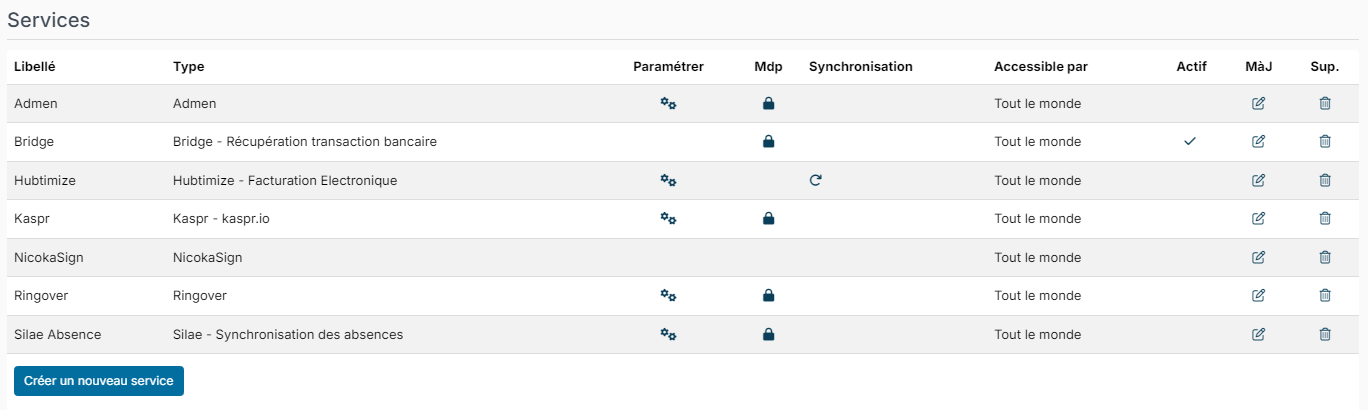
- In the side menu, open Customizing > Administration, then, under Cross Application, click Services.
- Click Create a new service.
- Enter a Label that easily identifies the company concerned, choose the Type Hubtimize - eInvoicing, then click Create.
Create one Hubtimize service per company to connect: a company can only be attached to one Hubtimize service.
Step 2 — Set up the service
On the row of your Hubtimize service, click the gear in the Customize column. In the window that opens:
- First field, the internal company: choose the company to connect. Companies already attached to another Hubtimize service are not offered.
- Identification and address: check the company's legal information (business name, SIRET, VAT number, address). In Electronic invoicing identifier, simply enter the company's SIREN. This information is copied to the company record.
- Informations pour l'activation du service (service activation information):
- Email: the address of a person authorized to sign for the company;
- Service mode: Sending only (default) to send your sales invoices, or Sending + receiving to also receive your suppliers' invoices. With sending only, supplier invoices are not received in Nicoka;
- Date d'activation du service (service activation date): the connection date you want. Hover over the field to see the earliest possible date (Date minimum), ten days from today.
- Click Update.
The Identification and Informations pour l'activation du service headings and the activation date field are shown in French, whatever the language of your interface.
Step 3 — Service activation
When you save, Nicoka registers your company with Hubtimize and displays a confirmation message (in French). If the company was already registered, Nicoka retrieves its existing connection. The service is then activated: the tick appears in the Active column of the services list.
The certified platform then contacts the person whose email you entered to finalize the connection. It becomes effective on the activation date you chose.
Following the synchronization
In the services list, the icon in the Synchronization column opens the status of the exchanges with Hubtimize: last completed synchronization and flows awaiting a retry.
Electronic invoicing identifier
The electronic invoicing identifier is your company's address in the national e-invoicing directory: it is used to route invoices. In the service setup, you only need to enter the company's SIREN; nothing else has to be entered in Nicoka.
What next?
To send your invoices through Hubtimize, add the sending step to your sales workflow: see Setting up your invoicing workflows for e-invoicing. For day-to-day use, see E-invoicing: how does it work in Nicoka?