Calculate a field with a formula
A custom field with the Formula component is not filled in by hand: Nicoka calculates it from other fields of the record. It gives you, for example, a cost, a margin, an amount to invoice or an average score, without any manual calculation.
In this article, we use the job as an example: a "Coût employeur estimé" (estimated employer cost) field calculated from the job's Salary Max and a "Taux de charges patronales (%)" (employer contribution rate) custom field. Creating the custom fields themselves is described in Create a custom field.
Records that support formulas
Formula fields are calculated on the following records:
- ATS: candidates, jobs, candidates' temporary work contracts;
- employees;
- CRM: opportunities;
- sales: quotations, orders, invoices;
- purchasing: suppliers;
- and also tickets.
The Formula component is also offered in the settings of other records, but its value is not saved there: only use it on the records in this list.
Creating the formula field
- Open the Custom fields screen of the record. For a job: in the side menu, open Customizing > Store, click Customize on the ATS card, then, in the left-hand menu, expand Jobs and click Custom fields.
- First create the fields the formula will use that do not exist yet. Here, "Taux de charges patronales (%)", with the Float UI component.
- In the section you want, click Add a custom field, enter the Label and choose the Formula UI component.
- Click Create.
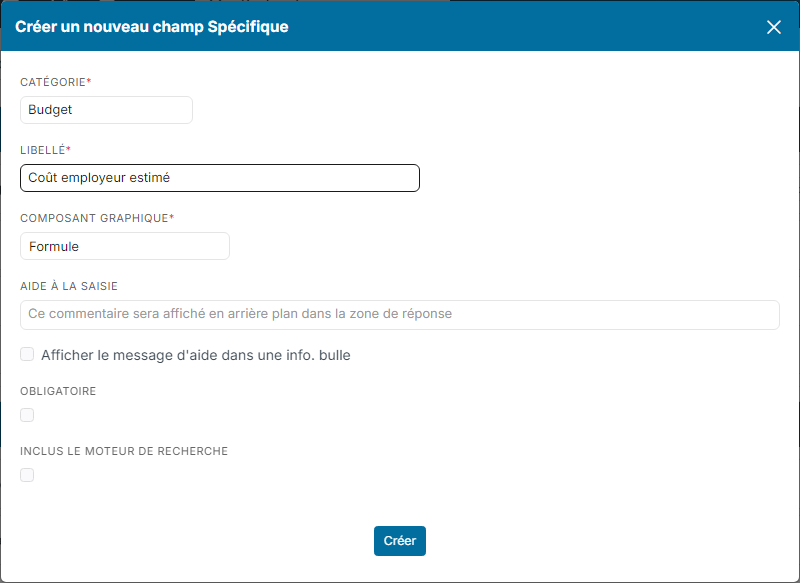
On the custom fields screen, the field shows the Formula type and a flask icon: this icon opens the field's formula.

Writing the formula
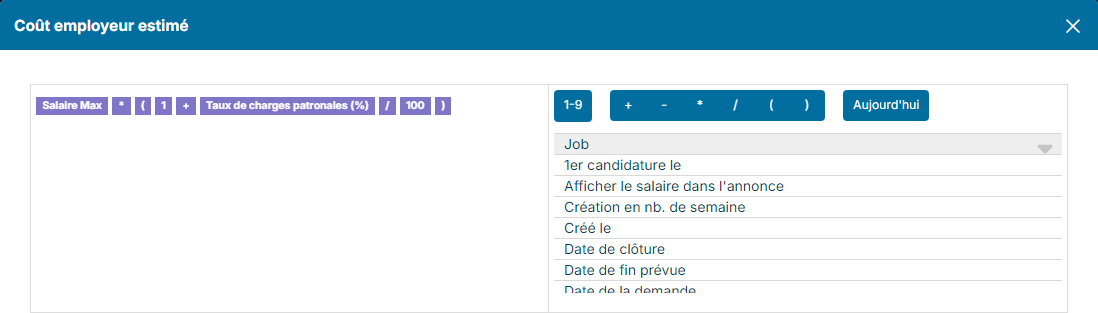
- Click the field's flask icon. The formula window opens: the formula on the left, the items to add on the right.
- Build the formula by clicking the items in the order of the calculation. Each click adds the item at the end of the formula:
- the fields of the list on the right, grouped by record: first the record's own fields, then its custom fields;
- the operators +, -, * (multiply) and / (divide), and the brackets ( and );
- 1-9: adds a number. Type it, with a decimal separator if needed, then press Enter. To change a number already in the formula, click it.
- Click Save.
In our example, the formula is Salary Max * ( 1 + Taux de charges patronales (%) / 100 ): for a salary of 50,000 and a rate of 42, the estimated employer cost is 71,000.
A formula field can reuse the result of another formula field of the same record: it also appears in the list.
The result on the record
The formula field is shown on the record with the other fields of its section. It is greyed out: its value cannot be typed in. It is updated while you fill in the form, as soon as you change a field used by the formula, even before saving. It is saved with the record when you click Update.

Good to know:
- Existing records get their value the next time they are saved. The same applies after the formula is changed.
- An empty field counts as 0 in the calculation. A division by an empty field or by 0 leaves the formula field empty, without blocking the save.
- When the formula uses a field of another record, the value saved on that other record is used.