How to configure notifications
Nicoka keeps you informed of what concerns you: an upcoming event, a task assigned to you, a reply from a candidate, a request to approve… These notifications are shown in the bell of the top bar. They can also appear on your computer as push notifications, even when the Nicoka tab is not in front, and on your phone with the mobile app.
Choose the notifications you receive
- At the top right, click your initials, then Preferences.
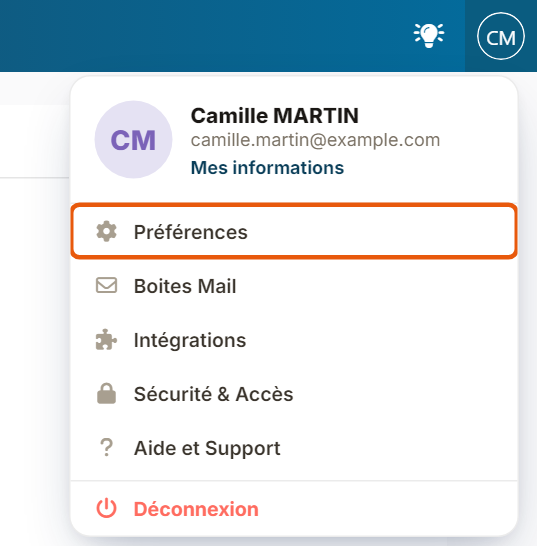
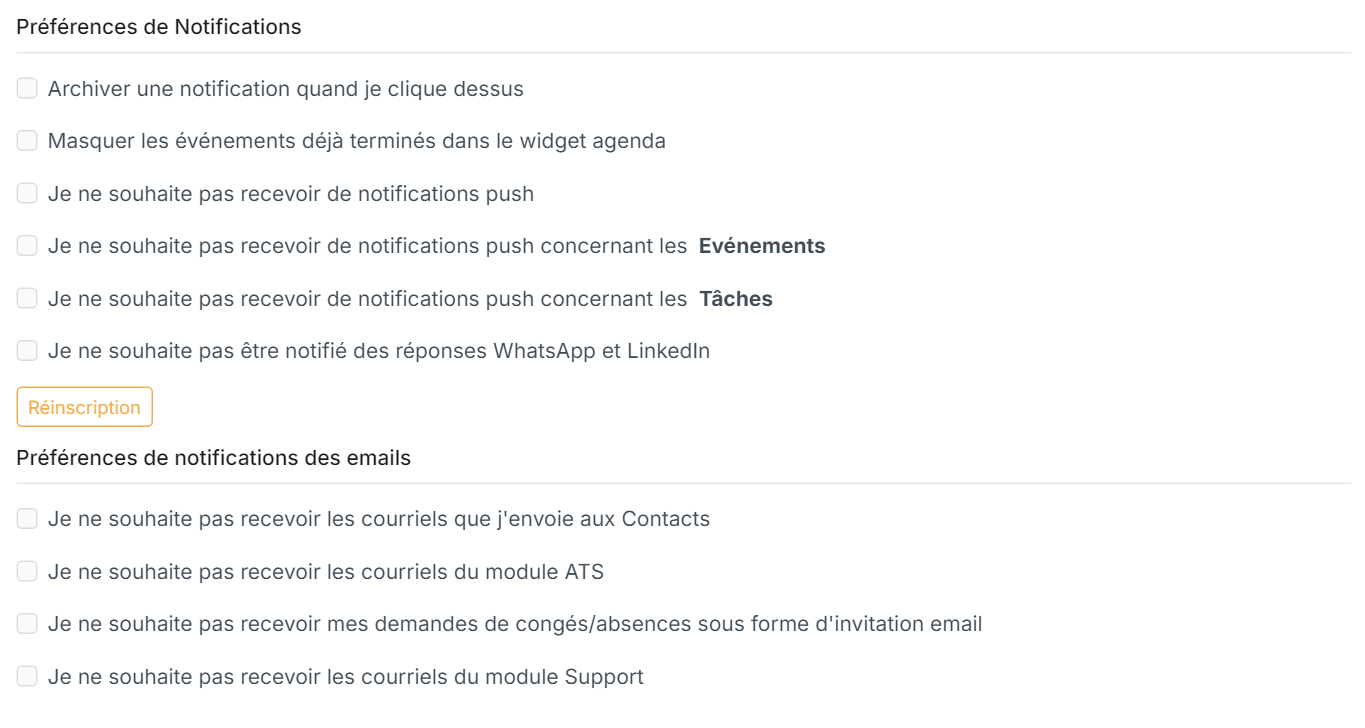
- In the Notifications preferences block, tick the options you want:
- Archive a notification when I click on it: the notification leaves the bell as soon as you open it;
- Hide events that are already over in the agenda widget;
- I don't want to receive push notifications: turns off all push notifications. Otherwise, you can turn them off only for Events or for Tasks;
- I don't want to be notified of WhatsApp and LinkedIn replies: turns off both the bell notification and the push notification for these replies.
- In the Emails Notifications preferences block, tick the emails you no longer want to receive. For example, I don't want to receive a copy of the email i send to Contacts stops the copy of each email you send. The options shown depend on the modules you use.
- Click Save at the bottom of the page.
Turn on push notifications in your browser
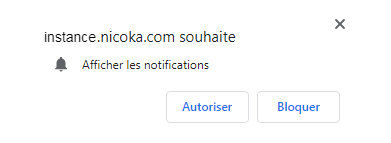
To receive push notifications, your browser (Google Chrome, Microsoft Edge, Firefox, Safari…) must allow Nicoka to show notifications. The first time you log in, the browser asks you: click Allow.
If you have not answered yet, the button under the Notifications preferences is called Resubscribed: click it so that the browser asks you again.
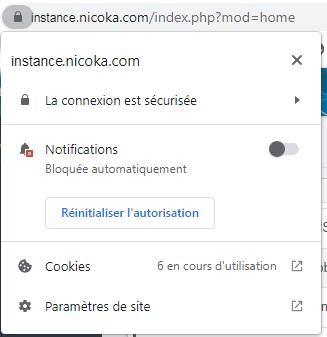
If you clicked Block, Nicoka can no longer ask you: change the permission in your browser. In Google Chrome, click the icon to the left of the page address, then turn on Notifications or click Reset permission. Other browsers have an equivalent setting in their settings, in the site permissions section.
Turn off push notifications
- In Nicoka, tick I don't want to receive push notifications in your preferences, then click Save. Notifications remain visible in the bell.
- You can also block Nicoka notifications in your browser settings.
Receive notifications on your phone
The Nicoka mobile app also sends you notifications. To install it and set its notifications, see The Nicoka Mobile App.
You do not receive push notifications
- Check that I don't want to receive push notifications is not ticked in your preferences.
- Check that your browser allows notifications for your Nicoka workspace (see above).
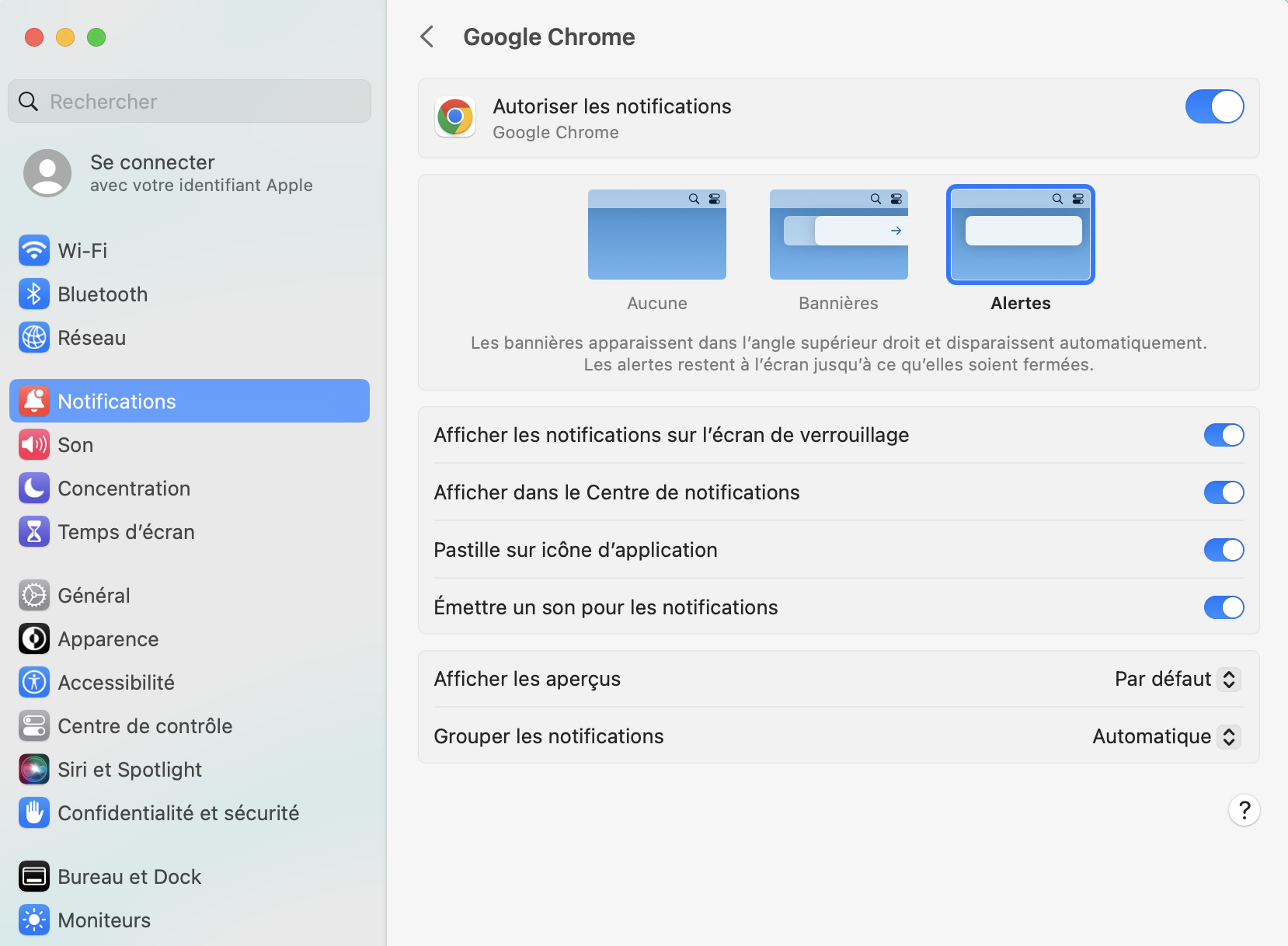
- On a Mac, check that macOS allows notifications for your browser: open System Settings > Notifications, choose your browser and turn on Allow notifications. For Google Chrome, there may be two "Google Chrome" entries: turn both on.
- Check that "Do Not Disturb" (or a Focus mode) is not turned on on your computer.