How to create mandatory leave (annual closure)?
Annual closure, collective bridge day, imposed week of leave: Nicoka lets you book the same absence for several employees at once. This article explains how to create this collective request, what it produces and how to find its result.
Create a request for several employees
- In the side menu, open My Team > TimeOff.
- In the button bar, click Multiple TimeOff Requests, then Create a request for multiple Employees.

This menu only appears if your profile is allowed to create multiple time off requests.
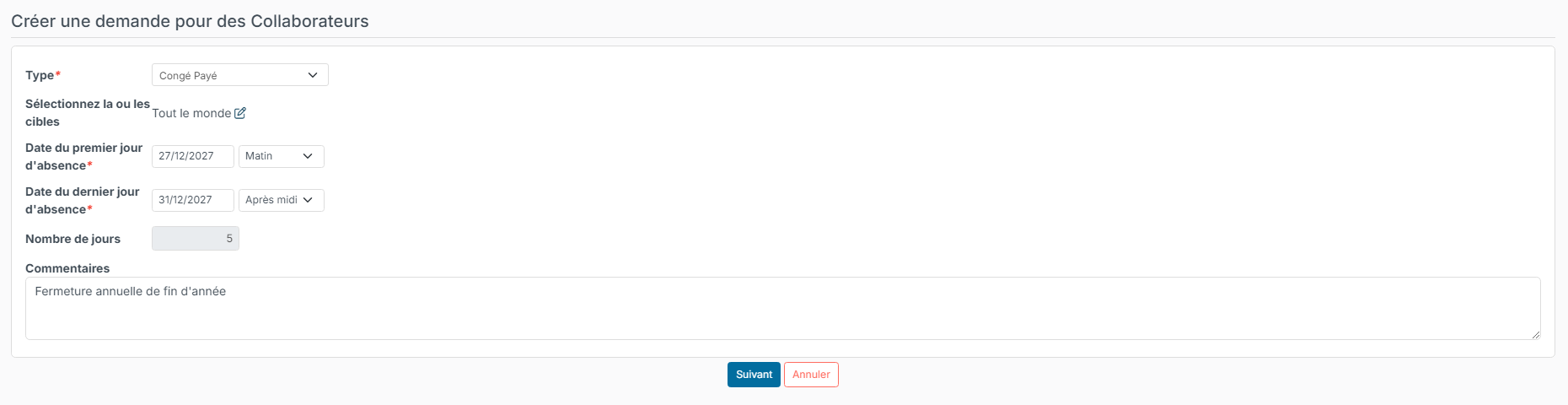
- On the Create a request for multiple Employees page, fill in:
- Type: the type of absence to book, for instance paid leave;
- Pick target: Everybody by default (see below to target only some employees);
- Date of the first dayoff and Date of the last dayoff, with Morning or Afternoon for a half day;
- Comments, if needed.
- Click Next.
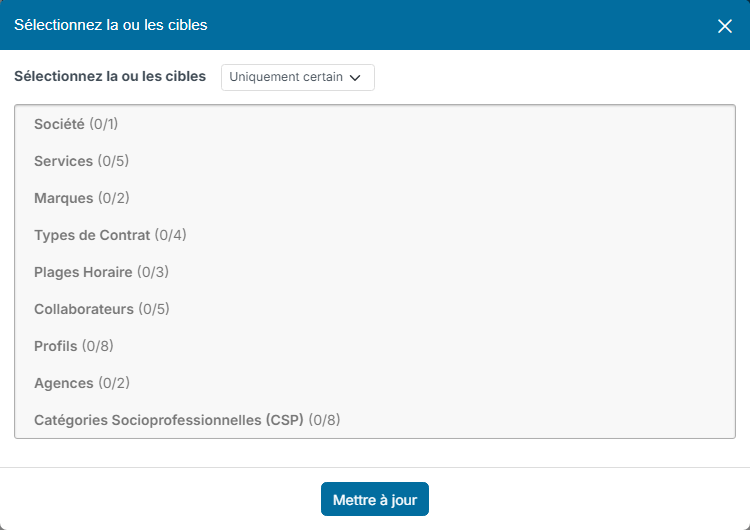
To target only some employees, click the edit icon next to Everybody, choose Only some people, then expand a category (departments, locations, contract types, employees…) and tick the items you want. Confirm with Update.
- Nicoka shows a summary: the request and the number of employees affected. The [See detail] link lists them. Check the list, then click Generate. The Back button lets you correct the request.
The requests are generated in the background. A message tells you so, and you receive an email and a notification when it is done, with the number of requests created.
What the collective request produces
- A request is created for each employee concerned, with the Auto Validated status: it does not go through the approval workflow.
- The days are deducted from each employee's counters and the absence appears in the planning.
- The requests appear in My Team > TimeOff, like the others.
To notify each employee by email, select an email template in the Notify on time off posted on behalf email template setting of the TimeOff module (Customizing > Store, TimeOff card, Customize, then Customizing Points). Leave it empty to send nothing.

Find a collective request
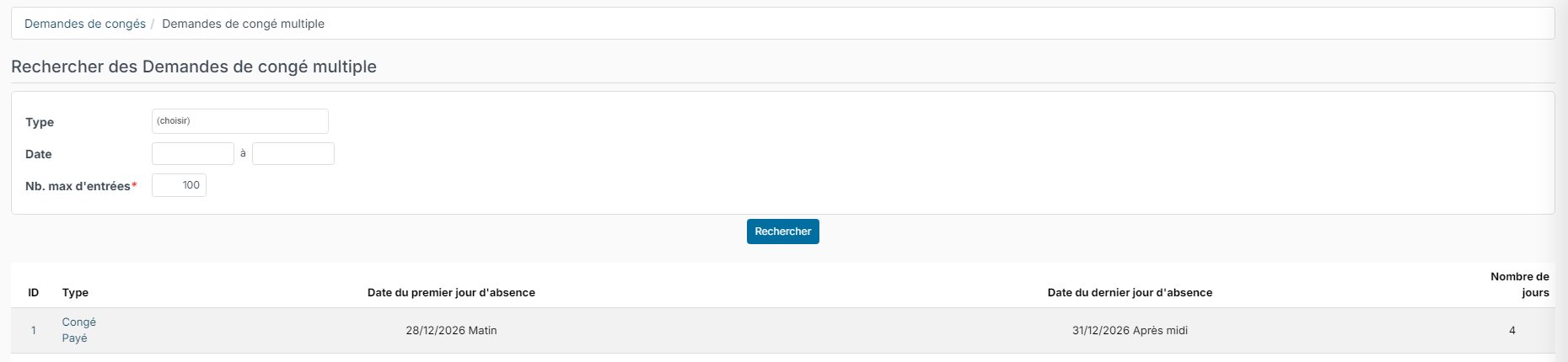
- In My Team > TimeOff, click Multiple TimeOff Requests, then History of Multiple TimeOff Requests.
- Filter by type or date if needed, then click the request number.
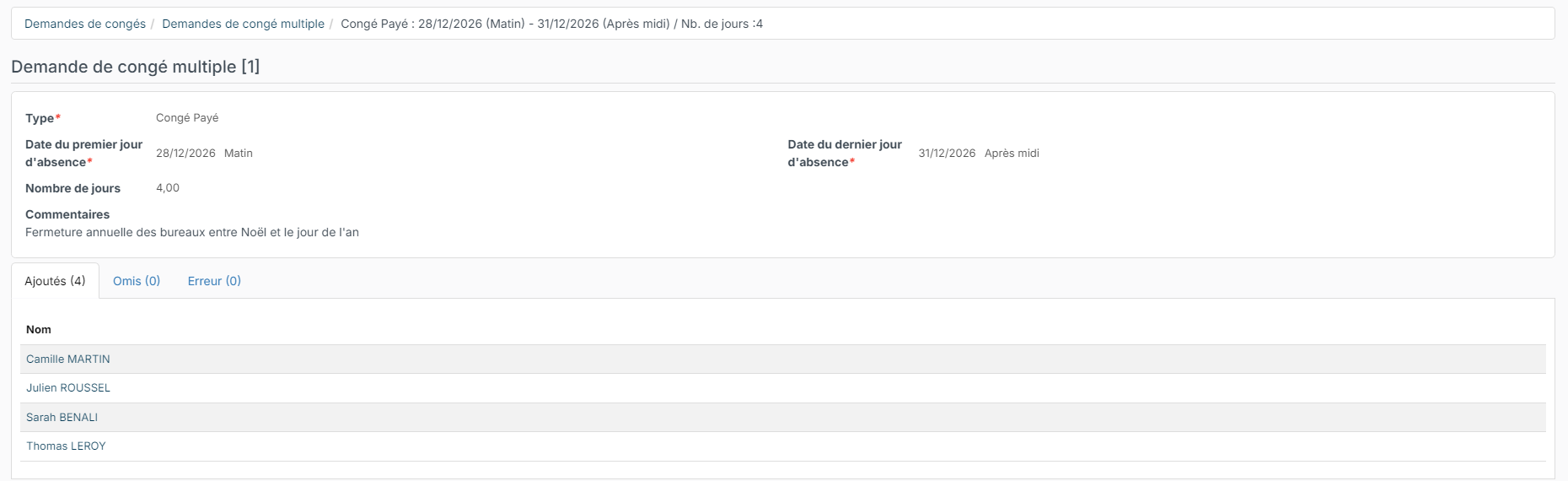
The request page shows the type, dates and comment. Its tabs detail the result:
- Added: the employees for whom the absence was created;
- Skipped: those for whom this collective request had already created the absence in a previous run;
- Errors: those for whom the absence could not be created, with the related message. Handle these cases one by one from the employee's record.