Configure the Leave & Absence Module [GUIDE]
This guide goes through the whole configuration of the TimeOff module of Nicoka HRIS, section by section, then presents the tracking screens for HR, managers and employees. Read it in full before you start: some choices (leave types, acquisition rules) affect every counter. For more specific topics, it links to detailed articles.
Before you start
Before entering any absence, check that each employee has Working Hours in their professional data: they define the employee's working days, and therefore the number of days counted for an absence. See Manage working hours.
Also list the absence types of your payroll software: to make exports easier, keep the same types and similar labels in Nicoka.
1. Open the module settings
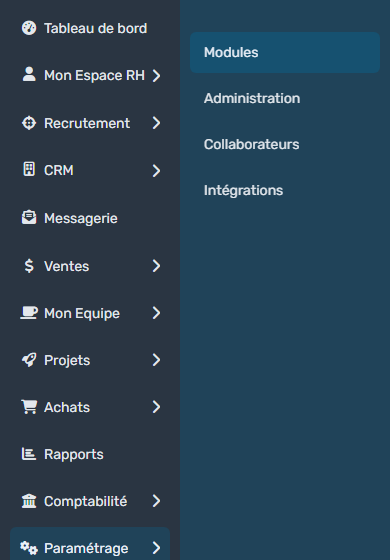
In the side menu, open Customizing > Store, then click Customize on the TimeOff card.
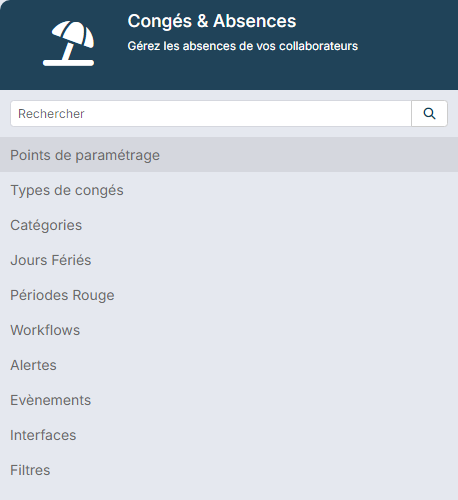
The module menu offers the Customizing Points, TimeOff Types, Categories, Holidays, Forbidden Periods, Workflows, Reminders, Events, Interfaces and Filters sections. The search field at the top of the menu gets you there faster.
2. Customizing points
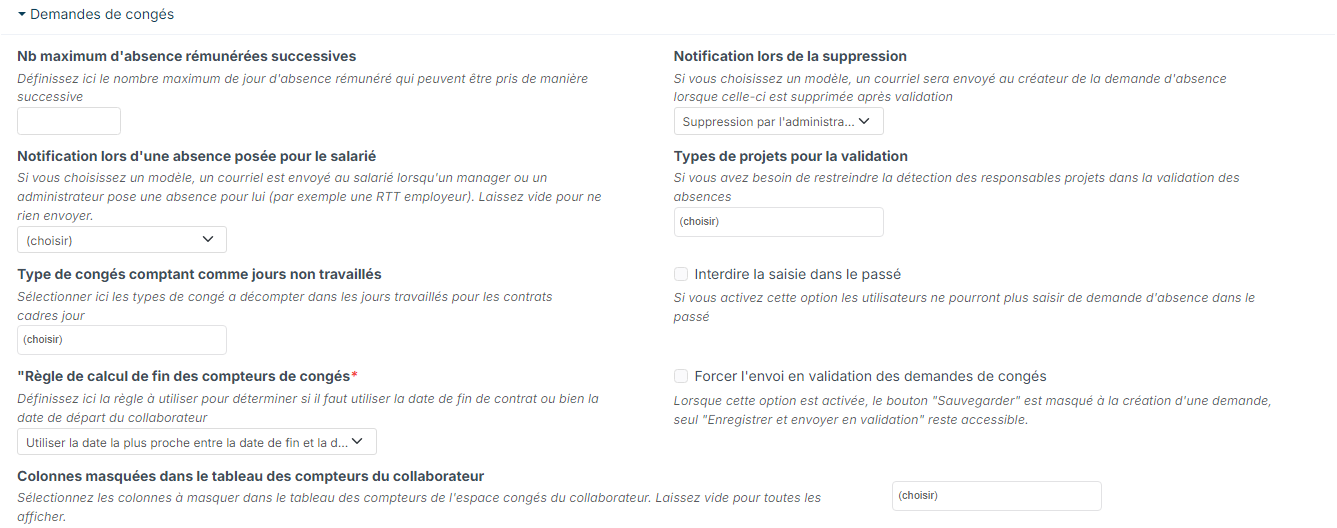
Customizing points are general rules that apply to all employees. Each point comes with help text in italics. Remember to click Save at the bottom of the page after your changes.
TimeOff Requests block
- Max Number of successive paid timeoff: the maximum number of paid absence days an employee can take in a row.
- Notify on delete email template: the email template sent to the creator of a request when it is deleted after approval. See Delete a leave.
- Notify on time off posted on behalf email template: the email template sent to the employee when a manager or an administrator posts an absence for them (for instance an employer-imposed day off or an annual closure). Leave it empty to send nothing.
- Allowed Project Types for validation: only if you use the Projects module, to restrict the project managers involved in the approval.
- Times off that count as vacation: for employees on a yearly days package, the leave types deducted from worked days.
- Forbid timeoff seizure in the past: employees can no longer enter an absence afterwards.
- Times off end date calculation rule (required): the date that closes the counters of a leaving employee, contract end date or leave date.
- Force send for validation: when a request is created, the "Save" button is hidden and only "Save & send for validation" remains.
- Columns hidden in the employee counters table: the columns to hide in the counters table employees see. Leave empty to display them all.
TimeOff Planning block: it sets what everyone sees in the planning.
- Allow TimeOff details visibility for: the people who see the reason of absences (the leave type) rather than a plain absence.
- Allow managers to see their team TimeOff details: the managers who see the reason of their subordinates' absences, hierarchical or operational.
- Remove hierarchy restriction for: the people who see the planning of all employees, not only their team's. Reserve it for HR, for instance.
- Holidays Color: their color in the planning.
- Fields to display in the planning: extra columns, for instance the department or the employee code, added with Add a new row.
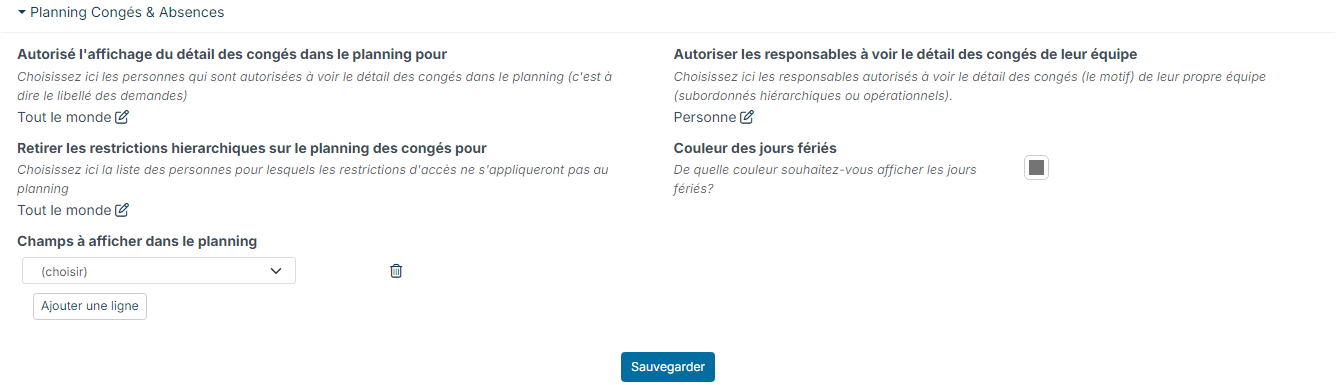
For these settings, prefer departments and profiles to named people: nothing needs to change when someone leaves.
Hiding time off details: a person without the details still sees absences in the planning, in green with their status, but not the leave type. Clicking an absence opens neither the request nor the employee's counters. This setting also applies to absences shown in the calendar.
With Everybody in Allow TimeOff details visibility for, every user with access to the planning sees the leave types and can open requests and counters. To keep the details for HR, choose Only some people and select their profile or department. Managers can keep the details of their own team only with Allow managers to see their team TimeOff details.
3. Leave types
The TimeOff Types section lists the absence types, with their acquisition rules below them. Several types exist by default; you can change them, deactivate them (Active column) and add more.
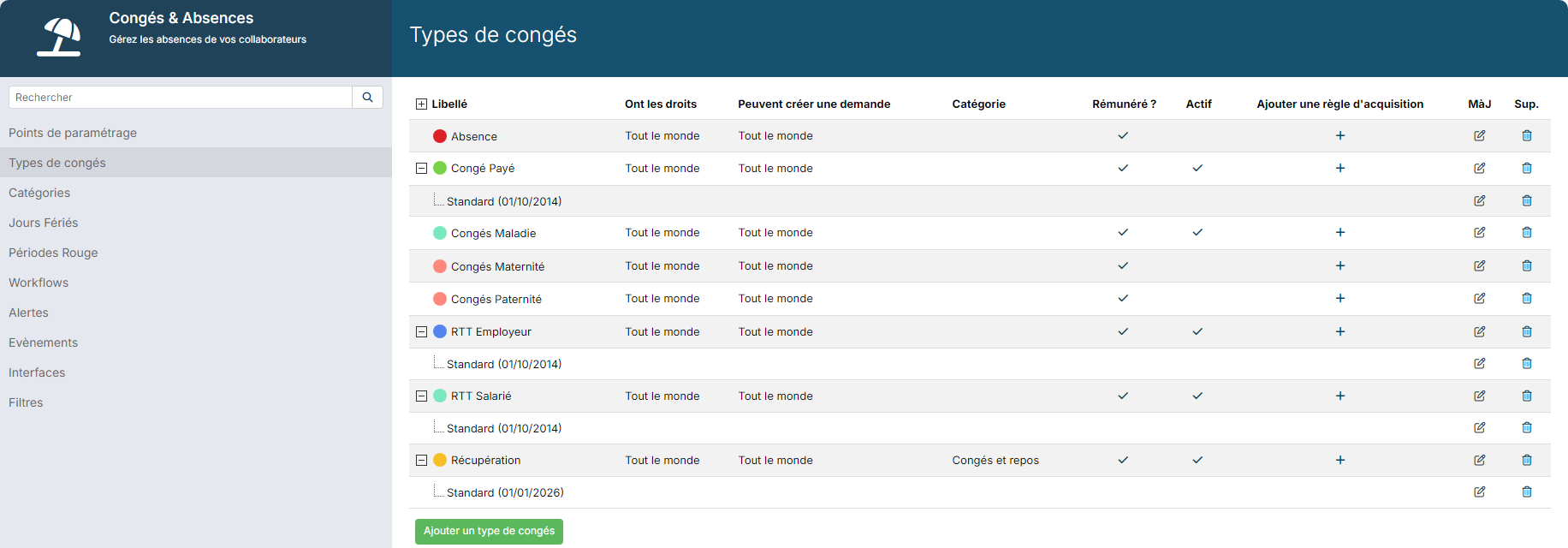
There are two families of types:
- Without an acquisition rule: sick leave, maternity leave, family events… These absences are booked without an entitlement counter.
- With an acquisition rule: paid leave, RTT, recovery days… A counter is calculated for each employee according to the rule, and the employee sees it in their space.
To create a type, click Add a timeOff Type below the list. The Create a new timeOff Type window offers:
- Category, Label and Color (the absence color in plannings);
- Available: Immediately or after some seniority (for instance After 1 year of service);
- Based on calendar days: the absence is counted from Monday to Sunday;
- Is Paid ? and Unit (day or hour);
- Year limit: for a type without an acquisition rule, the maximum number of days an employee can book over the year, for instance for sick child leave;
- Comments required and Document strategy (Not required, Required or Expected);
- Notice periods: the minimum notice, in calendar days, between sending a request and its first day, with one row per duration tier. Requests entered on behalf of an employee are not checked;
- Authorizations: Have the rights (the employees entitled to this type), Excluded (those who are not, for instance interns) and Can create a request (those who can book it). Reserve sick leave entry for HR, for instance.
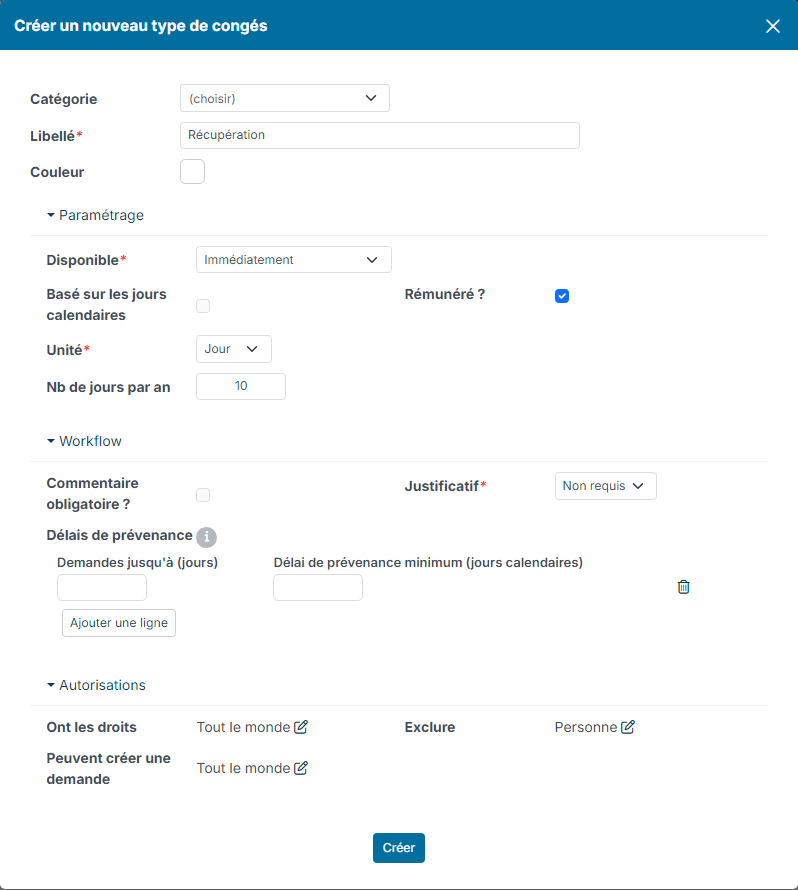
Full example: Create and credit recovery days.
4. Acquisition rules
An acquisition rule credits a counter. To create one, click the + in the Add a policy column, on the type row. To change one, click the Upd. icon of its row.
Adding or changing a rule during a period changes the counters already calculated: preferably do it at the start of a period and then check a few counters. For some types, such as RTT, a new rule is often needed every year.
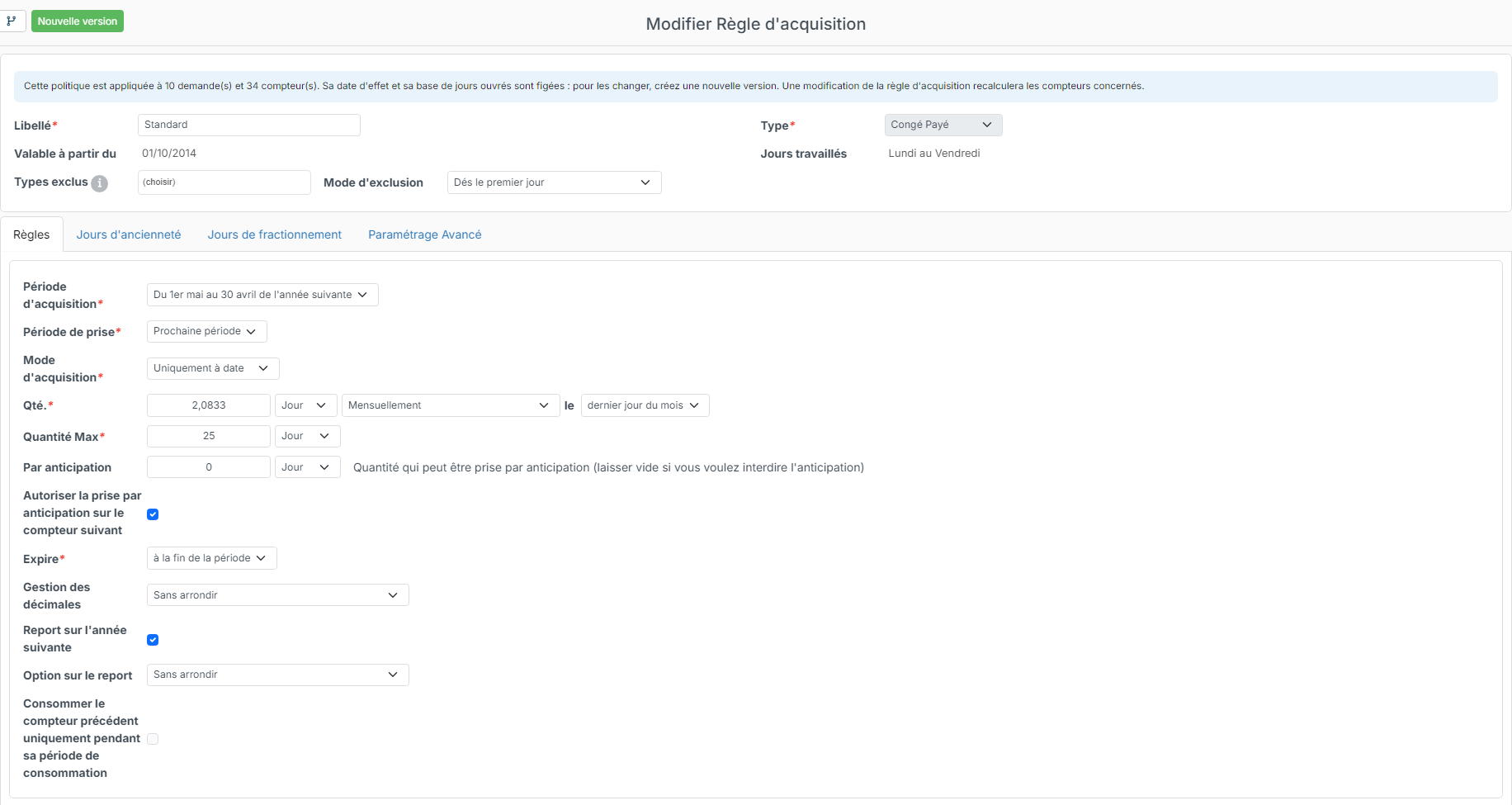
Rule header
- Label and Effective Date.
- Working days: Monday to Friday or Monday to Saturday. With Monday to Saturday, fill in the Max number of saturday, for instance 5 for five weeks of paid leave. Two options come with it: Prorate the saturday cap to presence and Count saturdays taken alone in the cap.
- Excluded types for accrual and Exclusion Mode: the absences that do not generate accrual. See Exclude a leave type from leave accrual.

When requests or counters already use the rule, a blue banner says so: the effective date and the working days can no longer be changed. To change them, click New version.
Acquisition rule tab
- Acquisition Period: the period during which the counter is credited (calendar year, June 1st to May 31st, May 1st to April 30th).
- Taken period: Immediatly or Next period.
- Accrual Mode: Prorata Temporis (the counter grows over time), Only on date (it grows on the set date) or Manual Accrual.
- Quantity: the number of days acquired and how often, for instance 2.0833 days Monthly, on the last day of month.
- Max Quantity: the counter cap over the period.
- Allowed in advance: the number of days that can be taken before being acquired (leave empty to forbid it), and Authorize the catch in anticipation on the next counter.
- Consume the days acquired at the request date before the counter opens (not counted as in advance): the days already acquired on the last accrual date before the request (usually the last day of the previous month) can be taken before the counter opens without counting as in advance. Allowed in advance then only covers the days not yet acquired on that date. To limit leave to acquired days only, tick this box and leave Allowed in advance empty.
- Expiration Strategy: at the end of the period or on a given date.
- Partial Accrual rounding: the rounding of the acquired days when someone joins during the period. Choose the same as your payroll software to make comparisons easier.
- Carry forward to next year and Carry forward option: the automatic carry-over of unused days to the next counter, for all employees. Carry-overs are usually exceptional (long sick leave, company agreement): you can also handle them case by case.
- Consume the previous counter only within its consumption period.
Seniority days tab: the extra days granted according to seniority. Each row gives the Quantity, the threshold (Available, for instance After 5 years of service), the reference date (Based On) and, if needed, a filter (Only for, see the Filters section). Rows add up: with one day at 5, 10, 15 and 20 years, an employee with 20 years of seniority gets 4 days.

Splitting days tab: the days granted when part of the main leave is taken outside the legal period (French Labour Code, article L3141-23). Choose the Splitting Rule Type: No splitting days, Private rule, Public rule or Define the rule manually. The two legal rules apply their thresholds automatically.

Advanced Setting tab:
- Half day not allowed: this type can only be booked in full days;
- Do not apply timeoff rates: the rate of a part-time employee's working hours does not apply;
- Do not prorate based on attendance: hiring and leaving dates no longer reduce the acquired quantity;
- Do not force non-working days to be taken: an employee with a non-working day no longer has to include it in the request when the absence ends right before it (useful for RTT).

5. Categories
Categories group absence types, for instance "Social security absence" for absences paid by health insurance, or "Leave and rest". They are optional and mostly used as a filter in your reports. Create them with Create a new category, then choose the category in each leave type.

6. Holidays
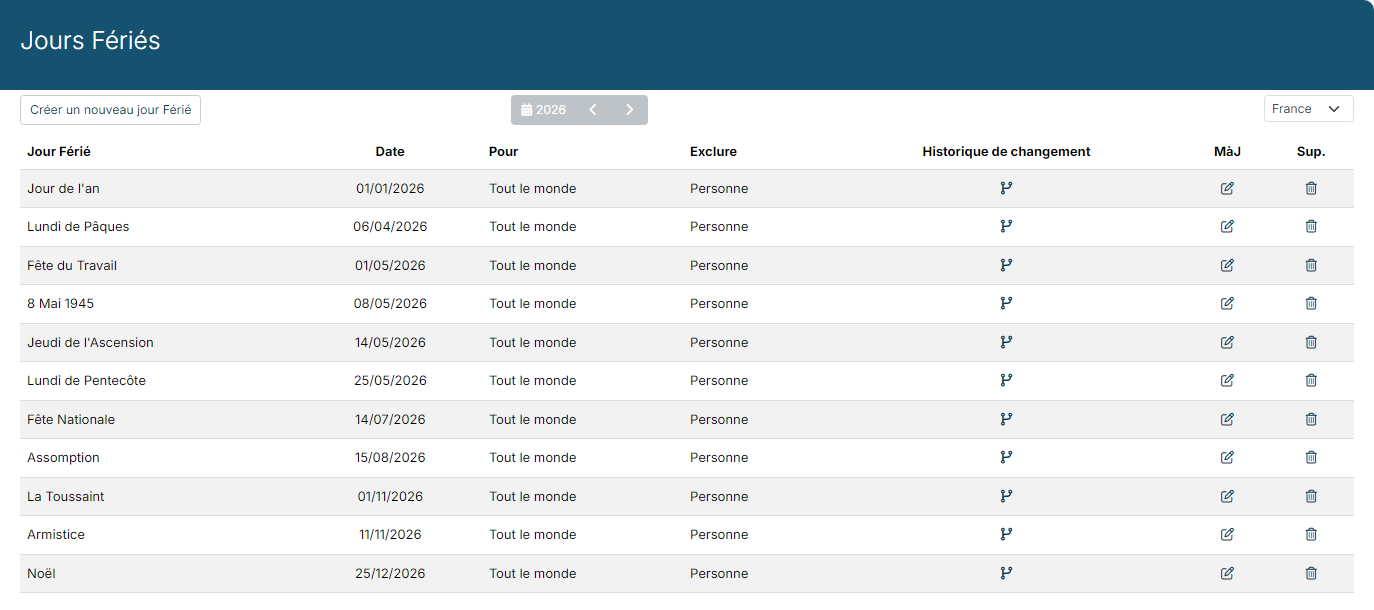
Public holidays are not counted in absences. They are set per country (list at the top right) and per year (arrows). The Create a new holiday button adds one; each holiday can be restricted to some employees.
When a year has no holidays yet, the Copy last period Holidays button copies those of the previous year: then correct the movable dates (Easter, Ascension, Whit Monday). Prepare them several years ahead.
7. Forbidden periods
A forbidden period prevents booking leave during a busy period, for instance a year-end closing. Create it with Create a new forbidden Period: label, dates, employees concerned and excluded leave types, that is the types that remain allowed (sick leave, for instance). A request that overlaps the period is rejected with a message.
Inform your employees in advance, for instance with a note published in the company documents.

8. Workflows
The workflow is the approval circuit of requests. The standard workflow, TimeOff Validation Workflow, has a Manager Validation step assigned to the employee's manager, with its email and notification templates. The + in the Add column adds more steps, which follow one another.

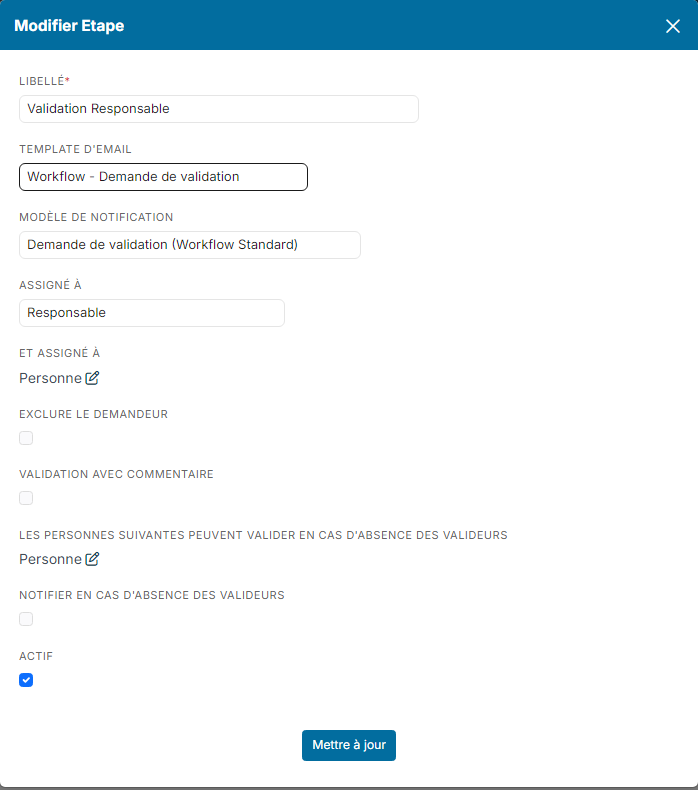
The Upd. icon of a step opens its options:
- Assign to and Also Assign To: the main approver and any additional approvers;
- Exclude Requester: the author of a request never approves it. See Prevent administrators from self-approving leave requests;
- Approve with comments: the approver must leave a comment;
- The following people can validate if validors are not available: for instance HR;
- Notify in case of absence: notifies these people when the approvers are absent.
9. Reminders and Events
Reminders and Events send an email or a notification in a specific situation, for instance when a manager refuses a request. The Nicoka support team can help you set them up.
10. Interfaces
Absences entered in Nicoka must feed your payroll. Depending on your software, the Interfaces section offers leave exports: Silae - Export Congés & Absences, Quadrapaie - Export Congés & Absences, TimeOff Pay Export or Silae - Leave counter regularization. Once activated, they appear in the Interfaces menu of My Team > TimeOff.
With Silae, an API integration is also available: see Silae - API - Renewing access keys. Test your exports before the first payroll; the Nicoka team can help you.
11. Filters
A filter describes a group of employees, for instance "Over 45". It is used in the Seniority days tab of acquisition rules (Only for column) to reserve extra days for that group, according to your agreements or collective agreement. Create it with Create a new filter.

12. Tracking screens
For HR: with an administrator profile, you have access to all tracking screens. You can also build your own reports.
- My Team > TimeOff: all absence requests, with Filters, views (To be sent, To be validated, Validated) and the Actions menu. You can create your own views.
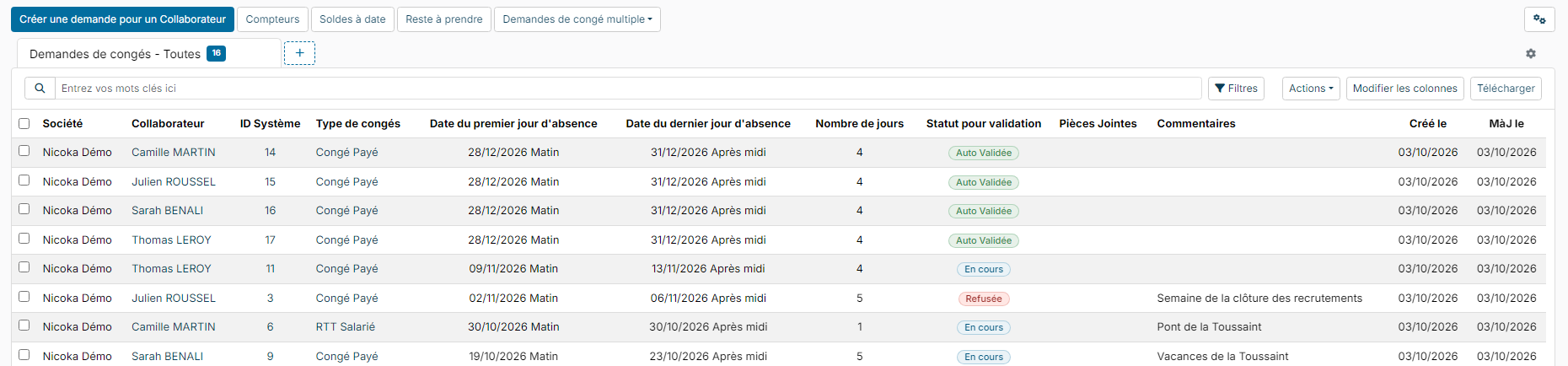
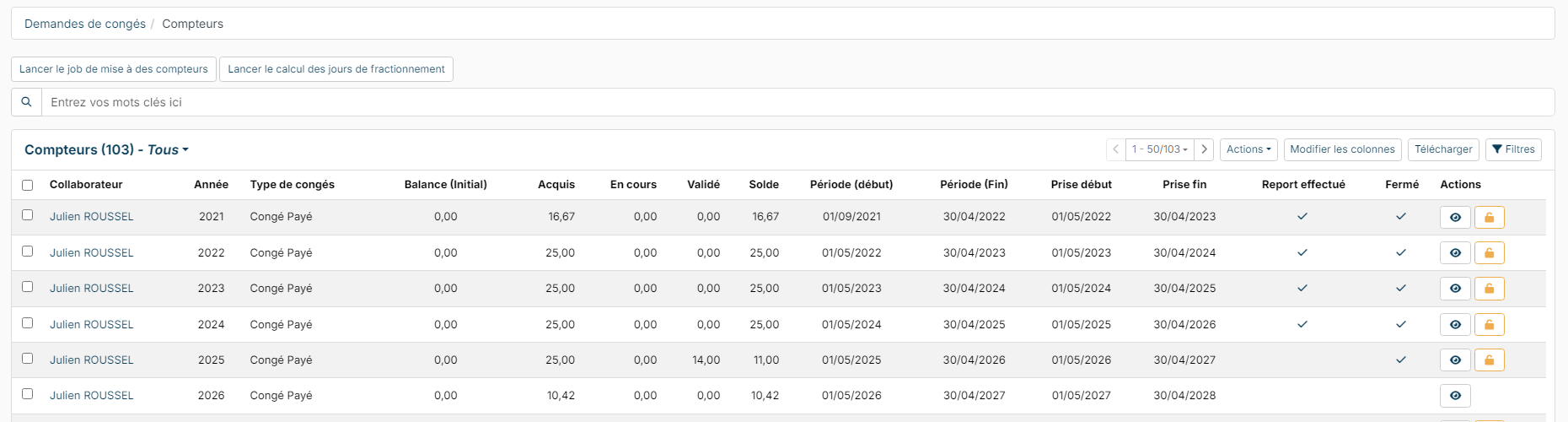
- The TimeOff Counters button of this page lists all calculated counters, employee by employee. Apply filters to make it easier to read.
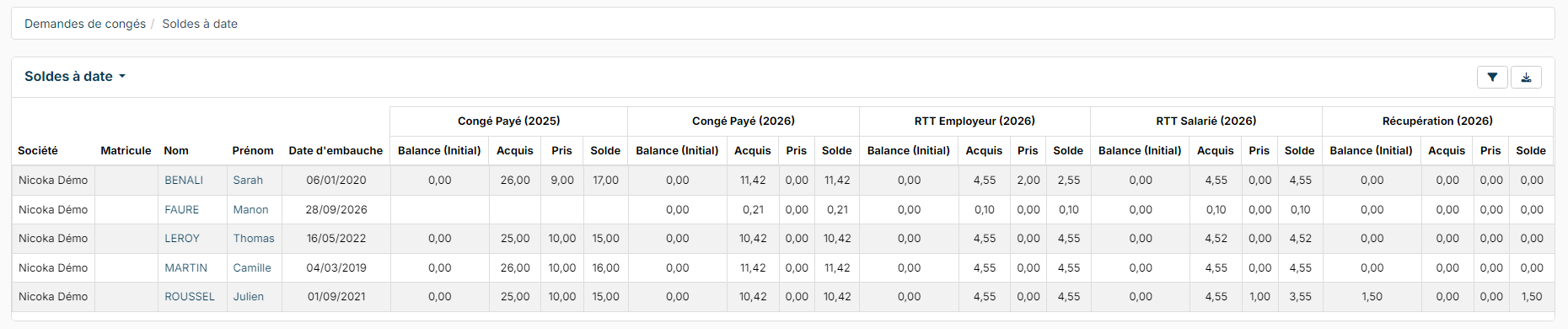
- Balance on date: each employee's counters on a given date, taking approved absences into account. Handy to compare with payslips at the end of the month: the funnel lets you choose the date and the leave type.
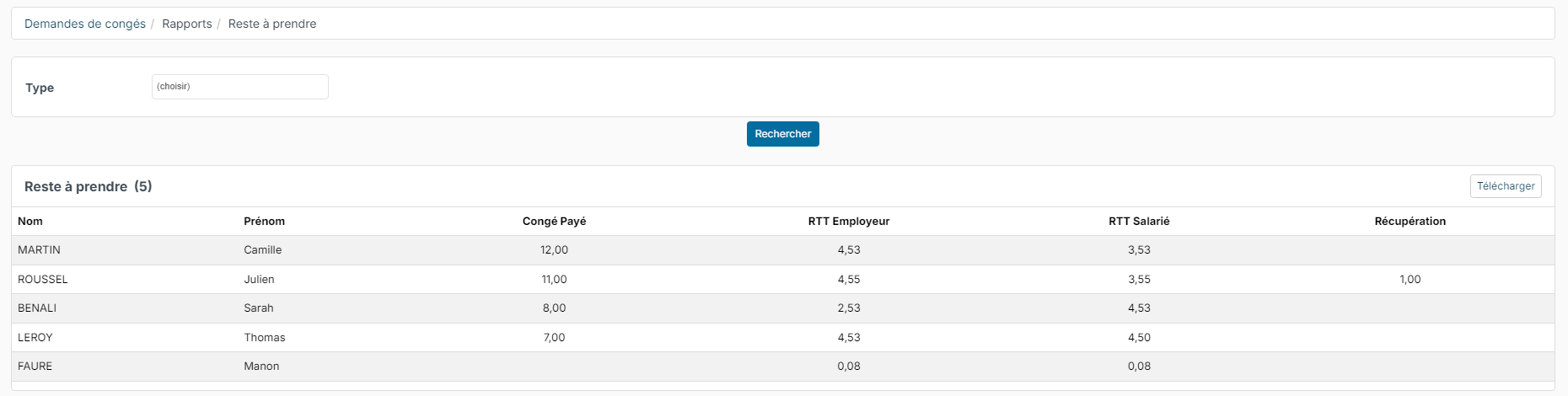
- To be taken: the days not taken to date, with one column per leave type.
- My Team > TimeOff - Planning: the monthly absence planning, with color codes. Create views per company or department if you have many employees.

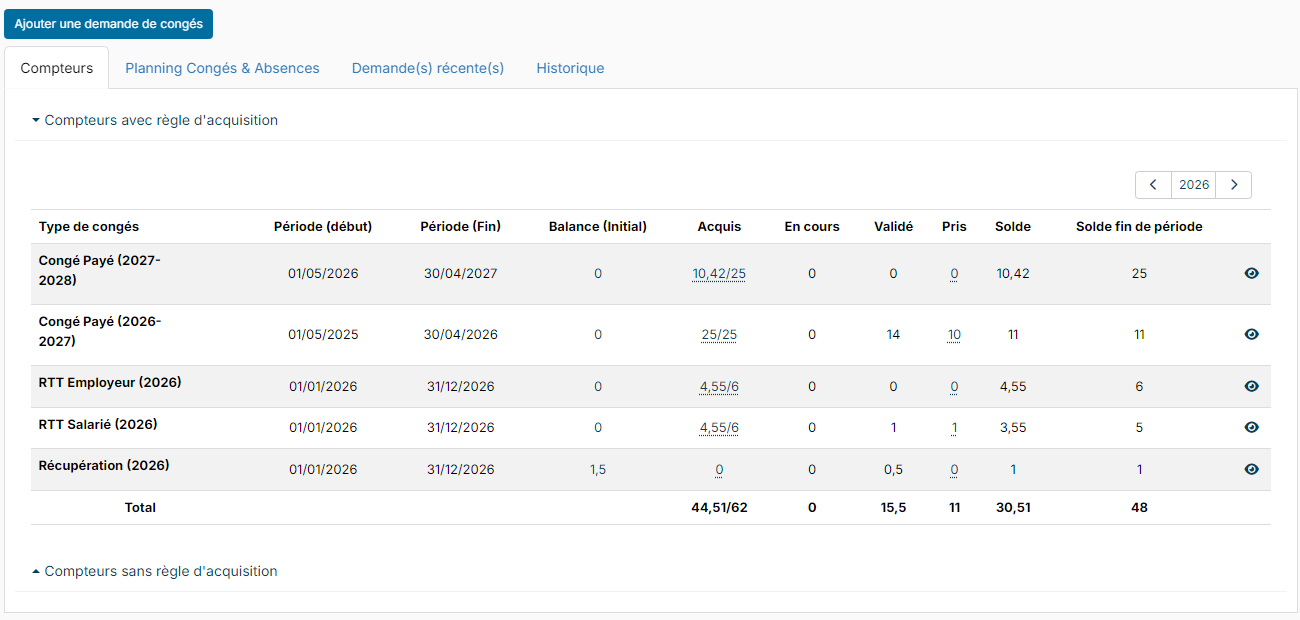
- The employee record, Time Off section: their counters (the eye at the end of the row opens the counter details), the Initial Balance to correct a counter, their planning, recent requests and history.
For managers: they have access to the same screens, limited to the employees of their team. To check it, open Customizing > Admin, expand Users, click Profiles, then the profile concerned: in the Access Restrictions tab, the Hierarchy Restriction box must be ticked. See Define access profiles in Nicoka.
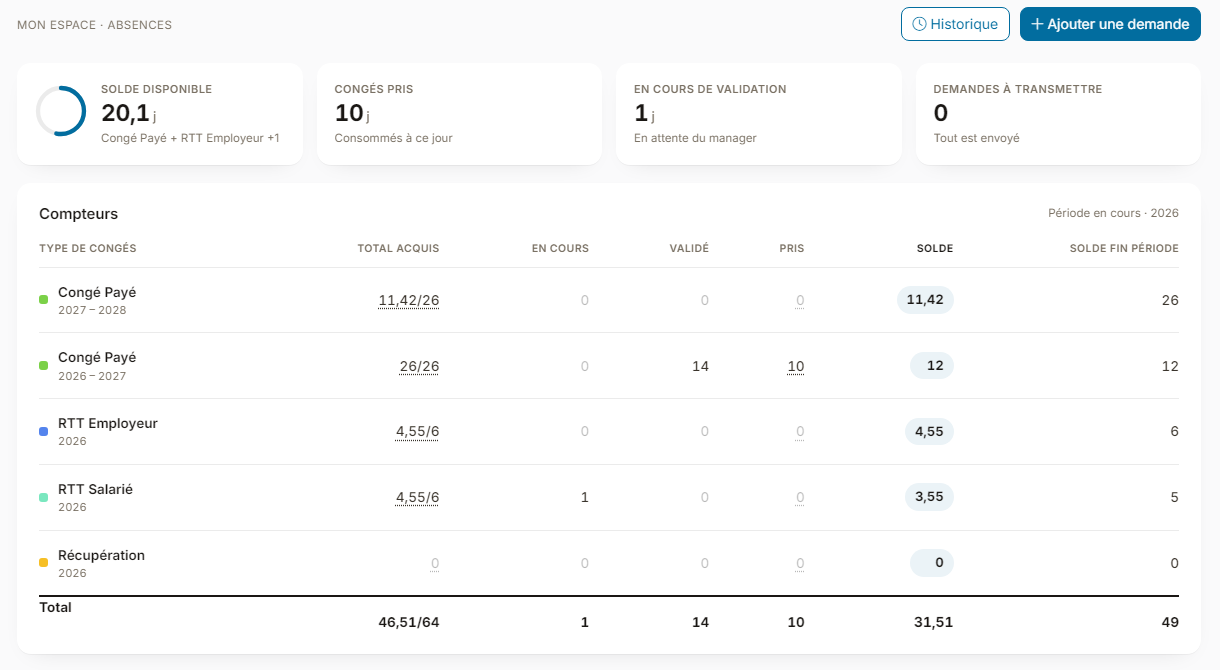
For employees: My HR Space > My Vacations shows their available balance, leave taken, requests pending approval, their counters table, their planning and recent requests. They book an absence with Add a request and find all their requests with History.
The number of days of a request is computed automatically from the employee's working hours and the public holidays. A request that overlaps another request, or a training they attend, is refused. Until it is sent for approval, the request can still be changed or deleted by the employee. An absence booked for them by a manager or by HR skips the approval circuit: it is validated outright, and the employee is informed by the email of the Notify on time off posted on behalf email template point.