How to create and allocate recovery days?
Recovery days (time off in lieu) compensate for extra hours or days worked: a trade fair on a Saturday, an on-call duty, a busy week. With the TimeOff module, you manage them as a separate leave type, with its own counter. You need to:
- create a "Recovery" leave type;
- add an acquisition rule to it, or simply set a maximum number of days per year;
- credit each employee's counter when they earn days.
Create the "Recovery" leave type
- In the side menu, open Customizing > Store, then click Customize on the TimeOff card.
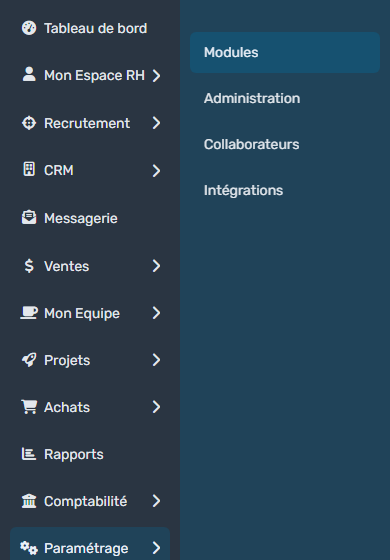
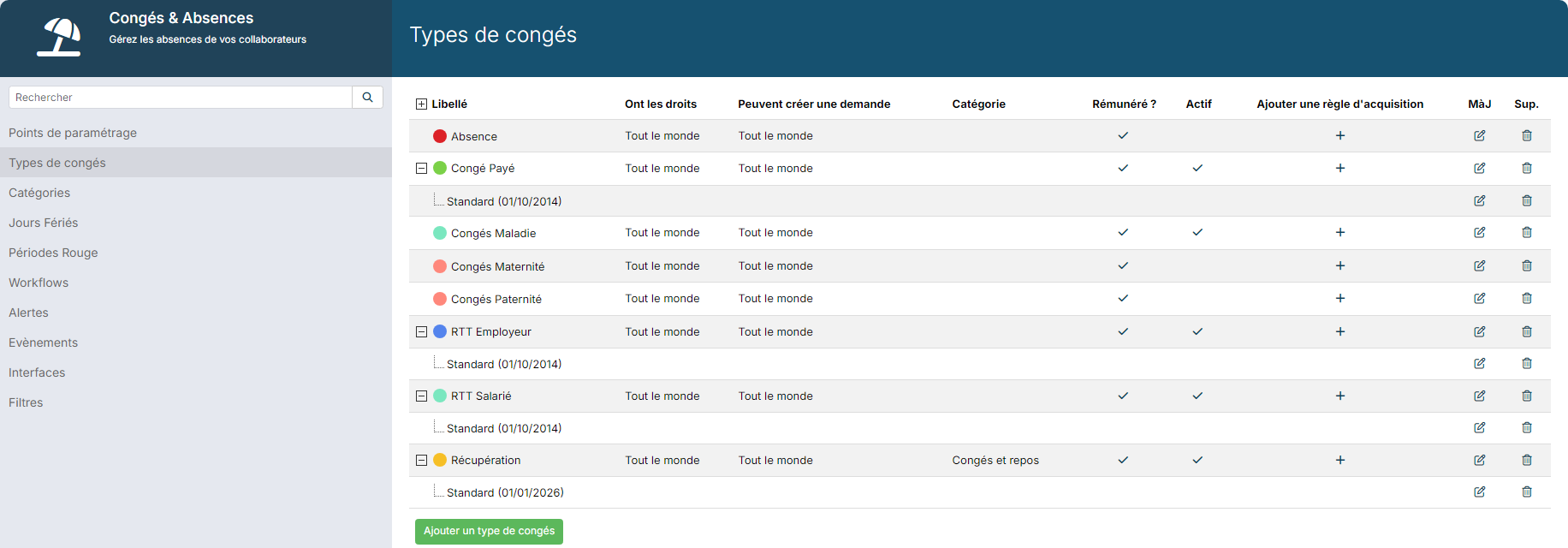
- In the module menu, click TimeOff Types.
- Below the list, click Add a timeOff Type.
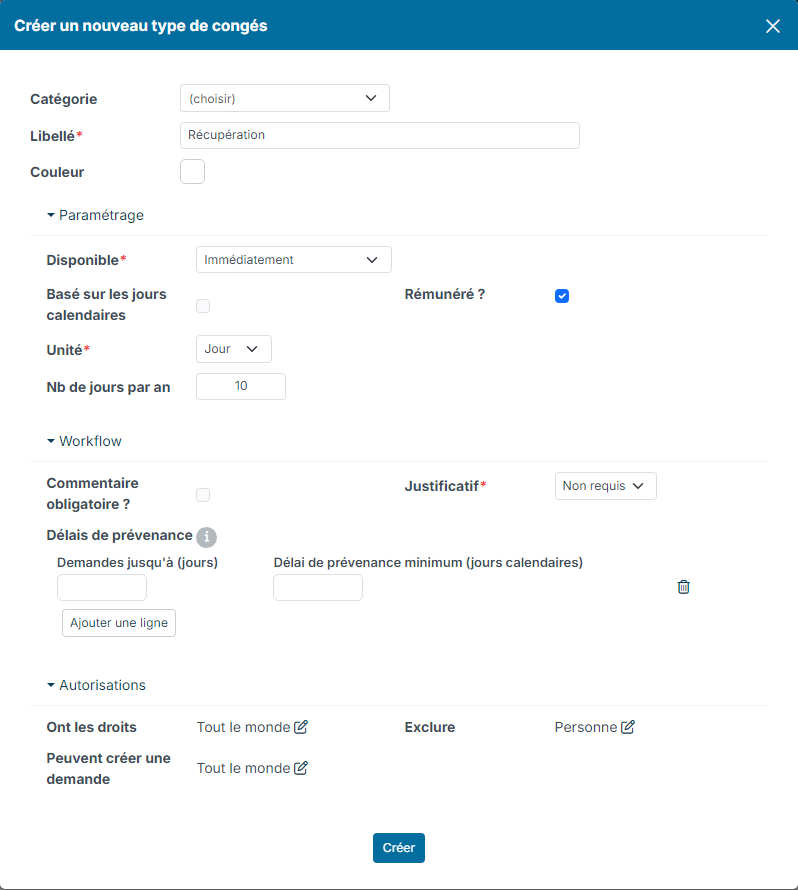
- In the Create a new timeOff Type window, fill in at least the Label ("Recovery") and choose a Color for the planning. You can also file it under a Category.
- In the Authorizations block, set who is entitled to it (Have the rights) and who can book a request (Can create a request). Default: Everybody.
- Click Create.
You then have two options to frame these days.
Option 1: add an acquisition rule
Choose this option to track a recovery balance for each employee.
- In TimeOff Types, on the recovery type row, click the + in the Add a policy column.
- Give the rule a Label and its start date (Effective Date).
- In the Acquisition rule tab, choose for instance:
- Acquisition Period: Calendar Year;
- Taken period: Immediatly;
- Quantity: 0, since the days are not earned over time but added manually;
- Max Quantity: the cap of recovery days, for instance 10.
- Click Create.
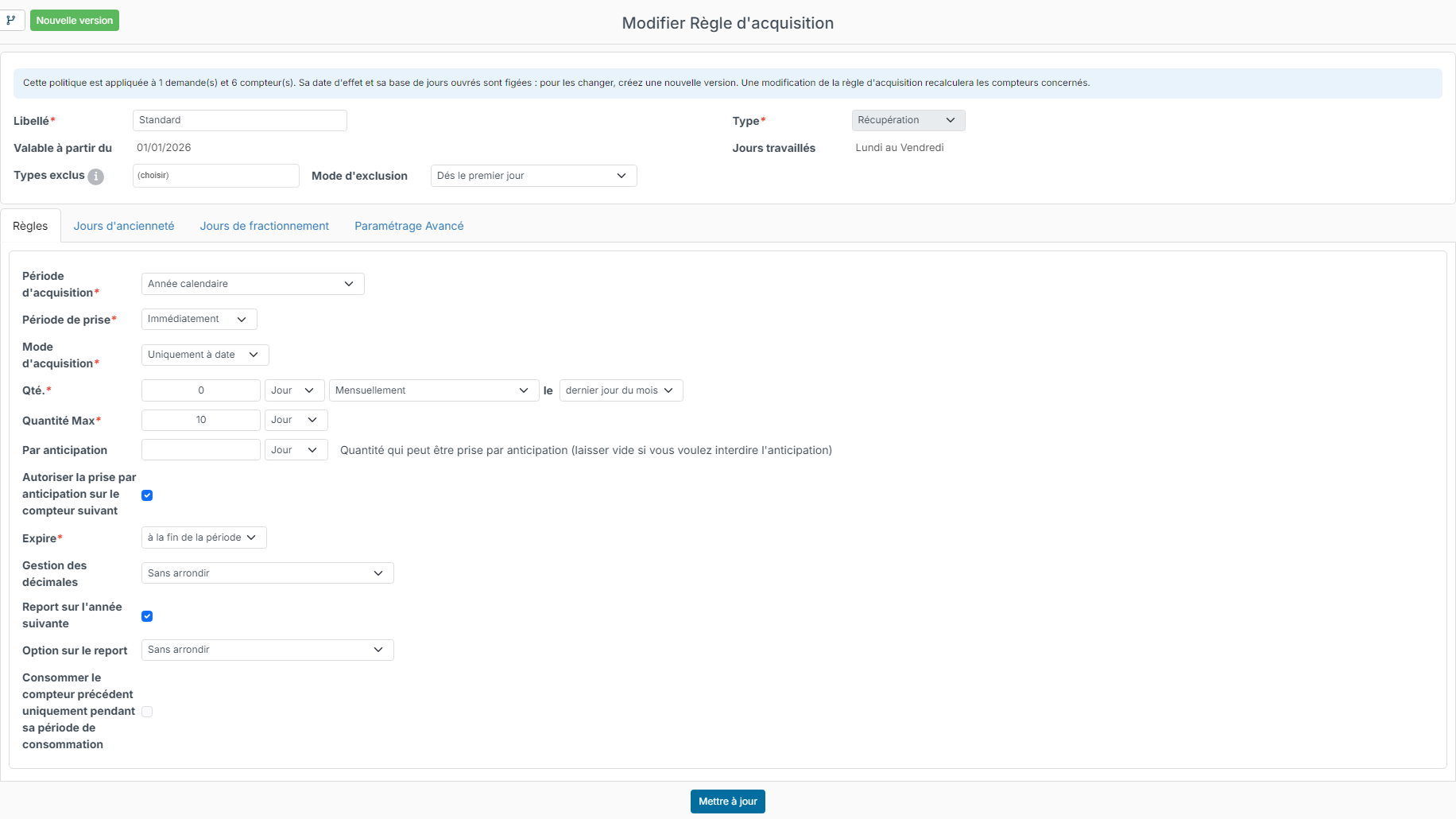
The rule appears under the type, with its date: Standard (01/01/2026) in our example. The employees' recovery counters, one per year, then rely on this rule.
Option 2: set a maximum number of days per year
Without an acquisition rule, you can only cap what is taken: in the leave type window, fill in Year limit. An employee then cannot book more days of this type over the year: their request is rejected with a message.
This field only appears for a type without an acquisition rule. With this option, there is no balance to credit.
Credit an employee's counter
When an employee earns recovery days (option 1):
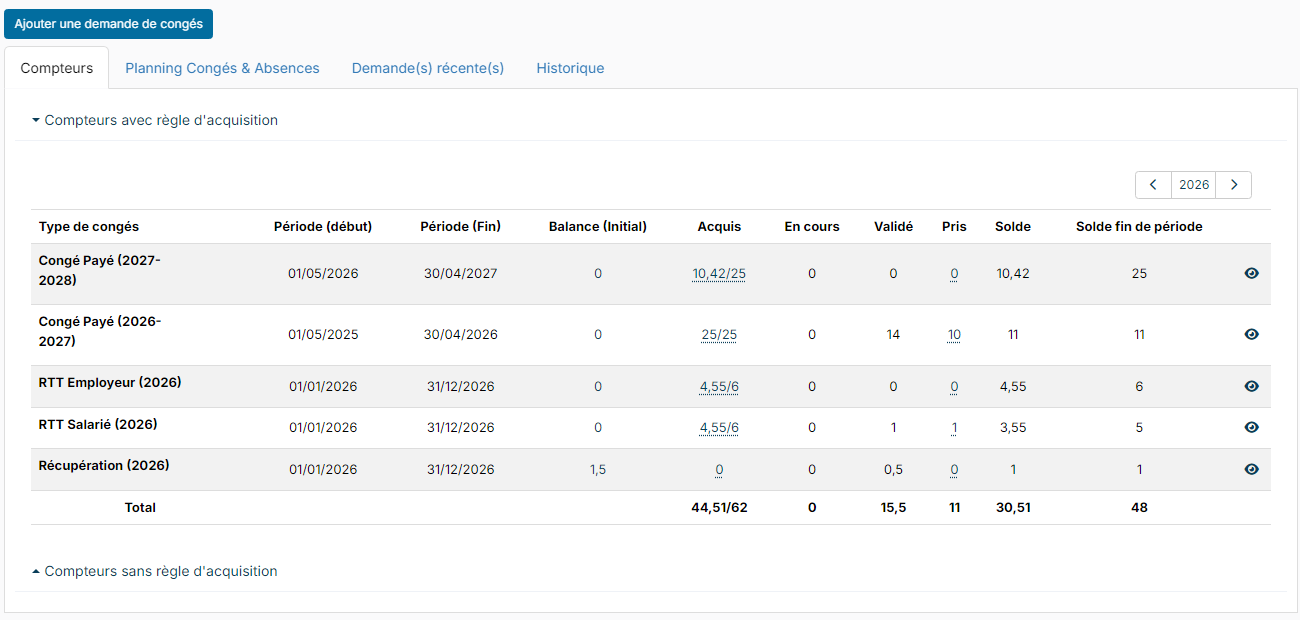
- Open their record (Customizing > Resources, then their name) and click Time Off in the record menu.
- In the Counters tab, on the year's recovery row, click the figure in the Initial Balance column.
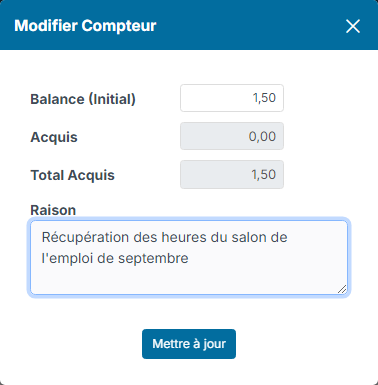
- In the Update TimeOff Counter window, enter the new value of the Initial Balance. It replaces the previous one: to add one day to a balance of 1.5, enter 2.5.
- Enter the Reason, for instance the event that gave rise to the recovery, then click Update.
The counter Balance is updated. The employee can then book their recovery days, which are deducted from this balance.