How to limit team managers' visibility?
Do you want your managers to see only the data of the employees in their team, for example their time off and absences? Enable the Hierarchy Restriction on your managers' access profile.
Enabling the hierarchy restriction
- In the side menu, open Customizing > Admin.
- In the left-hand menu, expand Users and click Profiles.
- Click the label of the profile to change, for example Manager.
- In the menu of the profile record, click Restrictions.
- Check Hierarchy Restriction, then click Update.
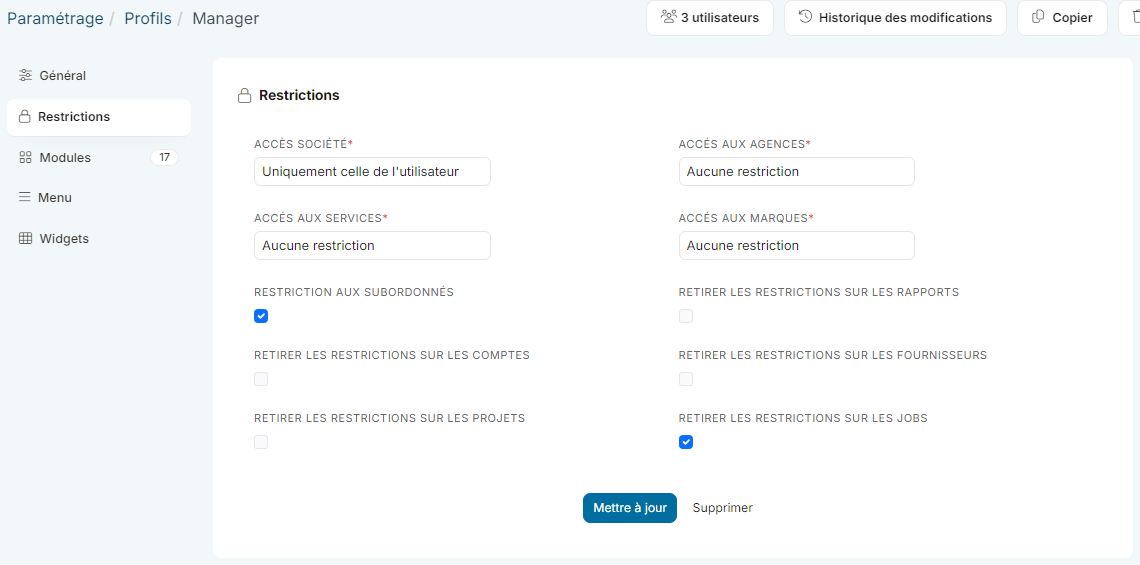
Users with this profile then only have access to the data of the employees they manage. Each employee's manager is set on their record, in the Responsible field.
Repeat the operation for each profile concerned.
The other restrictions of the tab
- Company access, and depending on your organization access to locations, departments and divisions: limit the visible data to the user's company (or location, department…), or to a chosen list.
- Withdraw access restriction on reports, customers, suppliers, projects or jobs: when the box is checked, the user has access to all the items concerned, even outside their scope. These boxes depend on the modules activated.
Learn more
Were this information helpful?