Connect your Gmail account
Connecting a business Gmail mailbox to Nicoka takes two stages:
- your company's Google Workspace administrator sets up Nicoka's access once, in the Google Cloud console;
- each user then connects their own mailbox from Nicoka.
The principles shared by every email provider are described in Step 3 - Connect your email account.
Prerequisites
- A business Gmail address on a Google Workspace account (for example you@yourcompany.com).
- The email address of your company's Google Workspace administrator.
Administrator, step 1: create a project in Google Cloud
Steps 1 to 6 are carried out by the Google Workspace administrator in the Google Cloud console. Google screens change regularly and may differ slightly from the screenshots, which show the French interface.
- At the top of the page, click Select a project, then New project.

- Name the project Nicoka. The organisation and location must be your company's. Click Create.
Administrator, step 2: set up the consent screen
- In the menu, open APIs & Services, then OAuth consent screen.
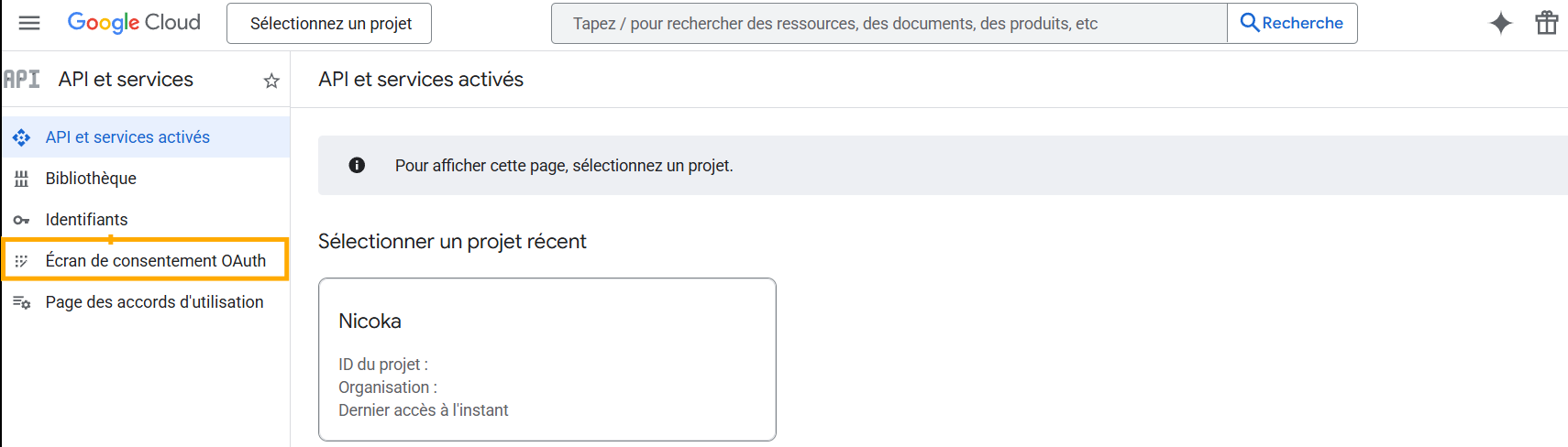
- In the Nicoka project, click Get started and fill in:
- App information: the name Nicoka and the administrator's email address;
- Audience: Internal;
- Contact information: the administrator's email address again;
- Finish: read and accept the user data policy, then click Continue and Create.
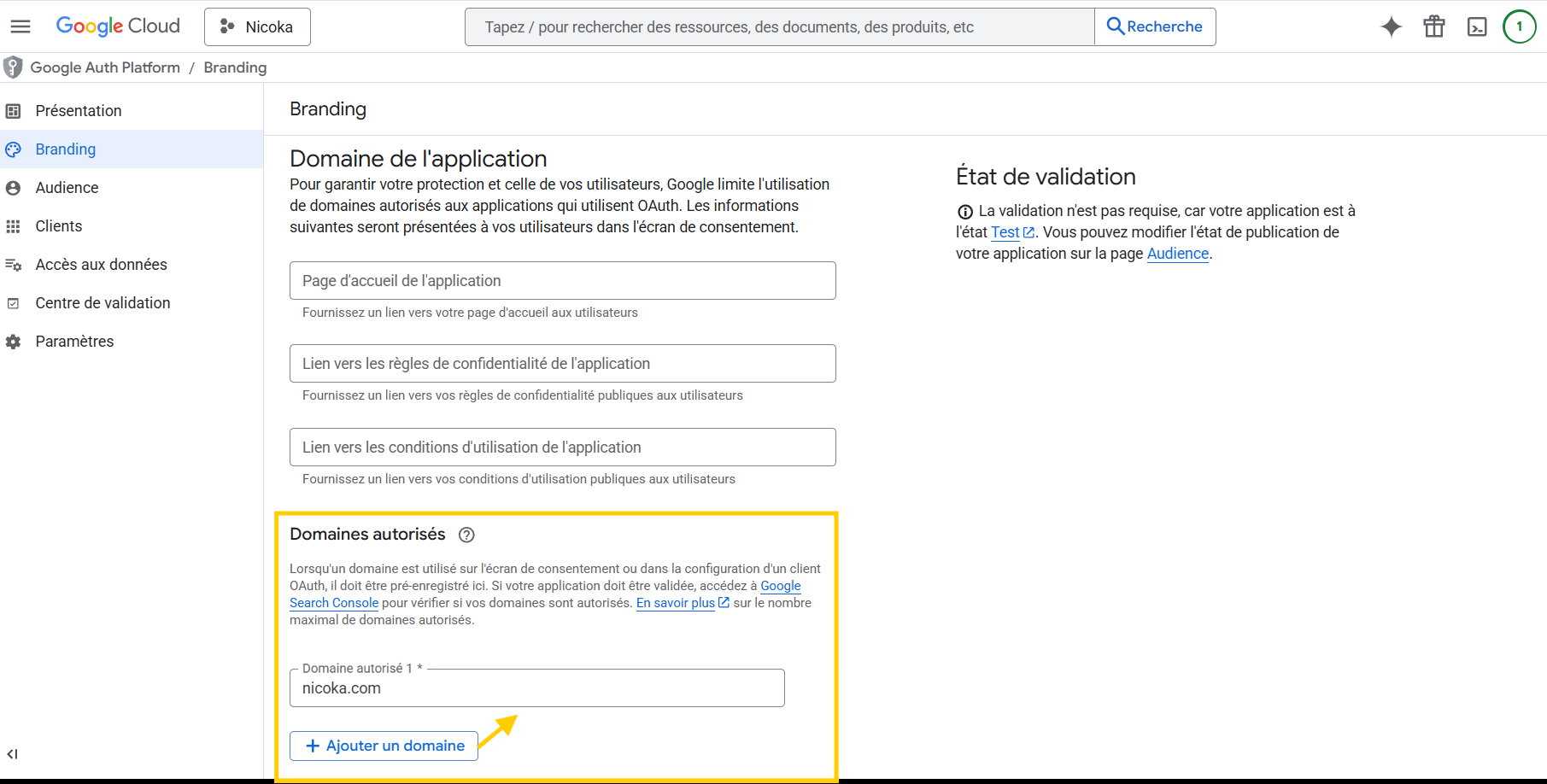
Administrator, step 3: add the nicoka.com domain
In the menu, open Branding. Under Authorized domains, add nicoka.com, then click Save.
Administrator, step 4: add the scopes
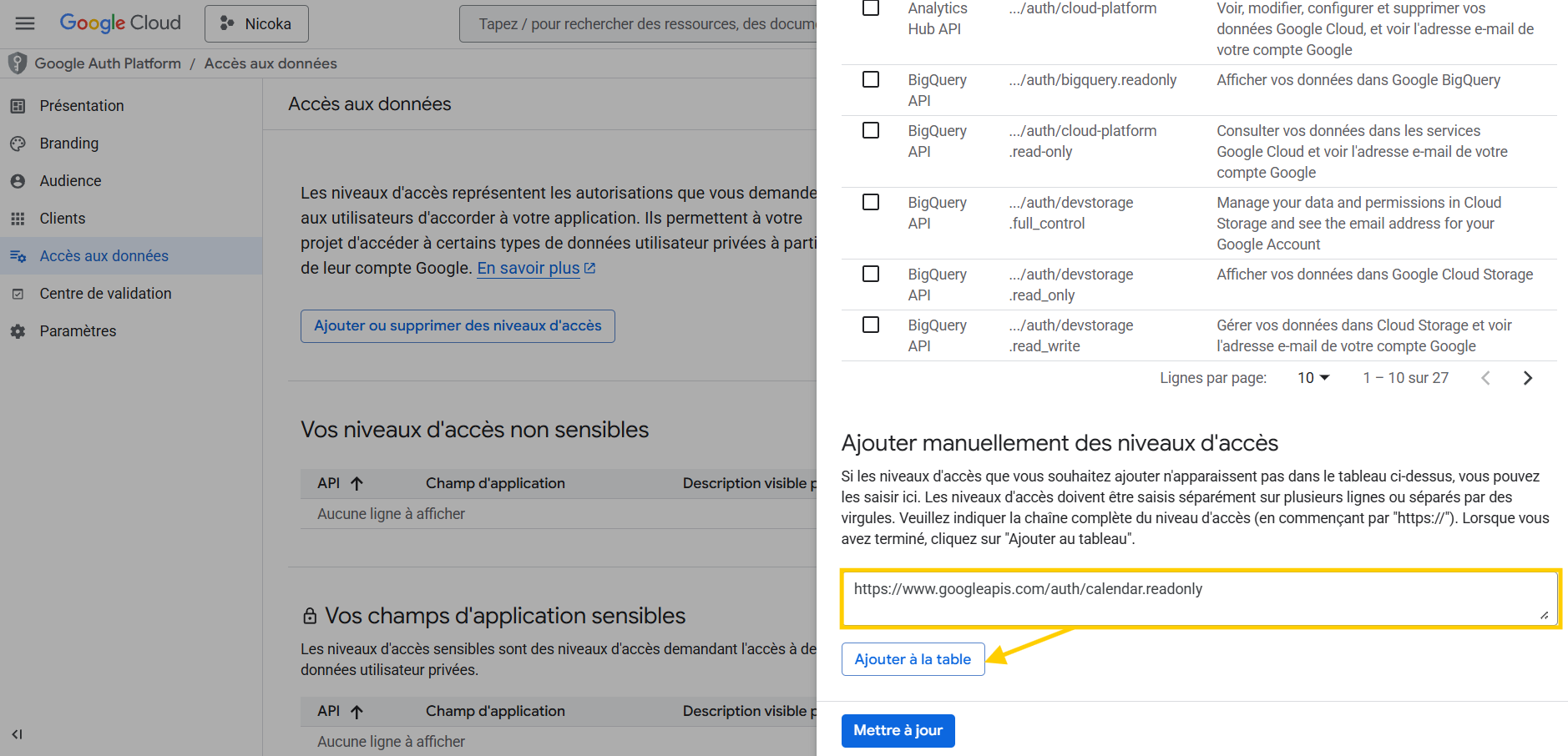
In the menu, open Data Access, then click Add or remove scopes. Under Manually add scopes, enter the following scopes, click Add to table, then Update:
- https://www.googleapis.com/auth/gmail.readonly
- https://www.googleapis.com/auth/gmail.send
- https://www.googleapis.com/auth/calendar.readonly
- https://www.googleapis.com/auth/calendar.events
- https://www.googleapis.com/auth/drive.file
Administrator, step 5: enable the APIs
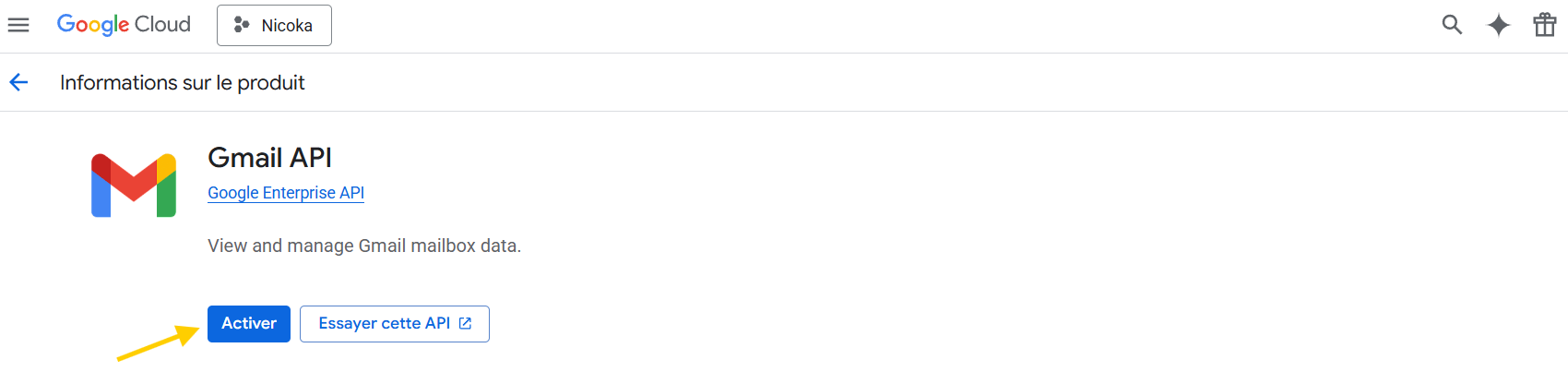
Go back to APIs & Services, click Enable APIs and services, then search for and enable:
- Gmail API;
- Google Calendar API;
- Google Drive API.
Administrator, step 6: create the OAuth credentials
- In APIs & Services, open Credentials, then click Create credentials > OAuth client ID.
- Choose the Web application type and the name Nicoka.
- Under Authorized redirect URIs, add these two addresses:
- https://master.nicoka.com/api/clouds/services/google/callback
- https://master.nicoka.com/api/login/openid/google/callback/
- Click Create, then download the credentials in JSON format.
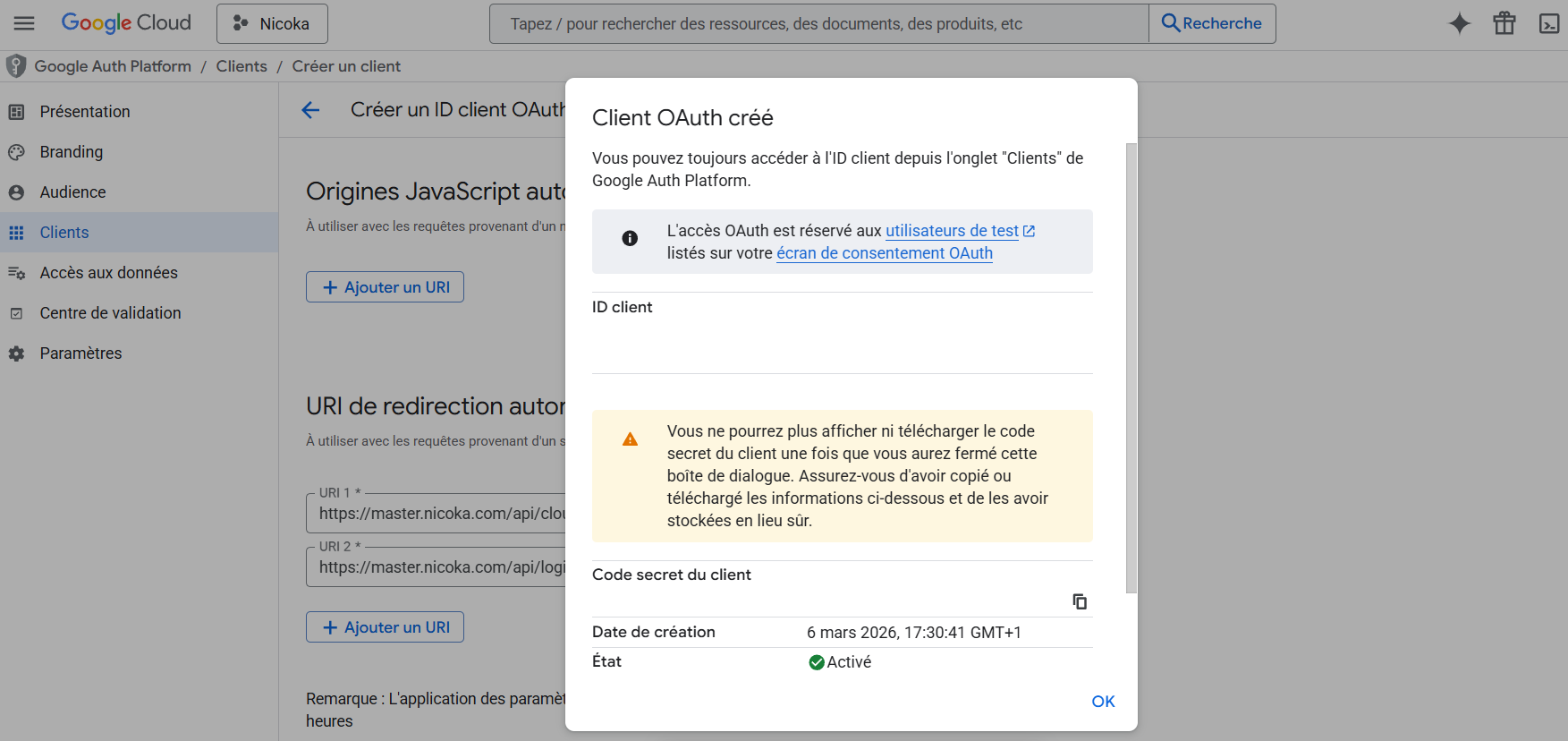
Send this JSON file to the Nicoka support team (support@nicoka.com). It contains your application's secret key: do not share it with anyone else. Once these credentials are installed on your Nicoka space, users can connect their mailbox.
User: connect your Gmail mailbox
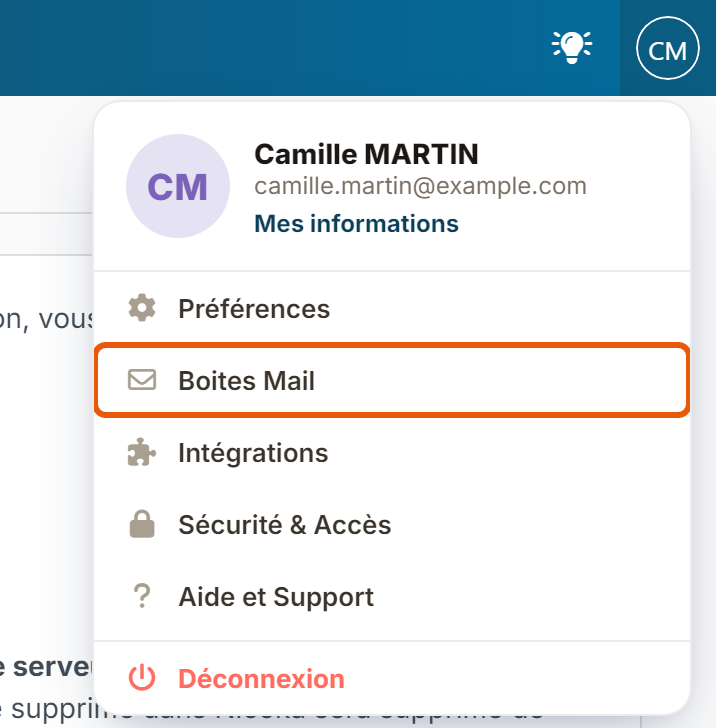
- At the top right, click your initials, then Mail Boxes.
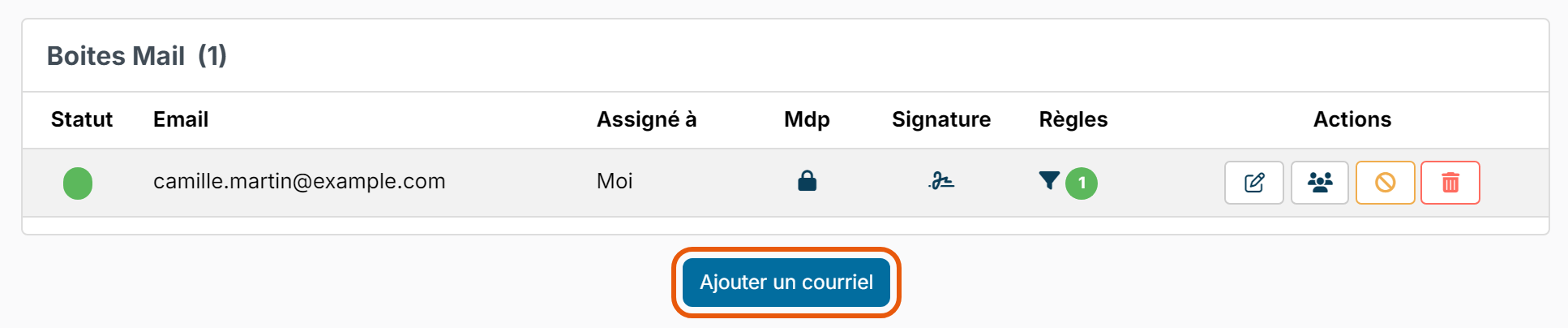
- On the Mail Boxes customizing page, click Add an other email (or Add a mail Box if you have no mailbox yet).
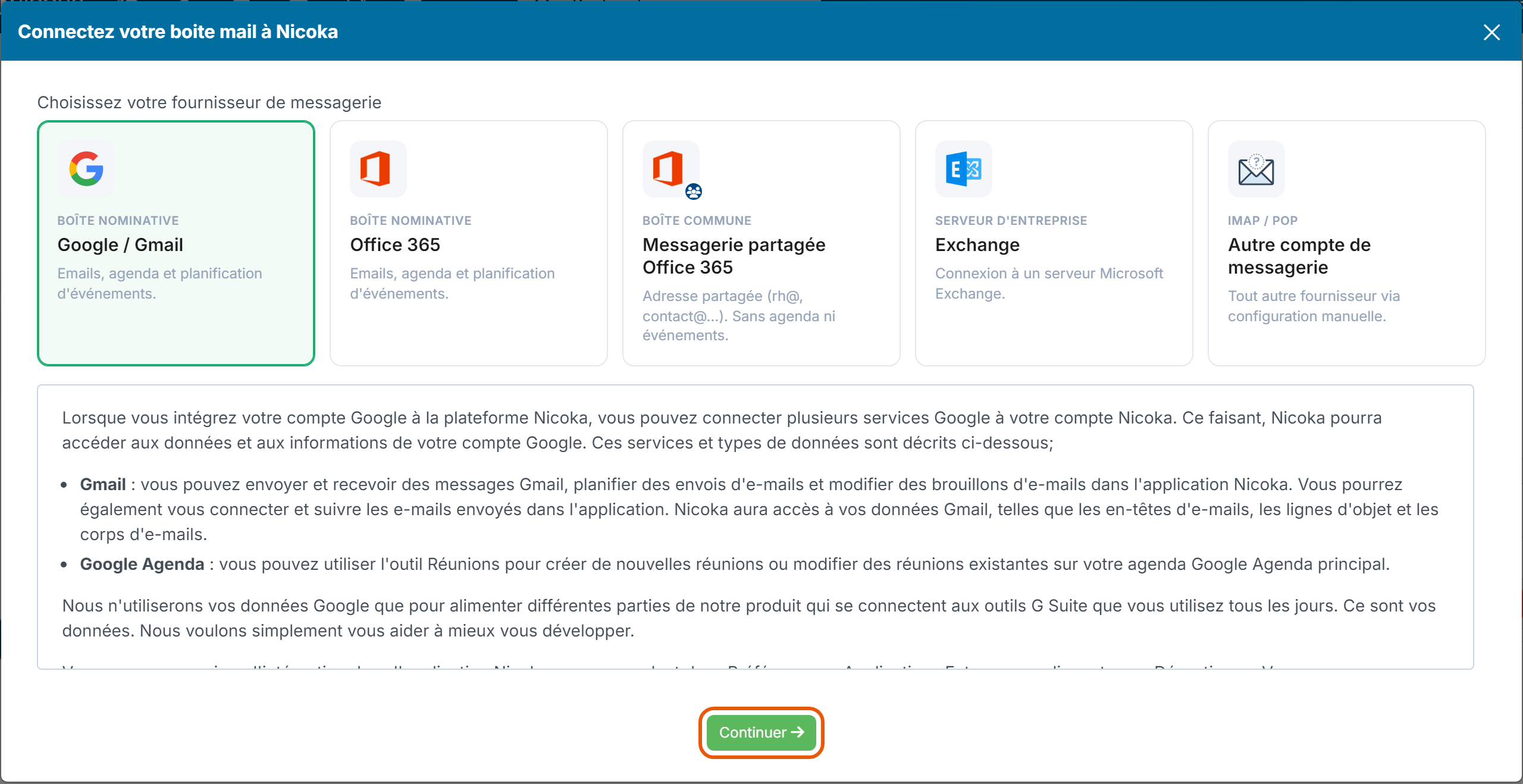
- In the Connect your mail box to Nicoka window, click the Google / Gmail card, read the terms of use, then click Continue.
- You are redirected to Google. Choose your business account and allow Nicoka to access your mailbox. You do not enter any password in Nicoka.
- Back in Nicoka, the connection settings page opens. Under Mailbox Settings, tick I want to received my email in Nicoka (recommended for recruitment) and, if you wish, I want to synch my folder 'emails sent' in Nicoka. Under Calendar customizing, tick Enable Calendar Synchronisation to see your Google Calendar events.
- Click Save.
Your mailbox is now listed under Mail Boxes. A green dot in the Status column shows that it is active. If you run into a problem, contact Nicoka support.