Step 3 - Connect your email account
Why connect your mailbox?
Once your mailbox is linked to Nicoka, you can:
- send emails to your candidates and contacts from Nicoka;
- receive your emails in Nicoka to link them to your contacts and jobs, or create a new contact from an email you received.
You can connect one or more mailboxes.
Open your mailboxes
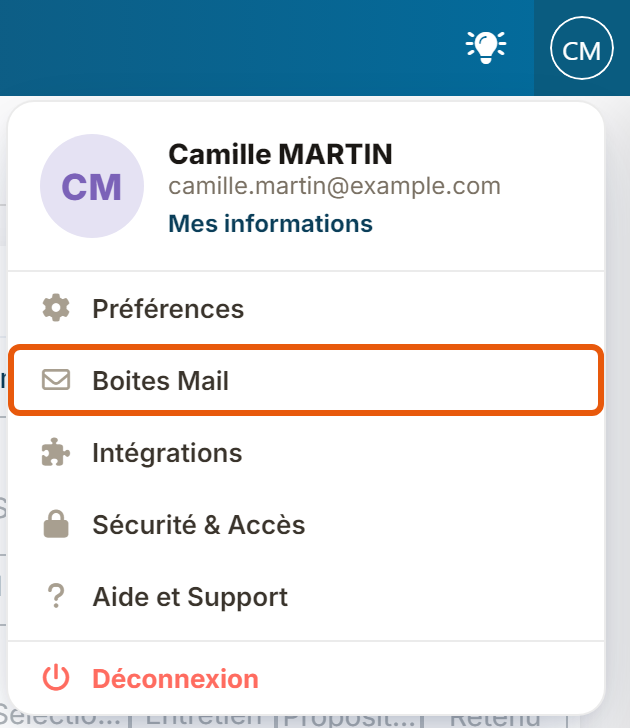
- At the top right, click your initials, then Mail Boxes.
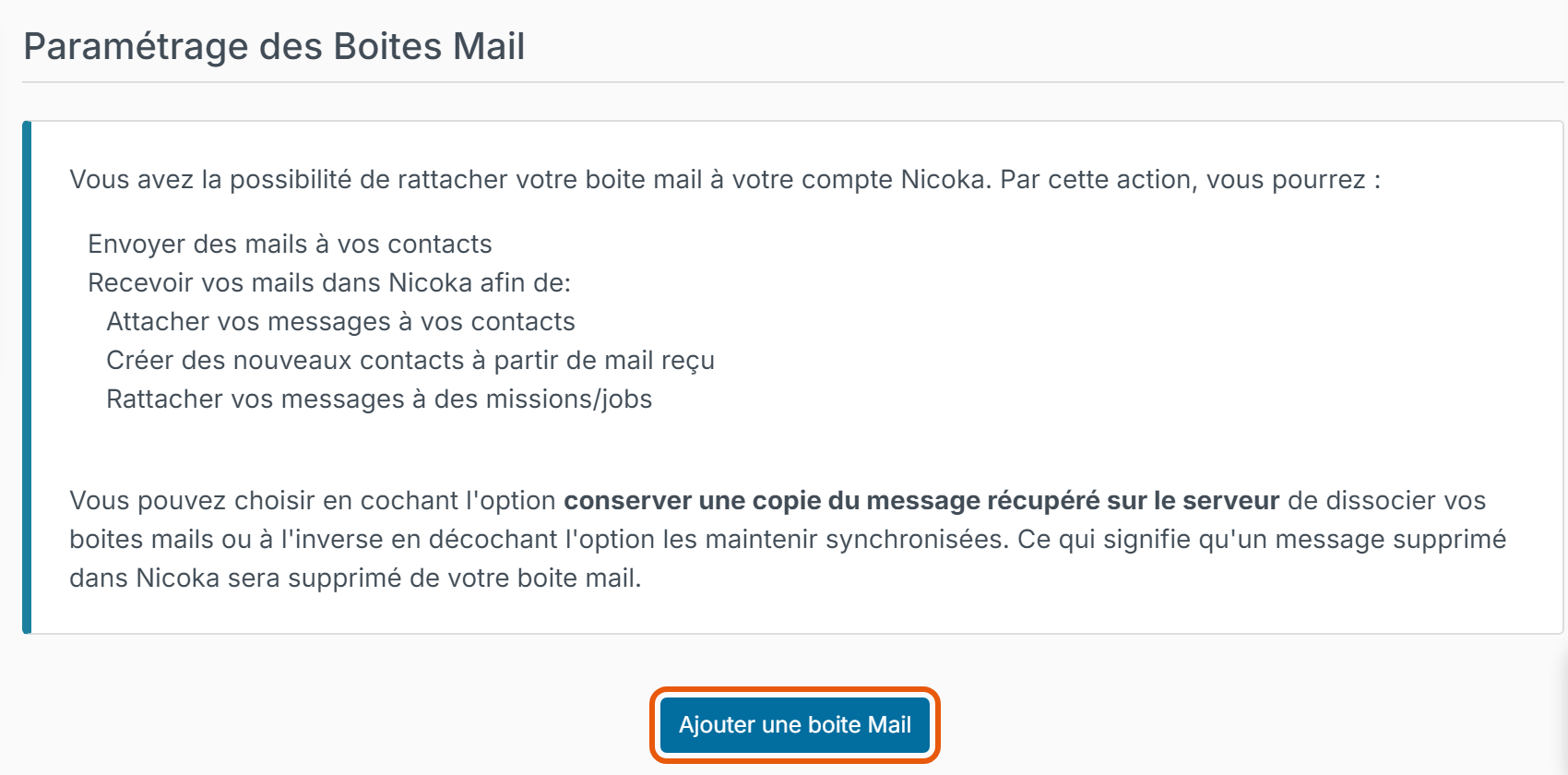
- The Mail Boxes customizing page opens. Click Add a mail Box. If a mailbox is already connected, it is shown in the list and the button is called Add an other email.
Choose your email provider
The Connect your mail box to Nicoka window asks you to pick your provider:
- Google / Gmail (personal mailbox): emails, calendar and event scheduling;
- Office 365 (personal mailbox): emails, calendar and event scheduling. It is the default choice;
- Office 365 shared messaging (shared mailbox): a shared address, such as hr@ or contact@, with no calendar or events;
- Exchange (enterprise server): connection to a Microsoft Exchange server;
- Other type of mailbox (IMAP / POP): any other provider, with a manual configuration (for example Connect your OVH mailbox).
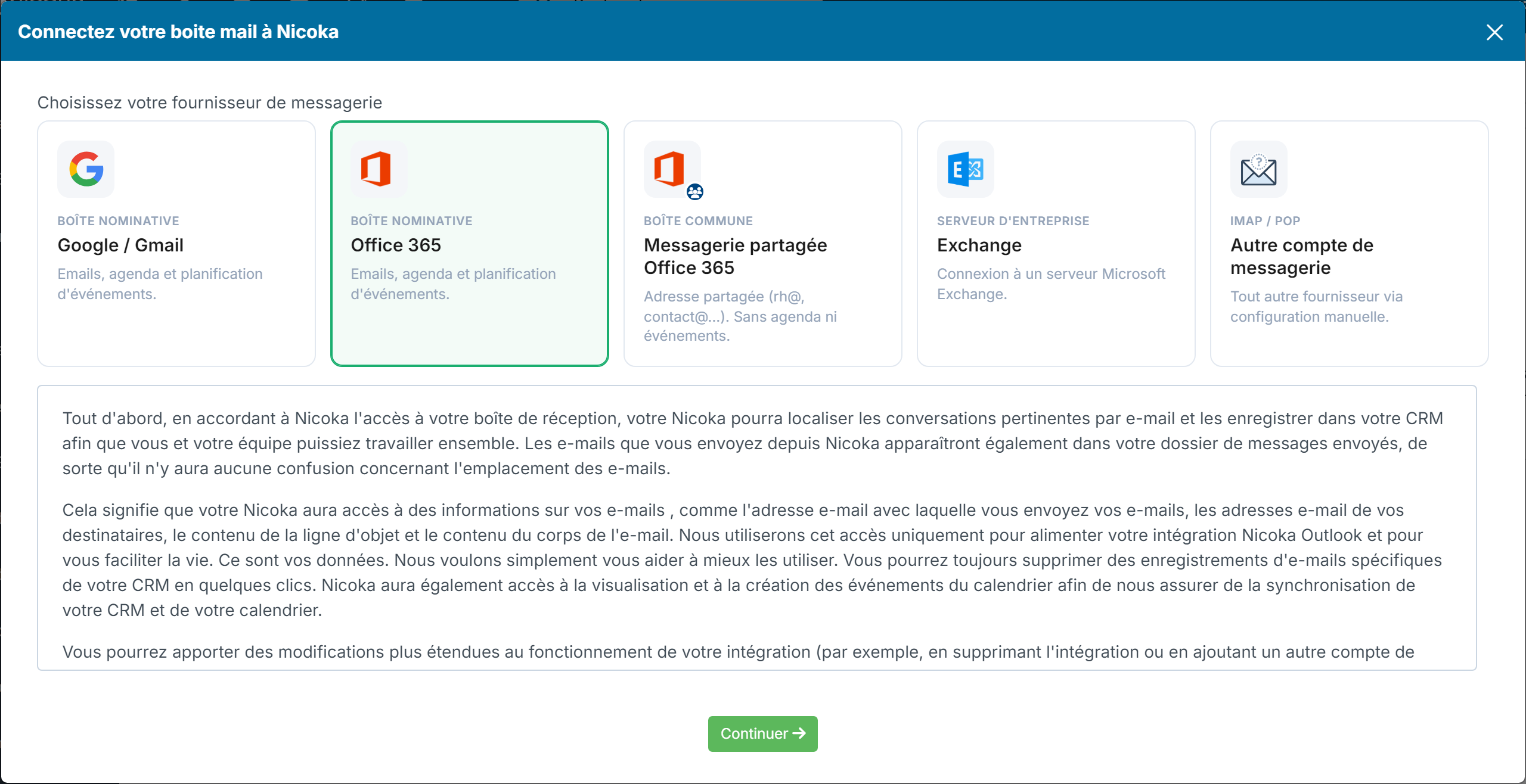
- Click your provider's card.
- Read the terms of use shown below the cards, then click Continue.
Complete the connection
- Google / Gmail or Office 365: you are redirected to the Google or Microsoft sign-in page. Sign in and allow Nicoka to access your mailbox. Step-by-step details: Connect your Gmail account and Connect your Office365 account. If Microsoft asks for an administrator's approval, see For Microsoft 365 administrators.
- Office 365 shared messaging: enter the address of the shared mailbox, click Add, then sign in on the Microsoft page with your own account, which must have access to this shared mailbox.
- Exchange or Other type of mailbox: a form opens. Enter the address, user name and password of your mailbox (not your Nicoka ones), and the servers given by your provider. Tick I want to received my email in Nicoka so that the emails you receive show up in Nicoka, then click Add.
Once connected, your mailbox is listed on the Mail Boxes customizing page.
Getting started with the ATS
Were this information helpful?