Step 5 - Create a position or assignment
The job, starting point of your recruitment
In Nicoka, you follow your candidates at job level: the position to fill or the assignment to source. Depending on your configuration, this object may be called Job, Poste or Mission in your space. This article uses "job", as in the screenshots.
Open your job list
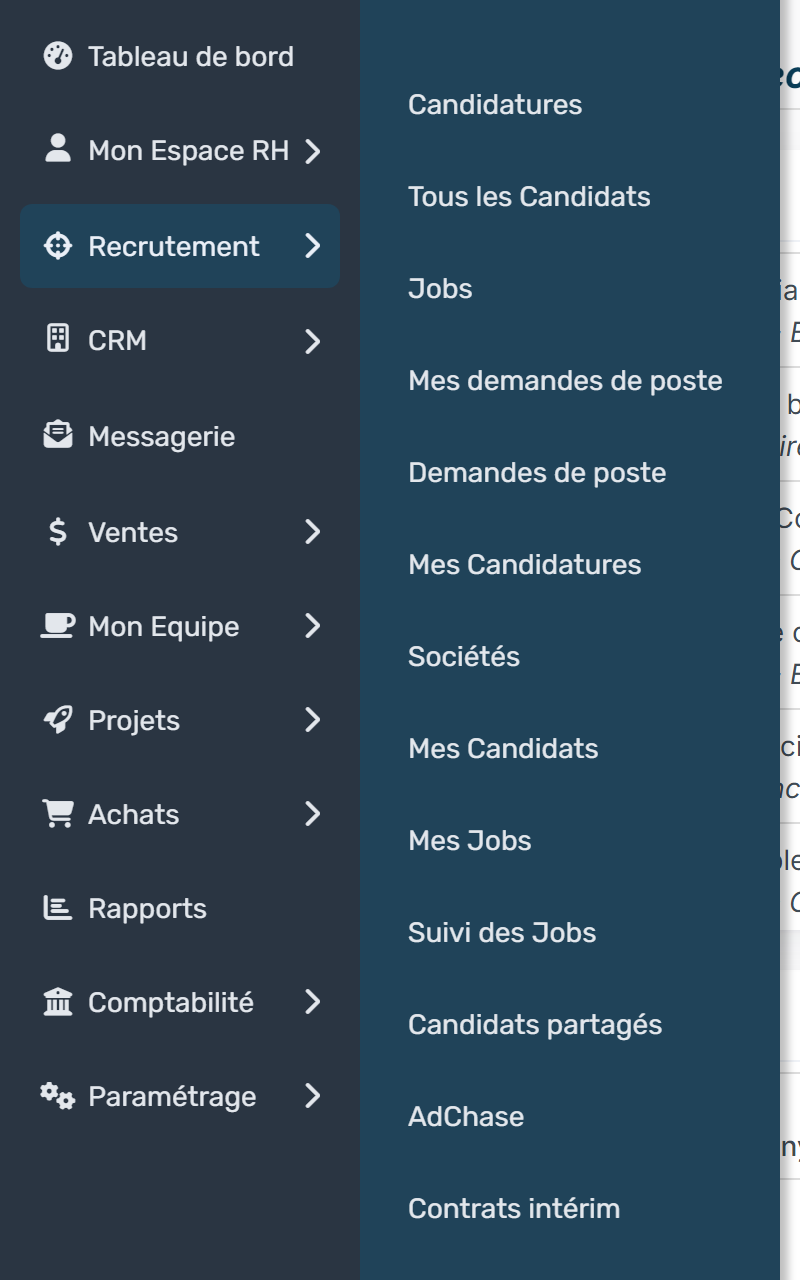
- In the side menu, click Recruitment, then Jobs. Your menu may be organised differently.
- Your job list opens, with each job's account, status, publication date and assignee.
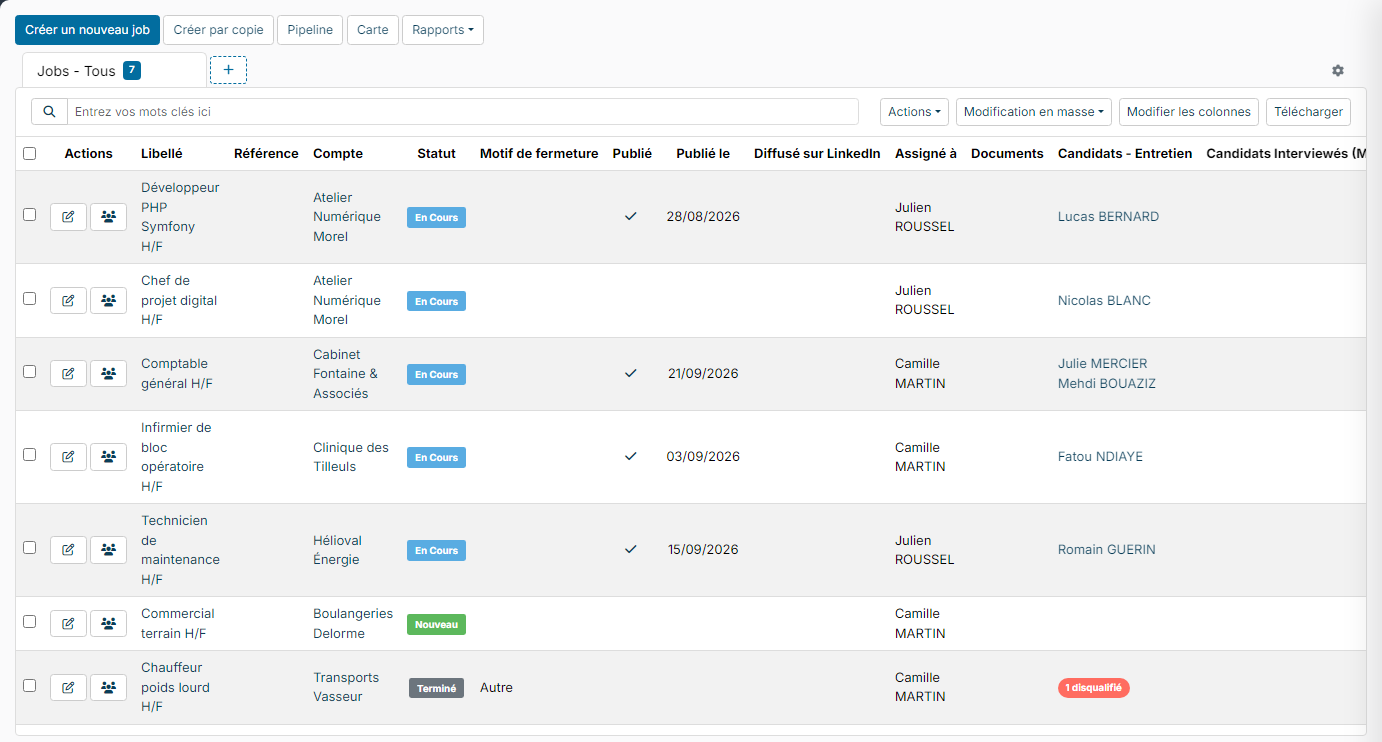
Create a job
Click the Create a new button (followed by the name of the object in your space). The creation form is split into blocks: Header Data, Details, Main address and Requested by. Only the fields marked with an asterisk (*) are required. Depending on your configuration, other blocks of fields may appear at the bottom of the form.
Header Data
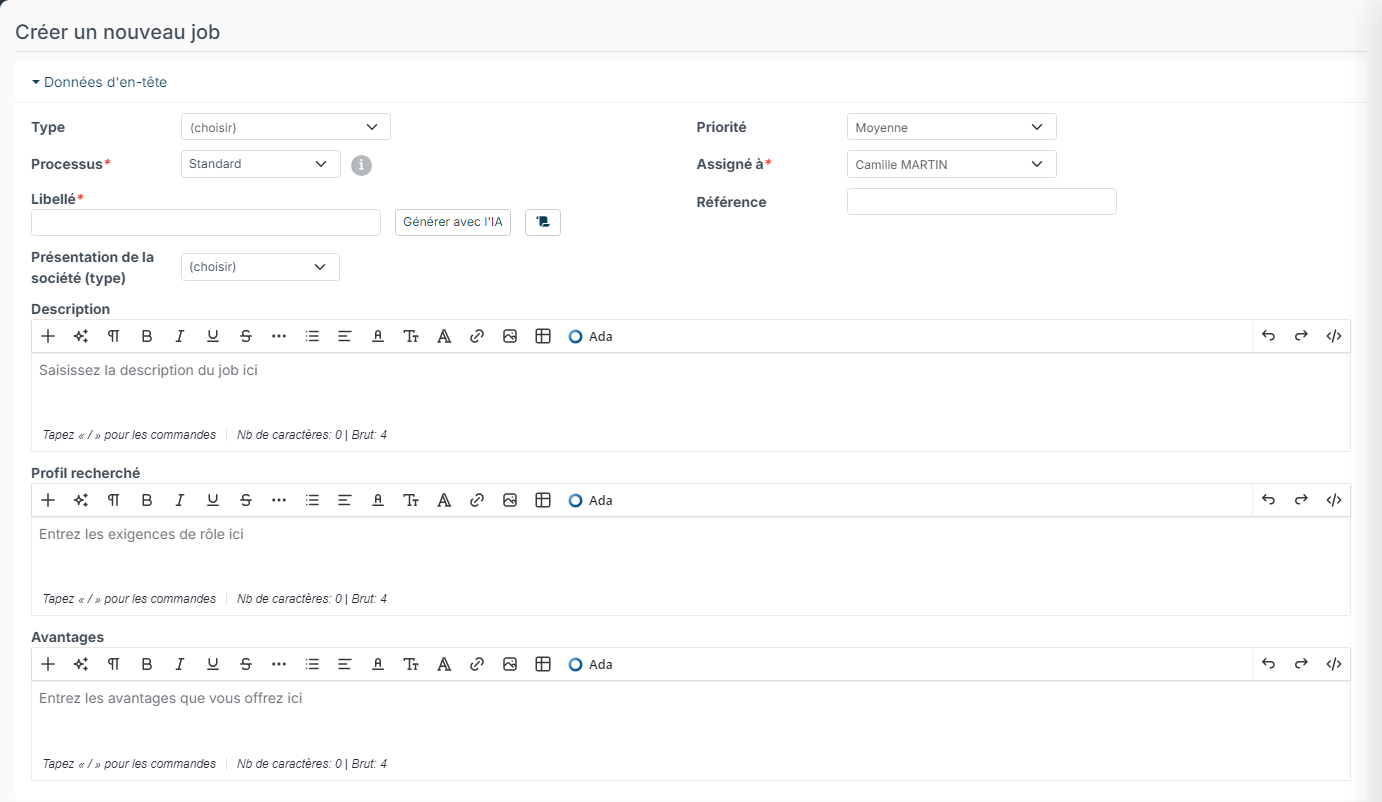
- Type: the job category, if your company uses them.
- Workflow: the recruitment steps your candidates will go through. The Standard workflow is selected by default. Click the i icon to show its steps. You can adapt the steps or create other workflows: see step 6.
- Label: the job title, for example "Junior project manager M/F".
- Priority: how urgent the recruitment is.
- Assign To: the team member in charge of the job. You are selected by default.
- Reference: your internal code, if you have one.
- Company presentation (type): pick a saved company presentation or type one for this job.
- Description, Requirements and Benefits: the text of your job ad, used when you publish it.
To write the ad faster, the Generate with AI button suggests a text based on the information you entered, and the icon next to it (Fill with a template) loads a template ad. Details: Generate a job offer with AI.
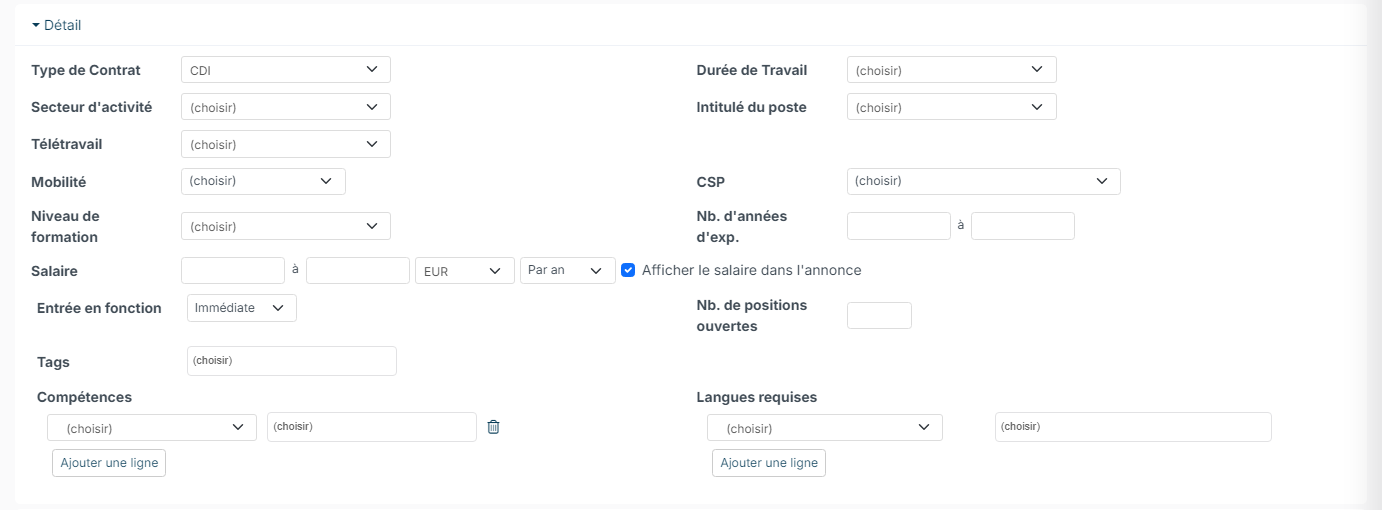
Details
These fields are optional. They enrich your job ad and your searches: Contract Type, Employment Type, Industry, Job Title, Remote Type, Mobility, Socio Professional Category, Education Level, Years of experiences, Salary (with the option to show it in the ad), Start Date, Nb of open position, Tags, required skills and languages.
Main address
Enter the place of work. You do not need a full address: a zip code, a city, a state or a country is enough. The search field helps you find an address.
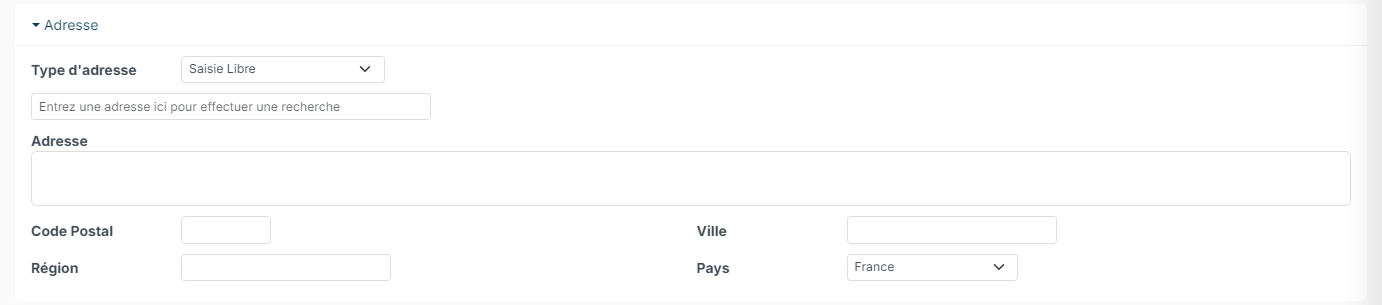
Requested by
This block describes where the need comes from:
- Request On and Department: useful for sorting and reporting.
- Customer: link the job to a client. The + button creates the account if it does not exist yet.
- Visible by: Everybody by default. Click the edit icon to restrict the job to some team members, departments or profiles. Only they will see it in lists, reports and dashboards. This is how you give your managers access to a job.
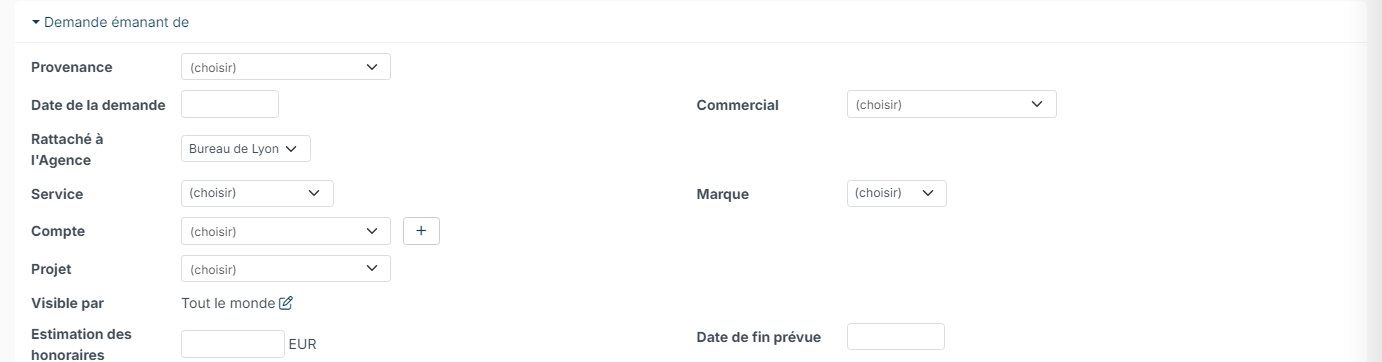
Finally, click Create at the bottom of the form. The job is created, with the New status by default, and its workflow page opens.
The workflow page
This is where you follow the job's candidates, step by step. You can switch the display with Columns, Tiles, Table or All Candidates.
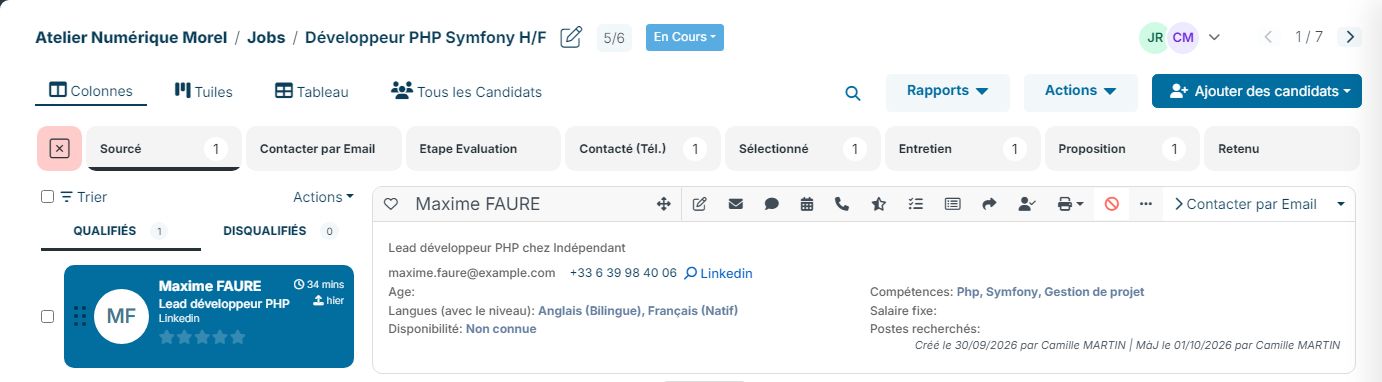
The Add candidates button lets you, among other things, create a candidate (Add a candidate) or upload resumes (Upload Resumes). The status badge next to the title lets you move the job forward (for example from New to Open).
The job sheet
Click the job title (or the pencil icon) to open its sheet. There you can edit or complete the information entered at creation.
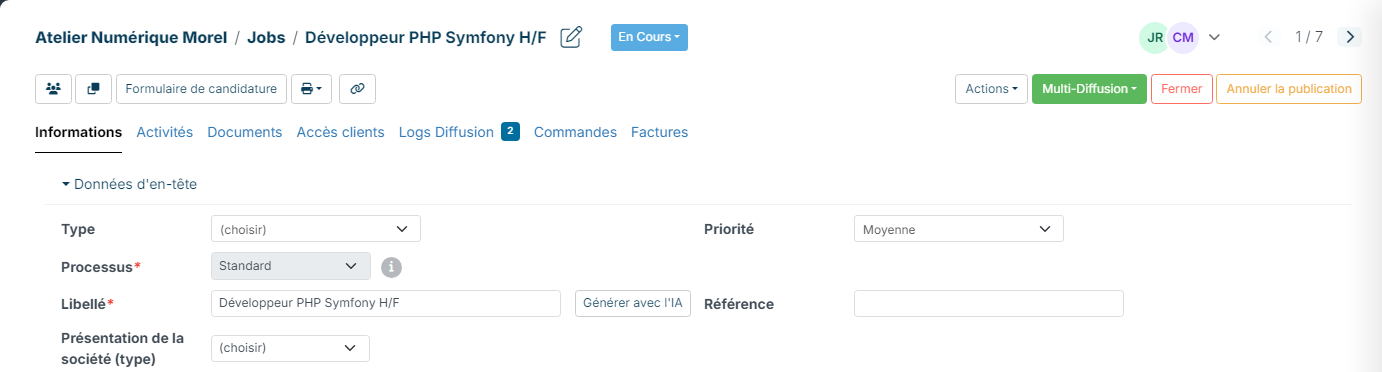
The button bar, from left to right:
- the candidates icon (Candidate Applications): back to the workflow page;
- Preview: shows the ad as candidates will see it. This button only appears while the job is not published;
- the Copy icon: creates a new job from this one;
- Application Form: see below;
- the printer (Export using Template): generates a document from one of your templates, if you have any;
- the link icon (Link to the announce): opens the published ad. It only appears once the job is published;
- Actions: Detail report, Change log, I check the conformity of my job offer…;
- Multi Posting (published job): Post my job on your job boards and Renew the postings;
- Close: closes the job, for example once the position is filled;
- Publish or Unpublish.
The tabs group the job's Information, its Activities, its Documents, Customers Access (or Managers Access if the job is not linked to an account) and the Posting Log, the history of job board postings. Other tabs may appear depending on the modules enabled, such as Orders and Invoices.
Publish the job on your career site
- On the job sheet, click Preview to proofread the ad.
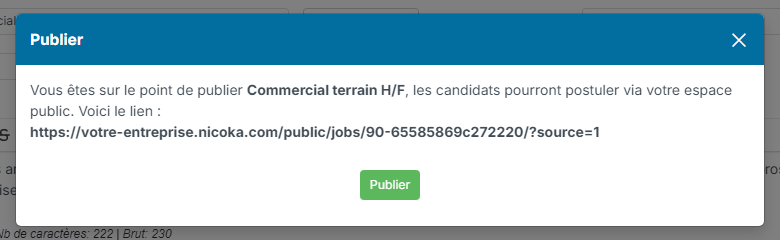
- If everything is correct, click Publish, at the top right.

- The Publish window shows the public link of the ad. This link works without a Nicoka account: you can share it on social networks or in your emails. If your company has set up automatic posting, the window also lists the job boards concerned.
- Click Publish to confirm.
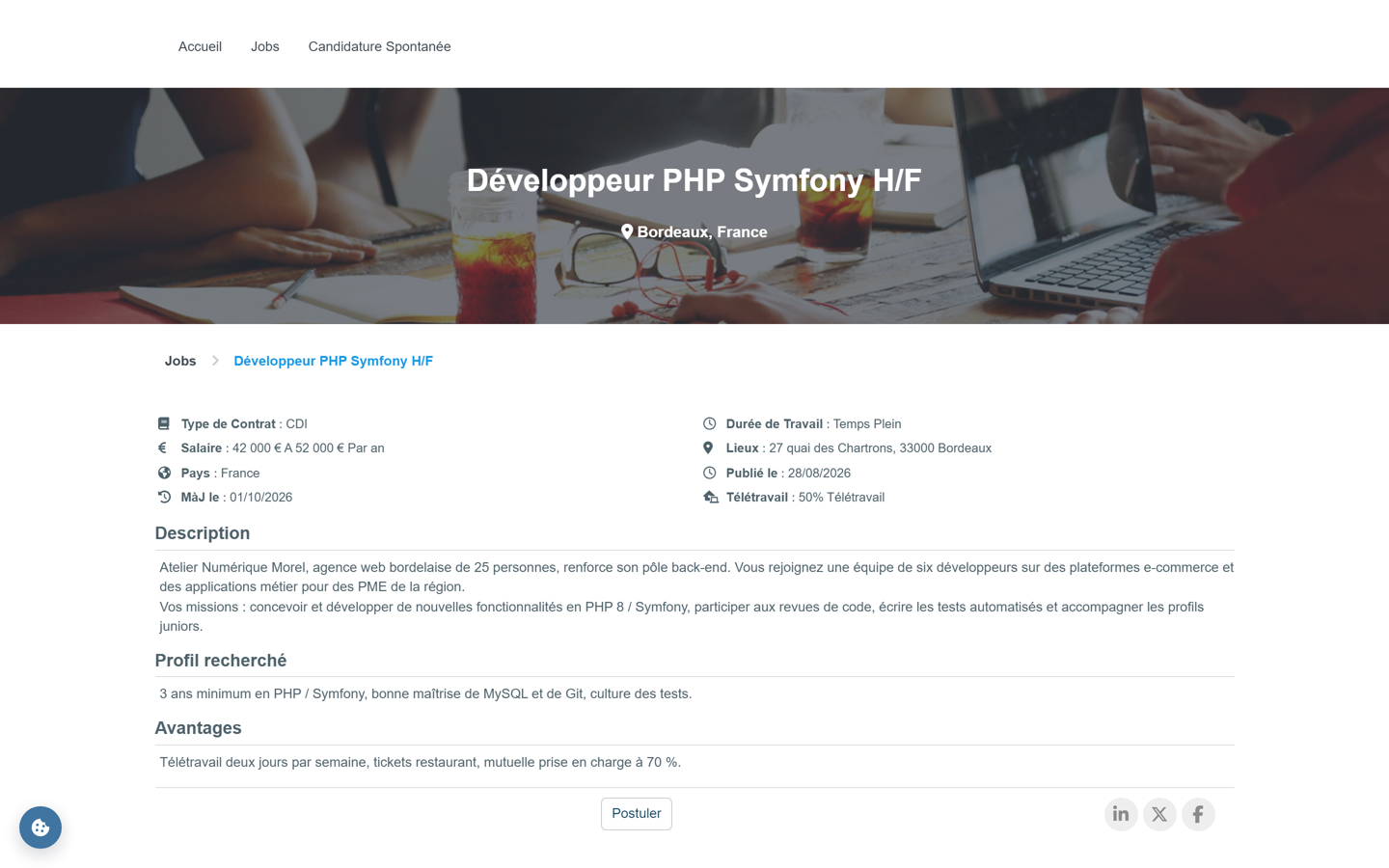
Your ad is now online on your career site. To open it, click the Link to the announce icon on the job sheet. Candidates apply with the apply button and can share the ad on their social networks.
To take the ad down, click Unpublish: candidates can no longer apply and the job no longer appears on your career site. To post the job on job boards: Multiposting configuration.
Choose the application form
By default, candidates apply with the standard form. To ask them additional questions:
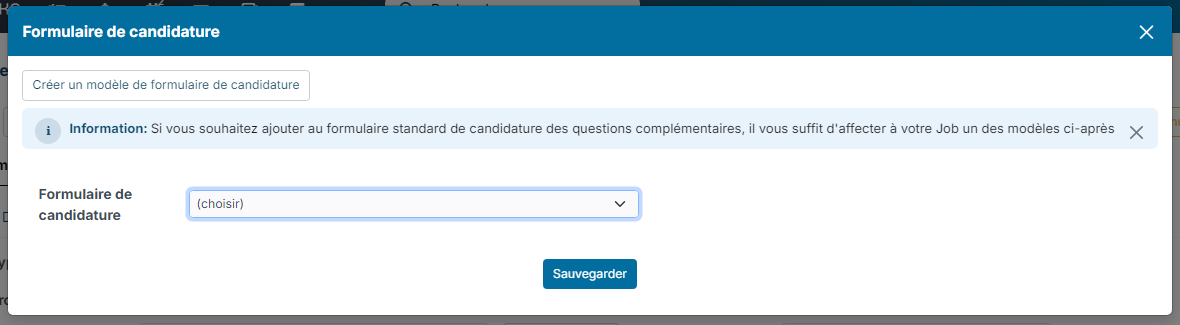
- On the job sheet, click Application Form.
- Pick a template in the Application Form list, then click Save. If you have no template yet, click Create a new application form model.
To learn more: Create an application form.
To send their application, candidates must accept your privacy policy and the processing of their personal data. For data retention and consent renewal, see Recruitment and GDPR management.