Multiposting configuration
Multiposting publishes the job ads created in Nicoka on external recruitment websites, the jobboards. Each jobboard is linked to Nicoka by a connector, which you set up once in a multiposting configuration. You then post each job in a few clicks and follow the status of its ads from the job.
This article guides you step by step: what to arrange with the jobboards, the setup in Nicoka, posting a job, following your postings and receiving applications.
1. Before you start: what to arrange with the jobboards
First list the jobboards you want to post on. Each jobboard has its own requirements: contract or subscription, identifier, required fields… Some steps are done beforehand, directly with the jobboard. The most common ones are detailed below.
Indeed
To post your ads on Indeed from Nicoka, contact your sales representative at Indeed and tell them that you use Nicoka as your recruitment software (ATS) to post your ads. If you do not have a representative yet, contact Indeed from your employer account (employers.indeed.com), in the help section.
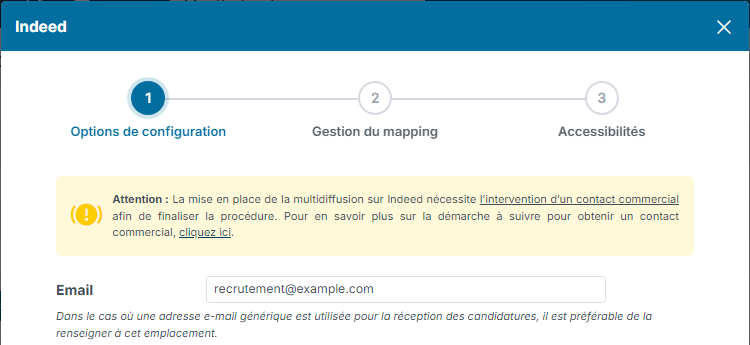
In Nicoka, the Indeed configuration reminds you of this in a Warning box. The options marked as reserved for a specific setup (such as Custom Tags) are only filled in with your Indeed representative.
APEC
APEC requires a prior registration: APEC sends you an Excel file to fill in, then gives you an ADEP identifier for each recruiter. The whole procedure is described in the article Post your ads on APEC from Nicoka.
HelloWork
Give your HelloWork technical contact the address that sends HelloWork applications to your Nicoka workspace. It is always built as follows, replacing your-workspace with the address of your Nicoka workspace:
https://your-workspace.nicoka.com/api/jobs/helloworkApply
With LinkedIn's Job Wrapping service, LinkedIn reads the job ads you post from Nicoka and publishes them in the job slots of your LinkedIn Recruiter account. To turn it on, the administrator of your LinkedIn account adds Nicoka as an automated job source:
- In LinkedIn, click your profile picture, then Product settings.
- In the Jobs menu, open the automated job sources, add a new job source and select Nicoka in the list.
- Send the connection request.
In the LinkedIn configuration in Nicoka, also fill in the ID LinkedIn field: it is the identifier of your LinkedIn company page. You can find it in the administration area of that page, or ask LinkedIn support.
2. Setting up a jobboard in Nicoka
Multiposting setup is reserved for the administrators of your Nicoka workspace.
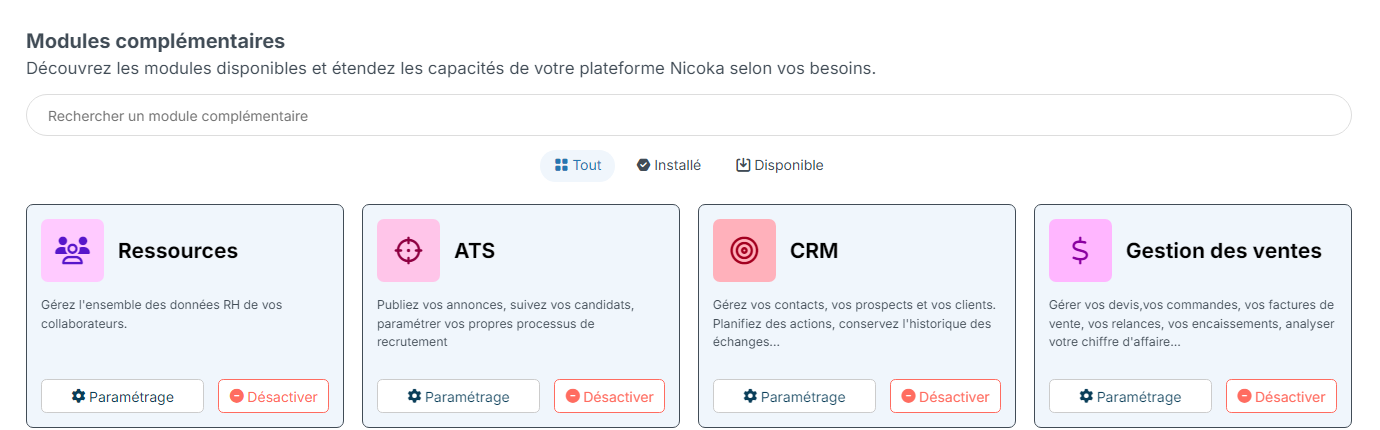
- In the side menu, open Customizing > Store.
- On the ATS card, click Customize.
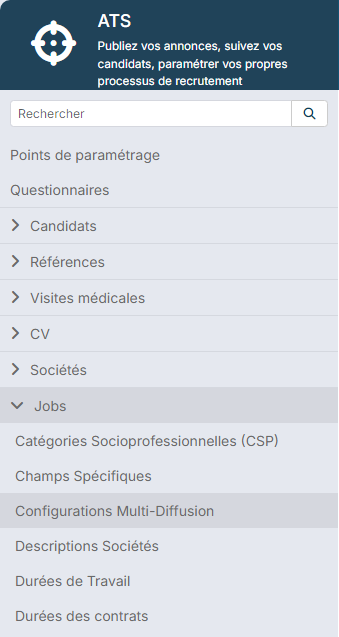
- In the left menu, open the jobs section, then click MultiPosting Configs.
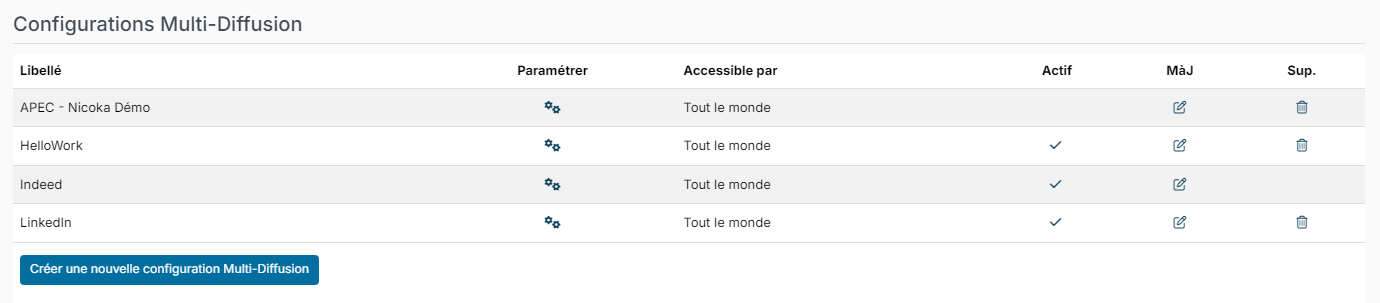
The list shows your configurations: their label, the Customize cogs icon, who can use them (Available for) and whether they are active (Active).
Creating the configuration
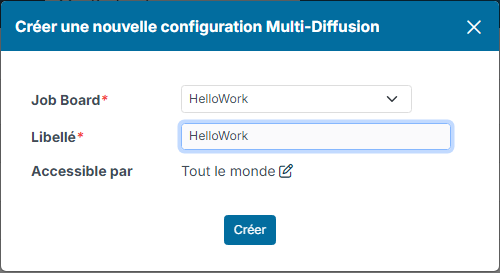
- Click Create a new MultiPosting Config.
- In Job Board, choose the jobboard. The list shows the jobboards available for your workspace.
- In Label, enter a clear name: your recruiters will see it when they post a job.
- Leave Available for on Everybody, unless you want to reserve this jobboard for some people. You can change it later.
- Click Create.
Completing the configuration
In the list, click the Customize cogs icon of the configuration. A wizard opens. Its steps and fields depend on the jobboard: some have no Required identifier or Configuration options step.
- Required identifier: the identifier the jobboard gave you and, depending on the jobboard, your company or a code. For example ADEP identifier and NAF Code for APEC, ID LinkedIn for LinkedIn, Company for HelloWork.
- Configuration options: in particular the Email for receiving applications, and the options specific to the jobboard.
- Mapping management: the mappings between your Nicoka values and the jobboard values (see below).
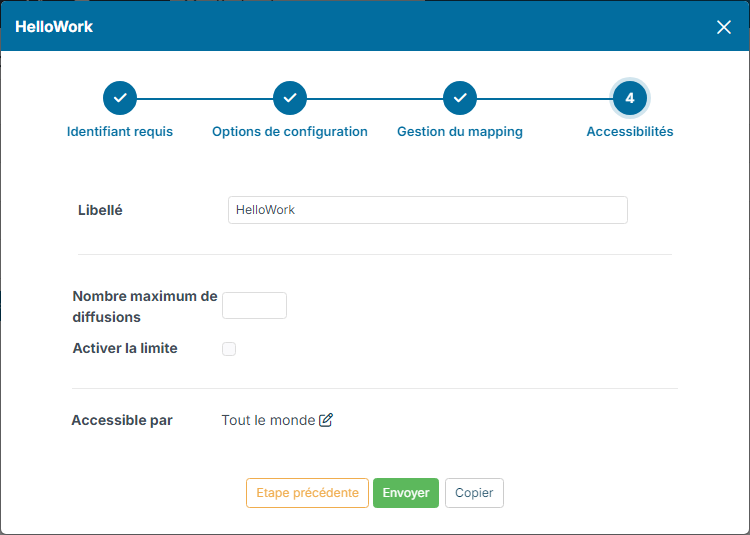
- Access settings: the label, an optional posting limit (Maximum number of postings and Enable limit) and Available for.
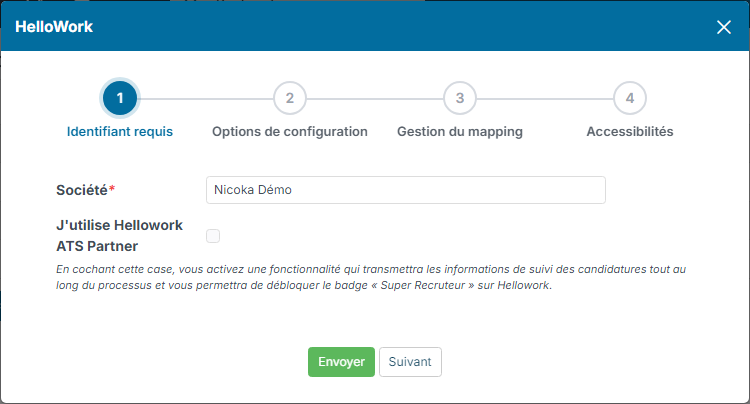
Move from one step to another with Next and Previous stage, then click Send to save. On the last step, the Copy button duplicates the configuration, which is handy to create one per recruiter or per company.
Mapping the values
Mapping links your Nicoka values to the values imposed by the jobboard. At the Mapping management step, each block (Contract Types, Employment Types, Education Levels, Industries…) shows the Nicoka value on the left and the jobboard value on the right. Click Add row to add a mapping, and the bin to remove one.
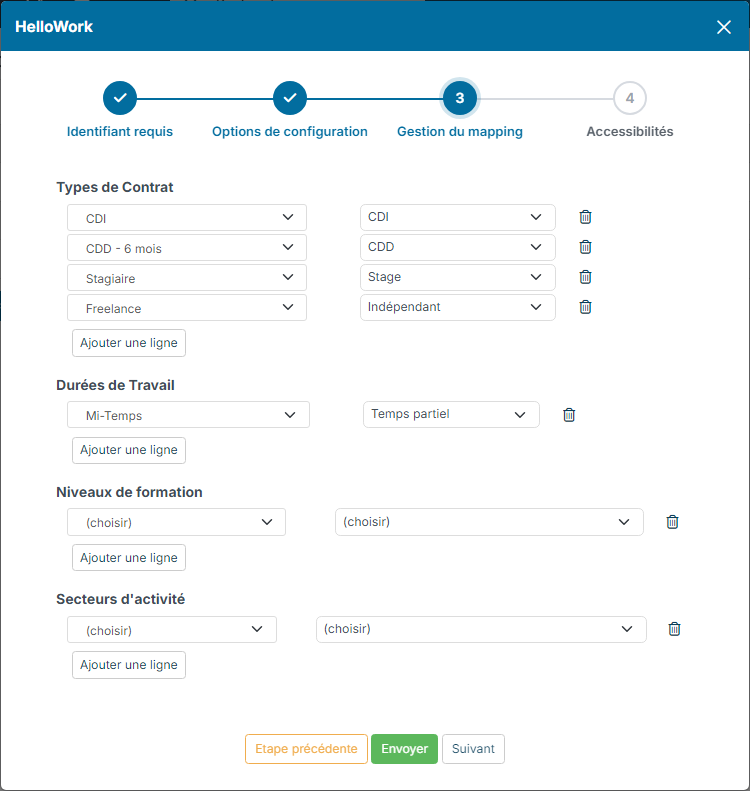
Some jobboards need many mappings, others very few. Map at least the values used in your jobs: if one is missing when you post, the posting fails. You can then complete the mapping directly from the job (see Handling posting errors).
Reserving a jobboard for some people
At the Access settings step, click the edit icon next to Everybody, choose Only some people, tick the people (or departments, agencies, profiles…) concerned, then click Update and Send. Only these people will see this jobboard when they post a job.
Activating the configuration
A configuration is only offered for posting when it is active. To activate it, click in its Active column: a tick appears. Nicoka only accepts the activation once the required jobboard information is filled in; otherwise a message tells you what is missing, to be completed with the Customize cogs icon.
3. Posting a job
- Create your job and fill in its information, in particular the fields used by the mapping (contract type, employment type…).
- Click Publish, at the top right of the job. The job is published on your career site: this public page is the starting point of the postings.
- Once the job is published, the Multi Posting button appears. Click it, then Post my job.
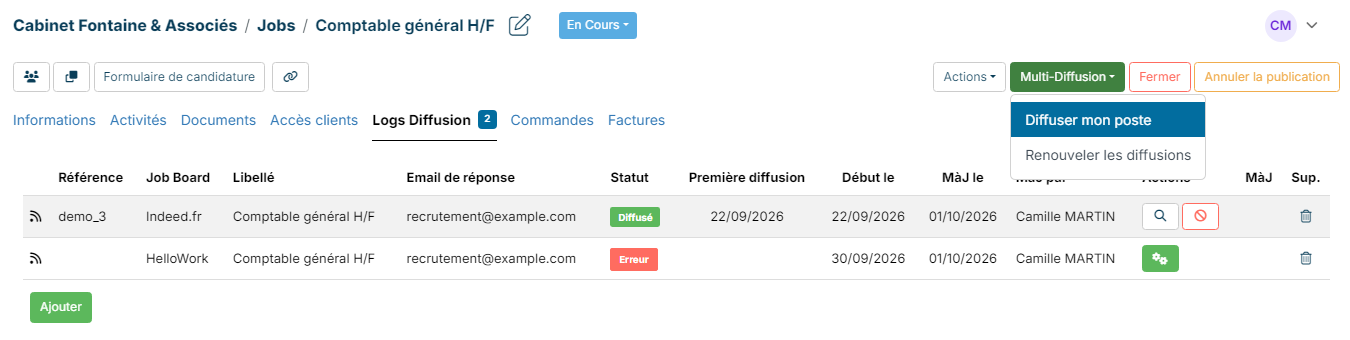
- The Multi Posting window lists the active jobboards you have access to. Tick the ones you want, then click Submit.
If a jobboard needs missing information (a required field of the job, a mapping…), Nicoka tells you. The most common messages and how to fix them are explained in Handling posting errors.
The Renew the postings entry posts the expired ads of the job again: see Renewing job postings.
4. Following your postings
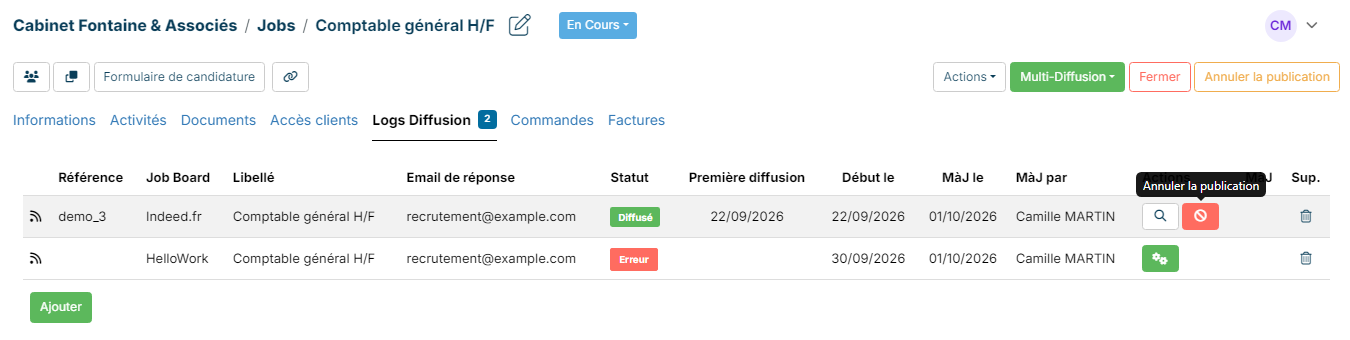
Open the job, then the Posting Log tab. Each row is a jobboard: the Status column shows where the ad stands, the First publication column the date it first went online.
- Post Plan: the posting is scheduled. Hover over the status to see its date, click it to post right away. If a posting is still scheduled several hours after the planned date, contact support.
- Posted: the ad is online.
- In validation by the job Board: the jobboard still has to approve the ad. This is the case for APEC, where an adviser approves each ad.
- Announce not up to date: the job has changed since it was posted. Click the status to update the ad on the jobboard.
- Announce expired: the renewal delay (25 days by default) has passed, you can renew the posting. This status is for information only: it does not mean that the jobboard has removed the ad. See Renewing job postings.
- Announce Rejeted: the jobboard refused the ad. Hover over or click the status to see the reason, fix the job, then click the Submit the job posting again icon in the Actions column.
- Not Published: the ad was withdrawn from the jobboard.
- Posting Failed: the last posting attempt failed. See Handling posting errors.
In the Actions column, the Find my announce on the jobboard magnifying glass opens a search for your ad on the jobboard website.
To follow the postings of all your jobs on one screen, the Recruitment > Jobboard Postings menu groups them. This menu is turned off by default: ask your Nicoka administrator or support to turn it on.
Recording a posting made outside Nicoka
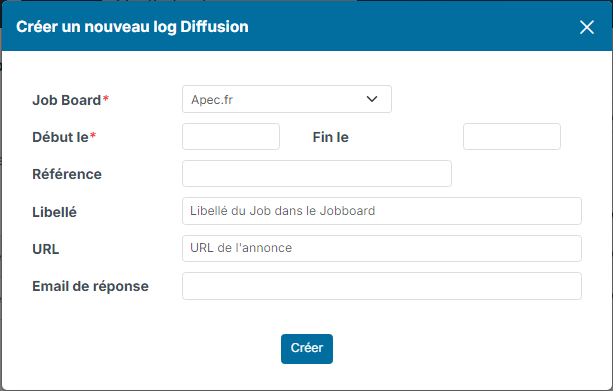
The Posting Log tab can also keep track of an ad you published yourself on a jobboard. Click Add, fill in the Job Board, the Start On date and, if you wish, the reference, label, ad URL and response email, then click Create. This row is for information only: Nicoka sends nothing to the jobboard.
5. Receiving applications
Depending on the jobboard and its configuration, applications reach Nicoka in three ways.
- Directly in the job: the jobboard sends the application to Nicoka, which adds it to the applications of the job. This is the case for example with HelloWork, Indeed or Monster.
- By email: the jobboard sends the application to the Email for receiving applications of the configuration. If this mailbox is connected to Nicoka, Nicoka analyses the email and creates the candidate from the attached resume (see Connect your mailbox).
- Through your career site: the candidate is redirected to the ad page on your career site and applies from there. The application reaches the job.
6. Editing, withdrawing or closing a job
Editing a job that is already posted: your changes are not sent to the jobboards automatically. A banner reminds you of this on the job and the status switches to Announce not up to date. In the Posting Log tab, click this status to send the updated ad to the jobboard.
Withdrawing the ad from one jobboard: in the Posting Log tab, click the red Cancel Posting icon in the Actions column, on the row of the jobboard. Nicoka asks the jobboard to remove the ad; how long it takes depends on the jobboard. This also works for APEC. The row stays in the tab with the Not Published status, which keeps track of the posting. The bin in the Del. column, when it is shown, deletes the row: if the ad is still online, Nicoka also asks the jobboard to remove it.
Withdrawing the job everywhere: click Unpublish, at the top right of the job. The job is no longer published on your career site and Nicoka withdraws its ads from the jobboards.
Ending the recruitment: click Close (position filled or abandoned). This is the same as changing the status of the job; its ads are also withdrawn from the jobboards.
Good practices
- After adding a new jobboard, post a first job and check that it goes online on the jobboard website.
- Keep an eye on your ad quotas with each jobboard; the posting limit of the Access settings step can help.
- Keep the mapping up to date when you add a contract type or an employment type in Nicoka.
- For a jobboard that is not in the list, contact support before committing to it.
Frequently asked questions
Are all jobboards available in Nicoka?
No, only those for which a connector exists. To ask for a new one, write to support@nicoka.com with the jobboard's contact details: it can be added subject to technical and commercial feasibility.
Can all our jobs be posted automatically?
As a rule, you choose for each job the jobboards to post it on, with Post my job: this way you keep control over the content and the targets. Renewal, on the other hand, can be done for several jobs at once (see Renewing job postings). For some jobboards, an automatic synchronization can be set up with the Nicoka team: ask support.
How can I move a job ad back to the top of a jobboard's list?
Renew its posting: the ad is published again with a new publication date, which can move it back up depending on each jobboard's rules. Everything is explained in Renewing job postings.
Why is my ad still online after I withdrew it?
- The removal delay varies between jobboards and can be up to 24 hours.
- Some jobboards post your ads on other websites themselves: the removal applies to the main jobboard, not always to its partners.
- A one-off synchronization issue is possible: if the ad is still online after 24 hours, contact support.
If you are stuck, write to support@nicoka.com with the job, the jobboard and the message displayed.