Handling posting errors
When Nicoka cannot publish a job ad on a jobboard, the posting switches to the Posting Failed status. This can happen at the first posting, when the ad is updated or when it is renewed: Nicoka then runs its checks again on the job as it is that day. This article explains how to find these errors, understand them and fix them.
Finding postings in error
The Jobboard broadcasts in error widget of your dashboard lists every posting in error: the job, the jobboard, the reason for the error, the posting date and the multiposting configuration used.

To add it to your dashboard:
- Open the Dashboard.
- Click the Customizing cogs icon, at the top right.
- In the list of available widgets, Recruitment section, click Jobboard broadcasts in error. It moves to the selected widgets.
- Click Save.
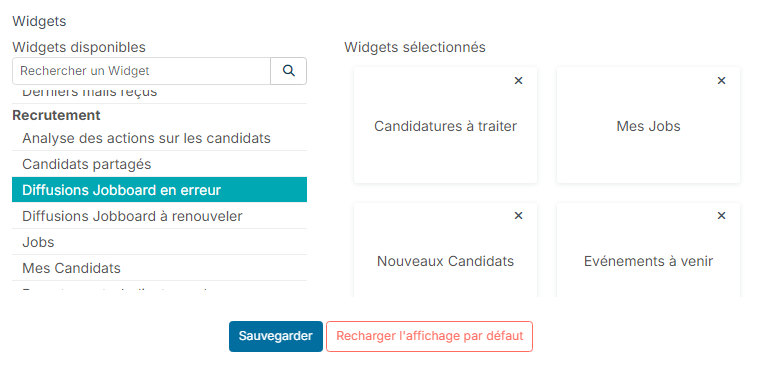
In the widget, click the job name: the job opens on its Posting Log tab, where you fix the error.
The status of each posting is also shown in the Posting Log tab of the job. If your administrator has enabled it, the Recruitment > Jobboard Postings menu lists the postings of all your jobs.
Understanding the error
In the Posting Log tab of the job, hover over the red Posting Failed badge: the message "Posting failed because …, click here to retry" gives the reason.
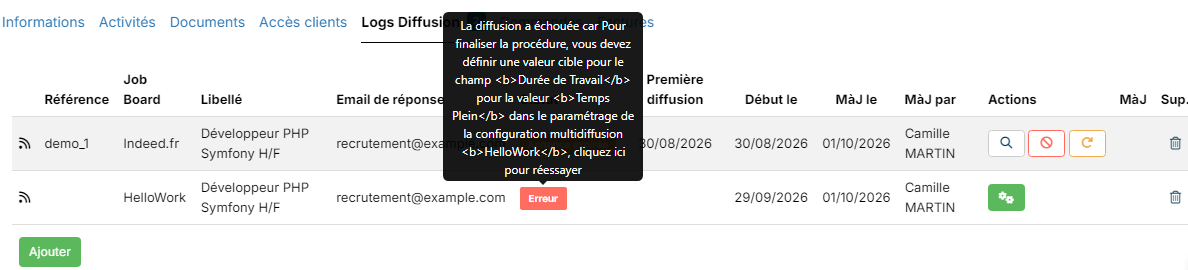
In the Actions column, the green cogs button says "Some configuration info are missing, please click on the cogs to complete the form". It opens the jobboard configuration.
The most common reasons:
- A mapping is missing: a value of the job has no equivalent for this jobboard. Example: "… you must define a target value for field Employment Type for the value Temps Plein in the customizing of the multiposting configuration HelloWork".
- A required field is empty in the job: "Field … is required for …". Complete the job, then post it again.
- The posting limit is reached: the maximum number of postings set on the configuration has been exceeded.
- The jobboard refused the posting (credentials, ad content…): the message then comes from the jobboard. Read it carefully, it usually points to the data to fix.
Fixing a missing mapping from the job
- In the Posting Log tab, click the Posting Failed badge. Nicoka posts the ad again.
- If a mapping is still missing, the Mapping management window opens and shows the value concerned (here Temps Plein, full time).
- Choose the matching jobboard value (here Temps complet), then click Update.
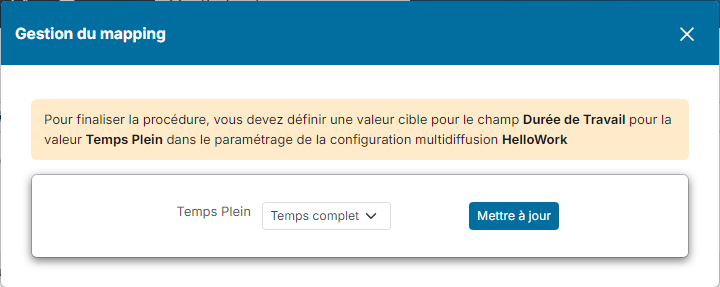
Nicoka saves the mapping in the jobboard configuration, then posts the ad again. The mapping is then used for every job posted with this configuration. The other postings already in error for the same reason keep the Posting Failed status: retry them by clicking their badge.
Completing the jobboard configuration
To review all the mappings or complete another setting, click the cogs button in the Actions column. The jobboard configuration opens in 4 steps: Required identifier, Configuration options, Mapping management and Access settings.
- Move from one step to another with Next and Previous stage.
- At the Mapping management step, each block (contract types, employment types…) links a Nicoka value, on the left, to the jobboard value, on the right. Click Add row to add a mapping.
- Click Send to save.
- Go back to the Posting Log tab of the job and click the Posting Failed badge to post the ad again.
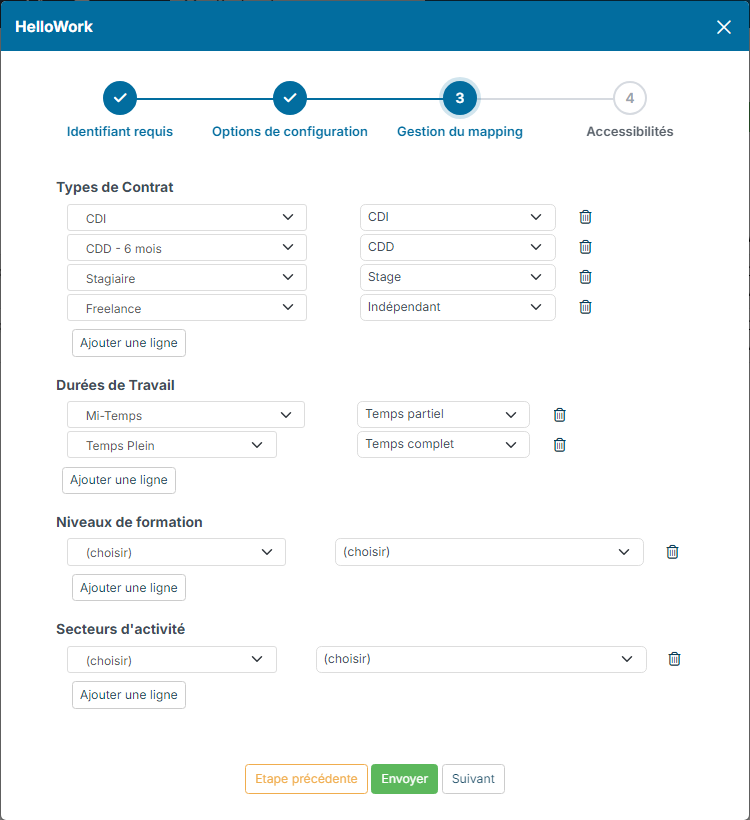
If the cogs button is not shown, you do not have access to this jobboard configuration: contact your Nicoka administrator. The settings are detailed in the article Multiposting configuration.
If the error persists
Write to support@nicoka.com with the job, the jobboard and the error message. Our team will help you diagnose the posting.
Learn more: Renewing job postings.