Post your ads on APEC from Nicoka
This article describes the steps to post your job ads on APEC from Nicoka. For how multiposting works in general, see the article Multiposting configuration.
How APEC works
Posting on APEC has two specific features:
- ads are linked to establishments, not to companies: they are attached to a SIRET number (not a SIREN);
- each recruiter has their own identifier, the ADEP identifier, given by APEC.
You therefore send APEC the list of your recruiters, and APEC creates an identifier for each of them. In Nicoka, you then create one APEC configuration per identifier. If a recruiter moves to another establishment, tell your APEC adviser. This lets APEC act faster if there is a problem with an ad.
In short:
- Gather the required information.
- Apply to APEC.
- Fill in the Excel file sent by your APEC adviser, then send it back.
- Set up APEC in Nicoka.
- Post your jobs.
1. Gathering the required information
Here is the information to give APEC.
- The list of your establishments, only if your recruiters work in several establishments (for example subsidiaries with their own NIC and company name).
- For each establishment: headcount, number of executives, SIREN, NIC, company name, address (postcode, city, street), NAF code and contact email.
- For each recruiter: last name, first name, position, phone and email.
2. Applying to APEC
APEC describes its procedure for posting ads from recruitment software (ATS) on this page (in French): Vous souhaitez diffuser vos offres d'emploi via un ATS. Tell them that you use Nicoka.
3. Filling in and returning the Excel file
Your APEC adviser sends you an Excel file: one row per recruiter, with the details of their establishment and their contact details. Fill it in with the information gathered in step 1, then send it back to your adviser. Once your request is processed, APEC gives you the ADEP identifier of each recruiter.
4. Setting up APEC in Nicoka
You must be an administrator of your Nicoka workspace to add a multiposting configuration. If you have many recruiters, and therefore many APEC configurations to create, write to support@nicoka.com.
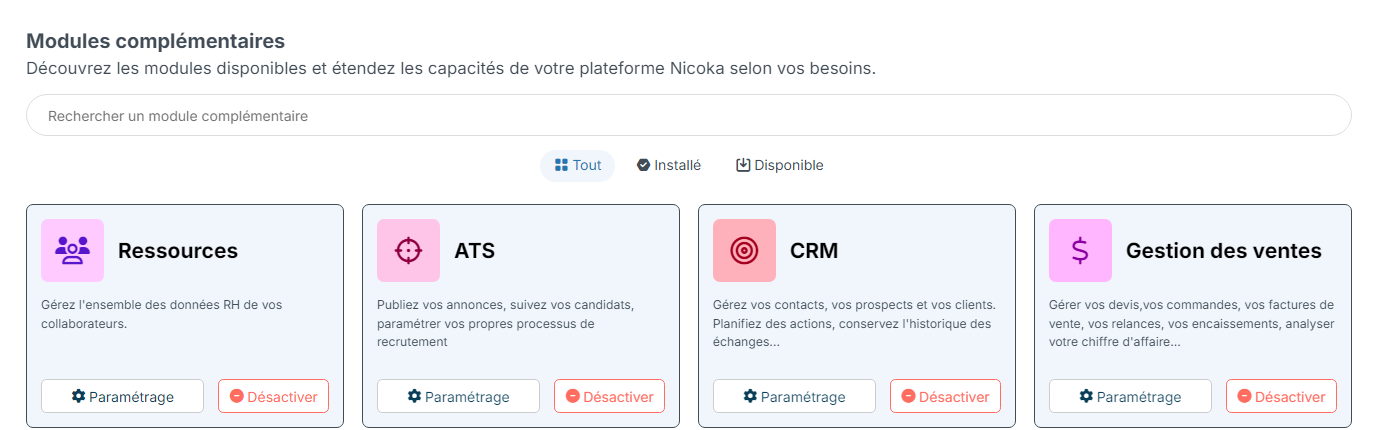
- In the side menu, open Customizing > Store.
- On the ATS card, click Customize.
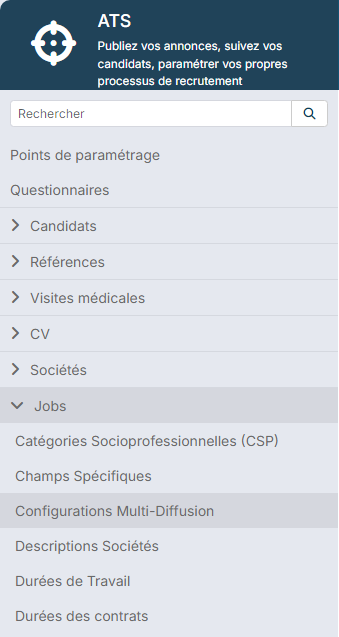
- In the left menu, open the jobs section, then click MultiPosting Configs.
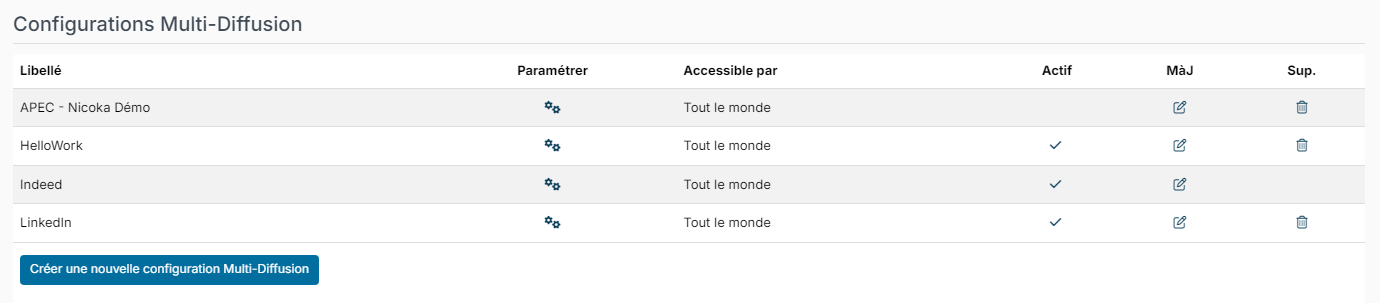
- Click Create a new MultiPosting Config.
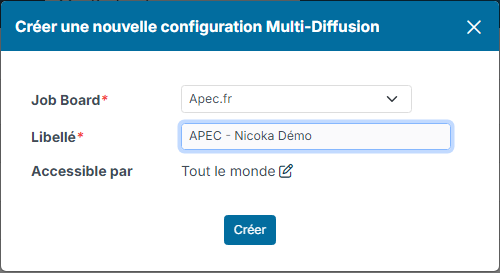
- In Job Board, choose Apec.fr. In Label, enter a name that identifies the recruiter or the establishment, for example "APEC - My company". Click Create.
- In the list, click the Customize cogs icon of the new configuration. A four-step wizard opens.
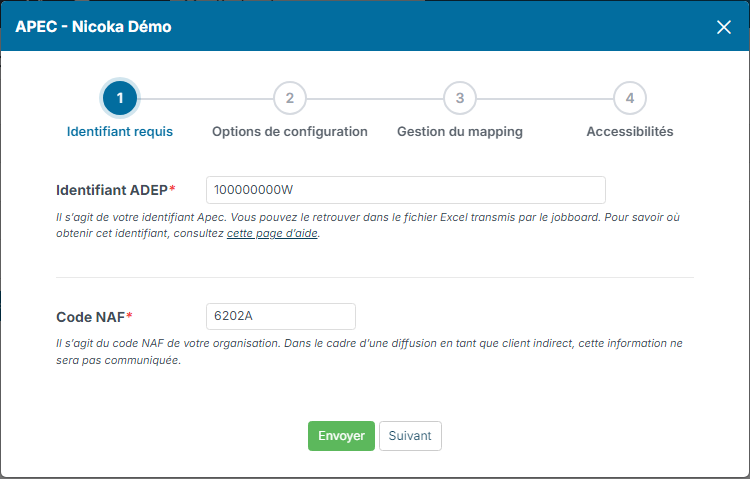
"Required identifier" step
- ADEP identifier: the recruiter's APEC identifier, as given by APEC. It looks like 100000000W.
- NAF Code: the NAF code of your establishment.
No password is needed. Click Next.
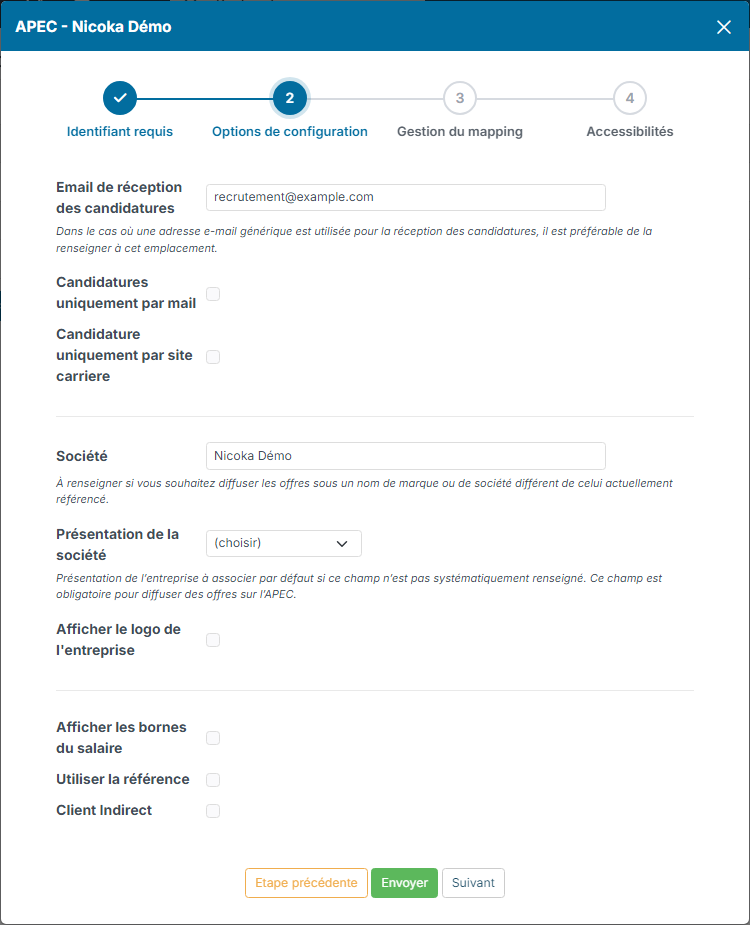
"Configuration options" step
- Email for receiving applications: the address that receives applications, preferably a generic one.
- Applications only by mail or Applications only by career site: how candidates apply.
- Company: only if you post under a different brand or company name.
- Company presentation: the presentation used by default when the job has none. It is required to post on APEC.
- Show the company logo, Show salary ranges, Use Reference (your job reference rather than its Nicoka identifier).
- Indirect client: to post on behalf of a client; the SIRET and NAF code of the end client are then asked for when you post.
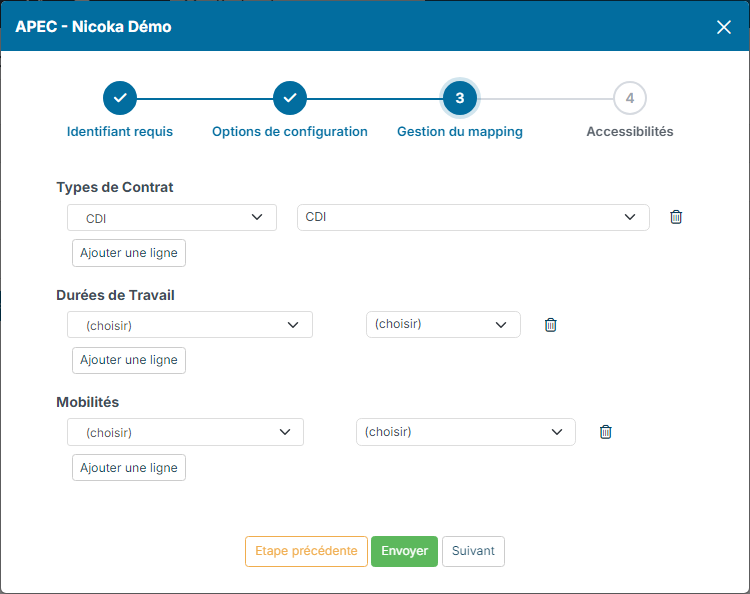
"Mapping management" step
Link your Nicoka values, on the left, to the fixed APEC values, on the right, for Contract Types, Employment Types and Mobilities. Click Add row for each mapping. Map at least the values used in your jobs: if one is missing, the posting fails (see Handling posting errors).
"Access settings" step
Each ADEP identifier usually matches one recruiter: reserve the configuration for that recruiter.
- Click the edit icon next to Everybody.
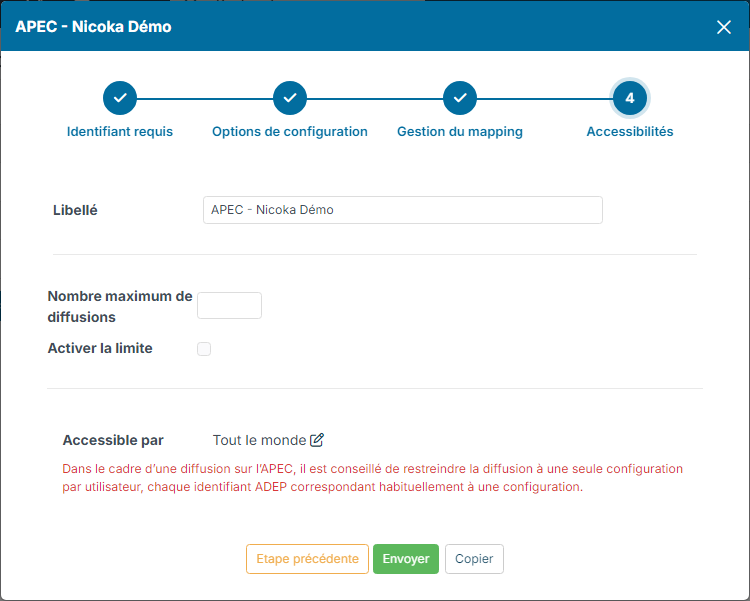
- In Available for, choose Only some people.
- Open the employees list, tick the recruiter concerned, then click Update.
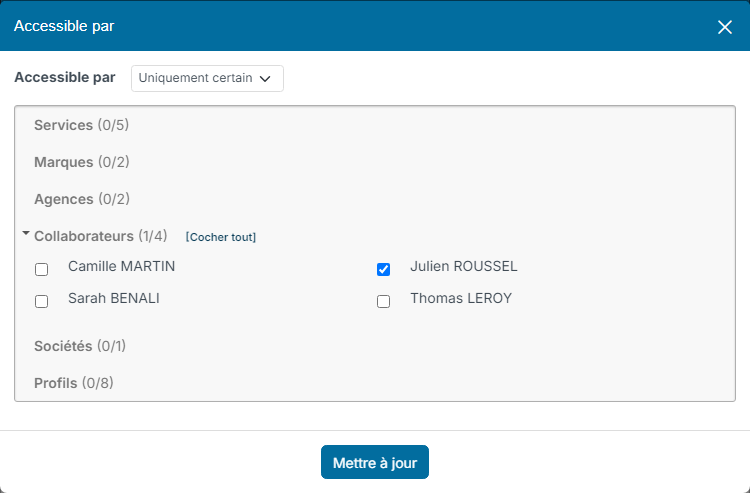
- Click Send to save the configuration.
For another recruiter, the Copy button of this step duplicates the configuration: you then only change the ADEP identifier, the label and the recruiter.
Activating the configuration
In the list of configurations, click in the Active column of the APEC configuration: a tick appears. If required information is missing (the NAF code for example), Nicoka tells you.
5. Posting a job on APEC
- Open the job and publish it with Publish, if it is not published yet.
- Click Multi Posting, then Post my job.
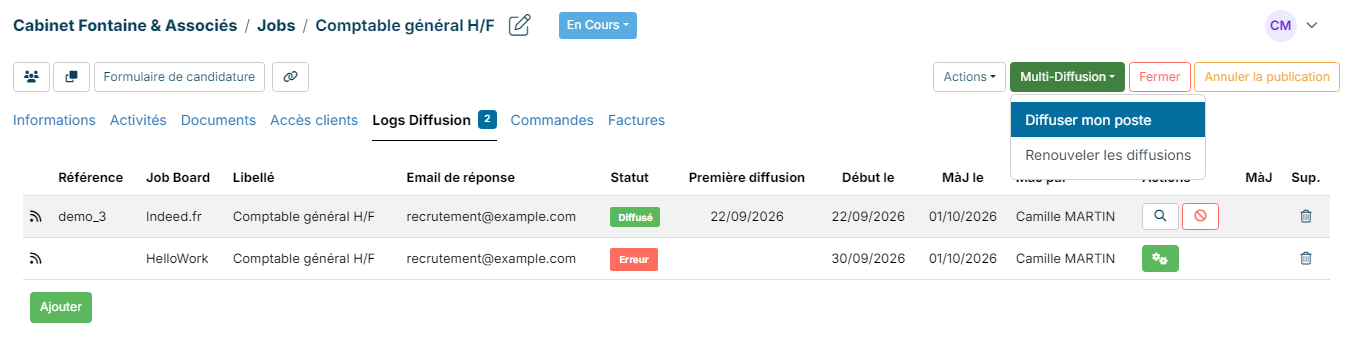
- Tick the APEC configuration, then click Submit. Recruiters only see the APEC configurations they have access to.
Then follow the posting in the Posting Log tab of the job. An APEC adviser approves each ad: until then, the posting shows the In validation by the job Board status, then Posted. The blue Check the status of the job posting icon, in the Actions column, asks APEC for the latest status.
To withdraw the ad from APEC, click the red Cancel Posting icon on the APEC row: the ad is taken offline from Nicoka. The other statuses and actions are described in Multiposting configuration.