Generate a job posting with AI
The AI built into Nicoka writes the job description, the requirements and the benefits of your job posting for you, based on its label and the information you have entered. You review, adjust, and the posting is ready to publish.
The name of the section depends on how your account is set up. In this article we use "Jobs", as in the screenshots.
1. Create a new job
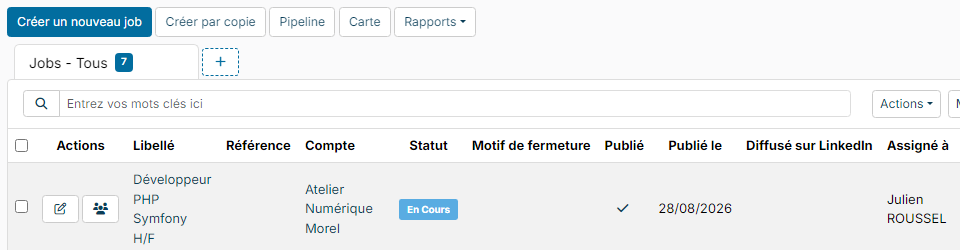
- In the side menu, open Recruitment > Jobs. The list of existing jobs is displayed.
- Click Create a new job.
2. Enter the label
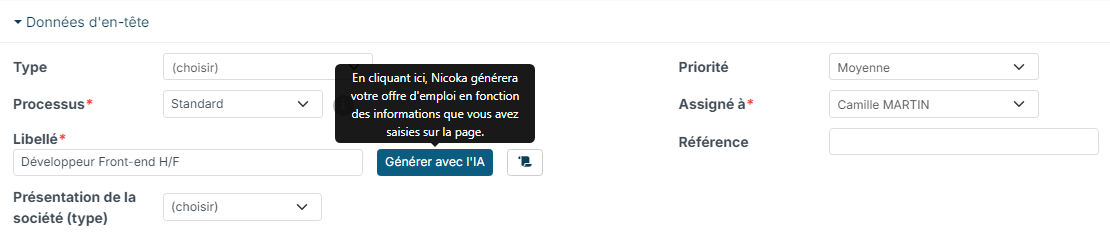
In Label, enter the job title, for example "Front-end Developer". It is the only information required for the generation. With the label alone, the posting stays generic: the more you complete the Details section (step 4), the more tailored it is.
3. Choose the company presentation
In Company presentation (type), choose how your company is presented in the posting:
- Use a model: the presentation saved in the chosen model is used as is;
- From a model: you start from a model and adapt it for this job;
- Free entry: you write the presentation yourself.
Presentation models are managed in Customizing > Store > ATS card > Customize > jobs section > Custom Texts, if you have access to the settings.
4. Complete the details
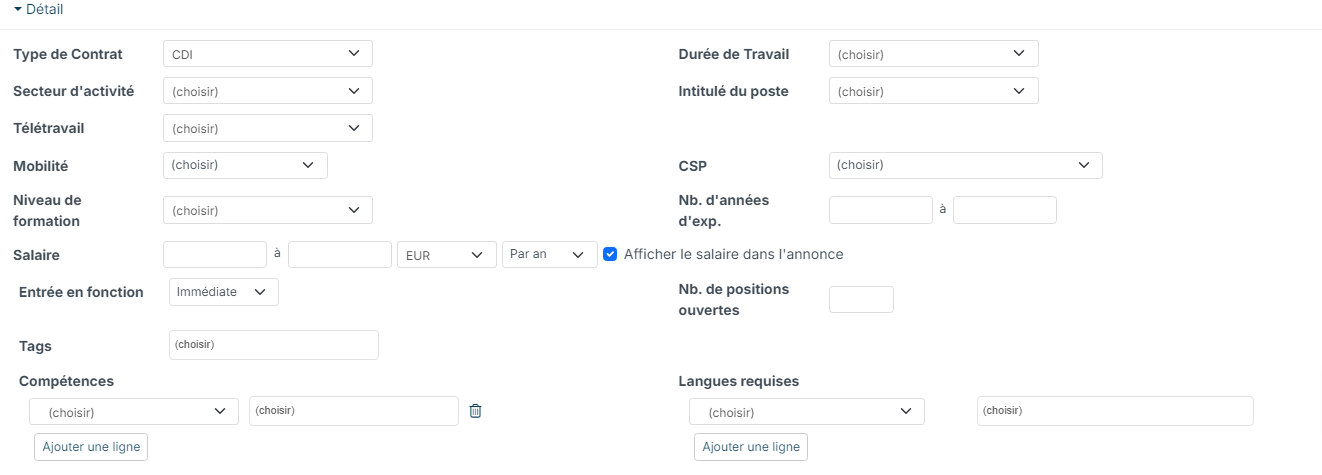
In the Details section, fill in for example the contract type, working time, business sector, mobility or salary. These fields are optional, but the AI uses them to write a more precise posting.
5. Enter the job location
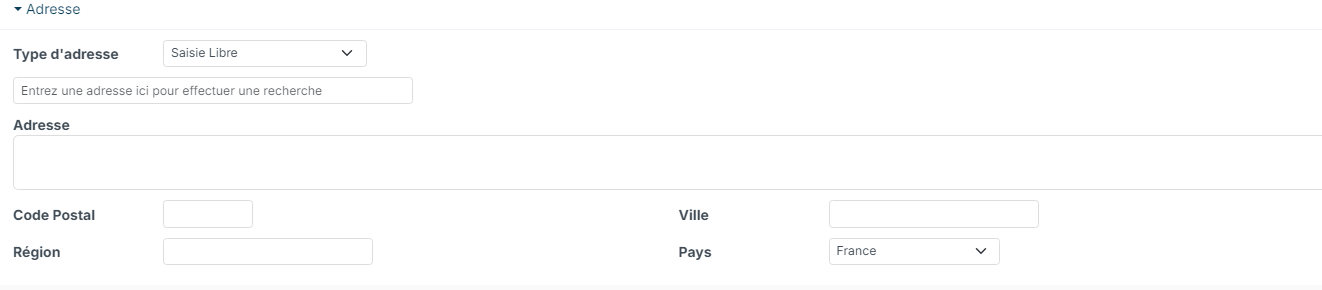
In the address section, choose the Type of Address: free entry, agency, company location, remote work or the account's address. With free entry, enter a full address or simply a city, a region or a country.
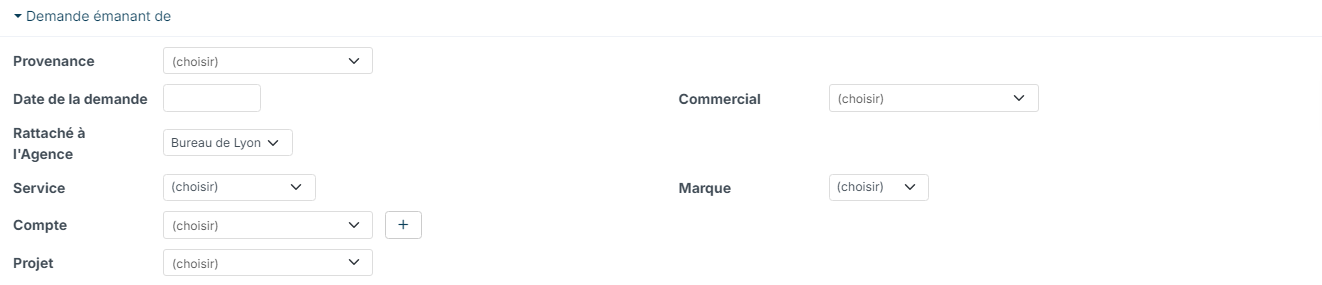
In the Requested by section, you can also specify the request date, the department or the account concerned.
6. Generate the posting with AI
Click Generate with AI, to the right of the label. The AI writes the Description, Requirements and Benefits fields directly in the form: the text appears as it is written, then the message "Job offer generated" confirms that it is finished. Review the suggested text and edit it freely.
Two other tools help you write:
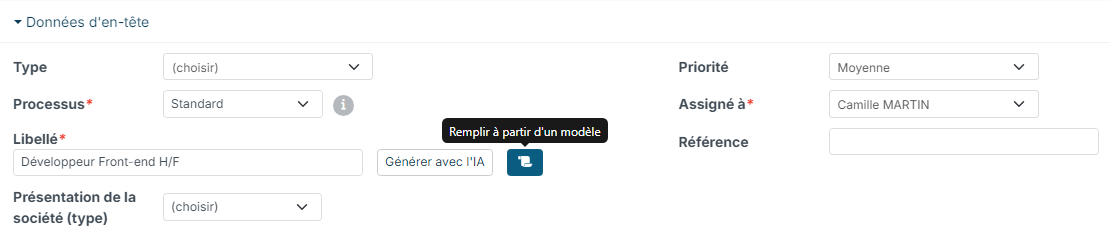
- The Fill with a template icon, next to Generate with AI, fills in the form from an existing job template.
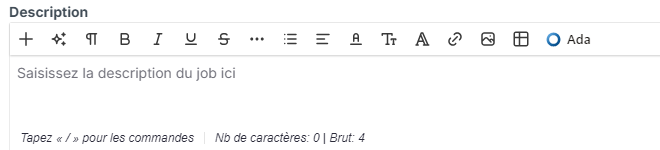
- The Ada button, in the toolbar of each editor (Description, Requirements, Benefits), links the text area to Ada, your assistant. Ask her for example to rephrase or shorten the text: her answer is written directly in the area.
7. Create the job
Once the form is complete, click Create at the bottom of the page. You can then publish the posting: see Step 5: Create a position or assignment.
Regenerate the posting of an existing job
You can edit the posting as usual, then click Update. To have it rewritten by the AI:
- Open the job, Information tab, then click Generate with AI to the right of the label. The button does not appear on a closed job.
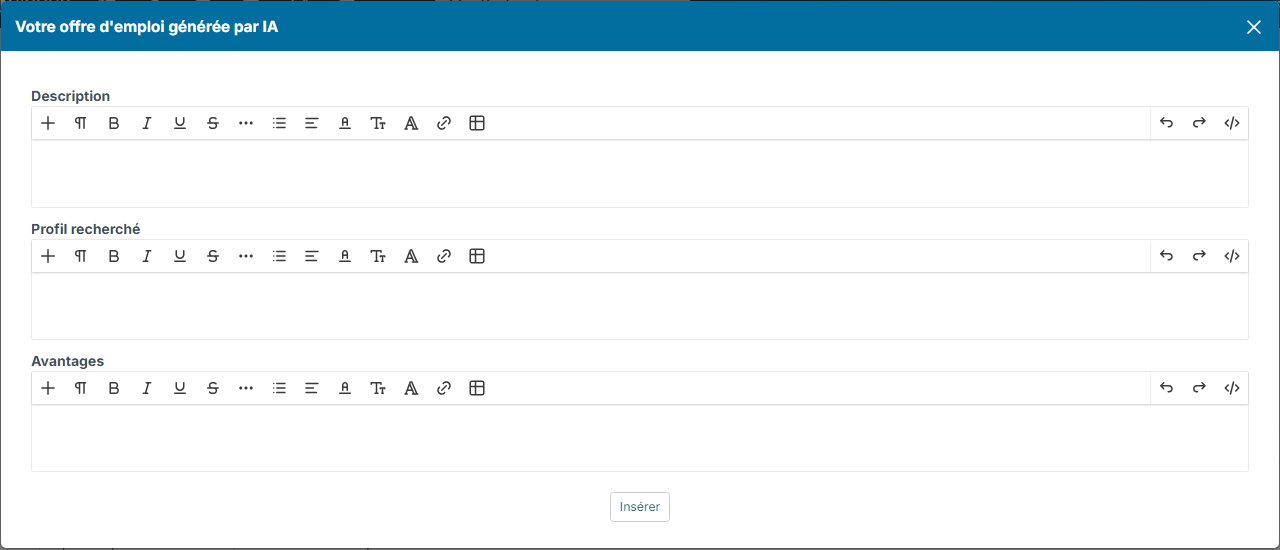
- The Your AI-generated job posting window opens and the AI writes the Description, Requirements and Benefits blocks in it.
- Adjust the text if needed, then click the button below the three blocks to insert it: it replaces the content of these three fields in the job.
- Click Update to save.