Recruitment and GDPR management
Since 25 May 2018, the General Data Protection Regulation (GDPR) has governed the processing of personal data of people located in the European Union. The candidates you manage in Nicoka are covered: this article sums up what the GDPR requires in recruitment, then explains how Nicoka collects consents, sets how long they remain valid and handles candidates who refuse or do not answer.
Who is responsible for what?
The GDPR concerns you in two ways:
- In your relationship with Nicoka: Nicoka is your processor (GDPR article 28). We only access your data when needed, for example to handle a support request, and we never change it without your explicit consent.
- In your relationship with your candidates, customers and employees: you are the controller of their personal data (GDPR article 24).
All the data you process in Nicoka stays hosted in the European Union.
What the GDPR requires in recruitment
In France, the CNIL oversees the application of the GDPR. Its recruitment guide (in French) details the rules. In short:
- Information and transparency: candidates must know which data you collect, why, how long you keep it and how it is protected. Only collect what is needed to select a candidate.
- Consent: it must be explicit, free and informed, and obtained before you use the candidate's data.
- Withdrawal of consent: candidates can withdraw their consent and ask for their data to be erased at any time.
- Retention period: you must set a retention period. The CNIL recommends not keeping the data of an unsuccessful candidate for more than 2 years. Anonymized data can be kept for statistics.
- Cookies: your career site must inform visitors about the use of cookies.
- Security: you must protect your candidates' data against loss, theft and unauthorized access.
A breach can lead to a fine of up to 20 million euros or 4% of worldwide annual turnover.
Consent when a candidate applies
On the career site provided with Nicoka, the application form has a mandatory checkbox: candidates confirm they have read the privacy policy and agree to the processing of their data. Their application then records their consent on their profile.
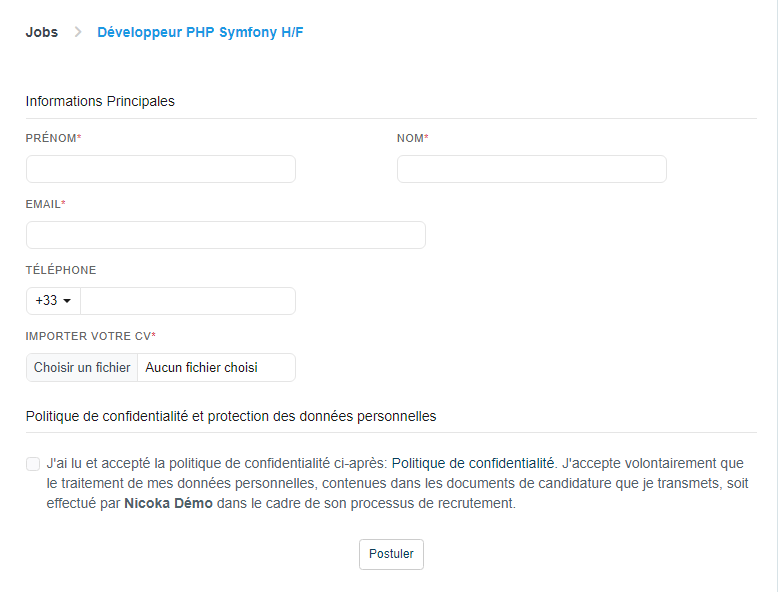
By default, the Privacy Policy link opens a standard privacy policy, which shows your company name and the address entered in Privacy Policy Contact Email. We recommend writing your own policy: enter its address in Custom Privacy Policy Url and the form will show it instead. Both settings are described below.
If your jobs are published on your own career site (through the API), it is up to you to show your privacy policy there and to add a consent checkbox.
For applications received from job boards, the Automatically add a consent on apply setting treats the application as implied consent: a consent is recorded on the candidate's profile.
Opening the GDPR settings
- In the side menu, open Customizing > Store.
- On the ATS card, click Customize.
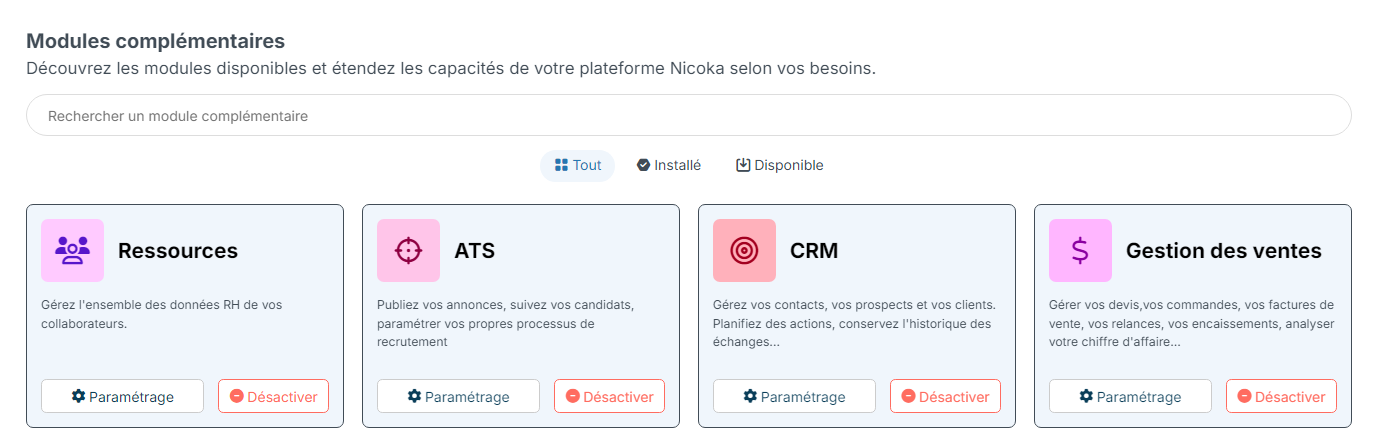
- In the left menu, click Customizing Points.
- Expand the Opt in consent requests (GDPR) section.
- Change the settings you need, then save.
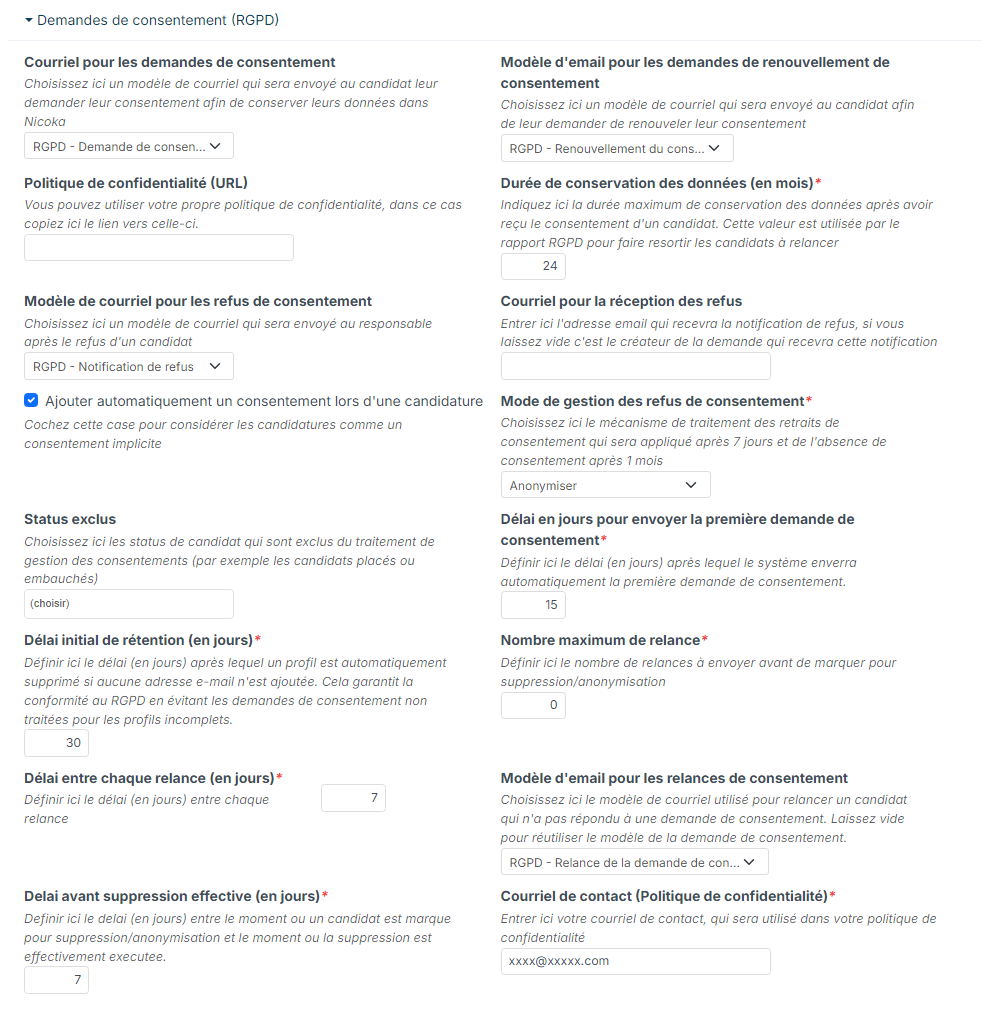
The settings
Privacy policy and contact
- Custom Privacy Policy Url: the address of your own privacy policy. When empty, the application form shows Nicoka's standard policy.
- Privacy Policy Contact Email: the address your candidates can write to in order to exercise their rights; it appears in the standard policy.
Duration and request cycle
- Data retention duration in month: how long a consent stays valid, 24 months by default. After that, the consent is considered expired and you must ask the candidate to renew it. You can adapt it to your retention policy.
- Delay in days to automaticaly send the first consent request: the number of days after a candidate without consent is created before the first request is sent automatically (15 by default).
- Max number of reminders: how many reminders are sent to a candidate who does not answer (0 by default: no reminder).
- Delay in days between each reminder: how long the candidate has to answer before the next reminder (7 by default).
- Consent Request Timeout (in days): see the warning below (30 by default).
- Excluded statuses: the candidate statuses left out of the whole process, for example placed or hired candidates.
Refusal and deletion
- Consent withdraw deletion strategy: Anonymize or Delete (see below).
- Delay before effective removal (in days): the time between the moment a candidate is marked for anonymization or deletion and the moment it is carried out (7 by default).
- GDPR consent withdraw target email: the address that receives the notification when a candidate refuses. When empty, the author of the request receives it.
Applications
- Automatically add a consent on apply: see above.
The four email template settings are described below.
Warning: the Consent Request Timeout deletes profiles. Once the automatic process is in place, a candidate created more than this number of days ago, without consent and without an email address, cannot receive a request: they are directly marked for deletion (or anonymization, depending on the Consent withdraw deletion strategy), then processed after the Delay before effective removal. The same applies to a candidate without an email address whose consent has expired. Remember to fill in the email address of the candidates you source and want to keep.
Anonymize or delete?
When a candidate refuses their consent, or has not answered after the last reminder, Nicoka applies the Consent withdraw deletion strategy:
- Anonymize: the candidate is given the anonymization status. Their personal data (name, email, phone, resume…) is then erased and they get the Anonymized status. The profile is kept, so your recruitment statistics remain consistent.
- Delete: the candidate is given the To be deleted status, then deleted. Deletion is final and cannot be undone, documents included: the candidate also disappears from the history of your jobs.
Until this is done, the candidate's profile shows the date on which they will be automatically anonymized or deleted. If the candidate eventually gives their consent, they leave this status.
The automatic process
The automatic sending of consent requests, reminders and renewals, as well as automatic anonymization or deletion, are not enabled by default. To set them up, contact the Nicoka team. Once in place, the cycle follows your settings:
- First request: a candidate without consent (a sourced profile, for example) receives a request after the Delay in days to automaticaly send the first consent request.
- Reminders: without an answer, they receive up to Max number of reminders reminders, spaced by the Delay in days between each reminder.
- No answer or refusal: the candidate is marked for anonymization or deletion, according to the Consent withdraw deletion strategy. A refusal is applied as soon as the candidate answers.
- Effective removal: anonymization or deletion happens after the Delay before effective removal (in days).
- Renewal: when a consent reaches the Data retention duration in month, the candidate receives a renewal request, with the same reminder cycle.
Candidates whose status is listed in Excluded statuses are never affected.
The email templates
Each step uses its own template, chosen in the same settings section:
- Email for consent requests: the first request sent to the candidate.
- Email for consent reminders: the reminders sent as long as the candidate has not answered. When empty, the first request template is reused, and the candidate receives the same message twice.
- Email for consent renewal: the request sent when a consent expires. When empty, the first request template is used as well.
- Email after consent withdraw: the internal notification sent after a refusal.
Nicoka provides a standard template for each case. You can edit them like your other templates, in the ATS customizing, under Candidates > Email Templates: see Manage Email Templates.
A request, reminder or renewal template must contain the public consent management link: this is the link the candidate uses to answer. The drop-down list only offers templates that contain it.
Managing consents manually
Whether or not the automatic process is in place, the Consent Management page lists the candidates whose consent must be requested or updated. To open it, click the Consent Management button at the top of the candidate list.

Several variants make sorting easier. To show another one, click the + button to the right of the tabs:
- Consent not up to date (the default variant);
- First request to send;
- Requests without answer;
- Requests without answer after 15 days;
- Refused (to be delete).
Then tick the candidates to process:
- to write to them, open the Actions menu and click Send data consent requests;
- to delete them, open the Actions menu and click Delete;
- to change their status (for example to mark them for anonymization or deletion), use Bulk Updates.
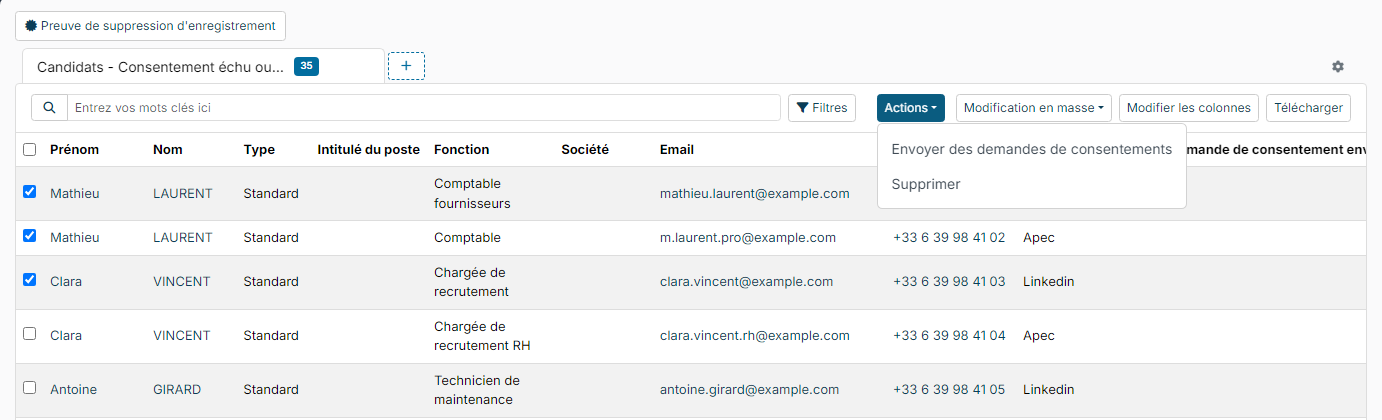
To follow a specific candidate, see also Candidate consent management.
Proving a candidate's deletion
When a candidate asks you to delete their data, you can give them a certificate:
- On the Consent Management page, click Record deletion proof.
- Enter the candidate's First name and Last name, and their Email if possible.
- Click Search.
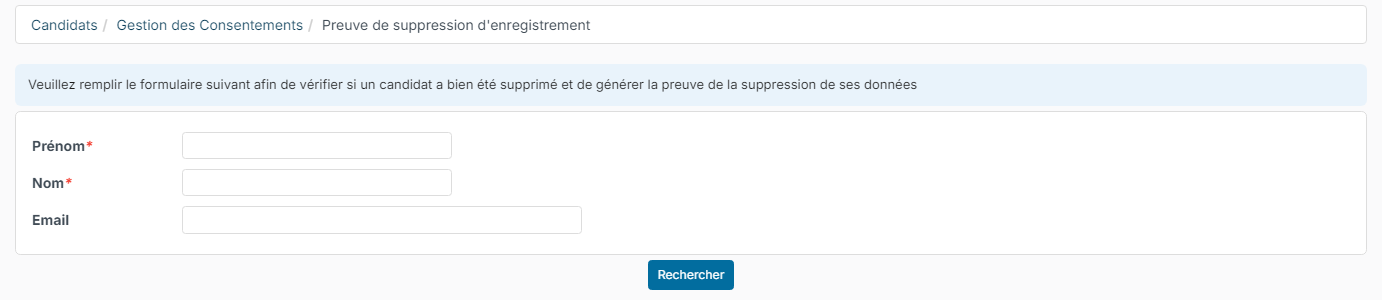
If no candidate matches, Nicoka generates a PDF document certifying the deletion. If a candidate still matches these criteria, no proof is generated: Nicoka lists the candidates found so you can check them.