Candidate consent management
The General Data Protection Regulation (GDPR) applies to any company that processes personal data, and therefore to the candidates you manage in Nicoka. This article explains how to follow and manage your candidates' consent day to day in Nicoka ATS. For the regulatory framework and the settings (validity period, reminders, anonymization or deletion), see GDPR Management.
Personal data and consent
Personal data is data that identifies a person, directly (last name, first name) or indirectly (phone number, email address, photo). Combining several pieces of information can also be enough to identify someone.
To respect your candidates' data, you must:
- make sure you have their consent to keep their data, and that it has not expired;
- erase their personal data if they ask you to;
- be able to provide proof of that deletion;
- be able to give them the data you hold about them.
Depending on how the candidate entered your talent pool, consent is either already obtained or still to be obtained (diagram in French):
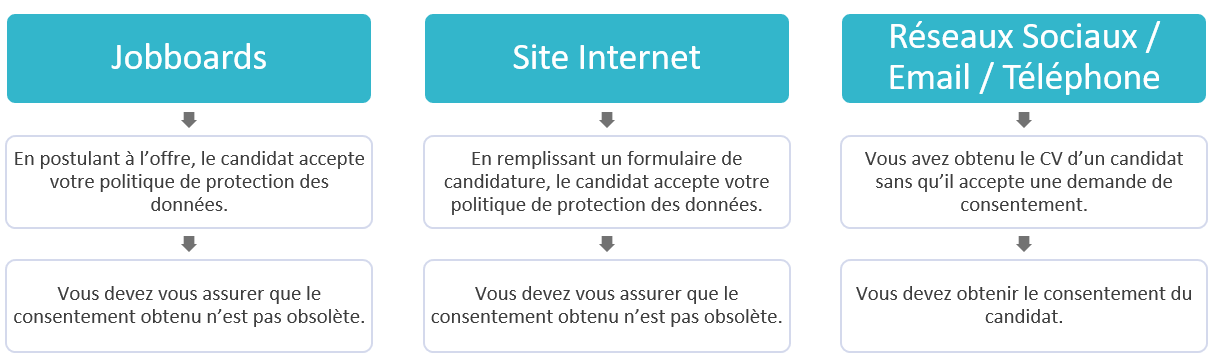
What Nicoka ATS lets you do
- spot the candidates whose consent must be requested or renewed, and send them consent requests, one by one or in bulk;
- let each candidate accept or refuse the processing of their data from a dedicated page;
- delete the candidates concerned;
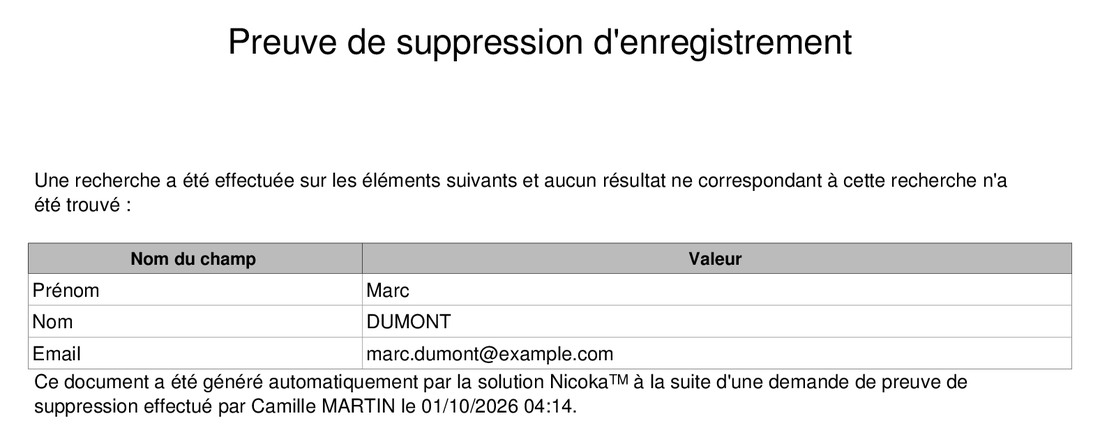
- generate a deletion proof;
- export a candidate's data;
- share candidates with your clients without emailing them documents.
Managing consents in bulk
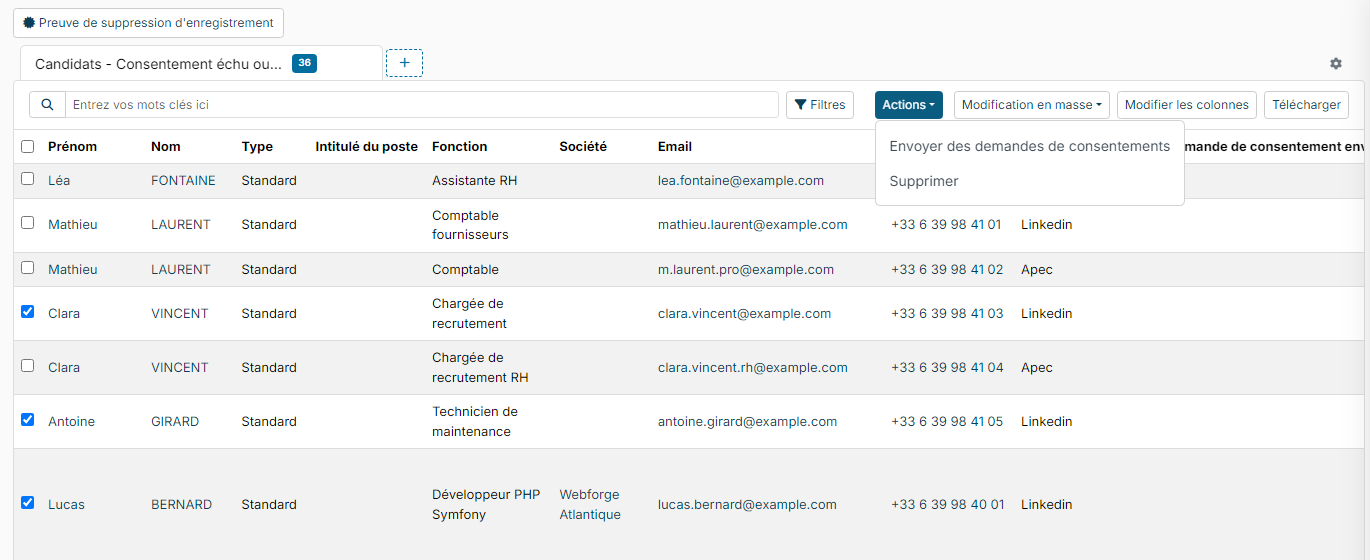
- In All Candidates, click the Consent Management button at the top of the list.

- The page lists the candidates whose consent has expired or does not exist. The + button, to the right of the tabs, shows other variants (first request to send, requests without answer, refused consents…).
- Tick the candidates to process, then open the Actions menu:
- Send data consent requests: a sending window opens. Each candidate receives an email with the link to their consent page. The window flags the candidates left out: without an email address, who have already refused, or who have a recent pending request;
- Delete: deletes the ticked candidates, after confirmation.
Beware of the "To be deleted" status. This status is not a simple label. When automatic deletion is in place on your account, a candidate who has had this status for longer than the Delay before effective removal (in days) (7 days by default) is permanently deleted, documents included. The same goes for the anonymization status, which erases their personal data. To sort or flag candidates, use tags instead. The delay is set in the Opt in consent requests (GDPR) section of the customizing points: see GDPR Management.
Following a candidate's consent
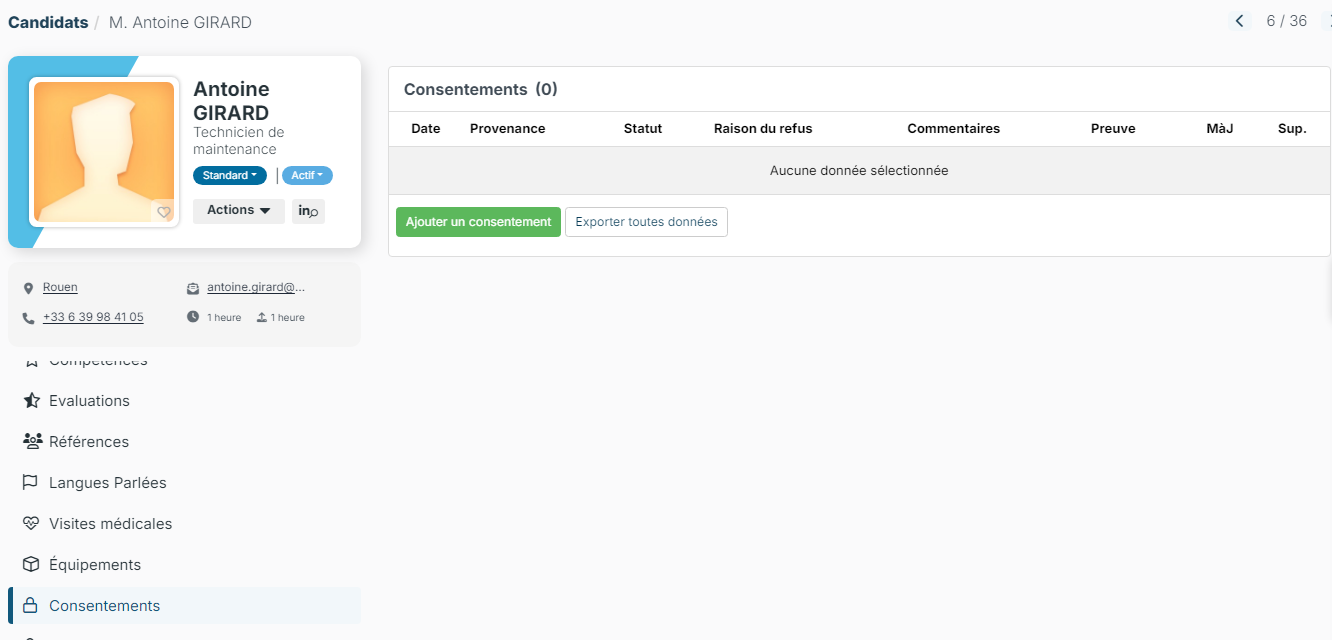
On a candidate's record, two tabs track their consent:
- Consents: the recorded consents, with their date, origin, status and, in case of refusal, the reason given by the candidate. The Add a Consent button records a consent obtained outside Nicoka (in writing, for example), with its proof. The Export all data button produces an Excel file of the candidate's data, which you can send them if they ask for it.
- Consent Requests: the requests sent and their status. The Send data consent requests button sends them a new request.
The candidate's consent page
The request email contains a link to a page in your company's name. The candidate chooses I authorize the treatment of my personal data or I refuse the treatment of my personal data. If they have already answered, the page reminds them of their answer and lets them change their mind.
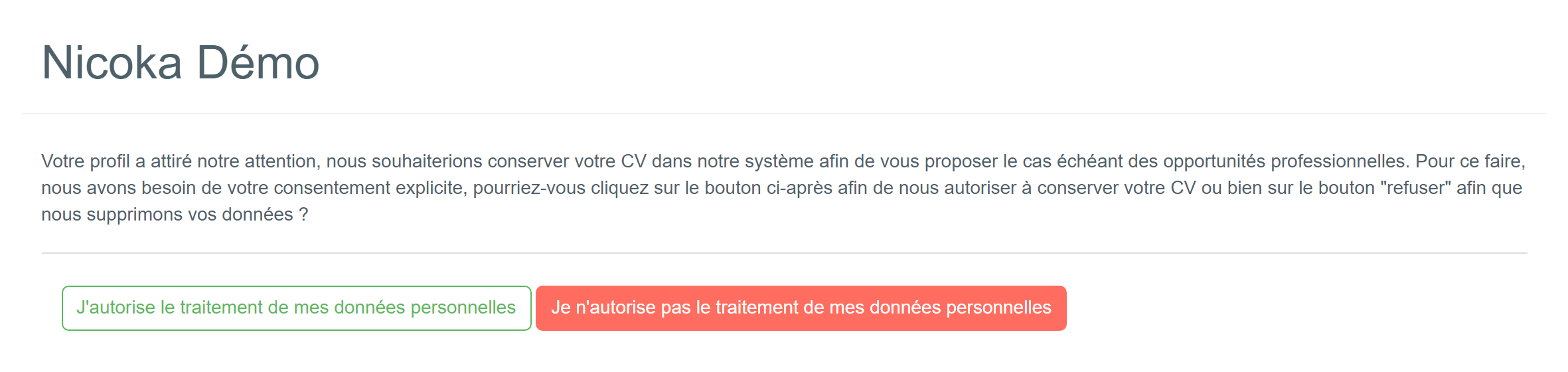
Their answer is saved on their record. If they refuse, Nicoka applies the processing set in your settings (anonymization or deletion): see GDPR Management.
Generating a deletion proof
When a candidate asks you to delete their data, you can give them a certificate once the deletion is done:
- On the Consent Management page, click Record deletion proof.
- Enter the candidate's First name and Last name, and their Email if possible.
- Click Search.
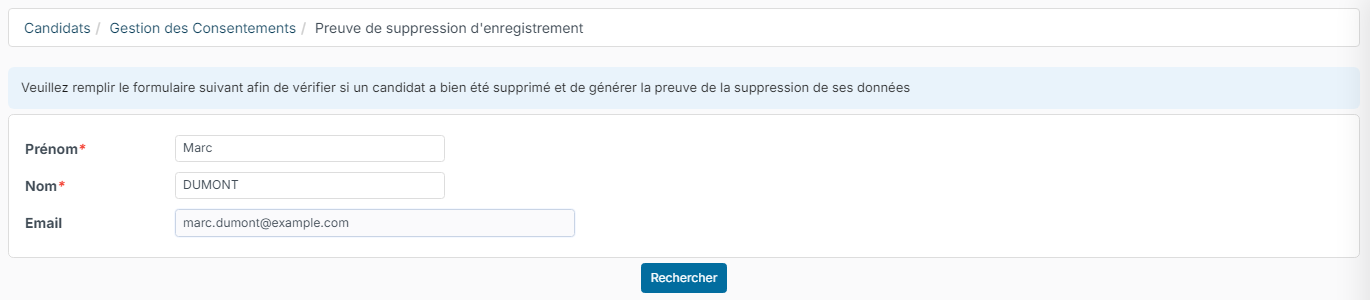
If no candidate matches, Nicoka generates a PDF document certifying that no data matching these criteria was found. If a candidate still matches, no proof is generated: Nicoka lists the candidates found so you can check them.
Sharing candidates without sending their documents
Rather than emailing resumes to your clients, you can give them access to a job's candidates on the sharing portal. The documents stay in Nicoka, and you can remove the access at any time. See Candidate sharing portal.