Step 2 - Your Nicoka space
Your Nicoka space
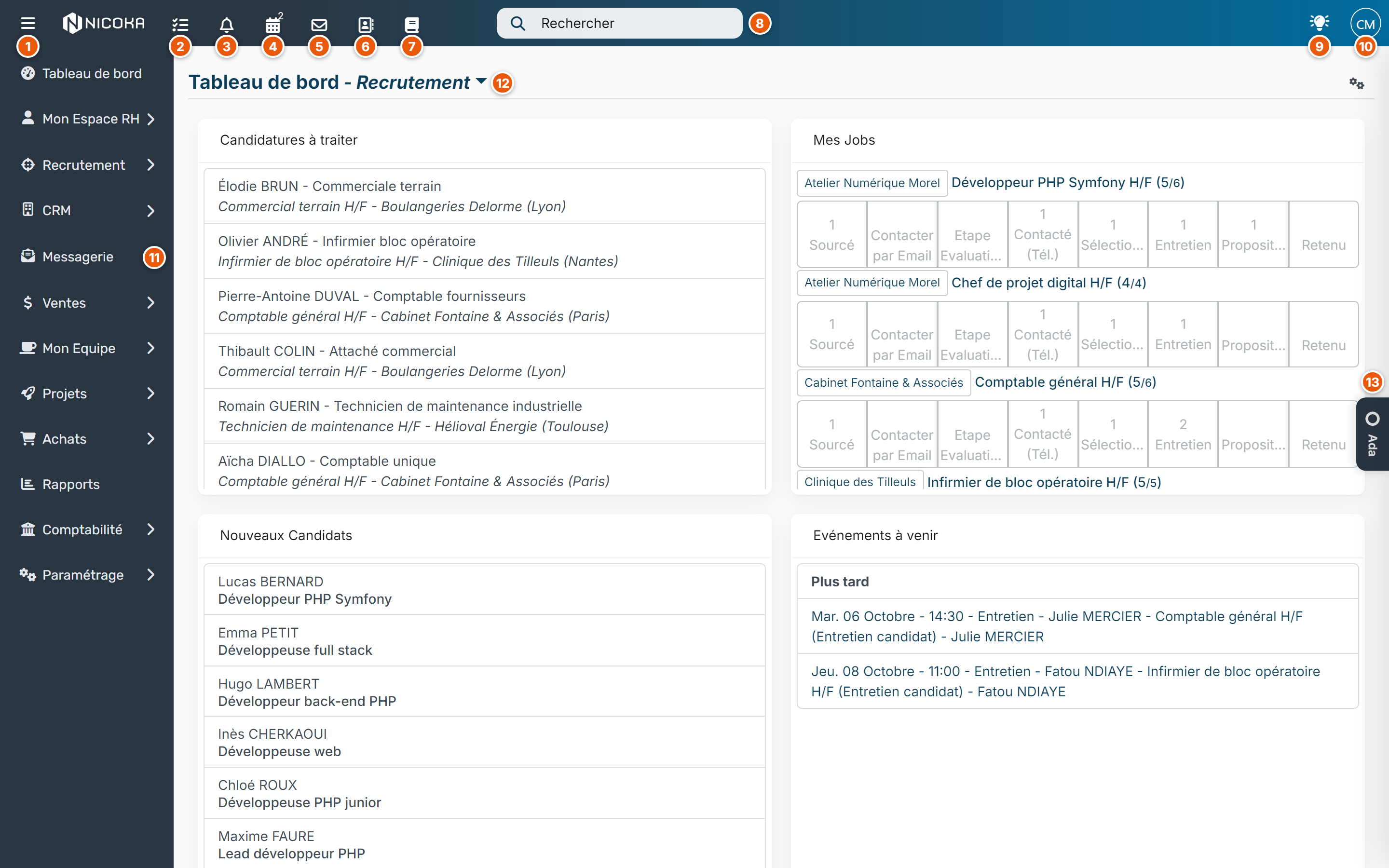
Once logged in, you land on your dashboard. The screen has four areas:
- the top bar (markers 1 to 10);
- the side menu, on the left (marker 11);
- the dashboard, in the middle (marker 12);
- the Ada tab, your assistant, on the right (marker 13).
The top bar
It stays visible on every screen. From left to right:
- The three lines: show or hide the labels of the side menu.
- Tasks: your open tasks.
- Notifications (bell): the latest notifications for you.
- Events (calendar): your next meetings and interviews. The number shows how many events are coming up.
- Messages (envelope): the latest emails received, once your mailbox is connected (see step 3).
- The company directory (address book): your colleagues' contact details.
- Documents (book): your company's document space.
- Search: find a record (candidate, contact, account…) from any screen.
- Nicoka News (light bulb): what's new in Nicoka. A badge shows how many new items were published since your last visit.
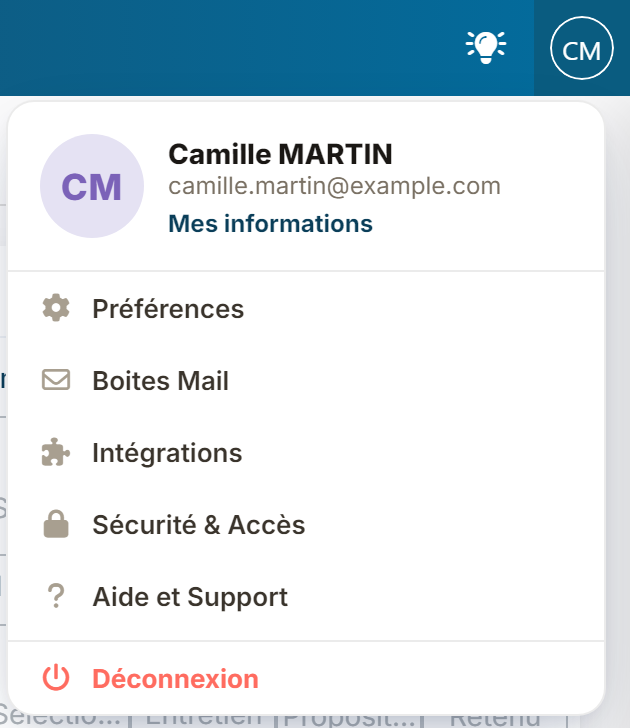
- Your initials: click them to open My informations, Preferences, Mail Boxes, Integrations, Security & Access, Help and Support and Logout.
Some buttons only appear if your profile has access to them. Dark mode is turned on in Preferences, with the Enable dark mode option.
The side menu
The side menu gives access to every Nicoka feature. It is grouped by section: Dashboard, Recruitment, CRM, Messaging, Reports, Customizing… Click a section to show its entries. For example, the Recruitment section contains Applications, All Candidates, Jobs, My Candidates and My Jobs.
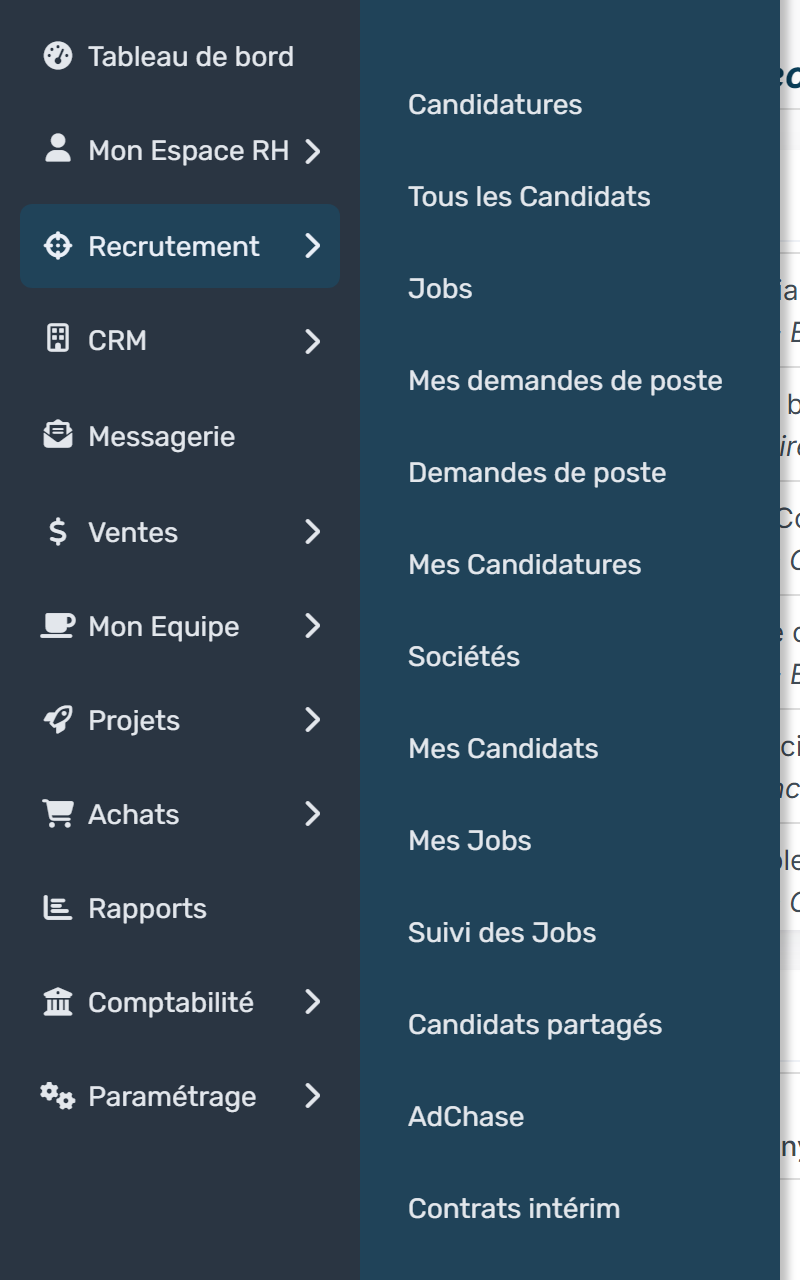
The sections you see depend on the modules enabled for your company and on your rights. You can reorganize your menu: see Reorganize my sidebar.
The dashboard
The dashboard shows widgets: lists, indicators, charts or reports. For example, the applications to process, your jobs with the number of candidates at each step, the new candidates or your next events.
- Click the Dashboard title to switch to another dashboard or create a new one (Add a variant).
- To choose the widgets shown, use the button on the right of the title: Add a widget (+), or Customizing (gear) on a dashboard you created.
- You can also move and resize widgets directly on the screen.
To go further: Dashboard - Customization.
Ada, your assistant
The Ada tab, on the right edge of the screen, opens your assistant. Ask your questions in the panel that appears. Click the tab again to close it.
A question or a problem?
In the initials menu, Help and Support opens our help center. You can also write to our support team: support@nicoka.com.