Step 1 - Log into your Nicoka account
Logging in to Nicoka for the first time
For your first login, you received an "Account activation" email. It was sent to the address your company registered for you in Nicoka.
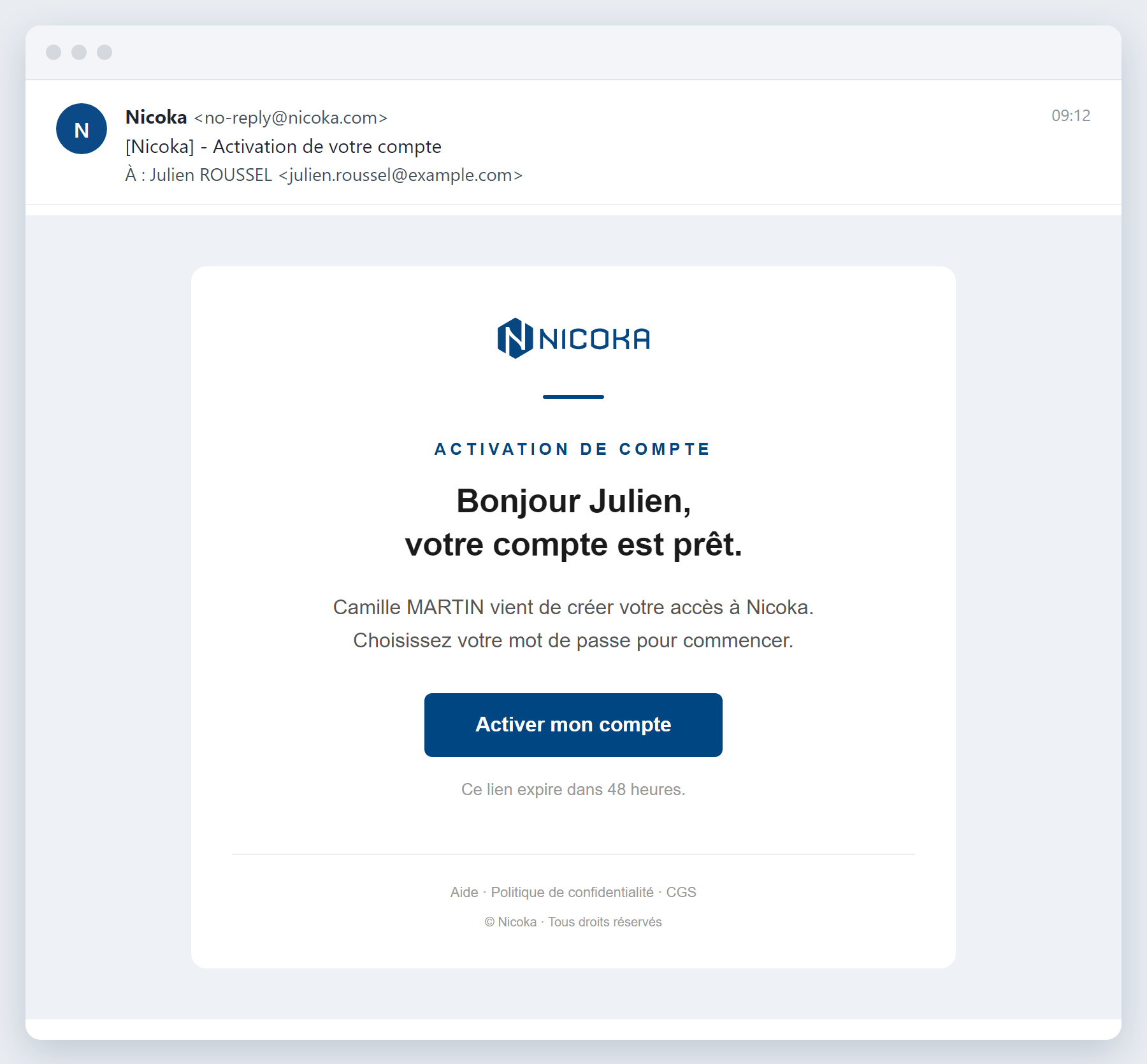
If you cannot find this email:
- check your Spam or Junk folder;
- ask your company's Nicoka administrator to send the activation email again;
- as a last resort, write to our support team: support@nicoka.com.
Activating your account
- In the email, click the activation button. The link is valid for 48 hours.
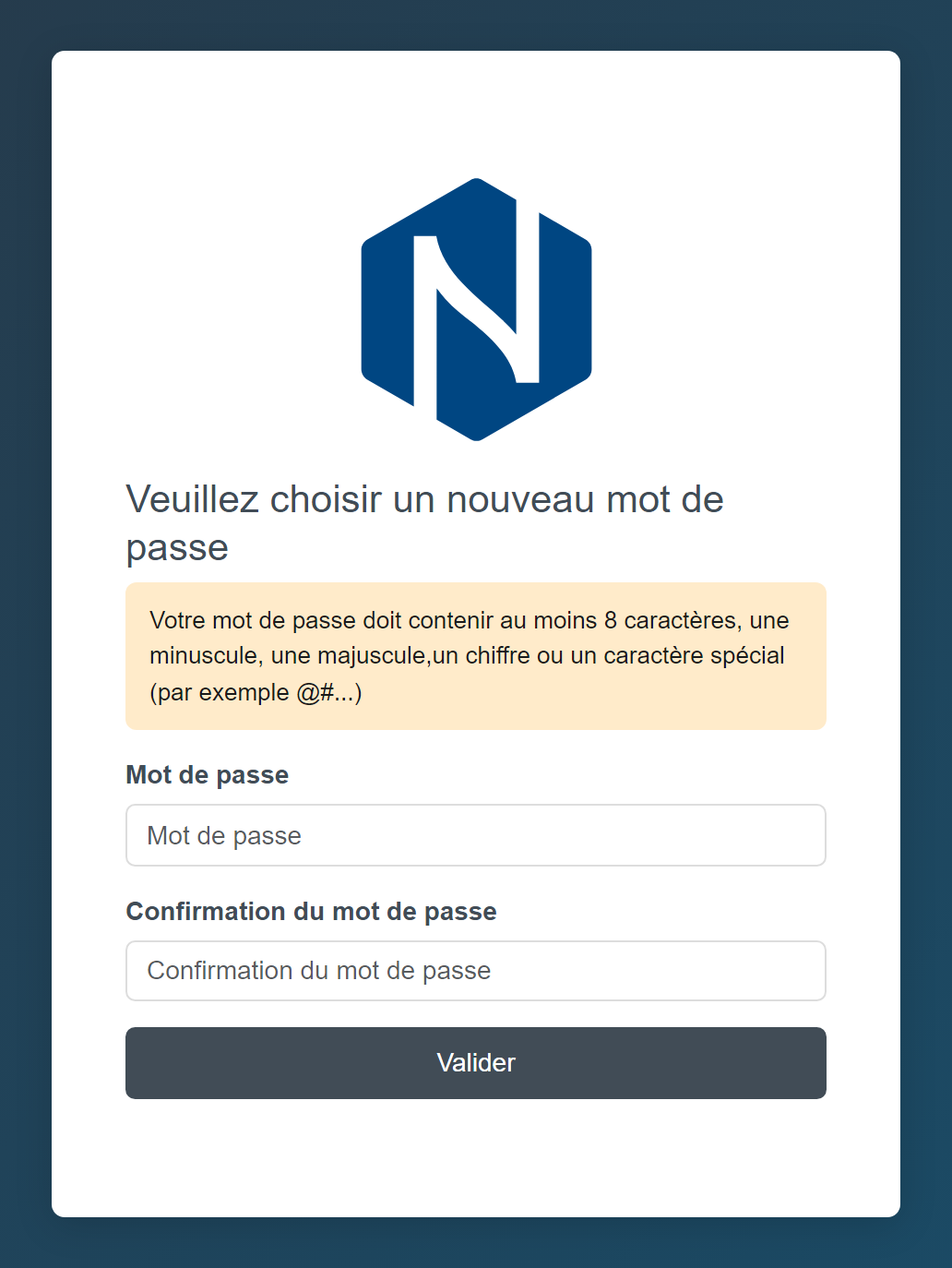
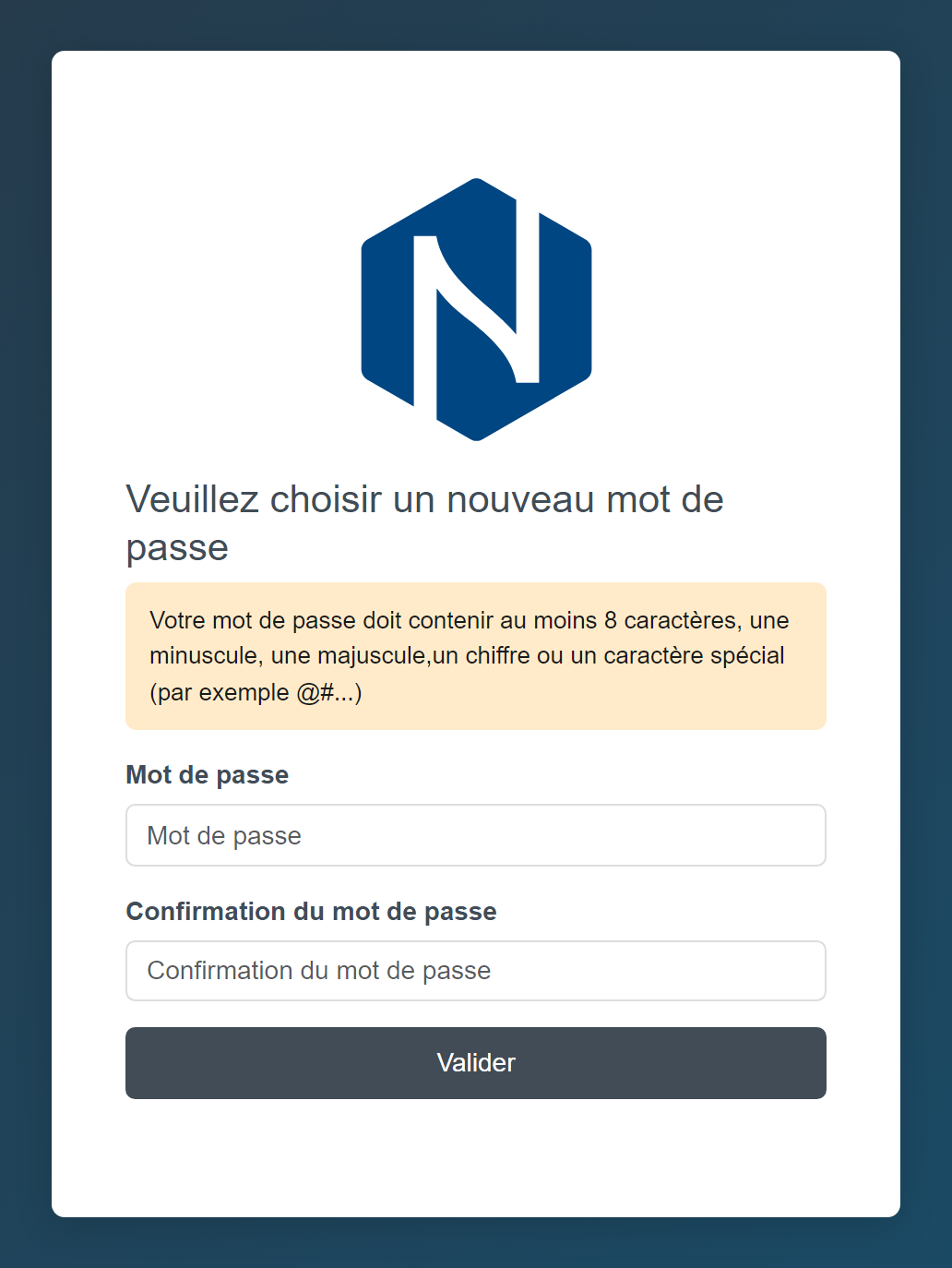
- Choose your password, then type it again in Password Confirmation. The rules to follow (minimum length, upper case, lower case, digit or special character) are shown on the page.
- Click Submit. Your account is now active.
Logging in
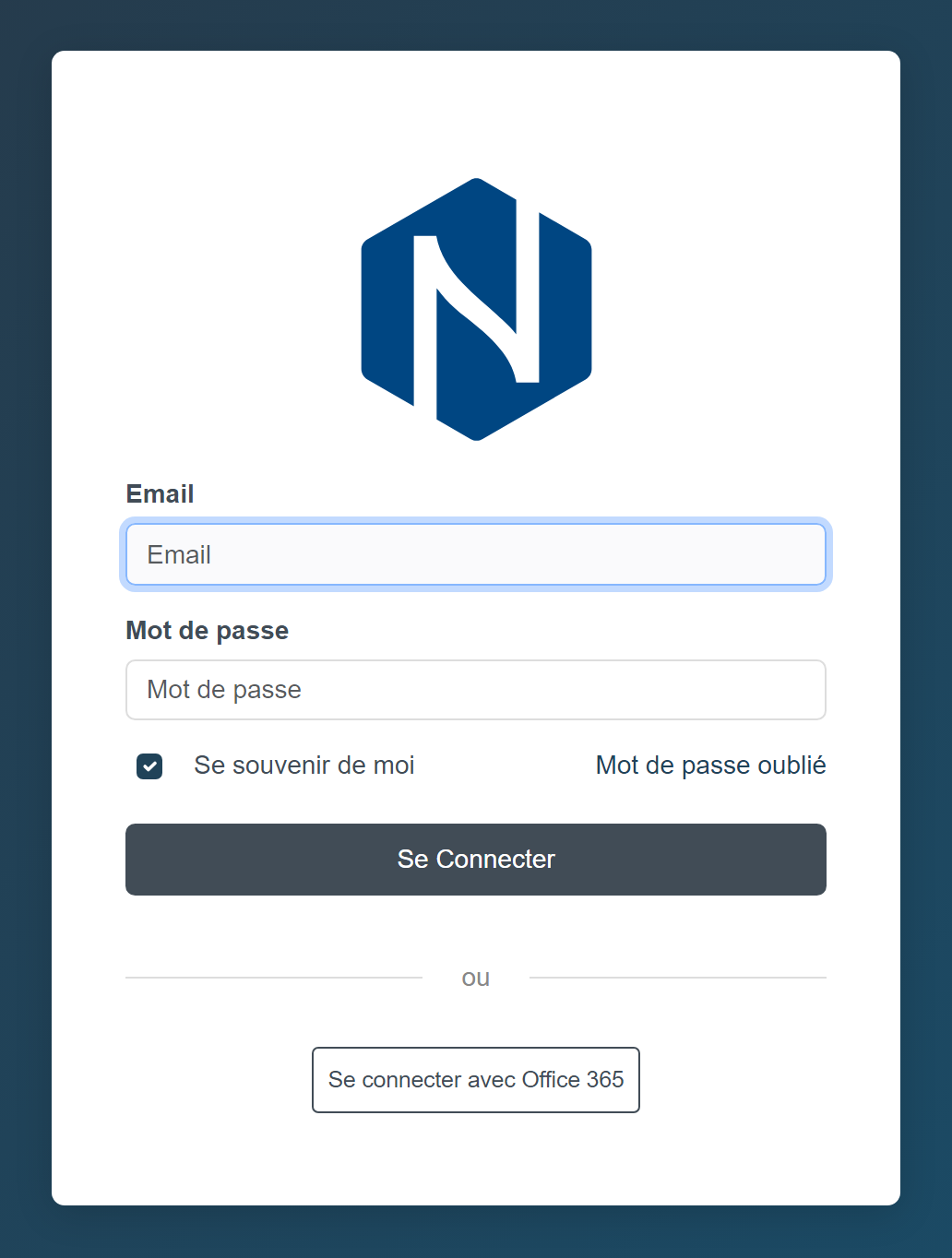
On the login page, enter your Email and Password, then click Login. Tick Remember Me so you do not have to log in again on this device.
To make your account more secure, you can turn on two-factor authentication: see Enable two-factor authentication (MFA).
Logging in with your company account (SSO)
Nicoka offers single sign-on (SSO) with Microsoft (Office 365), Google or your company's identity provider (SAML protocol). When it is enabled, a Login with … button appears under "or" on the login page, for example Login with Office 365. Click it and sign in on your provider's page: there is no Nicoka password to remember.
- Your Nicoka account must exist with the same email address as your company account. Otherwise Nicoka displays "To use … SSO you must have first a Nicoka account with the same email": ask your administrator to create your access.
- Mandatory SSO: if your company chose it, the login page only shows the single sign-on buttons, without email or password.
- Setting up SSO: it is enabled by the Nicoka team, at your company's request. Write to support@nicoka.com and tell us your provider (Microsoft, Google or SAML). The team can also create the Nicoka account of users from your domains automatically at their first login.
- Approval requested by Microsoft: if Microsoft asks for an administrator's consent when you click Login with Office 365, a Microsoft 365 administrator of your company grants it once and for all from the Microsoft 365 entry of Settings > Integrations (application Sign in with Office 365 (SSO)). See For Microsoft 365 administrators.
You cannot log in
- Check the email address: use the one your company registered in Nicoka.
- Check the password: it is case-sensitive.
- If that is not enough, reset your password as described below.
Forgotten password
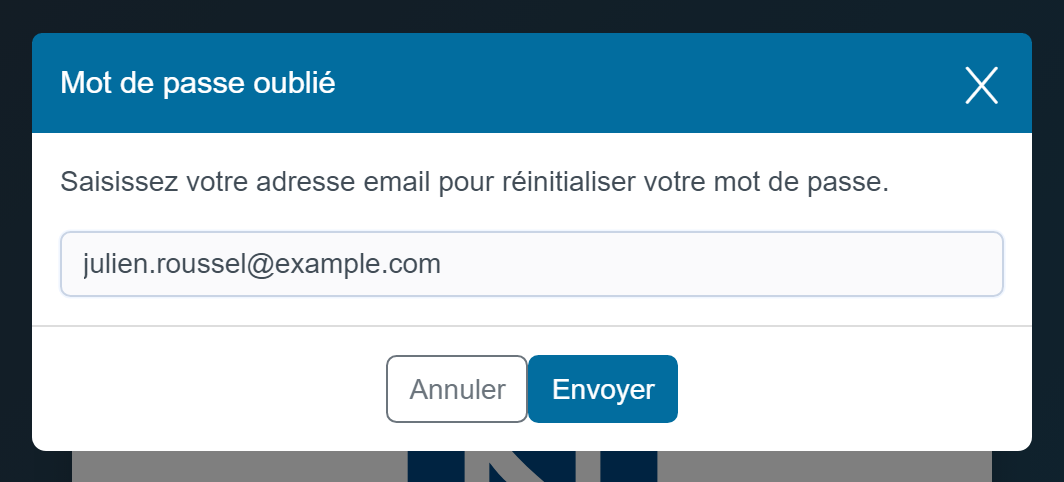
- On the login page, click Forgotten password.
- Enter your email address, then click Send.
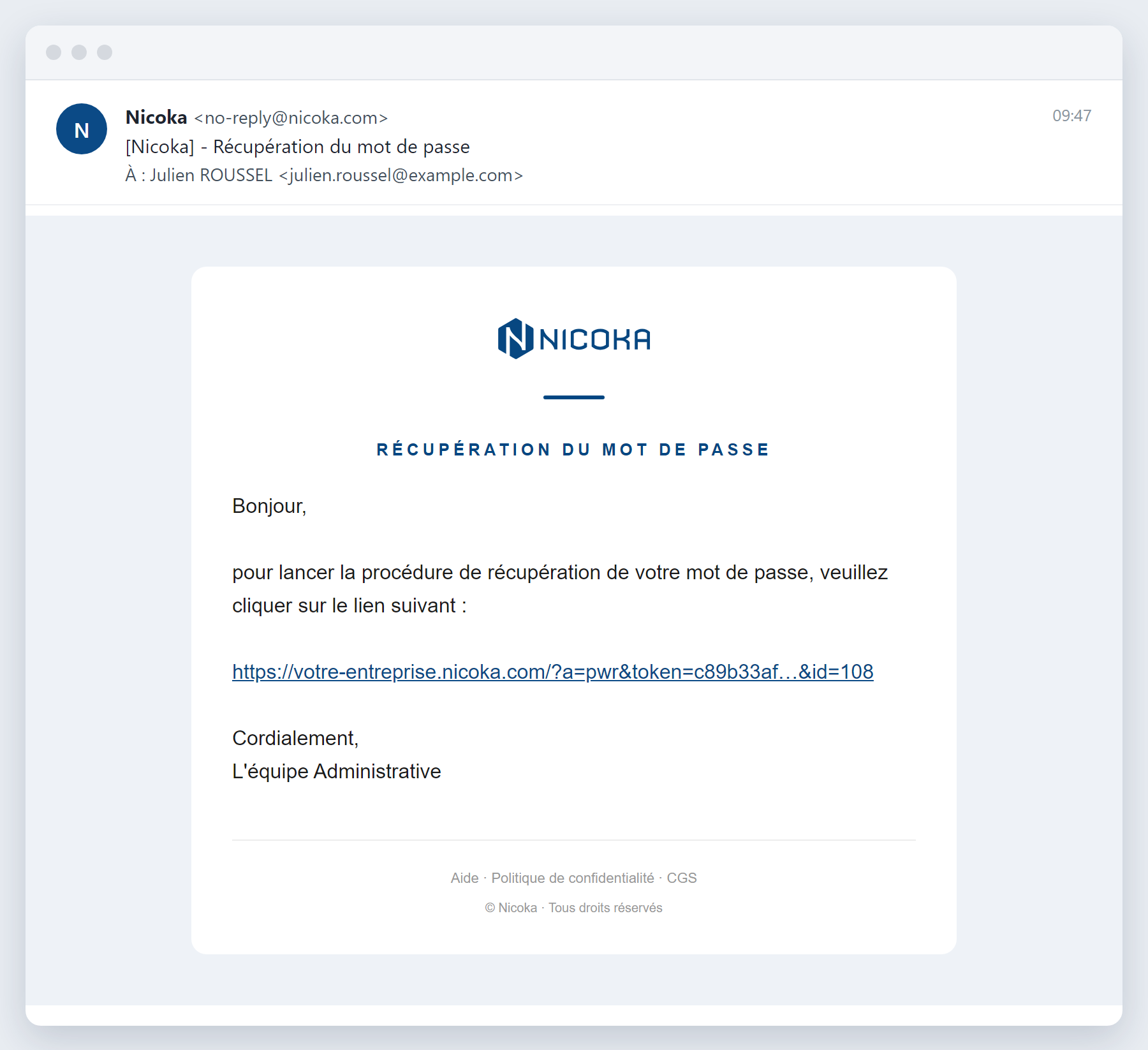
- You receive a "Password recovery" email. Click the link it contains.
- Choose your new password, confirm it, then click Submit.
You can now log in with your new password. If you still cannot log in, contact your company's Nicoka administrator or support@nicoka.com.
Not using Nicoka yet?
Write to contact@nicoka.com to start a free trial.