Two-factor authentication (MFA)
Two-factor authentication (MFA) adds a second check when you log in: on top of your password, Nicoka asks for a 6-digit code generated by an authenticator app on your phone (Google Authenticator, Microsoft Authenticator, Authy…). The code changes every 30 seconds. Even if your password were found out, nobody could log into your account without your phone.
Enabling two-factor authentication
- Install an authenticator app on your phone, if you do not already have one: for example Microsoft Authenticator or Google Authenticator.
- In Nicoka, click your initials in the top right corner, then Security & Access.
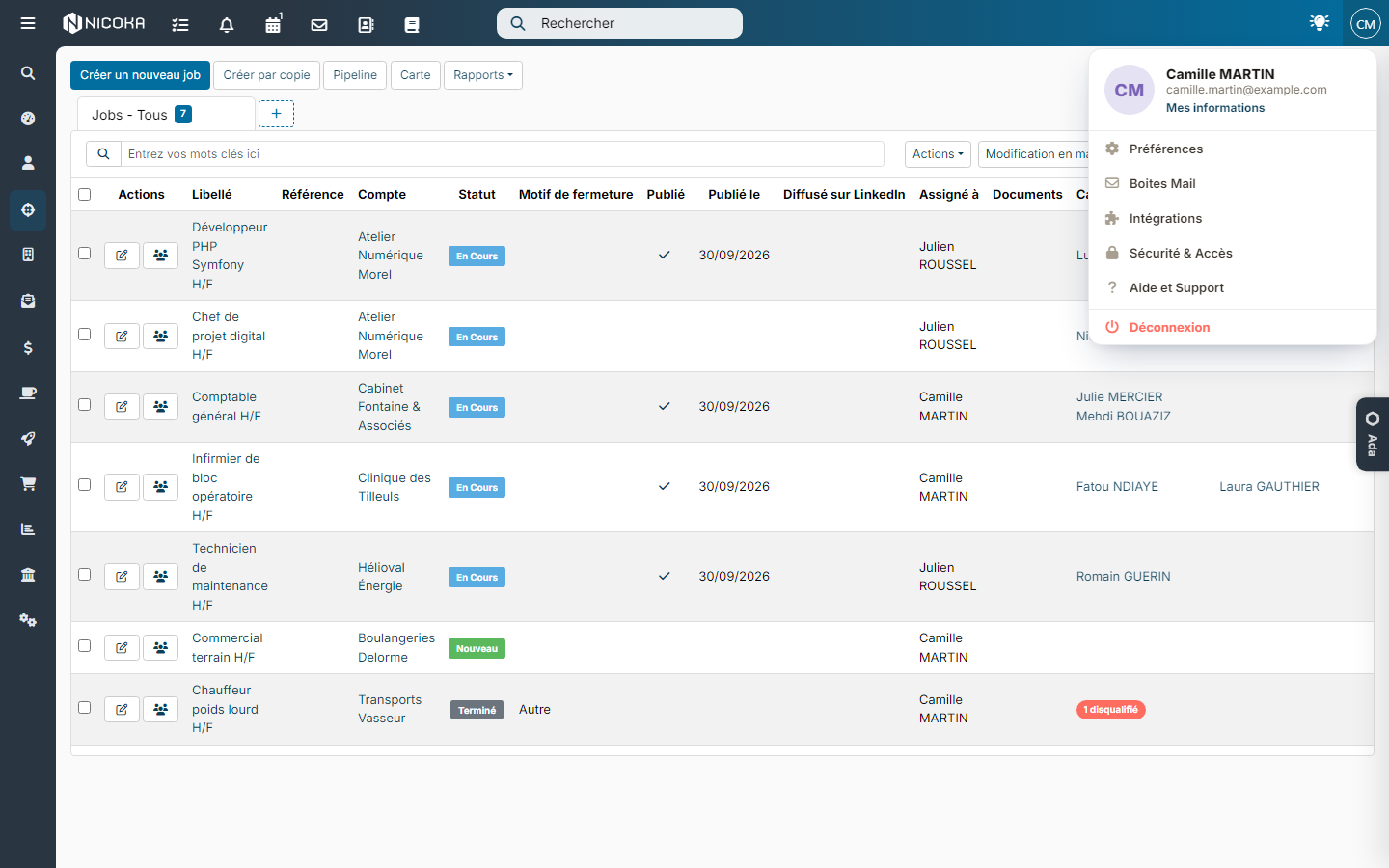
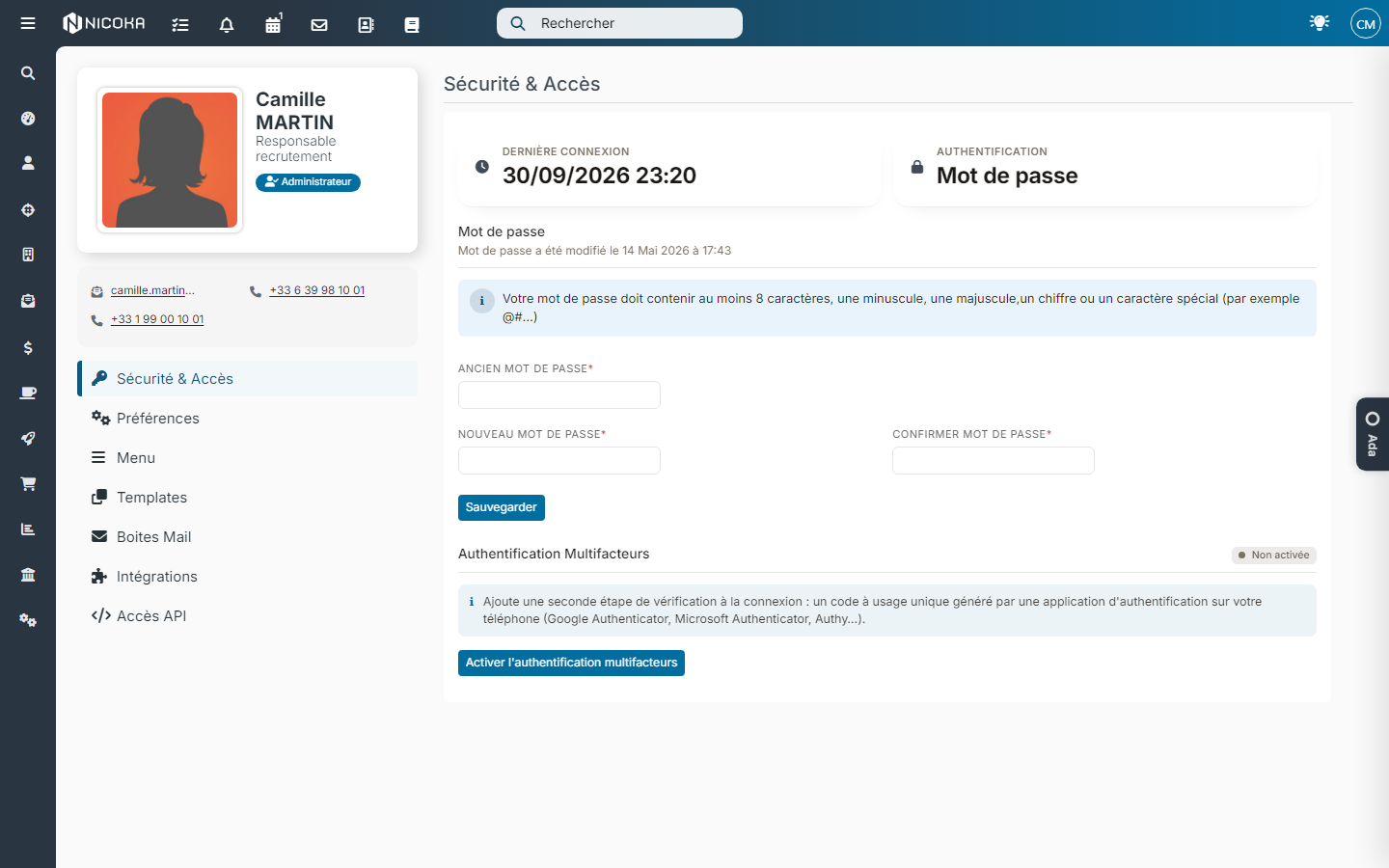
- In the Multifactor Authentication block (status "Not enabled"), click Enable multifactor authentication.
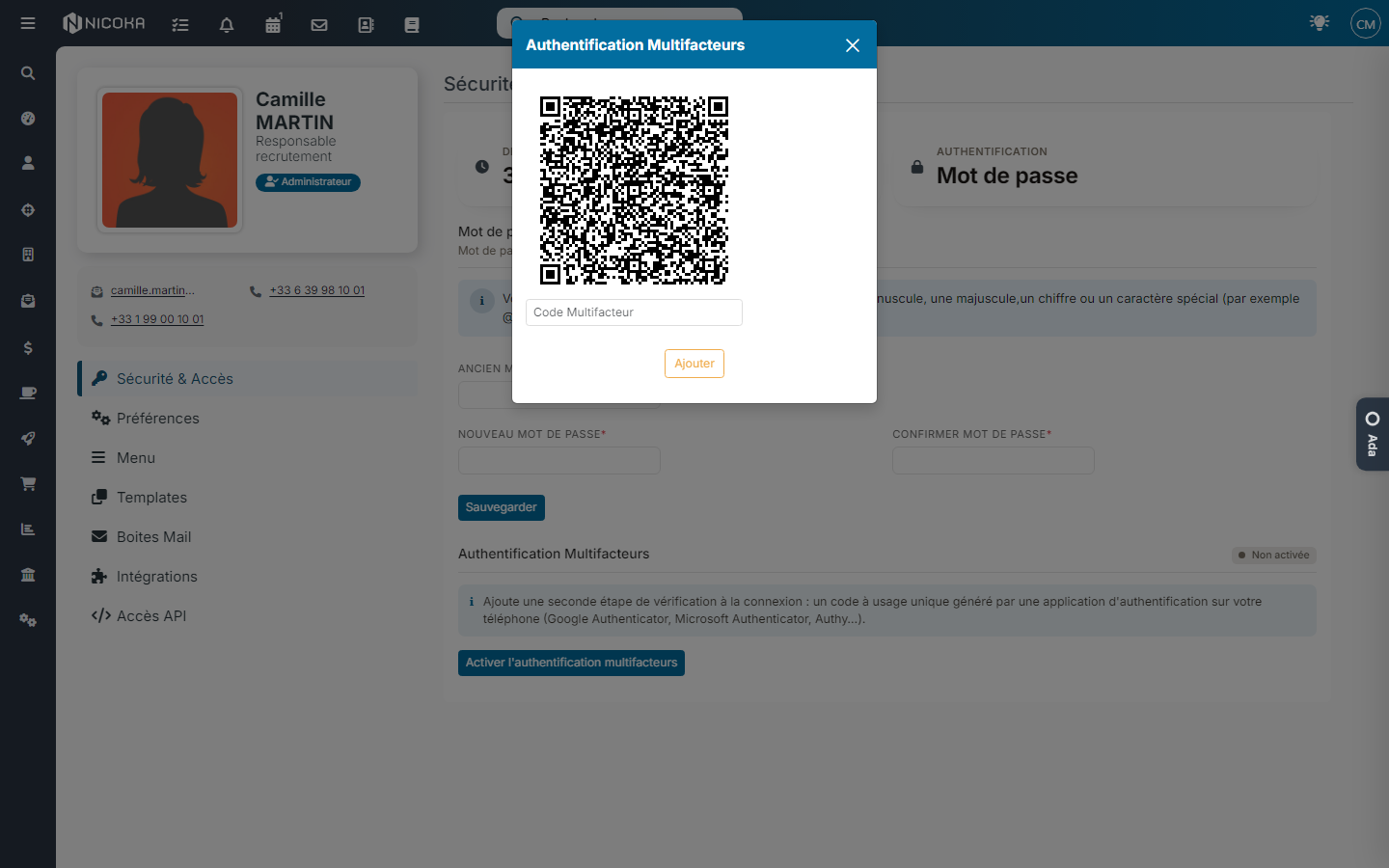
- Scan the QR code with your authenticator app. It adds a "Nicoka" account that displays a 6-digit code.
- Type this code in Multifactor code, then click Add.
A confirmation message appears and the status changes to "Enabled". If the code is rejected, check that your phone's clock is set automatically, then type the code before it changes.
Logging in with two-factor authentication
- On the login page, enter your email and password, then click Login.
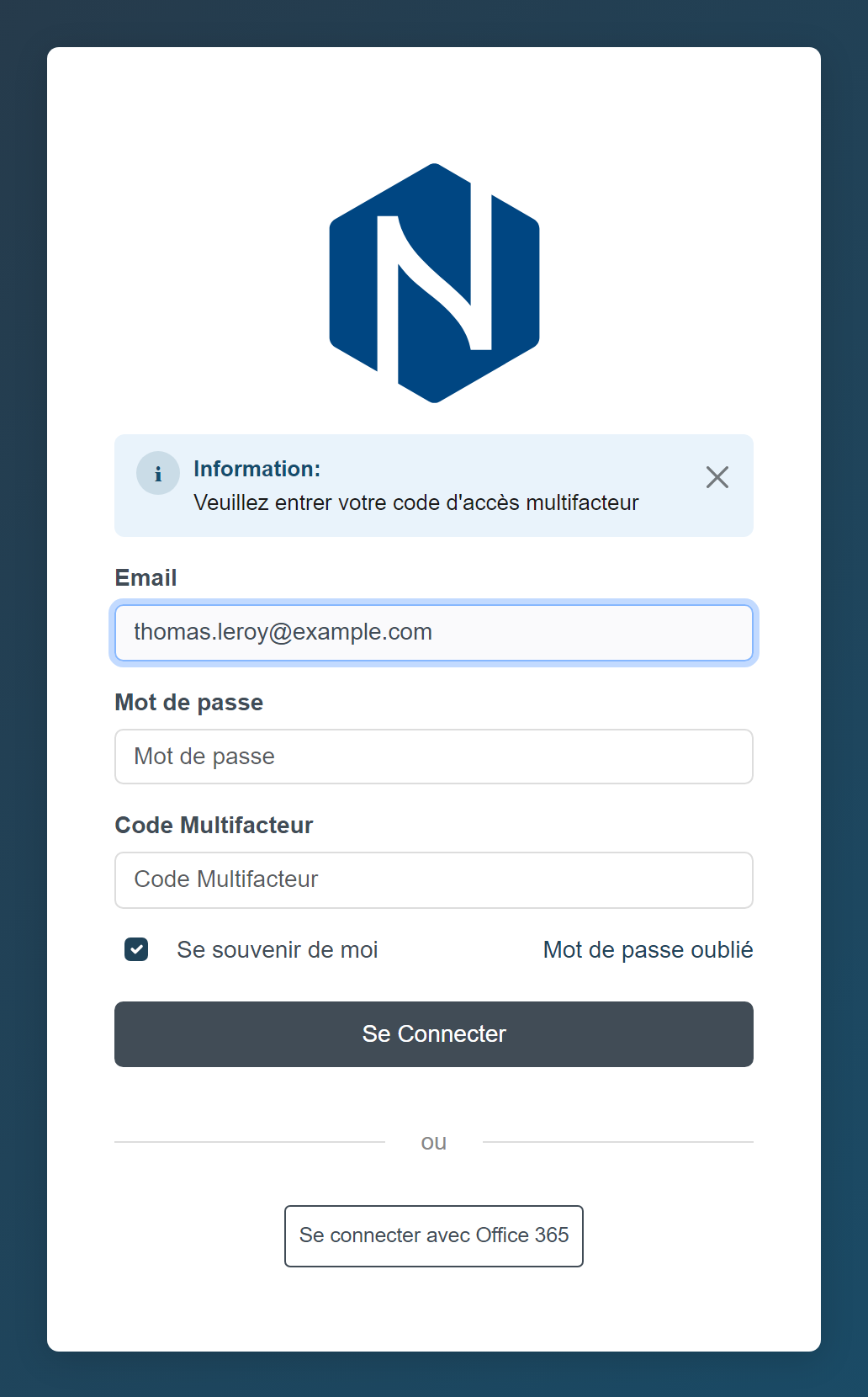
- Nicoka displays "Please, enter your multifactor code" and adds the Multifactor code field. Type your password again, then the code shown by your app.
- Click Login.
After 10 wrong codes, your account is locked and your administrator is notified by email.
If you tick Remember Me, Nicoka does not ask for the code again on this device on your next visits. On a shared computer, leave this box unticked.
Changing phone or disabling two-factor authentication
Once two-factor authentication is enabled, the Multifactor Authentication block of the Security & Access screen offers three buttons:
- Show the QRCode of the multi-factor authentication: to add your account to a second device, or to your new phone while the old one still works;
- Reset multifactor authentication: generates a new QR code, the old one stops working;
- Deactivate: back to password-only login.
You lost your phone
- If you are still logged into Nicoka on another device, open Security & Access and reset or deactivate two-factor authentication.
- Otherwise, contact your company's Nicoka administrator or write to support@nicoka.com: the Nicoka team will deactivate two-factor authentication on your account, and you can enable it again with your new phone.
Good to know
- Two-factor authentication applies to email and password login. If you log in with your company account (Microsoft, Google or SAML single sign-on), your identity provider's security, and its own two-factor authentication, applies. See Log into your Nicoka account.
- Administrators see an MFA column in the user list, showing who has enabled two-factor authentication.