Connect your Office 365 account
Connect your Office 365 (Outlook) mailbox to Nicoka to send and receive your emails from Nicoka and synchronise your calendar. The principles shared by every email provider are described in Step 3 - Connect your email account.
Connect your Office 365 mailbox
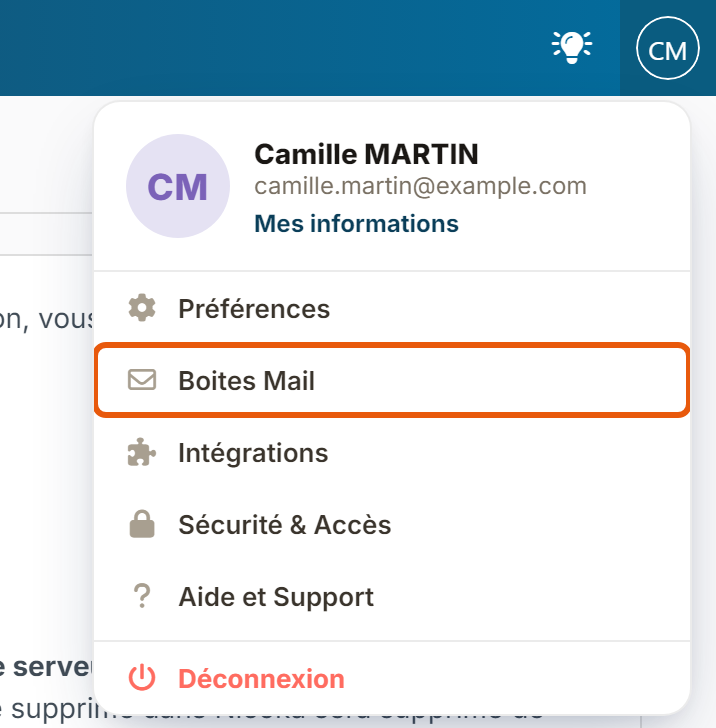
- At the top right, click your initials, then Mail Boxes.
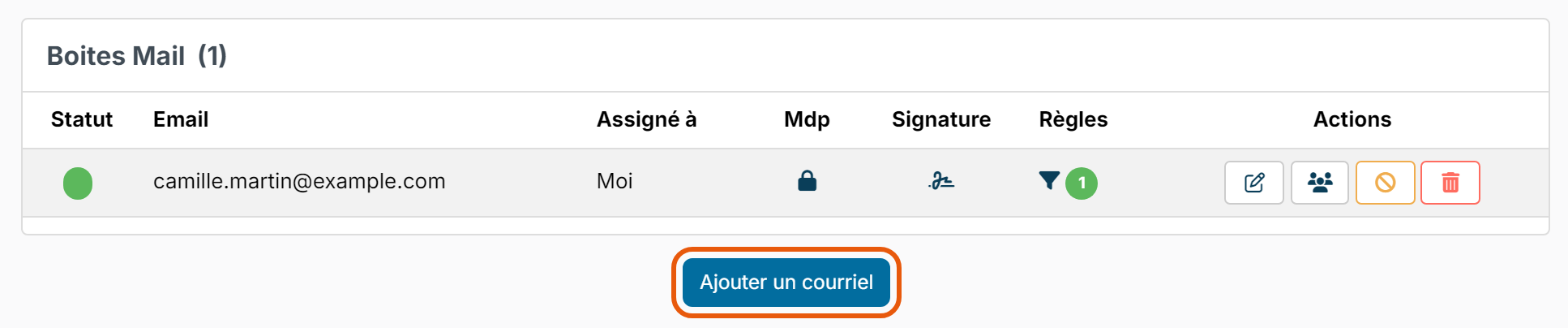
- On the Mail Boxes customizing page, click Add an other email. If you have no mailbox yet, the button is called Add a mail Box.
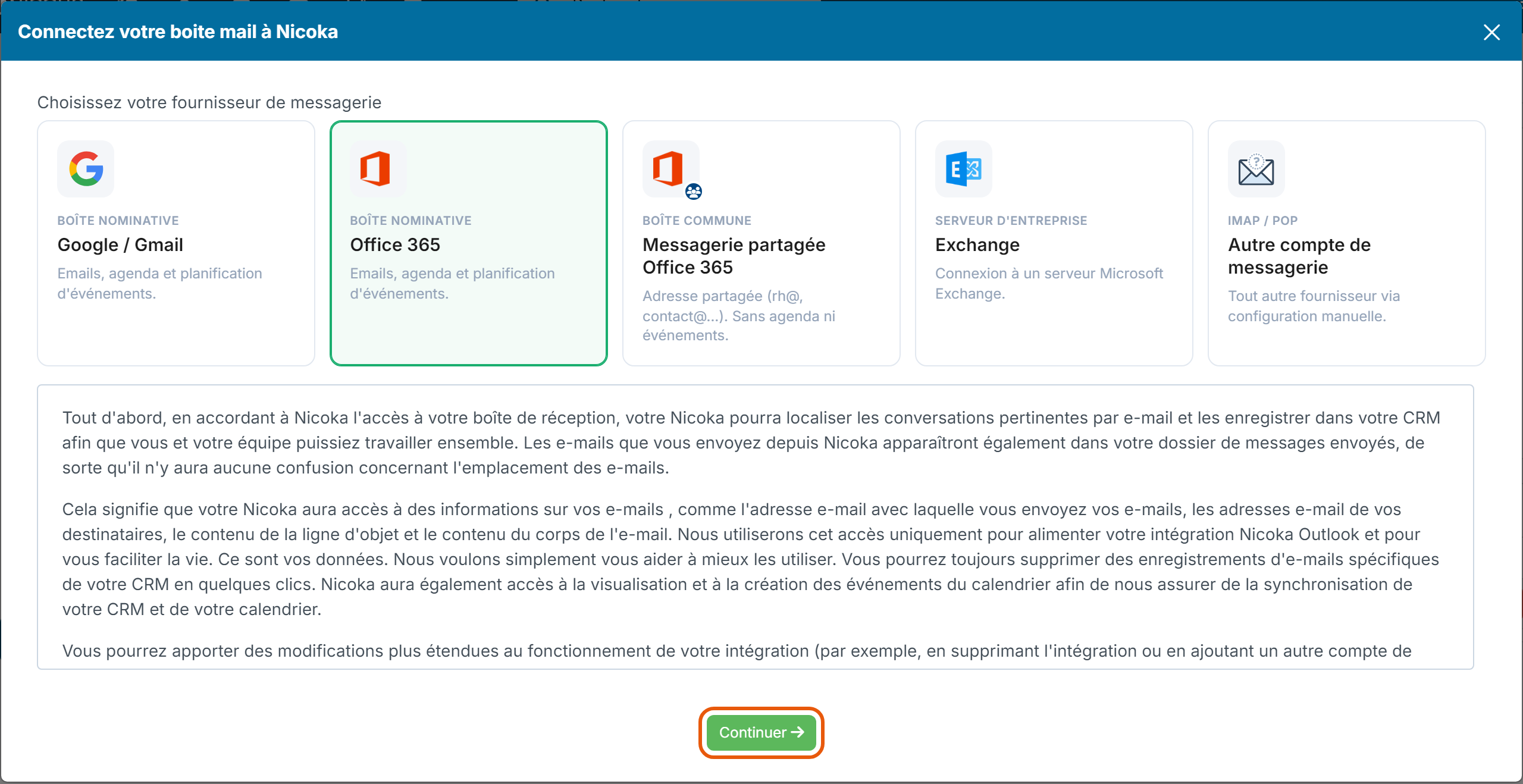
- The Connect your mail box to Nicoka window opens with the Office 365 card already selected. Read the terms of use shown below the cards, then click Continue.
- You are redirected to the Microsoft sign-in page. Sign in with your business Office 365 account, then accept the permissions requested by Nicoka. You do not enter any password in Nicoka. If Microsoft asks for an administrator's approval, see For Microsoft 365 administrators below.
- Back in Nicoka, the connection settings page opens:
- under Mailbox Settings, tick I want to received my email in Nicoka (recommended for recruitment) and, if you wish, I want to synch my folder 'emails sent' in Nicoka;
- under Calendar customizing, tick Enable Calendar Synchronisation to see your appointments in Nicoka;
- under Task customizing, tick Enable tasks synchronisation if you wish.
- Click Save.
Your mailbox is now listed under Mail Boxes. To change these settings later, click the pencil in the Actions column.
Check the connection status
The dot in the Status column shows the state of the mailbox. Hover over it to see the details:
- green: the mailbox is active;
- orange: receiving is enabled but no emails have been retrieved yet;
- red: the connection is in error. If the Microsoft access has expired, the red dot shows an arrow: click it to reconnect the mailbox.
Connect an Office 365 shared mailbox
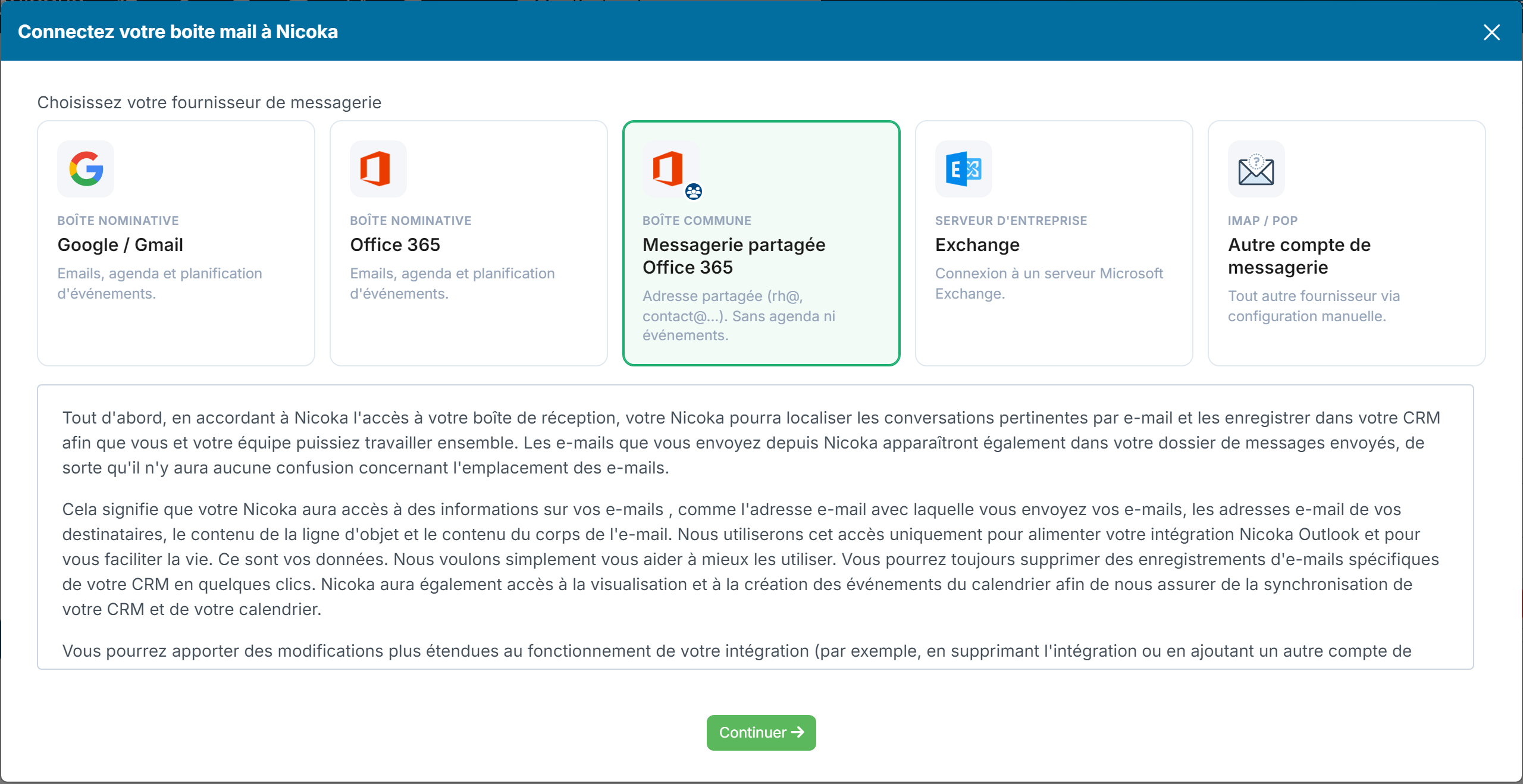
For an address shared by a team (hr@, contact@…), use the Office 365 shared messaging card. It sends and receives emails, with no calendar or events.
- In the Connect your mail box to Nicoka window, click Office 365 shared messaging, then Continue.
- Enter the address of the shared mailbox in Email, then click Add.
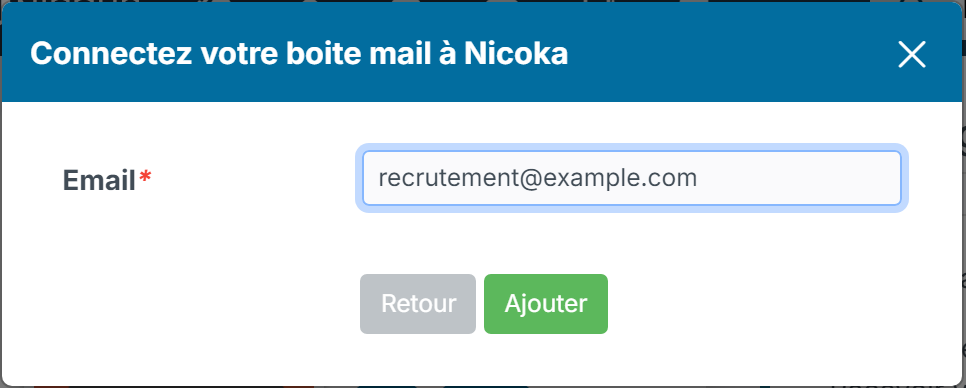
- On the Microsoft page, sign in with your own Office 365 account. This account must have access to the shared mailbox.
If you enter your own address instead of the shared mailbox address, Nicoka asks you to use the Office 365 card.
For Microsoft 365 administrators
If Microsoft asks for an administrator's approval during the connection, your organisation does not allow users to consent to external applications. Two options:
- allow user consent: in the Microsoft 365 admin center (admin.microsoft.com), open Settings > Org settings, Services tab, click User consent to apps, tick the option, then save;
- consent for the whole organisation, once and for all: in Nicoka, open Settings > Integrations, then the Microsoft 365 entry. Click Grant admin consent and pick the application (Mailboxes and calendars, Shared mailboxes or Sign in with Office 365 (SSO)). The Microsoft page opens in a new tab: sign in with a Microsoft 365 administrator account and accept. Your users can then connect their mailbox without any further approval prompt.
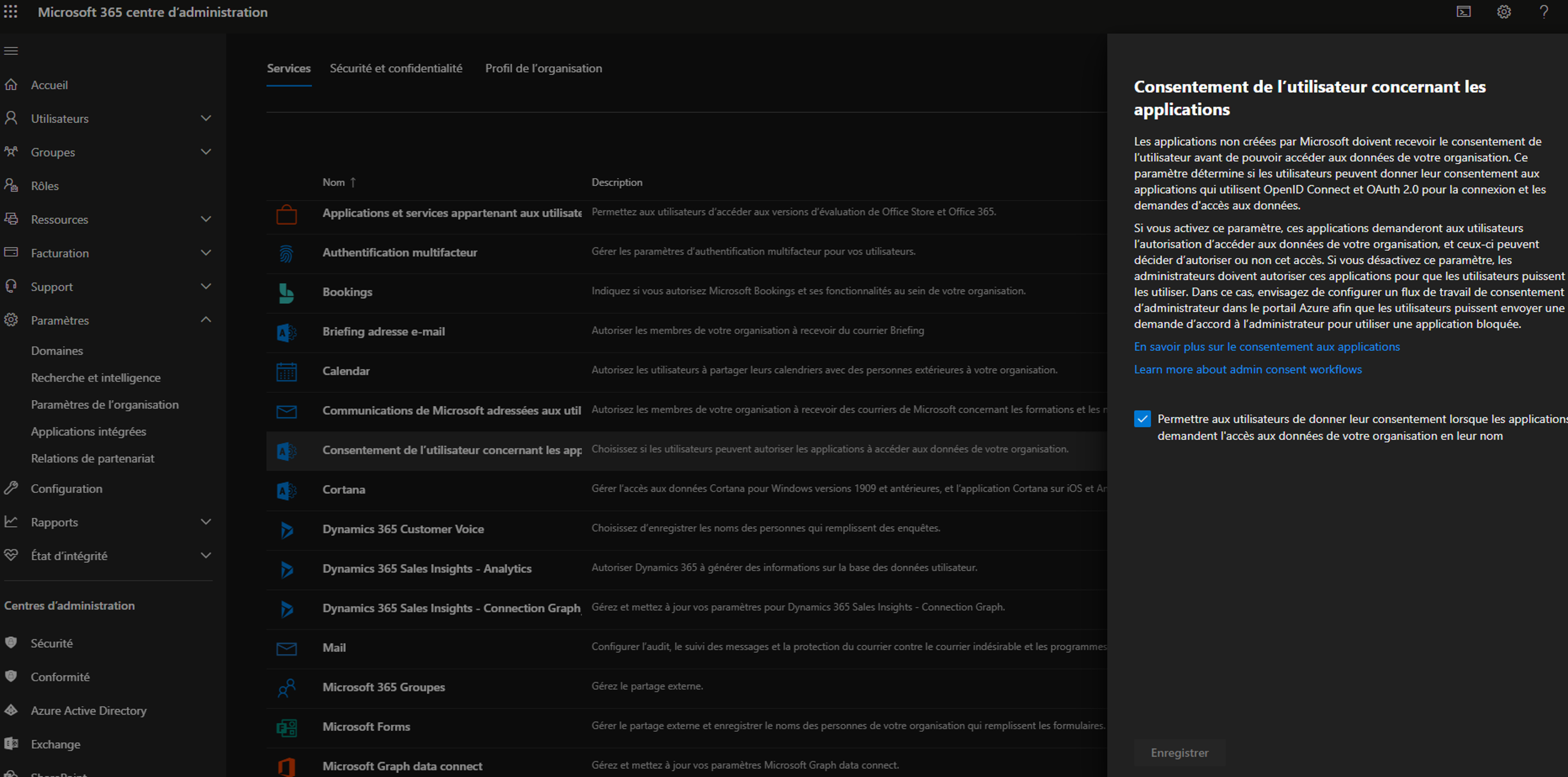

Microsoft menus change regularly and may differ slightly from this screenshot (shown in French). The user can then add their mailbox again in Nicoka.