Step 7 - Exclude your domain name from incoming email analysis
Why exclude your domain name
Nicoka analyses incoming emails to create candidates and applications automatically, for example from a resume received as an attachment.
When a colleague forwards you a candidate's resume, the email comes from one of your company's addresses. Without a safeguard, Nicoka may take your colleague's address for the candidate's. By declaring your company's domain name as excluded:
- addresses on this domain are never saved as a candidate's address;
- resumes that your colleagues forward to you from these addresses can still be analysed.
Declare your excluded domains
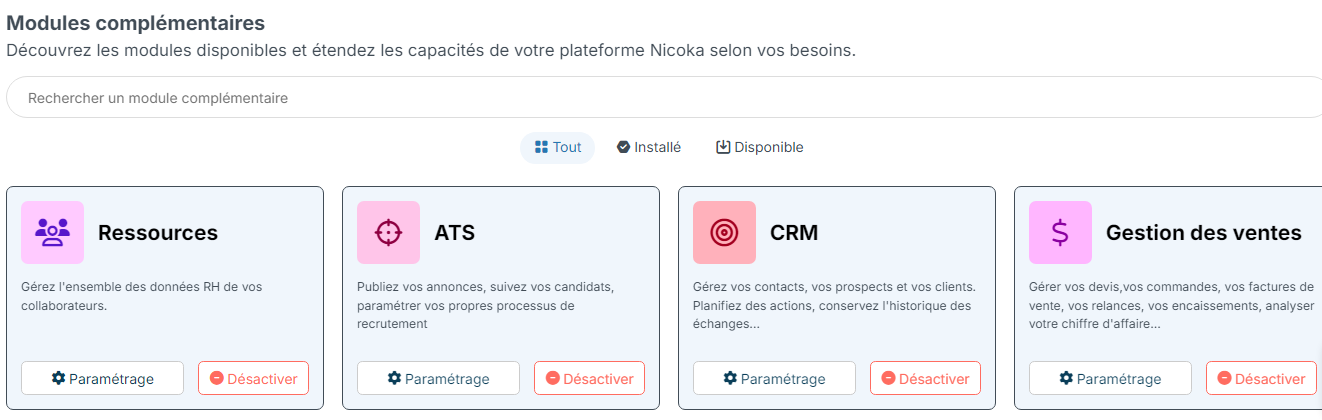
- In the side menu, open Customizing > Store.
- On the ATS card, click Customize.
- In the left-hand menu, click Customizing Points.
- Expand the Email Parsing section.
- In the Excluded email address or domains field, enter your company's domain name (for example example.com) or specific email addresses. To enter several, separate them with a semicolon: example.com;example.org.
- Click Save at the bottom of the page.
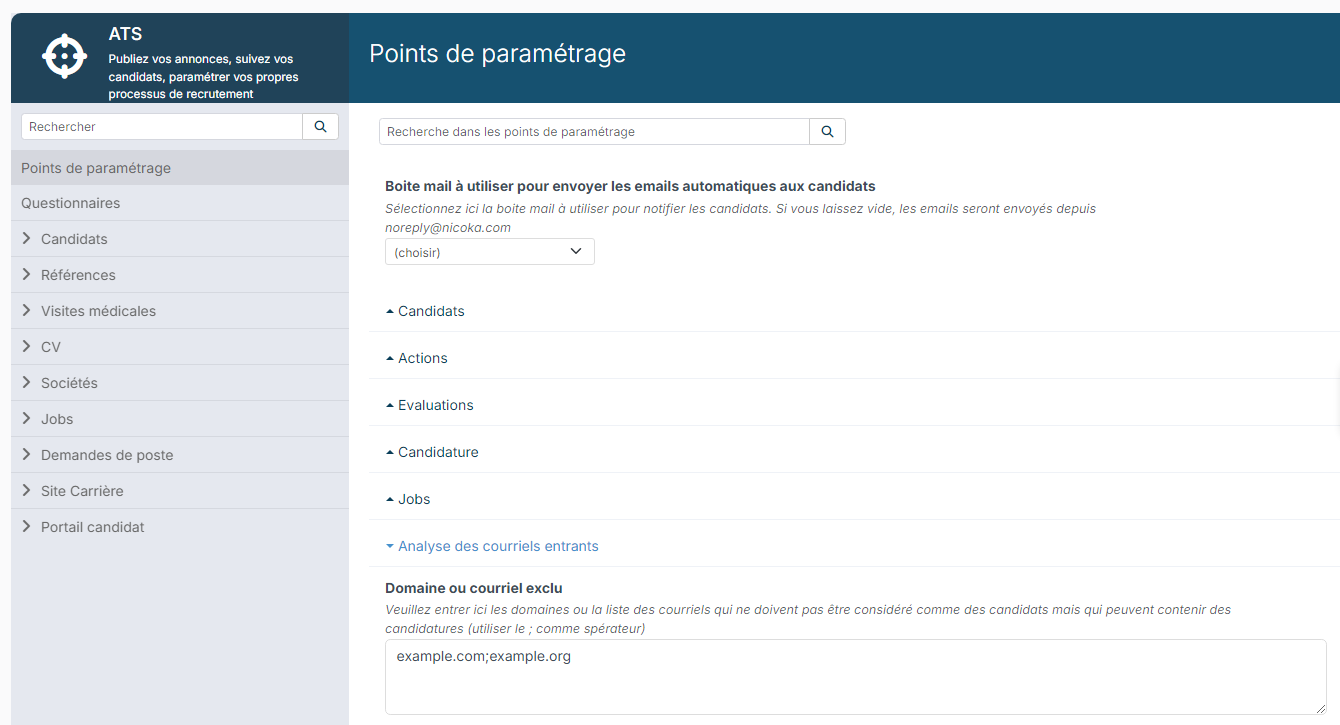
Enter every domain your teams use, including those of any subsidiaries. If you do not see the Customizing menu, ask your company's Nicoka administrator.
Getting started with the ATS
- Step 1: Log into your Nicoka account
- Step 2: Your Nicoka space
- Step 3: Connect your email account
- Step 4: Install the Chrome extension and import a candidate
- Step 5: Create a position or assignment
- Step 6: Update the recruitment process
- Step 7: Exclude your domain name from incoming email analysis
Were this information helpful?