Connect your OVH mailbox
A mailbox hosted by OVH is connected to Nicoka with the Other type of mailbox card (IMAP / POP), by entering OVH's servers. The principles shared by every email provider are described in Step 3 - Connect your email account.
Open the add window
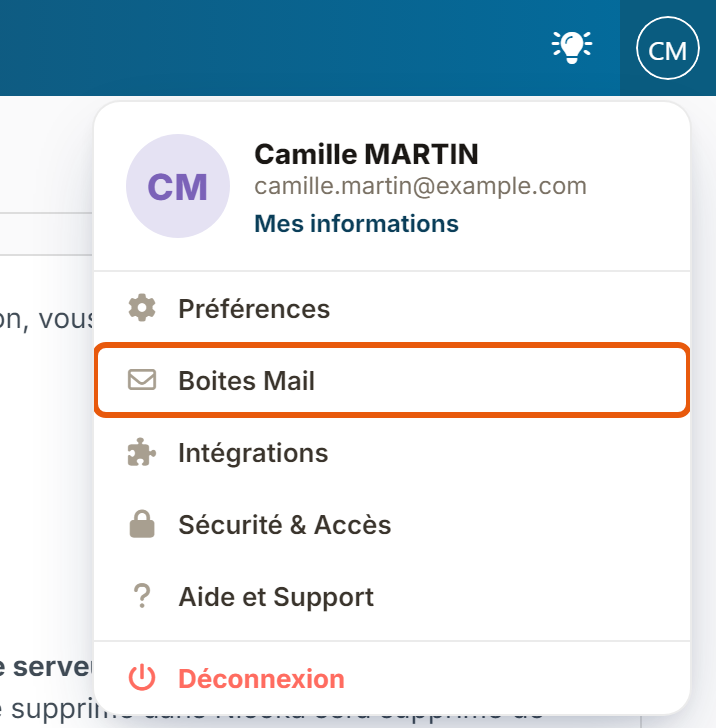
- At the top right, click your initials, then Mail Boxes.
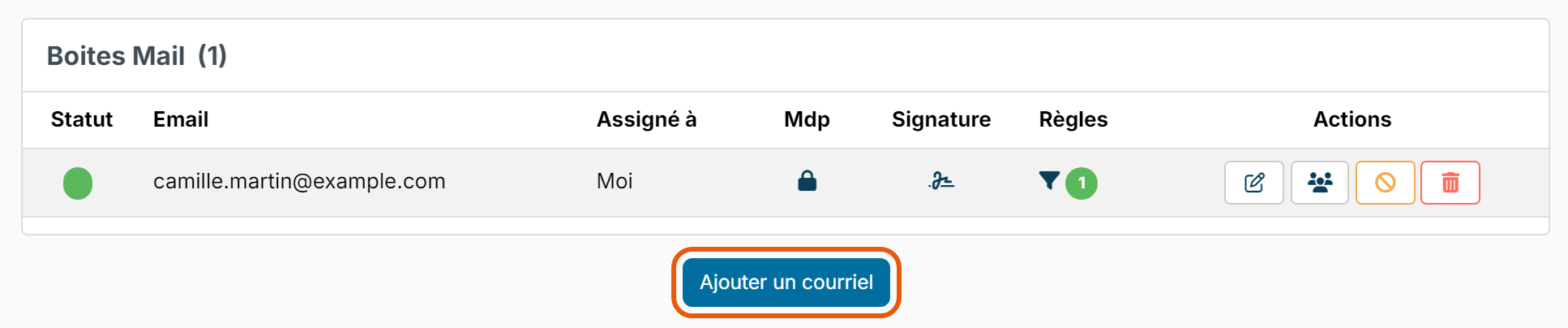
- On the Mail Boxes customizing page, click Add an other email (or Add a mail Box if you have no mailbox yet).
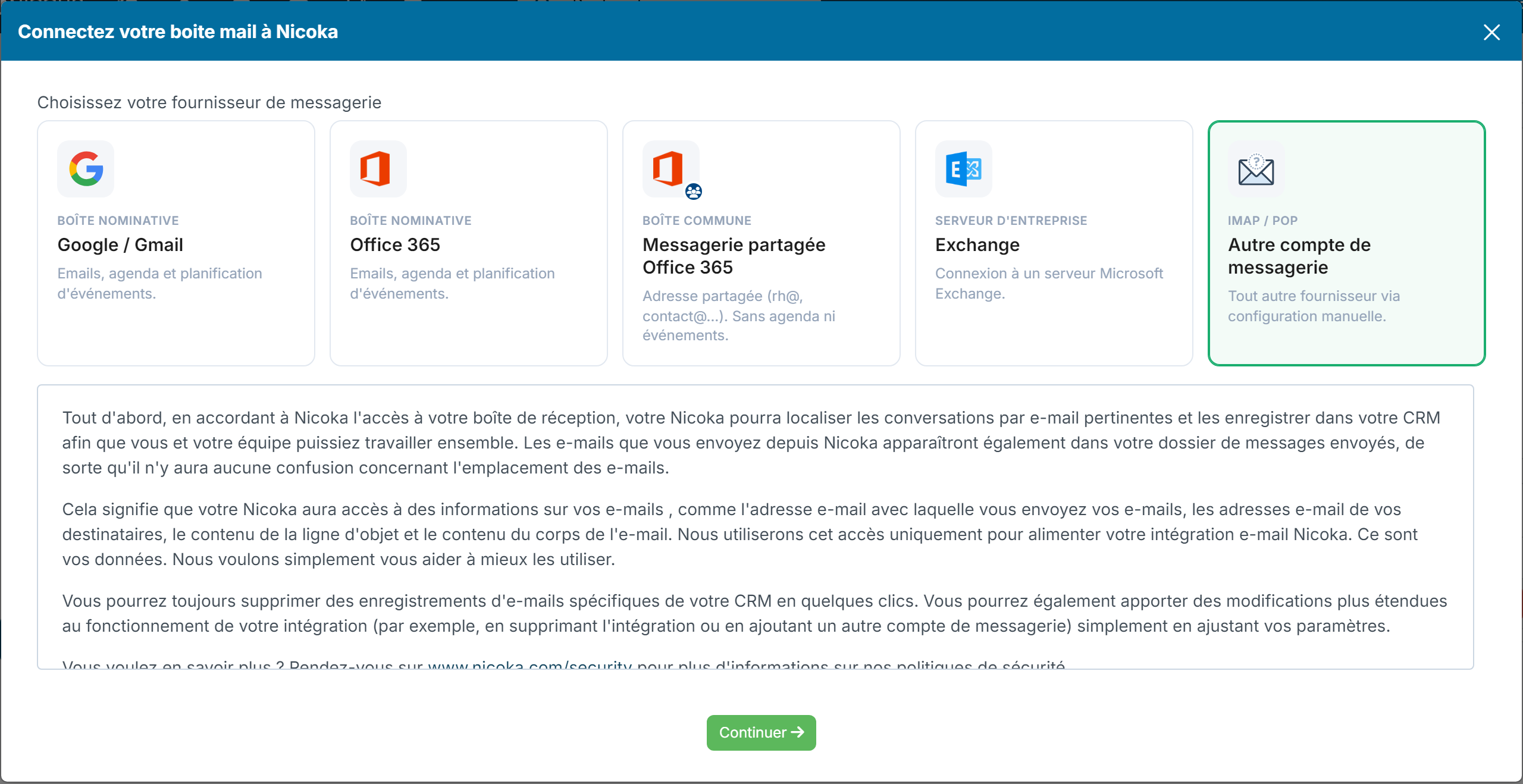
- In the Connect your mail box to Nicoka window, click the Other type of mailbox card, read the terms of use, then click Continue.
Enter the OVH settings
Enter the details of your OVH mailbox, not those of your Nicoka account:
- Name: pre-filled with your name;
- Email: your OVH email address;
- Username: usually the same email address;
- Password: the password of your OVH mailbox;
- SMTP - Hostname: ssl0.ovh.net, with port 587 in the box on the right.
To receive your emails in Nicoka (and see them in the activity feed of your candidates and contacts), tick I want to received my email in Nicoka, then fill in:
- IMAP - Hostname: ssl0.ovh.net, with port 993 in the box on the right;
- Keep a copy of the message in the server.: leave this box ticked to keep your emails in your OVH mailbox. If you untick it, Nicoka deletes the messages from your OVH mailbox once retrieved: you will only be able to read them in Nicoka;
- SPAM Managemnt: choose whether emails marked as spam are fully excluded, excluded from some processing, or retrieved as usual.
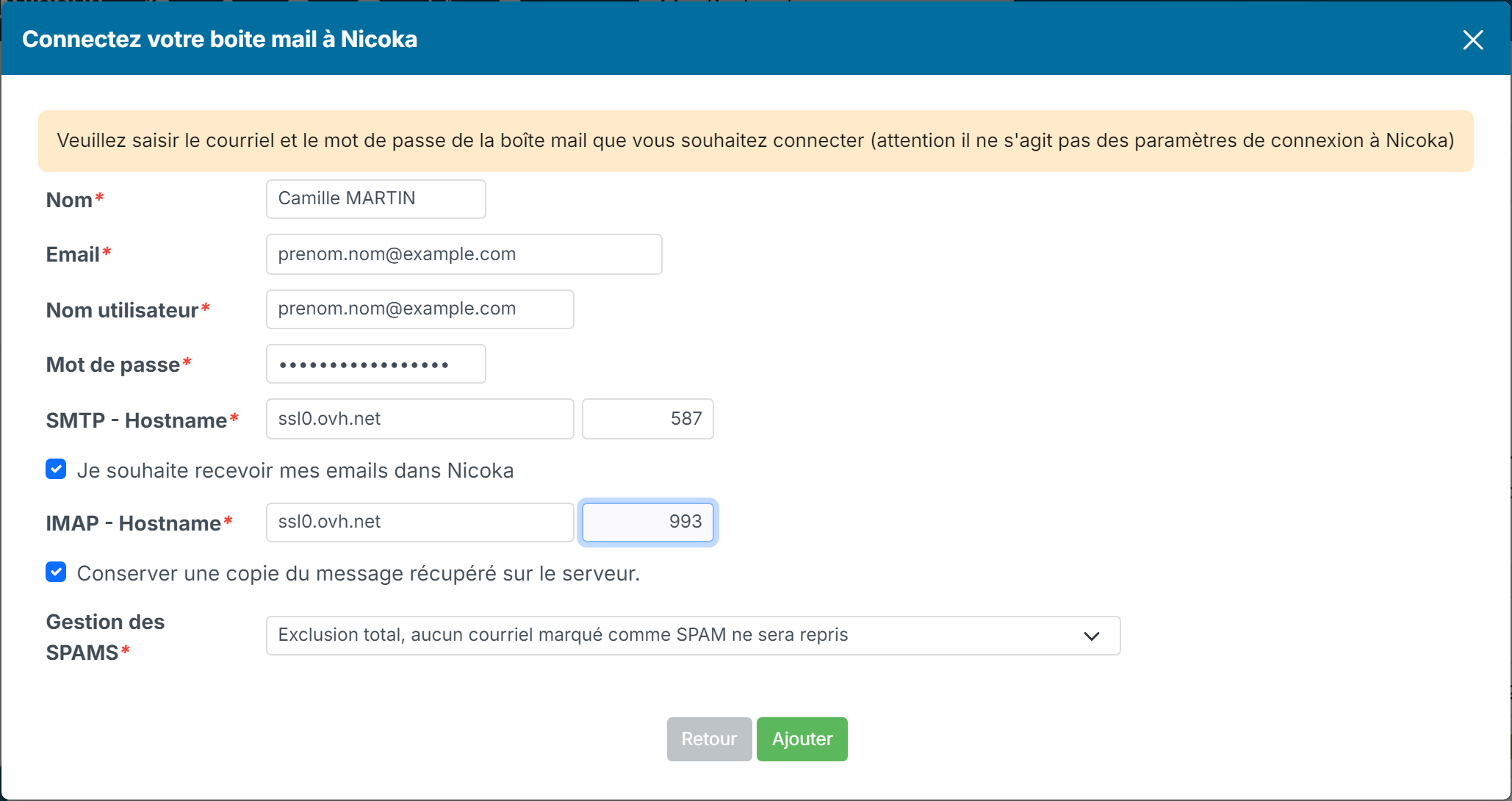
Click Add. Your mailbox is now listed under Mail Boxes.
The servers and ports given here are the ones OVH publishes for its email offers. If the connection fails, check them in your OVH customer area.
After the connection
- The dot in the Status column shows the state of the mailbox: green when it is active, orange as long as no emails have been retrieved, red in case of error. Hover over it to see the details.
- If you change the password of your OVH mailbox, click the padlock in the Pwd column to update it in Nicoka.
- To change the other settings, click the pencil in the Actions column.
Were this information helpful?