Connecting Lucca to Nicoka
Lucca is an HR management software (HRIS). Once Lucca is connected to Nicoka, each hire creates the employee in Lucca, with their employment and job position: there is nothing left to type twice. The creation starts from a validated application (Nicoka used for recruitment) or from a Nicoka employee when it is created, depending on the event rule you set up.
The connector creates the employee only once: it reads nothing from Lucca and does not send a change made later in Nicoka.
Before you start
- You have the administration rights of Nicoka, and a Lucca administrator can create an integration key.
- Employee creation through the API must be enabled on your Lucca account. Lucca turns it on account by account: ask their support before connecting Nicoka. Without it, the key is accepted but every creation is refused.
- Only one Lucca account can be connected to your Nicoka space.
- Each Lucca business establishment that will receive hires must have a default role in Lucca: otherwise Lucca refuses the creation.
1. Create the integration key in Lucca
- In Lucca, an administrator opens the integration keys page:
https://<your Lucca>/identity/admin/integration-keys, for examplehttps://acme.ilucca.net/identity/admin/integration-keys. - They create a key and grant it these scopes:
- required:
employees.readwrite,employments.readwrite,job-positions.readwrite,business-establishments.readonly,departments.readonly,employment-templates.readonly; - for the options:
probationary-periods.readwrite(probationary period) andfiles.readwrite(attached document).
- required:
- They tick the business establishments concerned: the key can only create employees in those.
- They copy the client ID and the client secret of the key.
2. Connect Lucca in Nicoka
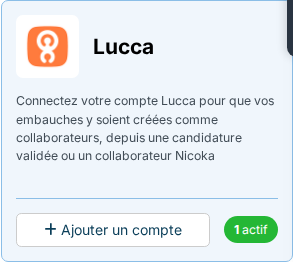
- In the side menu, open Settings > Integrations, click the SIRH (HRIS) category, then the Lucca card.
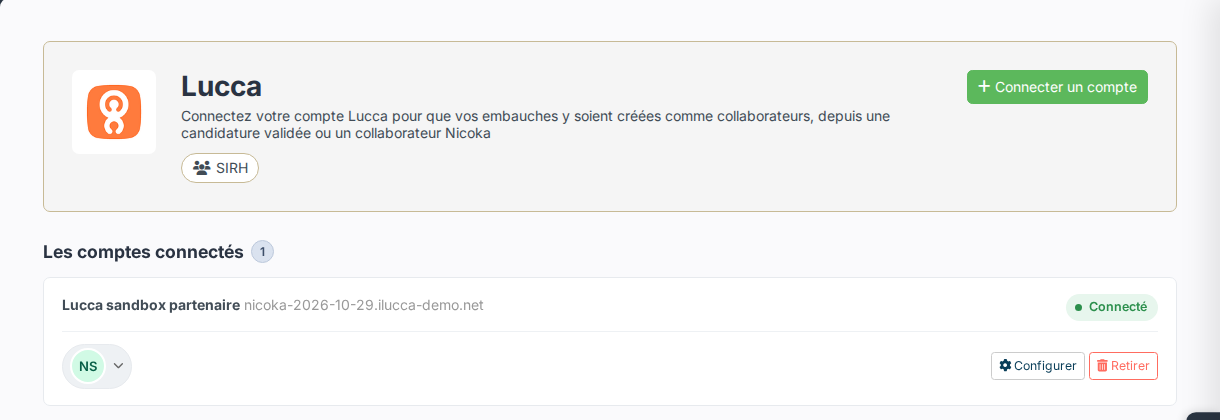
- Click Connect an account.
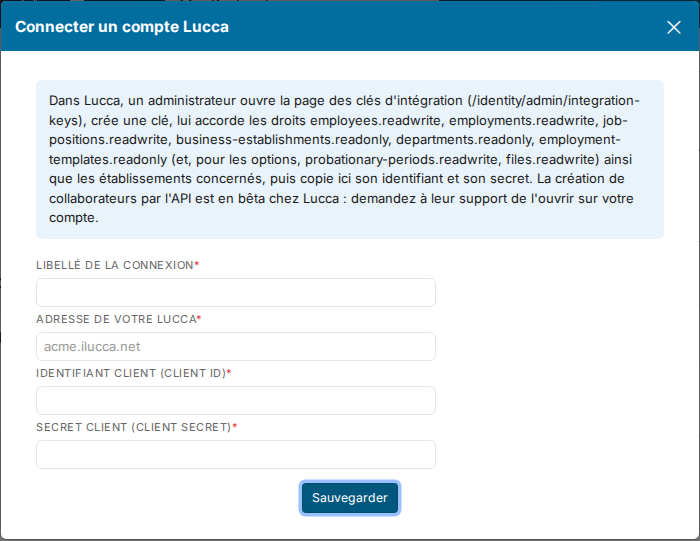
- Fill in the Connection label (free text), the Address of your Lucca (for example
acme.ilucca.net), the Client ID and the Client secret of the key, then click Save.
Nicoka checks the key with Lucca before saving it: a refused key creates no connection. The message "Lucca account connected" confirms the connection, and the account appears in the list of connected accounts (Les comptes connectés). Lucca test (ilucca-test.net), demo (ilucca-demo.net) and sandbox addresses are accepted too.
3. Pick the default values and the correspondences
In the list of connected accounts, click Configure. The secret is never displayed again: leave the field empty to keep it.
- Default values: the Lucca business establishment, the Lucca department and the Lucca employment template. Lucca requires them to create an employee: until they are picked, the action is not offered in the event rules.
- Correspondences: the company, department and contract type of the job (or of the Nicoka employee) pick the Lucca business establishment, department and employment template. A value missing from these tables takes the default value. The legal entity is the one of the business establishment.
- Options: attach a candidate document to the Lucca employment (for example their contract or resume, the latest of the chosen type), send the mobile phone as the professional phone, create the probationary period, and take the owner of the job as manager, found in Lucca by their email. This last option is unticked by default: the owner of the job is often the recruiter.
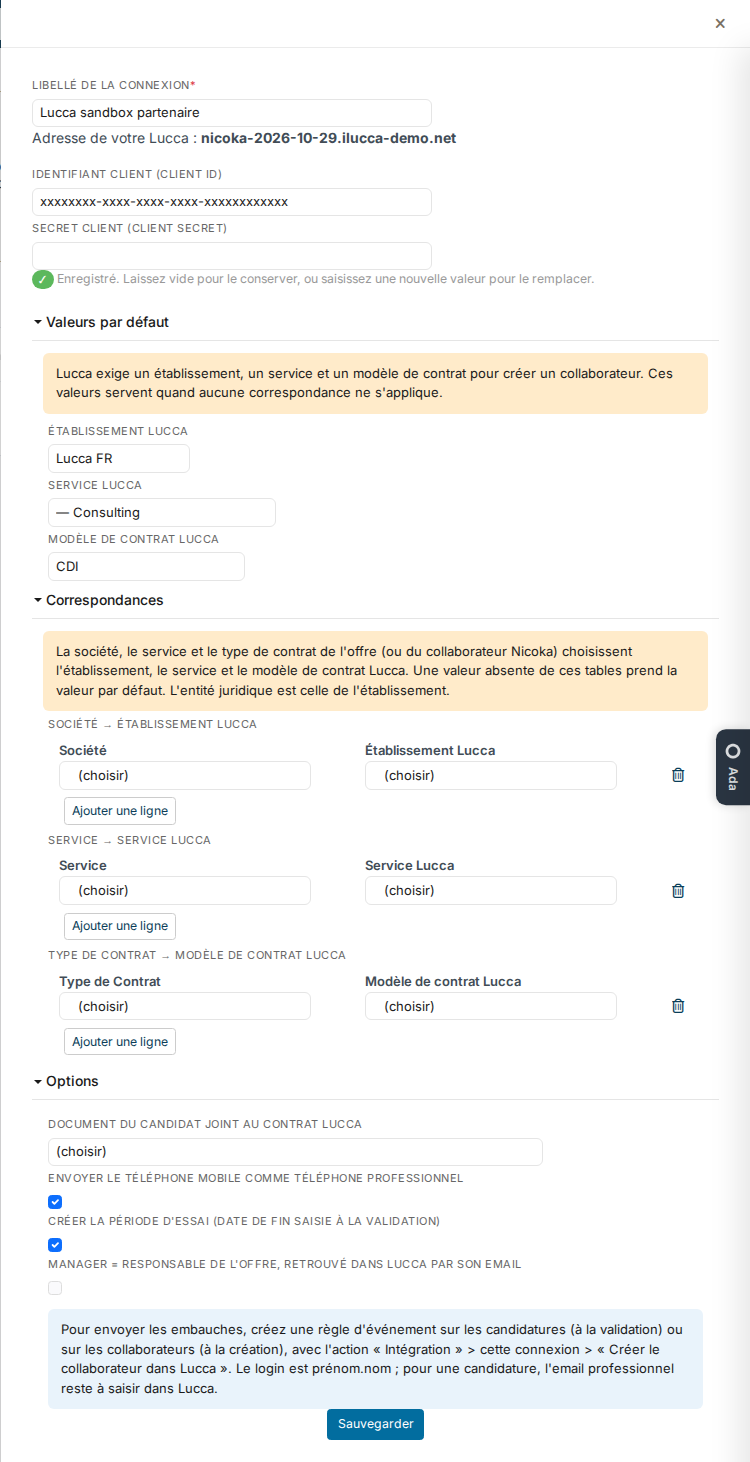
Click Save. If Lucca does not answer, the lists only show the values already saved.
4. Create the employee at hiring time
The sending is triggered by an event rule (see Alerts and events). In Settings > Administration > Inter Application > Events, create an event:
- From recruitment: on applications, with the change type On Update only if the following fields change and the field Hired. An application that is not validated is never sent.
- From the Nicoka HRIS: on employees, with the change type After Create.
- Under Actions, choose Integration, then your Lucca connection.
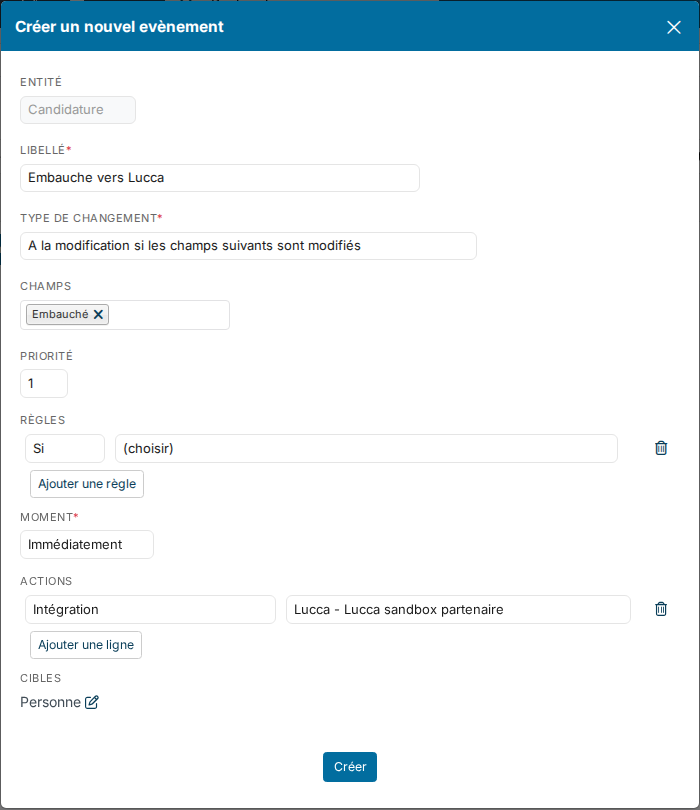
Both rules can coexist: an employee coming from a candidate already sent is recognised, and nothing is created twice. An employee already in Lucca (same email, or same identifier) is paired with the record instead of being created again.
What is sent to Lucca
- The first name and last name, and a login
firstname.lastnamewithout accents or spaces (firstname.lastname2if it is already taken). - The start date (required: hire date entered at the validation or on the employee) and the end date of a fixed-term contract.
- The business establishment, the department and the employment template, from the correspondences, and the job title.
- The professional email of a Nicoka employee. For an application it is not known yet: enter it in Lucca.
- Depending on the options: the phone, the manager, the probationary period and a document.
Not sent: the employee number, personal data (personal email, address, date of birth, social security number, which the Lucca API cannot write), the qualification, the socio-professional category, the working time arrangement and the photo.
Follow the result
Each sending leaves a Lucca (HRIS) activity on the candidate and employee records:
- Employee created in Lucca, with their identifier and login;
- Employee already in Lucca: paired with the record, nothing was created;
- The employee was not created in Lucca, with the reason given.
A manager not found, or a probationary period or document refused, does not block the creation: they are listed in the activity under To complete in Lucca.
Troubleshooting
- "Lucca refuses this integration key": check the client ID and secret, and that the key was not revoked.
- The key lacks a scope: add it to the key in Lucca, with the business establishment concerned.
- The key is accepted but no creation goes through: ask Lucca support to enable employee creation through the API on your account.
- Hire date missing: fill it in on the application or the employee, then trigger the event again.
- Business establishment not found or archived: pick another one in the connection configuration.
- The Lucca card does not appear: write to support@nicoka.com.