Connect Nicoka in Mistral
The Nicoka MCP connector lets you query and update your Nicoka data (candidates, contacts, opportunities, invoices…) directly from Mistral's Le Chat. For example, you can ask "List the candidates added this week" or "Add a note to the contact Jean Dupont".
Before you start
- On the Mistral side: adding a custom connector may be limited to the administrators of your Le Chat organization. If in doubt, see Mistral's help.
- On the Nicoka side: your profile must allow you to connect an application. If the connection is refused, ask your company's Nicoka administrator.
- The address of your MCP server:
https://YOUR-INSTANCE.nicoka.com/api/mcp. Replace YOUR-INSTANCE with the subdomain of your Nicoka workspace, the one you see in your browser's address bar. If in doubt, ask Nicoka support.
1. Add the Nicoka connector in Le Chat
- Sign in to Mistral's Le Chat, then open the connectors management.
- Add a custom MCP connector and fill in:
- Connector name: nicoka (no spaces or special characters);
- Server URL:
https://YOUR-INSTANCE.nicoka.com/api/mcp; - Description (optional): Access to Nicoka data.
- Start the connection.
2. Authorize access with your Nicoka account
- Le Chat detects that the Nicoka server uses OAuth and redirects you to Nicoka. If you are not signed in yet, sign in with your usual Nicoka account.
- The Nicoka Authorize access screen shows the application requesting access, your name, and what the application will be allowed to do. Click Allow.
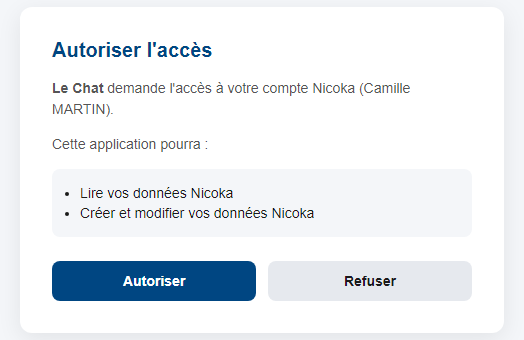
You then return to Le Chat, where the Nicoka connector appears among your connectors. Le Chat never sees your Nicoka password, and it acts with your rights: it only sees what you see in Nicoka.
3. Set the permissions and test
- In the settings of the Nicoka connector, choose for each function whether Le Chat may use it without asking for confirmation.
- Open a new conversation, enable the Nicoka connector in the tools menu, then ask a first question, for example: "List my 5 latest opportunities in Nicoka".
Tip: always allow the reading functions you use often (candidate list, contact search…). Keep the confirmation for writing functions (creating or changing records) while you get used to them. The tools are described in What your AI assistant can do in Nicoka (MCP).
4. Troubleshooting
- Le Chat reports that the MCP connection is invalid: check that the server address ends with
/api/mcpand that you are allowed to add a connector in your organization. - Nicoka refuses access: your Nicoka profile does not allow you to connect an application. Contact your company's Nicoka administrator.
- The authorization has expired or new tools do not show up: disconnect and reconnect the connector, as explained in Refresh your AI connection with Nicoka (MCP).
Need help? Contact Nicoka support.
Were this information helpful?