Connecting VSA (Veryswing) to Nicoka
The VSA connector links Nicoka to VSA, the ERP of Veryswing, both ways:
- From VSA to Nicoka: the VSA prospects and customers become Nicoka accounts, and their contacts become contacts linked to their account. VSA does not notify Nicoka of its changes: everything is read again every night.
- From Nicoka to VSA, through event rules you set up: a job creates its opportunity, a hire creates the employee, an order creates the time-based order.
The VSA API cannot modify an opportunity, an order or a user: each one is created once, and a change made afterwards in Nicoka is not sent again. These settings require the administration rights of Nicoka and a VSA administrator.
Step 1 – Create an API user in VSA
- In VSA, open Administration > API users and create an API user.
- Associate it with a real user of VSA: Nicoka reads and writes what this user is allowed to read and write.
- Write down its login, its password and the address of your VSA, for example
acme.vsexperience.com.
Step 2 – Connect VSA in Nicoka
- In the side menu, open Settings > Integrations, then click the VSA tile.
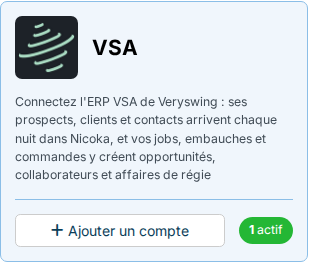
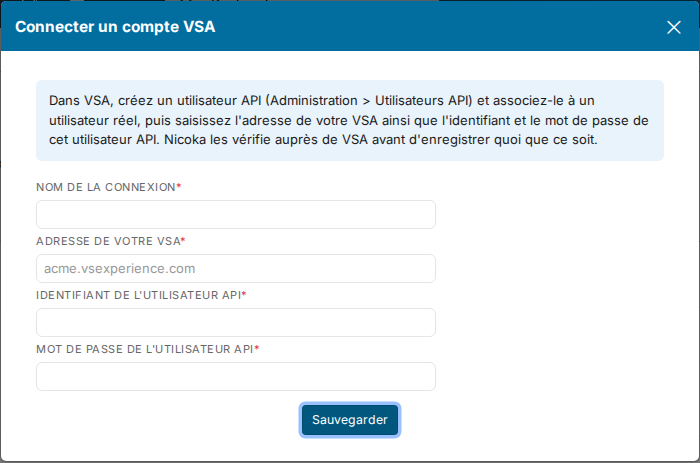
- Click Connect a VSA account. Enter a free name, the address of your VSA, the login and the password of the API user, then click Save. Nicoka checks them against VSA before saving anything: credentials VSA refuses create no connection.
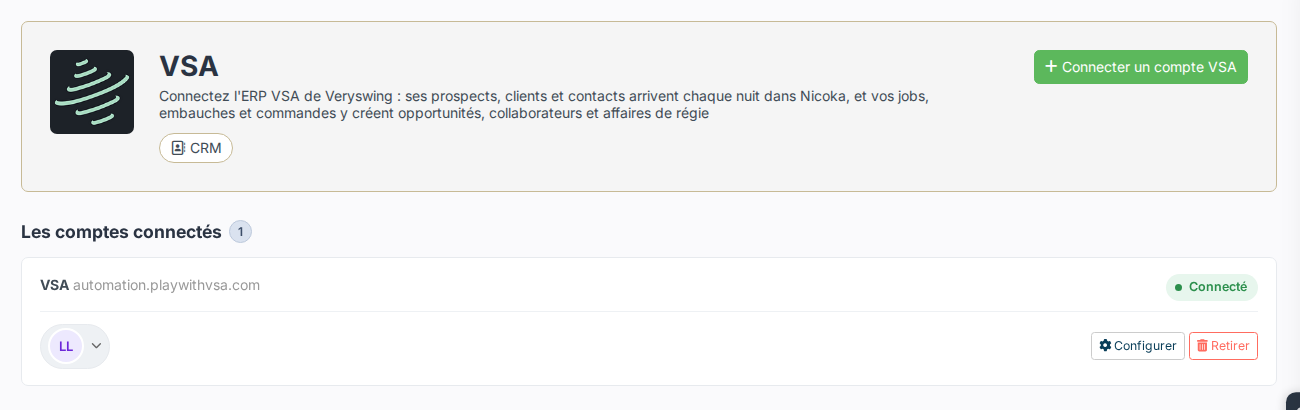
Only one VSA can be connected to your Nicoka space. Its address cannot be changed: to connect another VSA, remove the connection and add a new one.
Step 3 – Set the import of the accounts and contacts
Click Configure on the line of the connection. The top of the window shows the date of the last reading of VSA. The password is never shown again: leave the field empty to keep it.
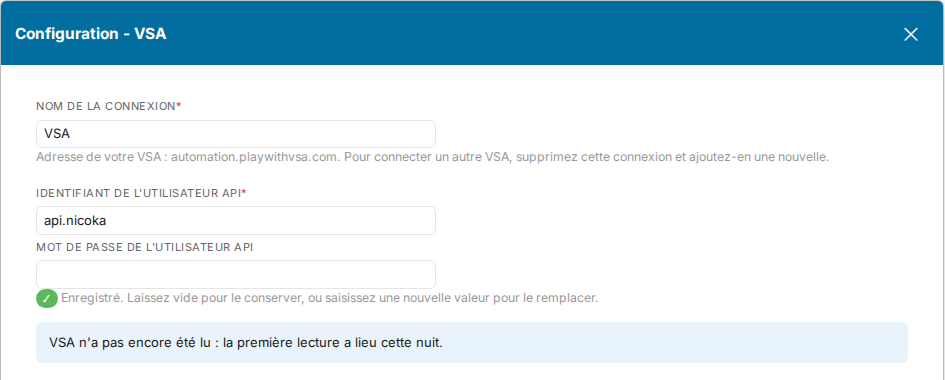
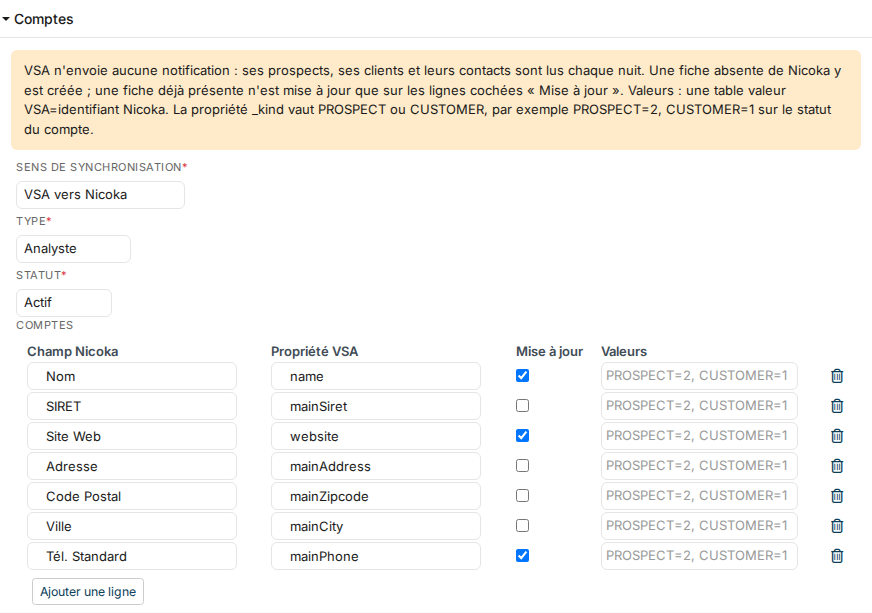
The Accounts and Contacts sections offer:
- Synchronization direction: VSA to Nicoka, or Do not synchronize to stop the import.
- Type and Status of the accounts, Status and Source of the contacts: the values given to the records created. As long as they are not chosen, no record is created.
- The mapping table: the Nicoka field to fill and the VSA property that fills it, under the name the VSA API gives it (its documentation is at
https://<your VSA>/api/doc). The connection starts with the name, SIRET, website, address and phone of the accounts, and the first name, last name, email, phones and job title of the contacts. - Update: ticked, a change in VSA also updates the record already in Nicoka; unticked, the field only feeds the creation.
- Values: for a list field, the mapping VSA value = Nicoka id. The
_kindproperty isPROSPECTorCUSTOMER: for examplePROSPECT=2, CUSTOMER=1on the account status.
Click Save. The first reading takes place the following night; afterwards, a record created in VSA reaches Nicoka the next night.
Step 4 – Send to VSA (optional)
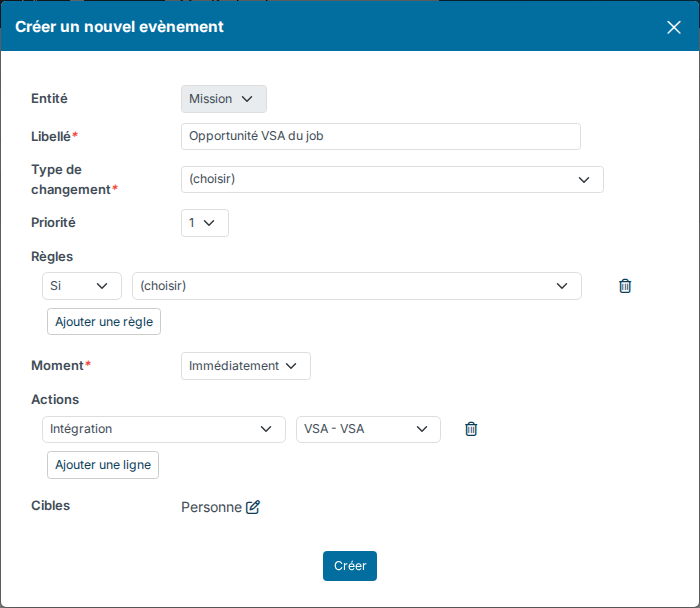
Each sending is set in its own section of the configuration window, with the direction Nicoka to VSA, then triggered by an event rule (see Reminders and events): in Customizing > Admin > Cross Application > Events, create an event on the object you want and add the action Integration > your VSA connection. This action is only offered once the direction is set.
The VSA lists (entities, sales stages, security groups…) are filled when the window opens. If VSA does not answer, type the code as you find it in VSA.
A job creates its opportunity
- The customer of the job must come from VSA (imported at step 3): an opportunity is attached to a VSA account.
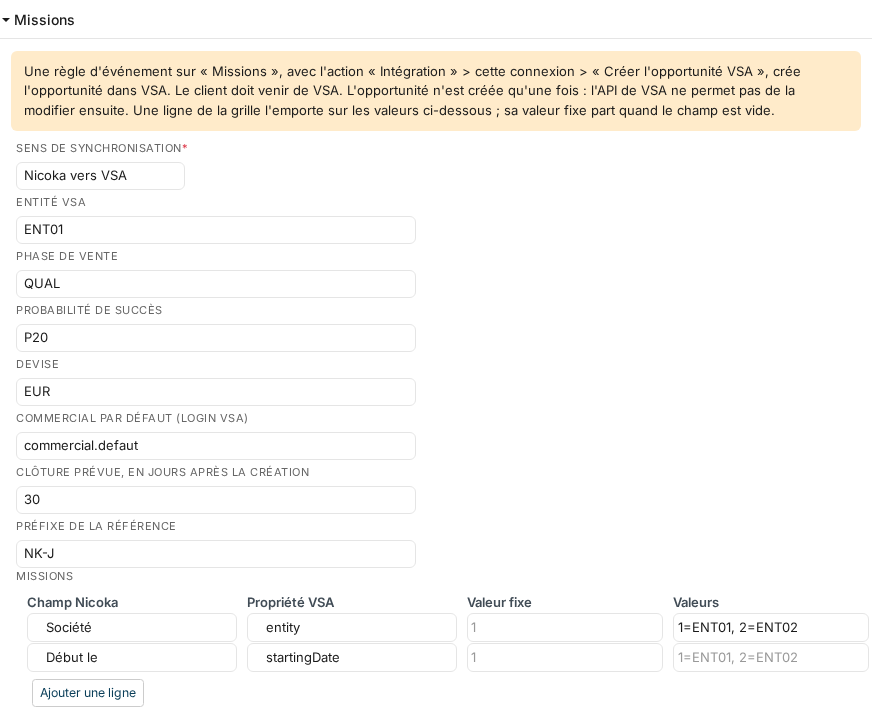
- Set the entity, the sales stage, the probability, the currency, the default salesperson (VSA login), the closing delay and the reference prefix. The salesperson is the person the job is assigned to, found in VSA by their email, else the default salesperson.
- The table completes the opportunity with fields of the job; a fixed value is sent when the field is empty.
- The event is set on the jobs, action Create the VSA opportunity. The opportunity carries the reference
NK-Jfollowed by the number of the job: if it is already in VSA, it is linked to the job instead of being created twice.
A hire creates the employee
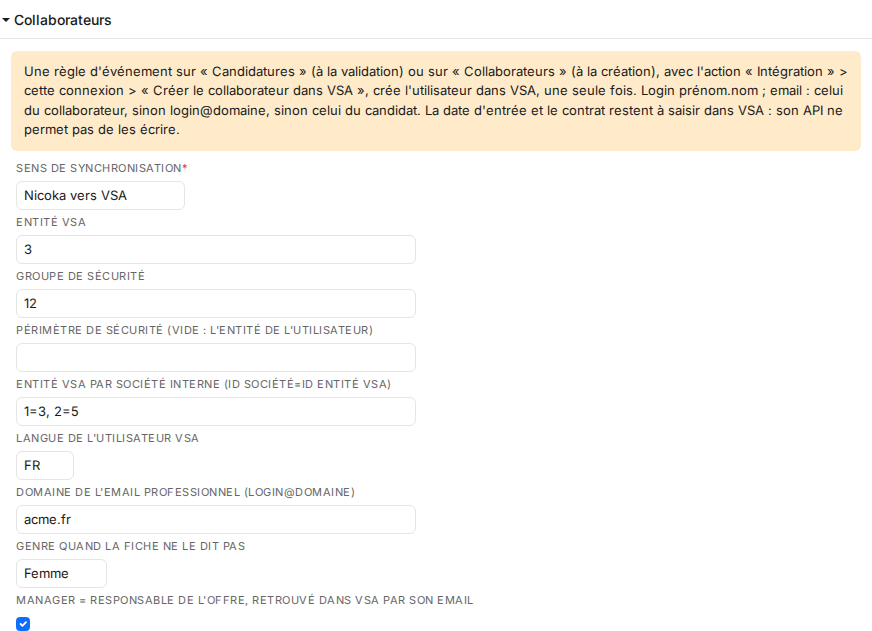
- Set the entity and the security group (required), the security scope, the entity per internal company, the language, the domain of the professional email and the gender to use when the record does not say.
- The login is
firstname.lastname, orfirstname.lastname2when it is taken. The email is the employee's, elselogin@domain, else the candidate's. - The event is set on the applications (at the validation) or on the employees (at the creation), action Create the employee in VSA. A « VSA (ERP) » activity on the record says what happened: created, already in VSA, or refused and why.
- The hire date and the contract are to be entered in VSA: its API cannot write them.
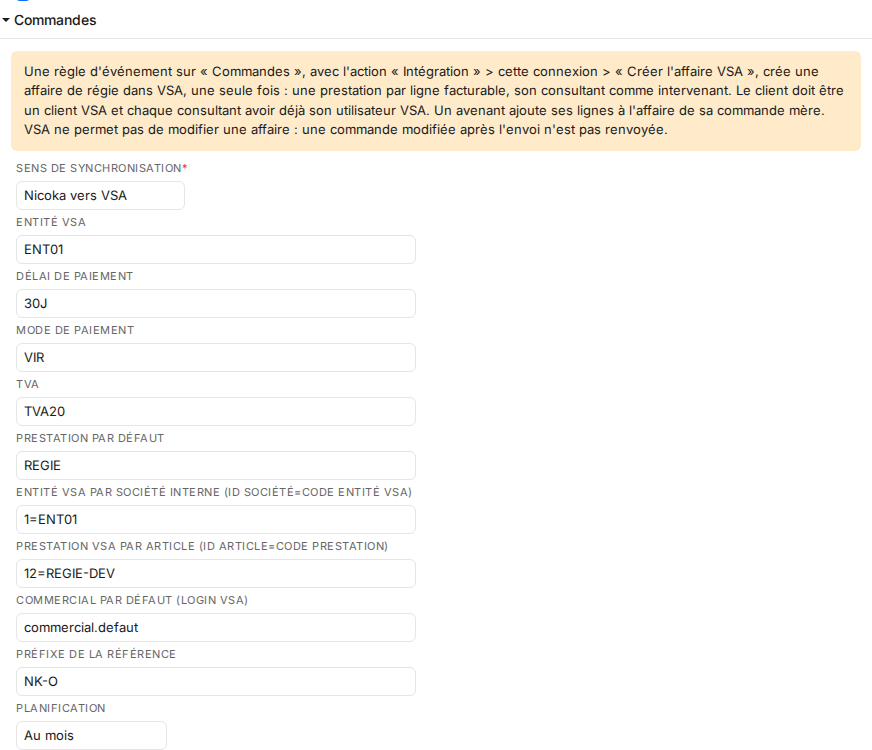
An order creates the time-based order
- The customer of the order must be a VSA customer, not a prospect, and each consultant must already have their VSA user (previous sending).
- Set the entity, the payment period and method, the VAT, the default delivery and, if needed, the VSA delivery per product, the default salesperson, the reference prefix and the planning (by half day or by month).
- Each billable line becomes an intervention: its quantity in days, its unit price after discount, its consultant as stakeholder. A line sold in another unit than the day is refused.
- Set the event on the change of the order to the status that freezes it (validated, signed), action Create the VSA order: the VSA order is created once.
- An amendment adds its new or changed lines to the VSA order of its parent order; the lines left as copied are not sent again.
Good to know
- A record already in Nicoka is found by its external reference, its SIRET or its name (account), or by its email (contact): it is never duplicated.
- A record archived in VSA is not created, and a deletion in VSA deletes nothing in Nicoka.
- An opportunity, an order or a user already sent is never updated: a change made afterwards in Nicoka is to be made in VSA as well.
- Removing the connection stops the nightly reading and the sendings; nothing is deleted, neither in VSA nor in Nicoka. Also delete the events that used it.