Check a job offer's quality with AI before publishing
The quality check reviews each job offer when you publish it. The AI compares it with your company's writing rules, your quality charter, and blocks the publication as long as an important rule is not met. It then tells you exactly what to correct.
Set up the check
The check is disabled by default. To enable it, write to our support team at support@nicoka.com and attach your charter: the list of your writing rules, stating which ones must block the publication. For example:
- the title ends with a gender-neutral mention such as M/F;
- the salary is stated;
- the description lists between 3 and 5 missions;
- the offer highlights at least 3 benefits;
- the text counts between 130 and 280 words.
Our team sets up the charter and enables the check on your workspace. To change your rules later, just send us the criteria to add or modify.
Publish a job offer
- Open the job offer, then click Publish.
- The publication window reminds you that the AI checks the offer against your charter. Click Publish.
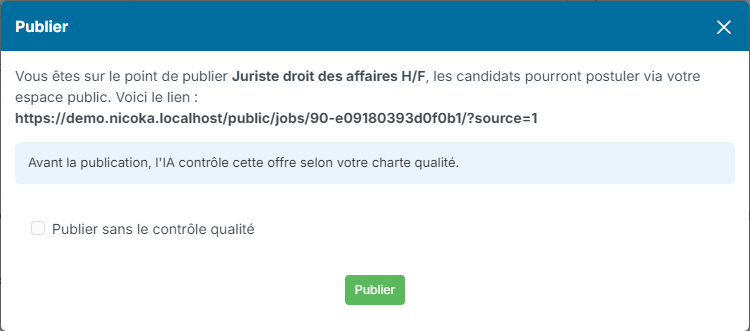
The AI reads the title, the company presentation, the description, the profile sought, the benefits and the salary. The check takes a few seconds.
- If the offer meets your charter, it is published as usual.
- Otherwise, it is not published. The message "This job offer does not meet your quality charter, correct it before publishing it." appears, followed by a one-sentence explanation and the list of corrections to make.
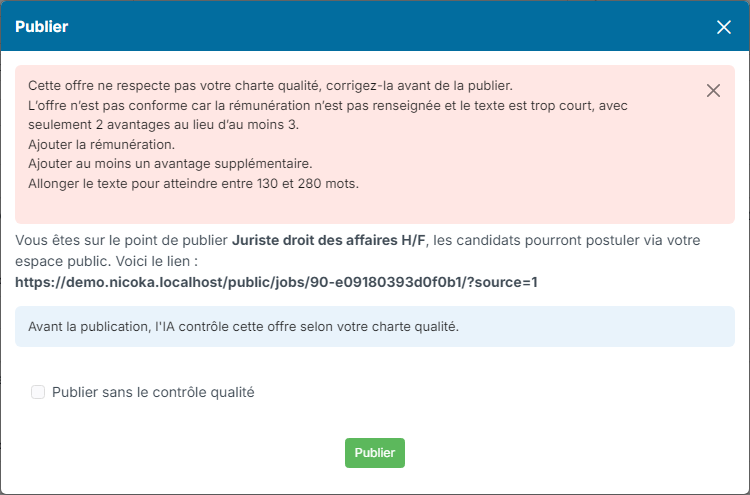
Correct the offer, then click Publish again. The explanation and the corrections are written in the language of your interface.
Publish without the check
In an emergency, some users can publish an offer despite a refusal. They see the Publish without the quality check box in the publication window: tick it, then click Publish. The offer is published without going through the AI.
Other users do not see this box and must correct the offer.
Choose who can publish without the check
- On the ATS card, click Customize, then Customizing Points.
- Expand the Jobs section.
- In Profiles allowed to publish without the quality check, select the relevant profiles, for example Administrator.
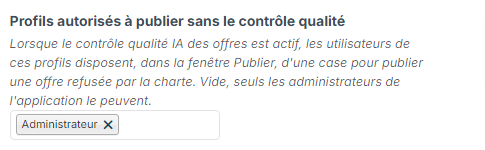
As long as this setting is empty, only the administrators of your Nicoka workspace can publish without the check.