Convert a candidate into an employee
Once your recruitment is complete, Nicoka turns the selected candidate into an employee of your company, without re-entering their information. You can also give them access to Nicoka straight away.
It is done in two stages:
- validate the selected candidate on the job page;
- convert the candidate into an employee from their profile.
1. Validate the selected candidate
- Open the job page (or the assignment page, depending on the wording used in your account).
- Click the step where the selected candidate is: usually the last step of your process, of the Hired type (its name depends on your settings).
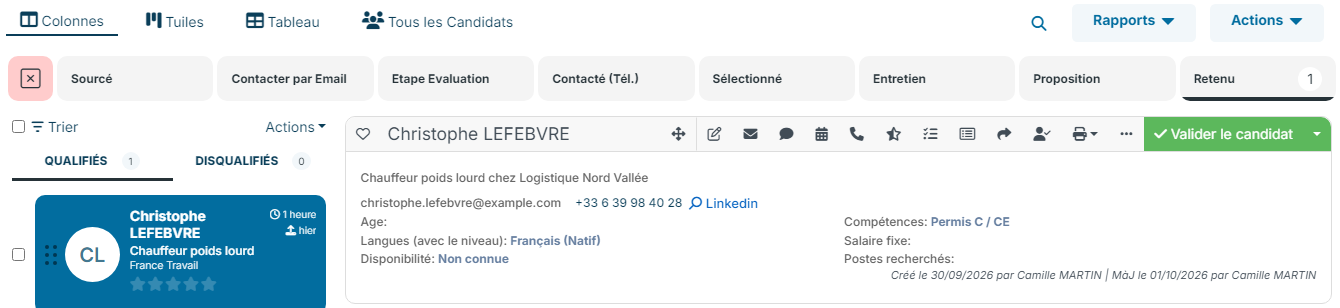
- Validate the candidate according to the display chosen at the top of the page:
- in the Columns display, click the candidate to open their profile, then click Validate Candidate;
- in the Table display, click the green check icon (Validate Candidate) on the candidate's row.
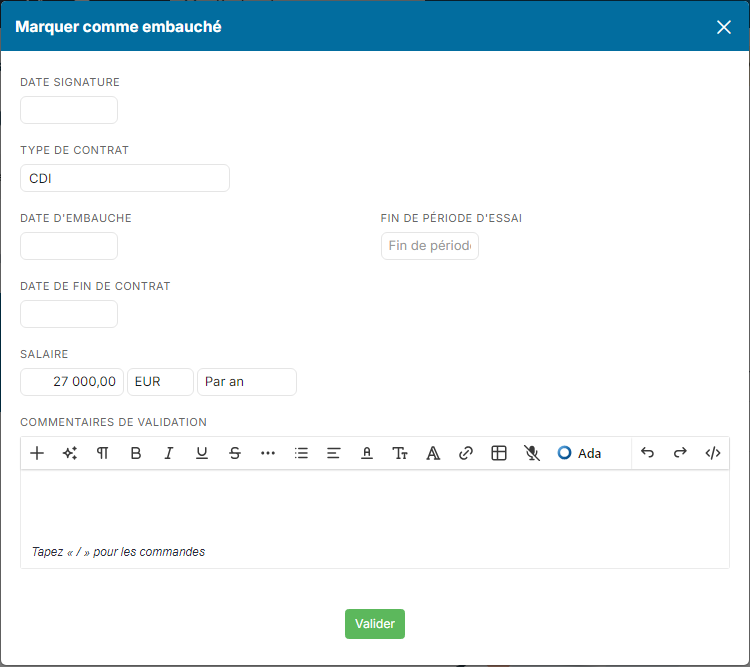
- In the Mark as hired window, fill in the information requested, for example Signed On, Contract Type and Hire Date. The fields offered and the mandatory ones depend on your settings.
- Click Validate.
2. Convert the candidate into an employee
- Open the candidate's profile, for example by clicking their name.
- Click the … button at the right of the icon bar.
- Choose Convert into Employee.
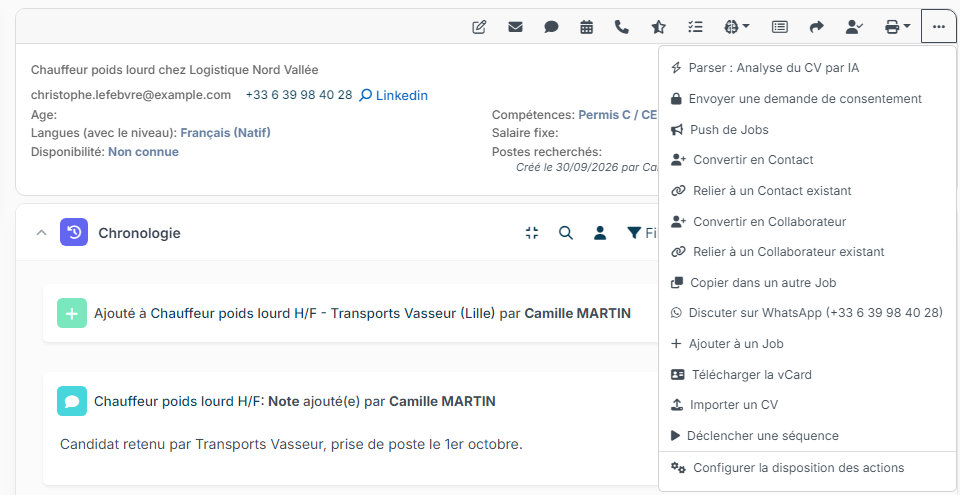
If the person already exists among your employees, choose Link to an existing Employee instead: the candidate is attached to their record, without creating a duplicate.
3. Complete the new employee's record
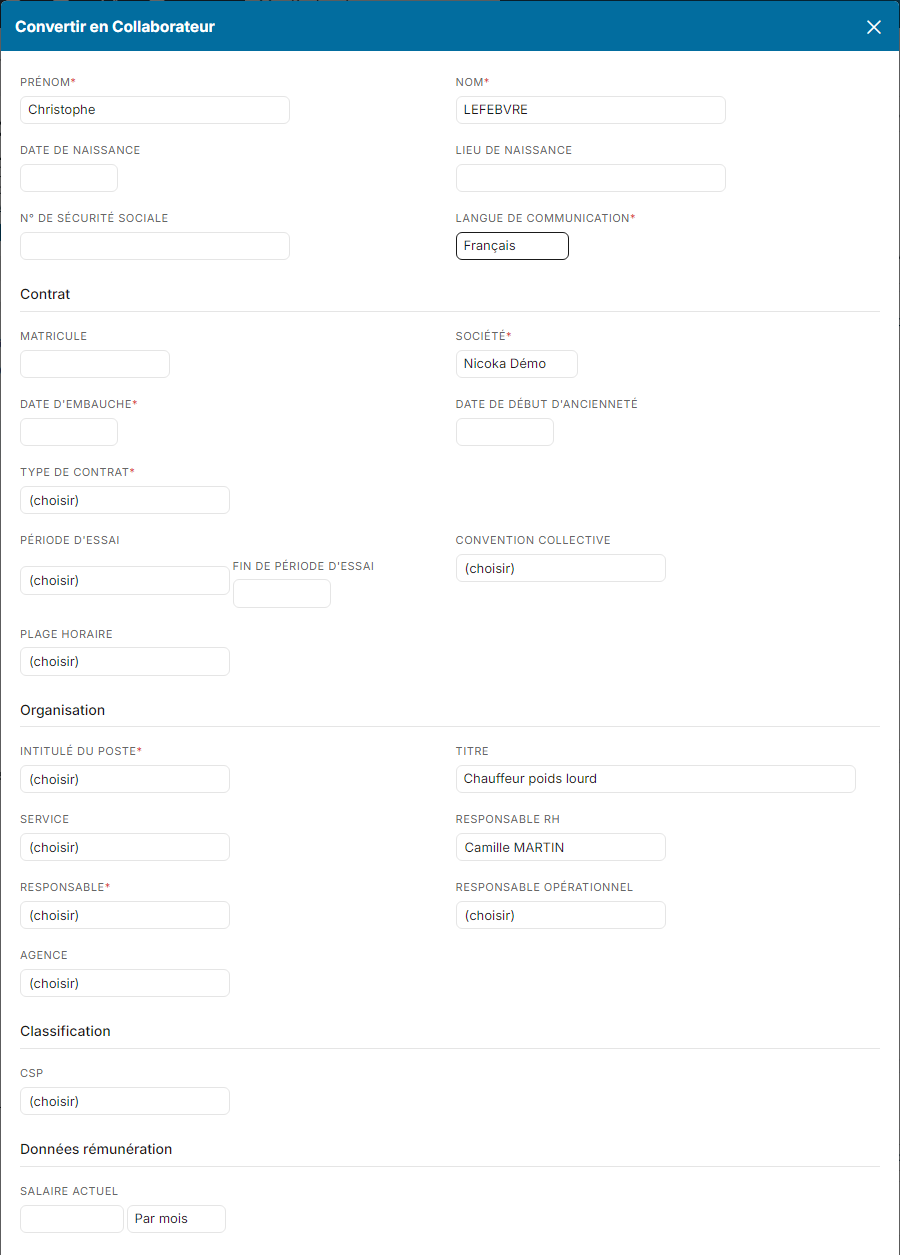
The Convert into Employee window takes over the candidate's information. If the candidate was validated on a job, it also takes over the job and hiring information: hire date, contract type, job title, company, department, salary…
The form is organized in sections: the employee's identity, then Contract, Organization, Classification, Salary Information and your custom fields. Fill in the useful fields, and at least the fields marked * (for example Company, Hire Date, Contract Type, Job title and Responsible). The mandatory fields may vary with your settings.
4. Give access to Nicoka
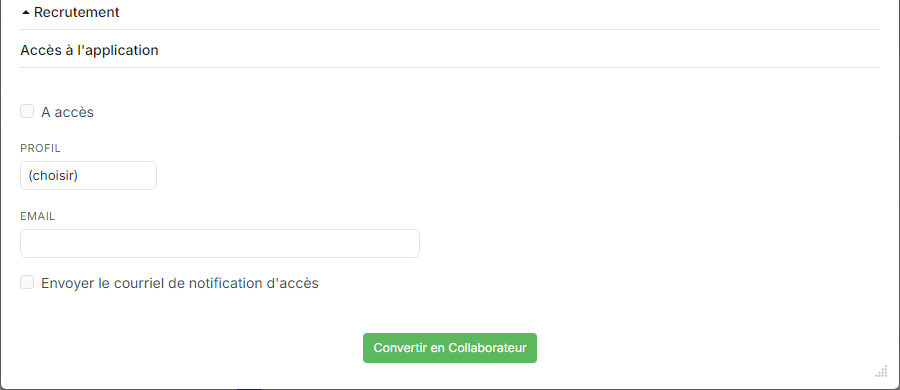
At the bottom of the same window, the Application Access section lets you open Nicoka access for the new employee right away:
- Tick Has access.
- Choose their Profile and check their Email.
- Tick Send activation email so that they receive the first login email.
- Click Convert into Employee.
This access is separate from the candidate portal access the person may already have. You can also open access later, from the employee's record, in the Access section. To find out more, see Create a new employee / user in Nicoka.