Create a new employee / user in Nicoka
Each employee of your company has an employee record in Nicoka HRIS. This record can also give them access to the application: they then become a user and log in with their work email. This article explains how to create an employee and give them access, at creation or later.
Before you start
The creation form uses the values of your configuration: contract types, working hours, job titles, departments, locations. Create them first:
Open the creation form
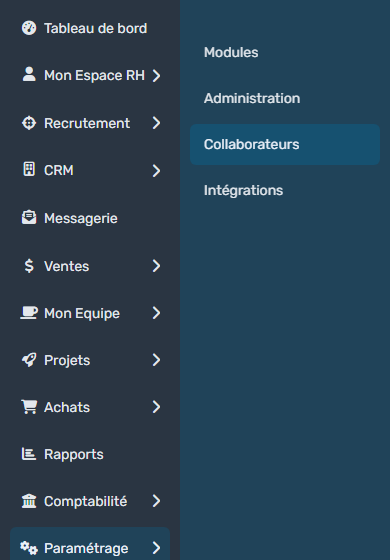
- In the side menu, open Customizing > Resources.
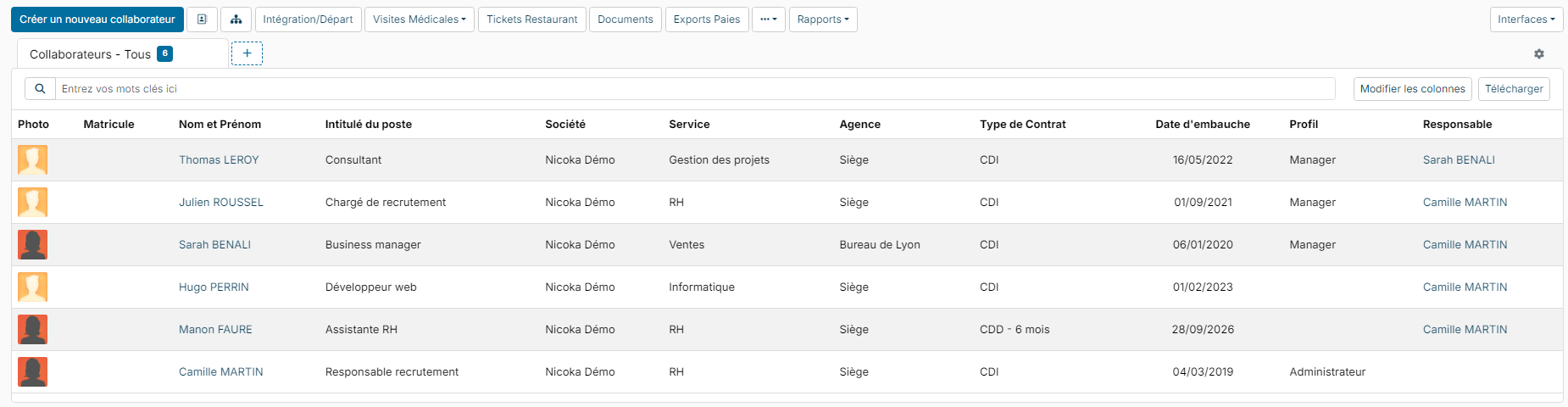
- Above the list, click Create a new employee.
Fill in the record
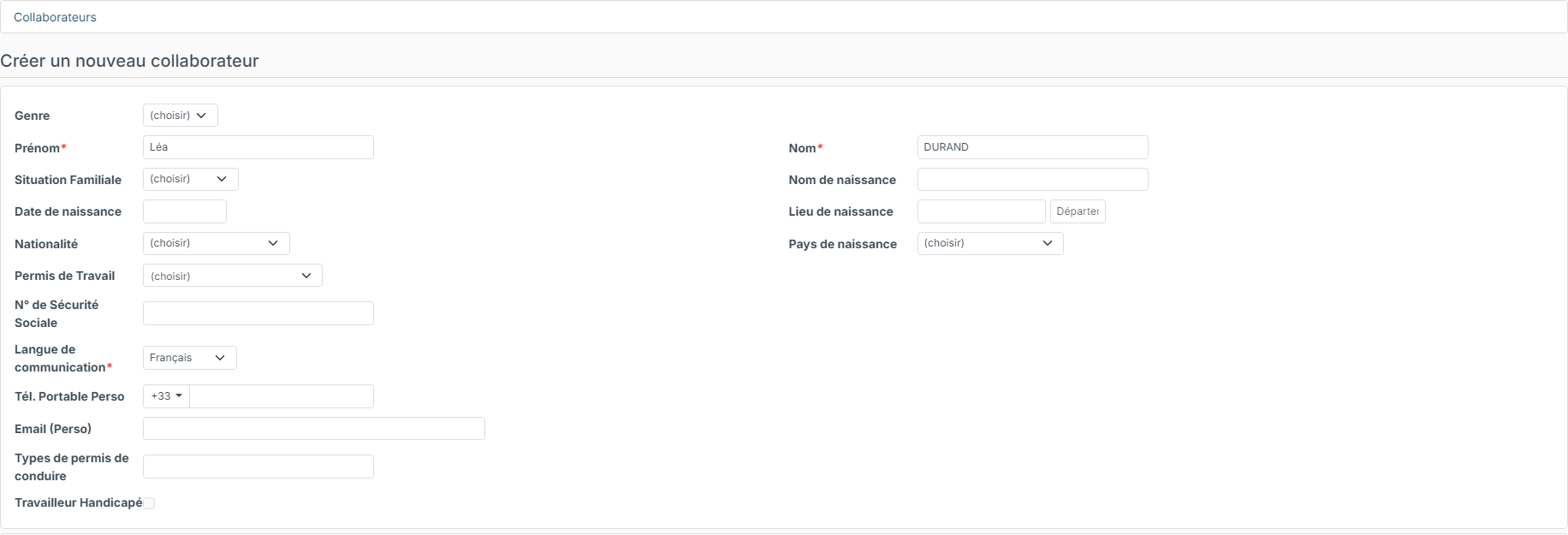
The form is split into blocks. Required fields are marked with a red asterisk.
In the first block, fill in at least the First name, Last name and Communication Language. If the employee has access, it is the language in which they will use the application. You can fill in the other personal information right away (birth date, SSN, personal contact details, address) or later from their record.
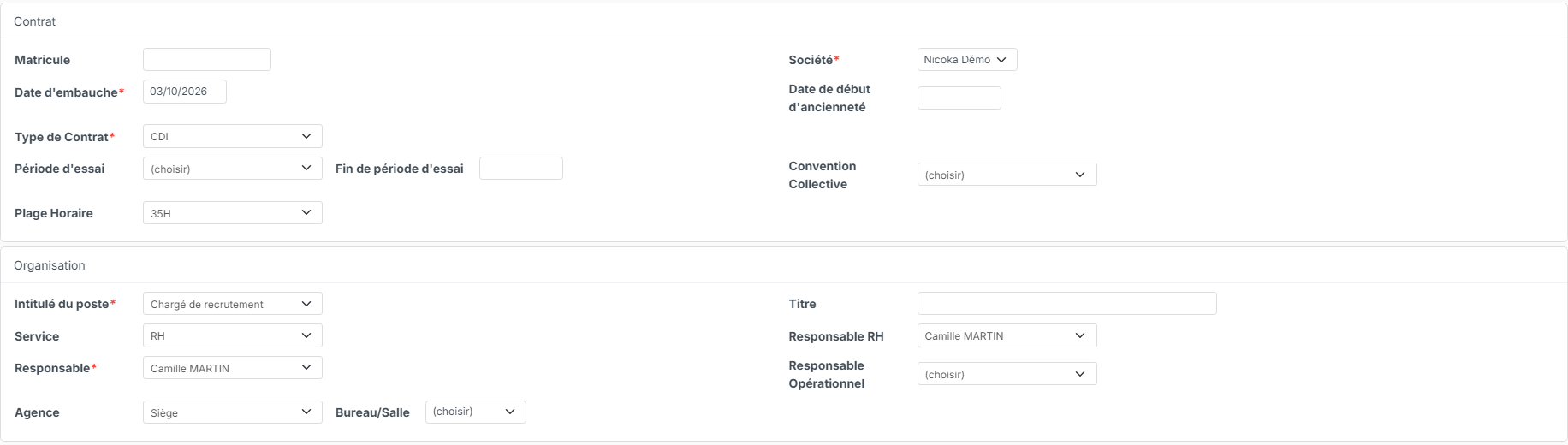
Contract and Organization:
- Company and Hire Date;
- Contract Type. Depending on the type, other fields may appear, for instance the end date (End On) or the Contract Type Reason, which is required when it is shown;
- Trial Period: the Trial Period End Date is calculated from the hire date;
- Working Hours: not required, but the TimeOff module needs them to count absence days;
- Job Title and Responsible (the direct manager, who approves their leave requests, among other things);
- Department, Location, HR Responsible and Operational Manager, if you use them.
Your configuration may make other fields required or add custom fields to the form.
Give access to Nicoka at creation
The last block, Application Access, turns the employee into a Nicoka user:
- Leave the Has access box ticked.
- Choose their Profile (for instance Employee or Manager). The profile defines what they see and what they can do in the application.
- Enter their work Email: it is their login.
- Tick Send activation email if you want them to receive the email to create their password right away. Otherwise, you can send it later.
- Click Create.

When Has access is ticked, the profile and the email are required. To create the record only, without access to the application, untick the box.
If your company logs in with single sign-on (SSO) only, the email box is not shown: the employee logs in with their company account.
Once the record is created, Nicoka opens it.
Give access later
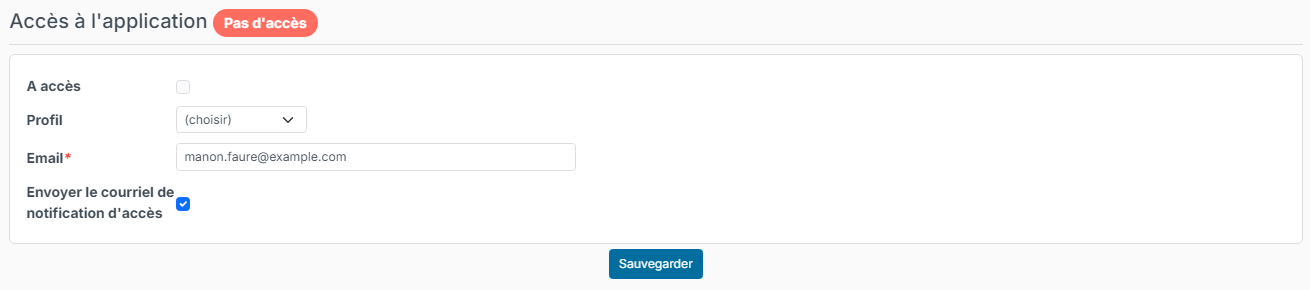
- Open the employee's record and click Application Access in the record menu. The title shows No access.
- Tick Has access, choose the Profile and check the Email.
- Leave Send activation email ticked, then click Save.
Resend the account creation email
If the employee did not receive the email or missed the link, open their record, Application Access section, then click Resend account creation email. They receive a new link; the previous one no longer works.
From this section, you can also change their profile (Save button) or remove their access (Remove access).
