Manage an employee's departure
When an employee leaves the company, you record the end of their contract in Nicoka, follow the tasks of their departure and remove their access to the application. This article describes these steps in order.
Terminate the contract
- In the side menu, open Customizing > Resources, then click the employee's name.
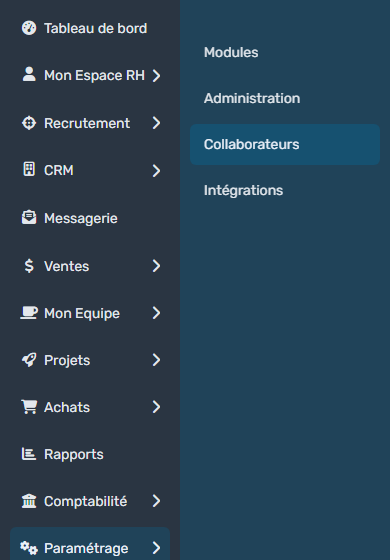
- In the sheet menu, click Professional Info.
- In the Contracts block, click the orange Terminate Contract icon on the current contract's row, or the Terminate Contract button below the table.

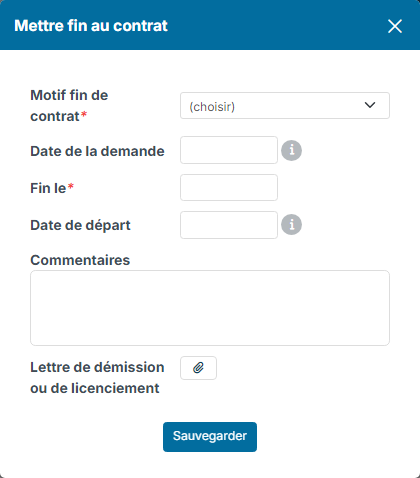
- In the Terminate Contract window, fill in:
- Termination Reason: resignation, end of contract, dismissal, mutual termination, retirement…;
- Termination requested in: the date you received the request, usually the resignation date;
- End On: the end date of the contract;
- Leave Date: the date the employee leaves the company. If you leave it empty, it takes the contract end date on the day that date is reached;
- Comments;
- Resignation or dismissal letter: click the paperclip to attach the document.
- Click Save.
You can record the end of the contract in advance. After a resignation, the employee gets the Resigned status until they leave. Once the leave date has passed, their status becomes Quit. The contract row then shows the end date, the leave date and the reason.

If you made a mistake, the green button on the contract row (Cancel Contract Termination) cancels the termination. You are asked for a reason.
Follow the offboarding checklist
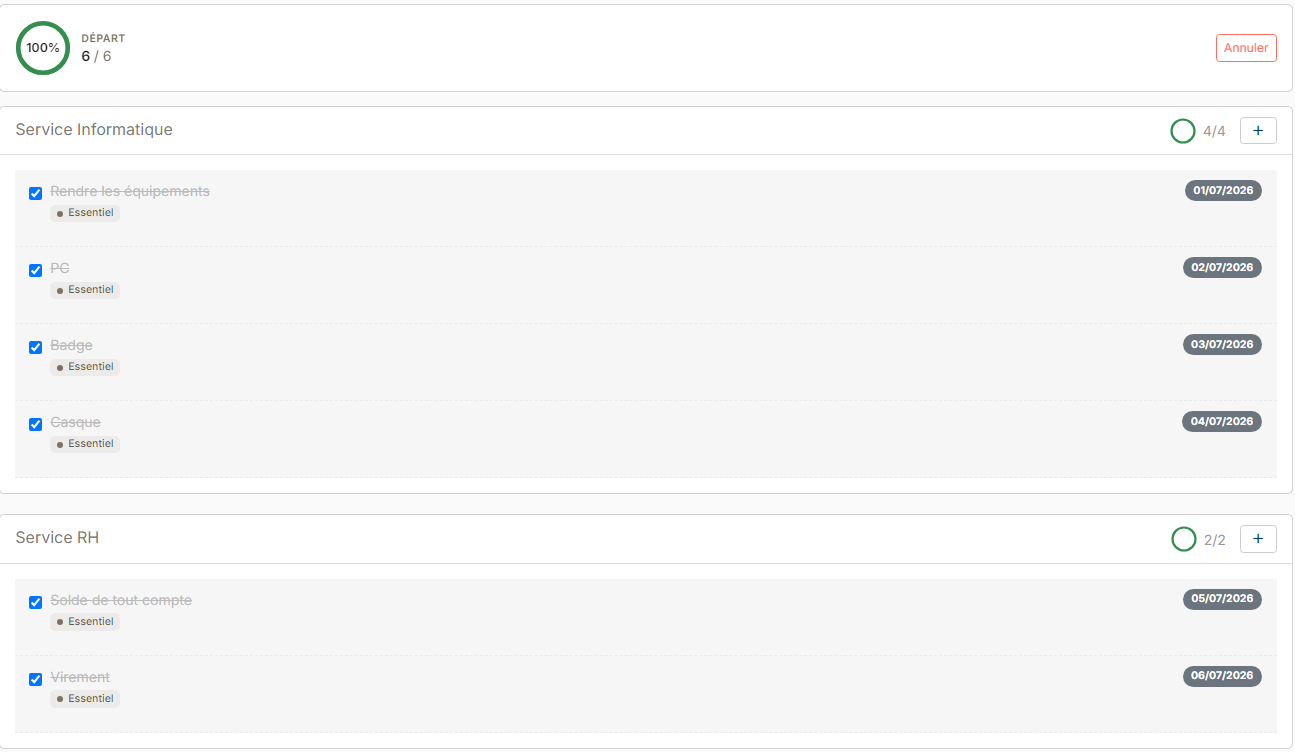
The Offboarding section of the employee's sheet groups the tasks to carry out: returning equipment, final pay settlement… If the checklist does not exist yet, click Generate Tasks from template. Then tick each task once done: the progress is shown at the top of the section. The Cancel button deletes the employee's checklist.
You prepare the checklist template once:
- In the side menu, open Customizing > Store, then click Customize on the Resources card.
- In the Employee section, click Offboarding.
- Create your task categories, for instance one per department, then your tasks, with the two buttons at the top of the list.
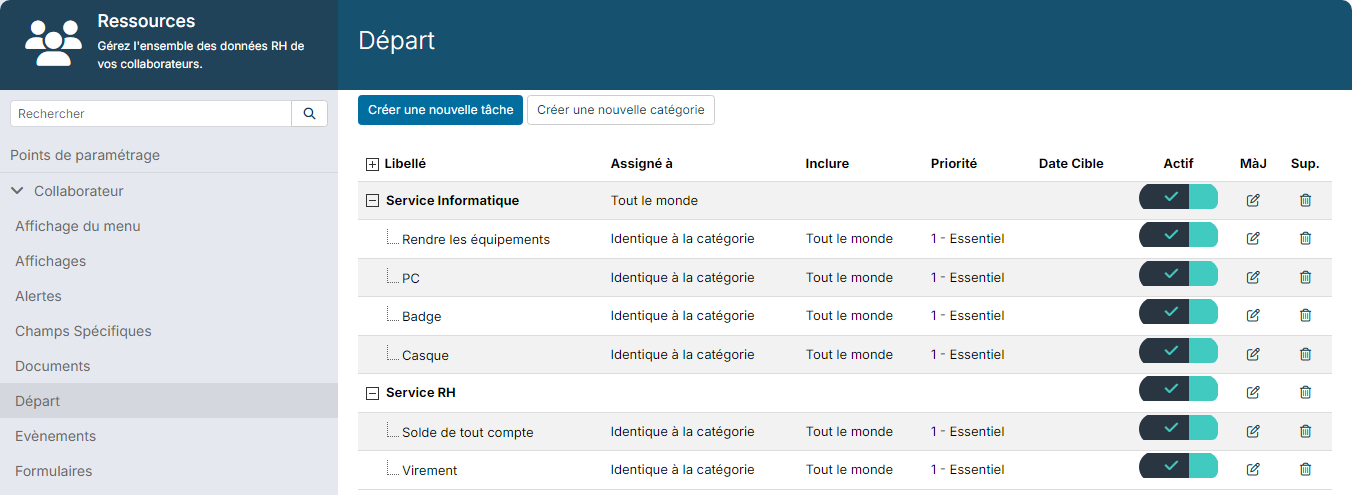
It works the same way as onboarding: see Create an onboarding checklist for a new employee.
Also remember to collect the equipment lent to the employee: Assets section of their sheet, or each asset's sheet, Return button. Details: Asset management.
Remove access to Nicoka
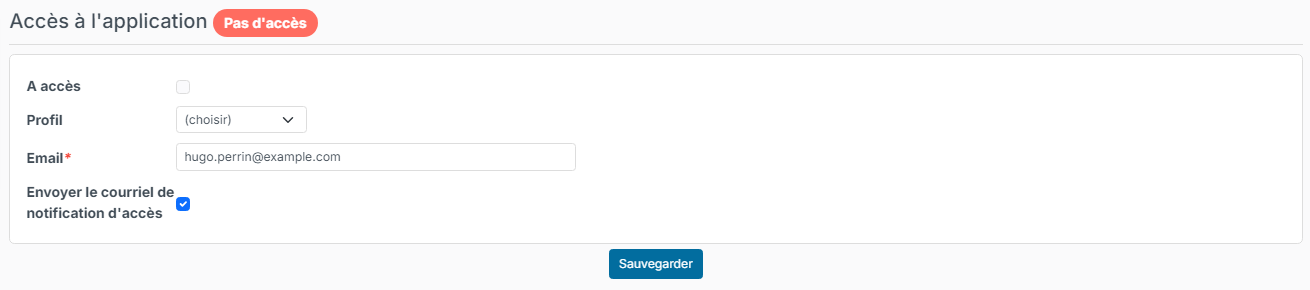
If the employee had access to Nicoka, it is deactivated automatically during the night after they switch to the Quit status. You can also remove it yourself at any time:
- On the employee's sheet, click Application Access.
- Click Remove access.

The employee can no longer log in. The section then shows No access.