Asset management
The Assets module lets you track the equipment your company lends to its employees: laptops, screens, phones, badges… You always know who holds what and since when, and you keep the history of every loan. Employees can sign a handover certificate, then a return receipt, for their equipment.
The asset list
In the side menu, open My Team > Inventory. Your menu may be organised differently. The list shows the category, label, serial number, status, loan date, current owner and previous owner.

- Create a new asset: adds an asset to your inventory.
- Upload: creates assets in bulk from an Excel or CSV file, with the import wizard. Prepare your file with the article Prerequisites for importing data.
- As with every list in Nicoka, you can create your own views (+ button next to the tab), choose your columns and export the list.
The asset sheet
The Main Data tab groups the standard fields:
- Status: the state of the equipment (see the statuses below);
- Category: the type of equipment, from your list of categories;
- the location (site) it belongs to, if you have several;
- the label and the Serial Number;
- the Purchase date and the purchase price (excl. tax);
- Asset Number: your internal reference. If a numbering rule is set up, Nicoka fills it in automatically when the asset is created; a reference entered manually always takes precedence.
If you manage several companies in Nicoka, a company field shows which one owns the equipment. Your custom fields appear in the additional data block. The document tab lets you attach files: delivery note, invoice, warranty…
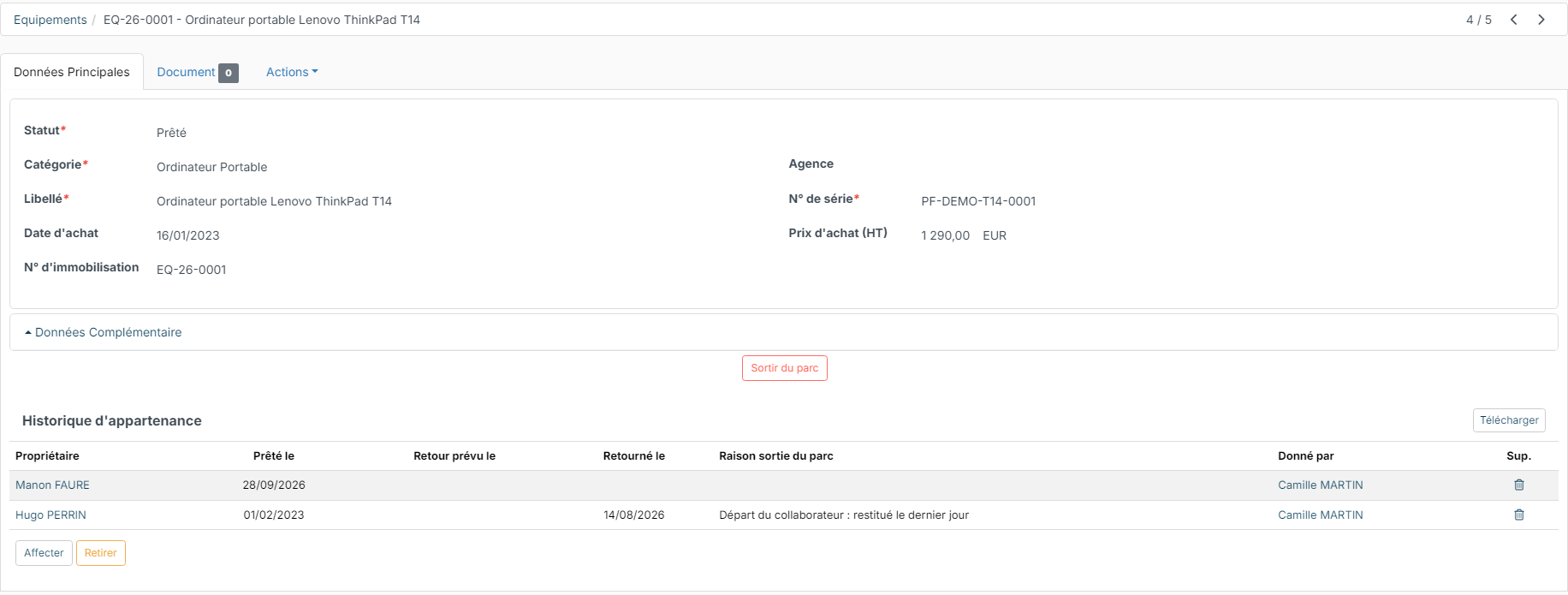
The ownership history block below lists every loan: owner, loan date, scheduled return, return date, exit reason and the person who handed over the equipment.
Lend an asset to an employee
You can assign an asset from two places:
- from the asset sheet, with the Assign button below the history;
- from the employee's sheet, Assets section, with the add button.
In the Assign window, choose the holder (Assign To), the loan date (today by default) and, if needed, the Return scheduled on date. If the asset is already lent to someone, Nicoka warns you: it will automatically be considered returned by its current holder.
To get the equipment back, click Return (on the asset sheet or on its row in the employee's sheet). Enter the status of the equipment after its return (available by default), the return date and, if needed, a reason. To permanently remove a broken or lost asset, first get it back, then click Remove from Park on its sheet and enter the exit date and reason.
The Assets section of the employee sheet
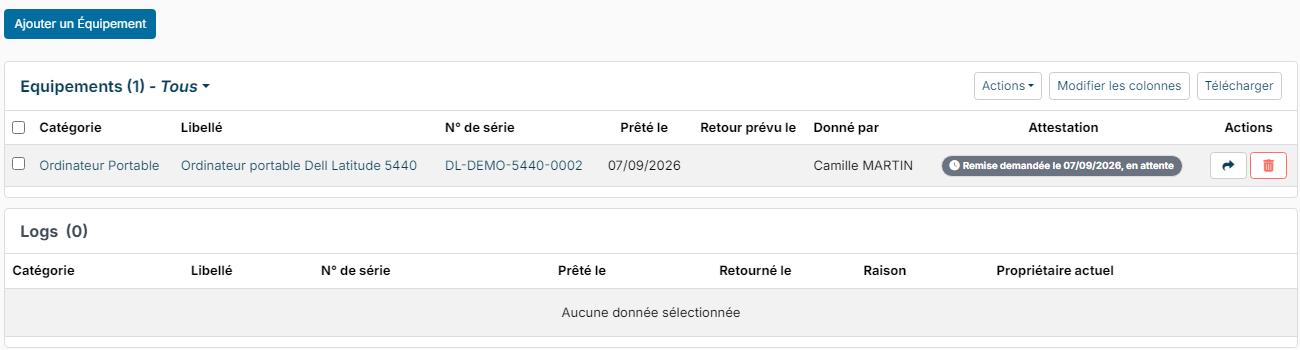
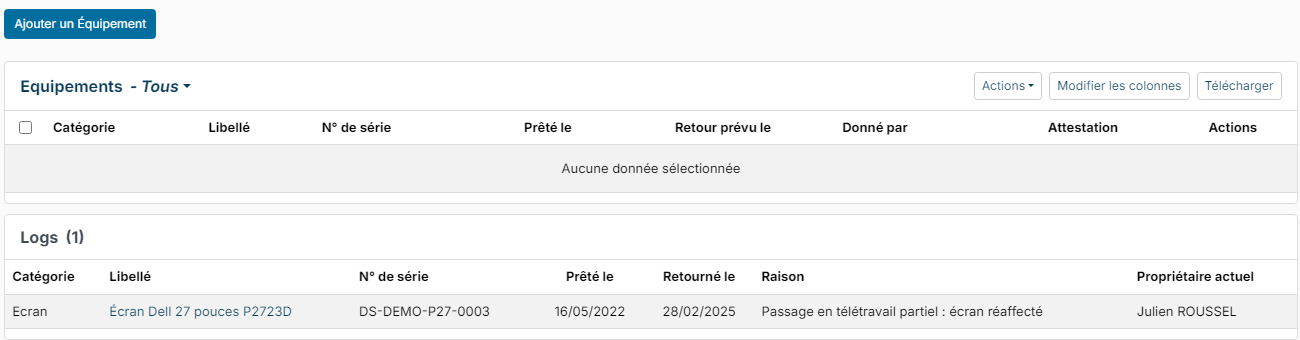
On the employee's sheet, the Assets section lists the equipment they hold, with the Acknowledgement column. The Logs block below keeps track of the equipment they had and returned: dates, reason and current owner.
Have the handover or return signed
You can have the employee sign a handover certificate when they receive their equipment, then a return receipt when they give it back.
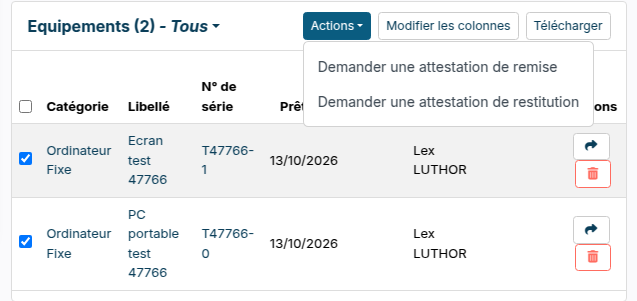
- On the employee's sheet, Assets section, tick the assets concerned.
- In the Actions menu, choose Request a handover acknowledgement or Request a return acknowledgement. For equipment already returned, the same action is in the Actions menu of the Logs block.
- The signature window opens already filled in: the attestation template, the company signatory, then the employee, the title and the email. Change the template if needed (your own certificate, a gift certificate…), choose the signature service, then click Send. Nicoka generates the attestation listing the ticked assets only.
The employee receives an email to review and sign the attestation. With Nicoka Sign, they can also sign it from My HR Space > My Personnal Info., assets tab, with the Sign the attestation button. See Signing documents with Nicoka Sign.
The Acknowledgement column follows each signature: pending, signed with its date, cancelled or expired. Clicking the label opens the attestation, in its signed version once signed. The attestation is also stored on the employee's sheet, in the Forms tab, and its PDF in the Documents tab.
For a return, have the receipt signed before taking the equipment back, then click Return to record it.
Setting up the attestations
- The people who request an attestation need the right to update assets and to create forms.
- Company signatory: in Customizing > Store, click Customize on the Resources card, then Customizing Points. In the Signature block, fill in Company signatory of equipment attestations, for instance with the IT manager. Left empty, the first signatory employee of HR documents is suggested.
- Suggested template: the same block sets the document template suggested for the handover and for the return (Document template of the equipment handover certificate, … return receipt). Left empty, the standard templates are used.
- Invitation email: the same block also lets you pick another email template for the handover and for the return. The email is sent in the name of the person who makes the request.
- Attestation text: the templates "[Template] - Equipment Handover Certificate" and "[Template] - Equipment Return Receipt" are edited in Employee > Document Templates of the Resources module settings. A deactivated template is no longer suggested: pick one in the window instead.
Set up the module
In the side menu, open Customizing > Store, then click Customize on the Assets card. You will find six sections: Categories, Statuses, custom fields, Documents, Events and Numbering.
Statuses
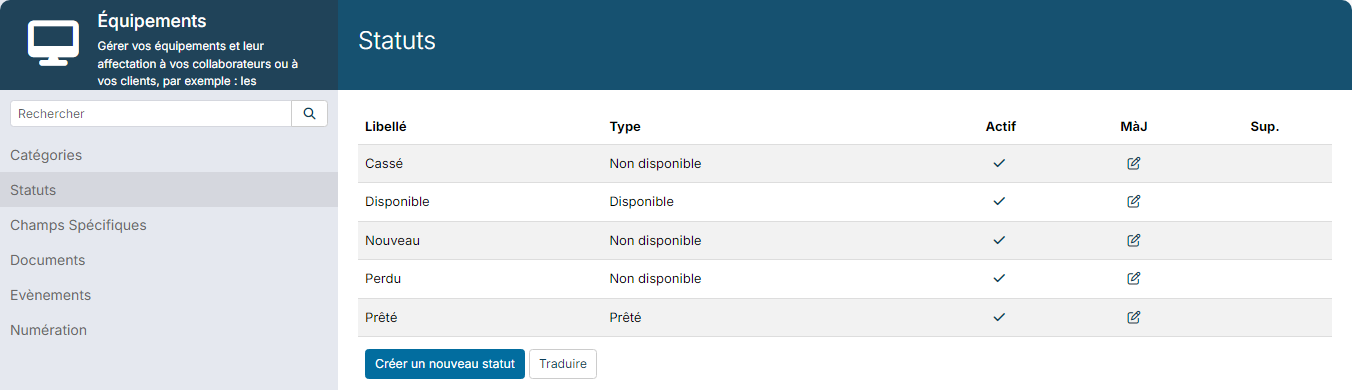
Each status is linked to a type, which decides whether the equipment can be lent. The standard statuses are:
| Status | Type |
|---|---|
| Broken | Not Available |
| Available | Available |
| New | Not Available |
| Lost | Not Available |
| Loaned | Loaned |
- Not Available: the equipment cannot be lent.
- Available: the equipment can be lent. You need at least one status of this type.
- Loaned: the equipment is with an employee. There is only one status of this type.
Custom fields
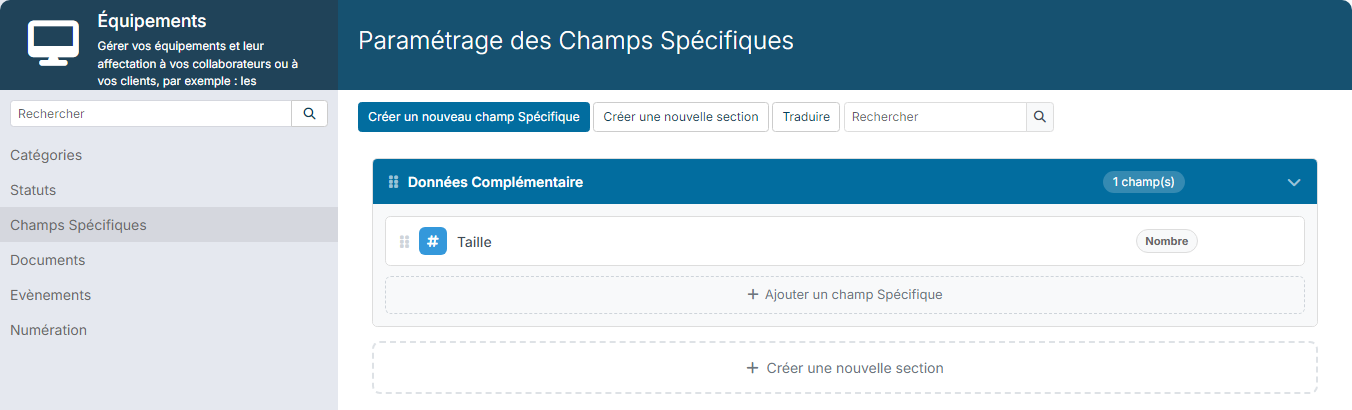
Add your own fields to assets: brand, screen size, phone line number… In the custom fields section, first create a section, then your fields. They appear in the additional data block of the asset sheet.
Automatic numbering
The Numbering section defines the rule that fills the Asset Number of each new asset, for example EQ-26-0001. Create a rule if none exists yet. The current number column shows the last number assigned.
