Document Signing with Nicoka Sign
Nicoka Sign is the electronic signature built into Nicoka. You send a PDF document to one or more signatories, each one signs it online from a link received by email, and the signed document comes back to Nicoka automatically. No account with a signature provider is needed.
You can send a document for signature from the Documents tab of a customer account, a contact, a candidate, a job, a supplier, a project or an employee. For an employment contract generated from a template, see Creating an Employment Contract Template.
Already using a signature provider? Nicoka also connects to Yousign and DocuSign.
Activate Nicoka Sign
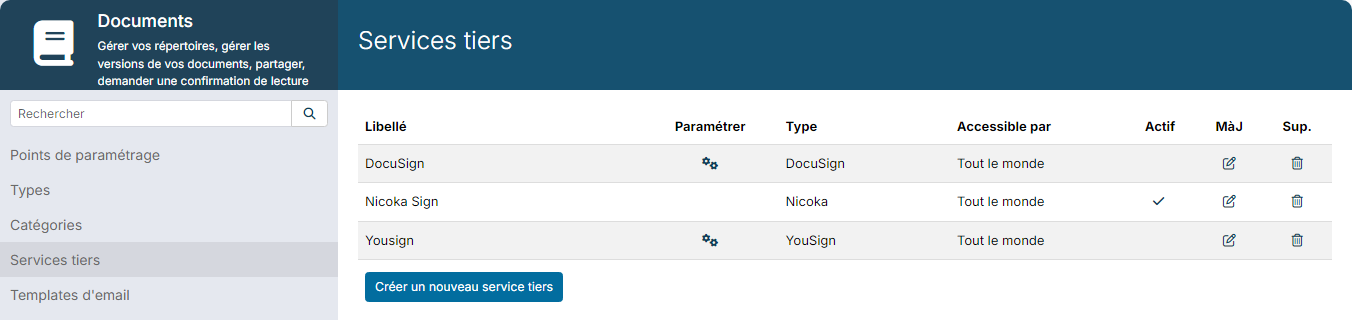
- In the side menu, open Customizing > Store, then click Customize on the Documents card.
- Click Third party services.
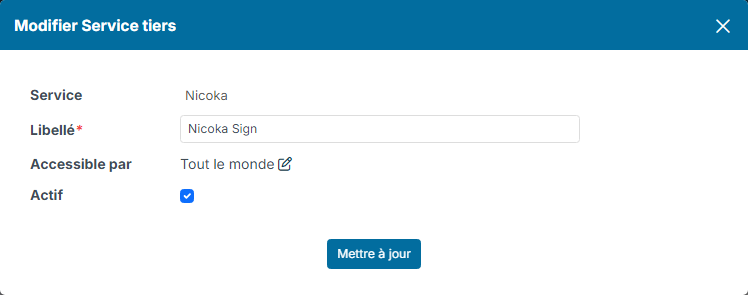
- On the Nicoka Sign line (type Nicoka), click the update icon, tick Active, then click Update. If the line does not exist, click Create a new third party service and choose the Nicoka service.
The Available for field can restrict which users may send documents for signature. By default: Everybody.
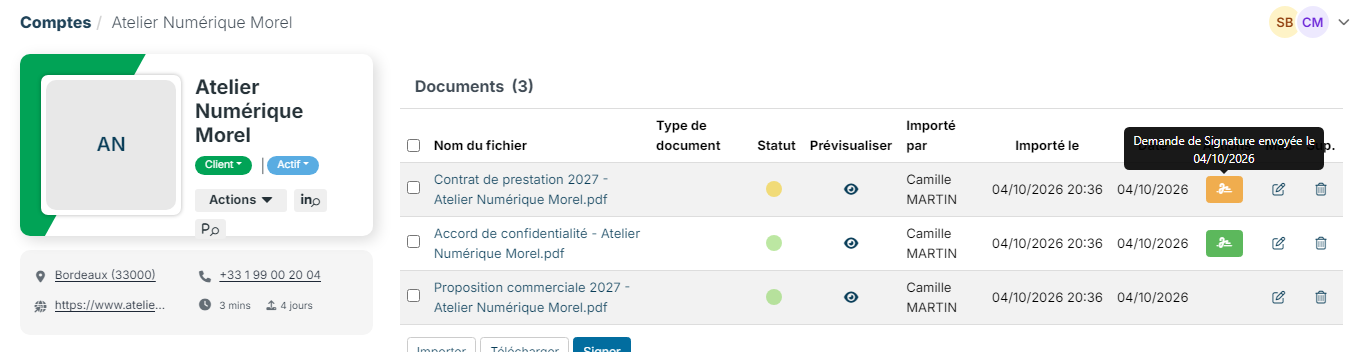
Once the service is active, a Sign button appears in the Documents tabs.
Send a document for signature
The document to sign must be a PDF.
- Open the record (here a customer account), then its Documents tab.
- Click Sign.
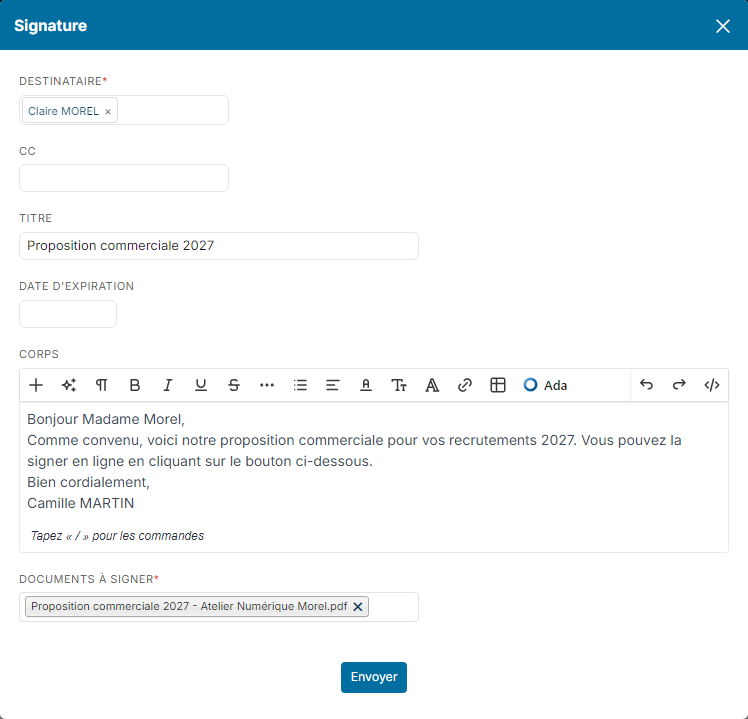
- In the Signing window, fill in:
- Recipient: the signatory or signatories, chosen among the people recorded in Nicoka;
- Cc (optional): people to keep informed. They receive a copy of the request with the document attached, then the signed document, but cannot sign it;
- Email Template: offered when templates exist for this record. It fills in the title and the message;
- Title: the subject of the request, shown in the email and on the signing page;
- Body: the message sent to the signatories;
- Documents to sign: only documents that have not already been sent for signature are listed.
- Click Send.
Each signatory receives a You have a document to sign email, with your message and a Sign Document button. The email and the signing page are shown in the signatory's communication language.
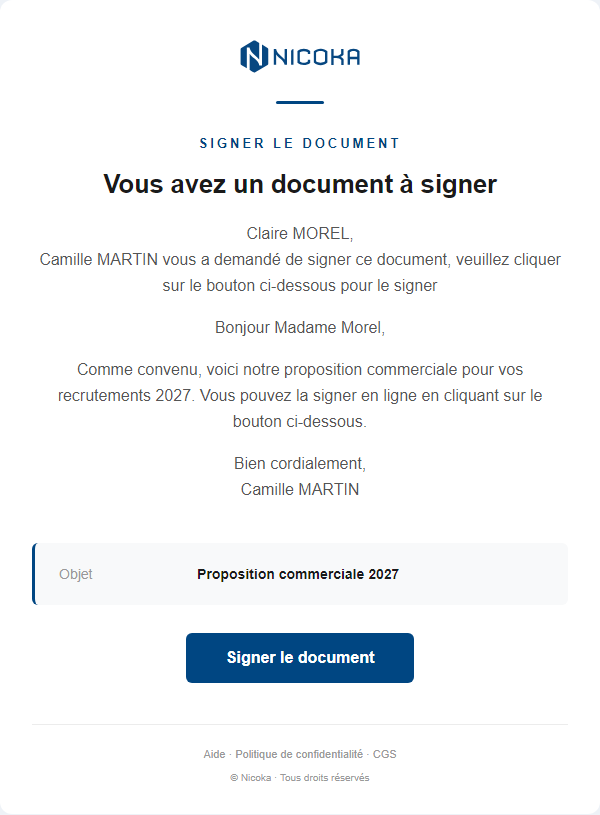
What the signatory sees
The signatory does not need a Nicoka account.
- They click Sign Document in the email.
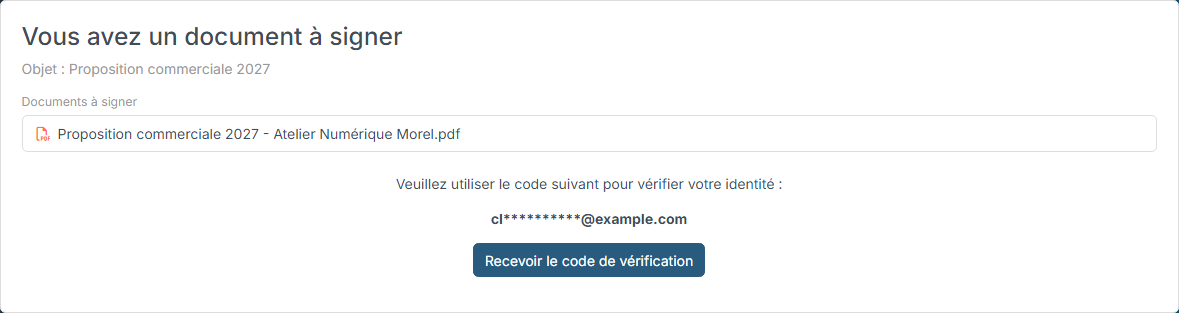
- To verify their identity, they click Receive the verification code: a six-digit code is sent to them by email. They enter it and click Validate.
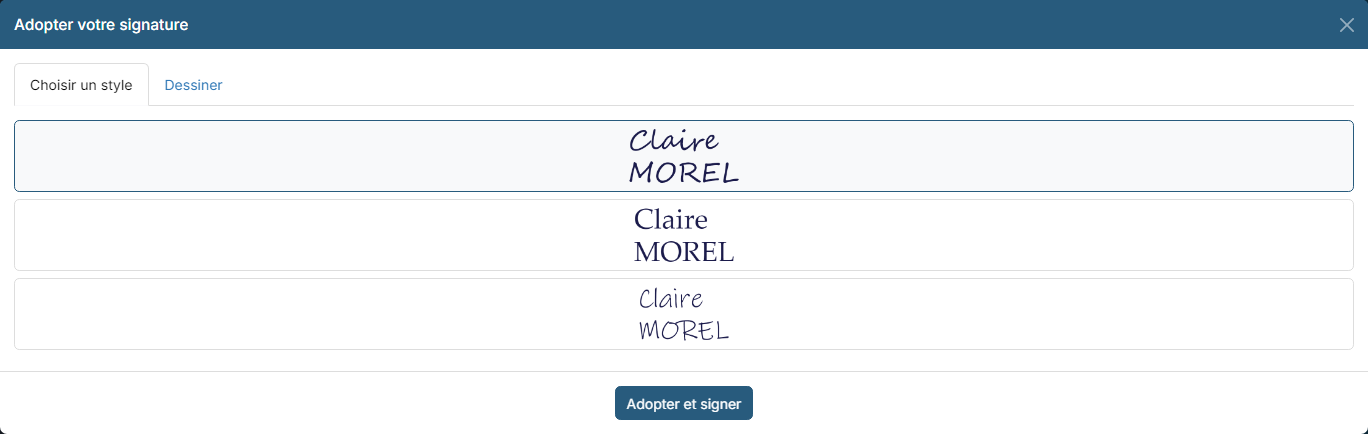
- The document is displayed. If the document has signature zones, the Start › button takes them from zone to zone. On the first click, they adopt their signature: a style generated from their name (Choose a style) or a drawing made with the mouse or a finger (Draw), then Adopt and sign.
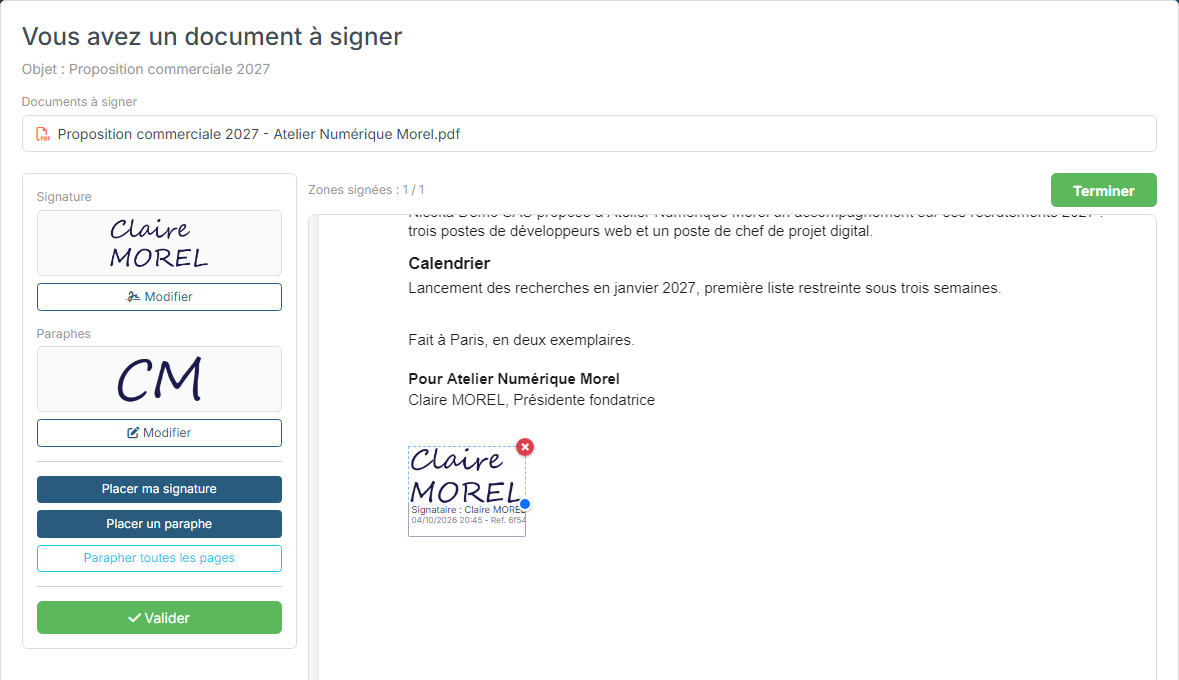
- Without a predefined zone, they click Place my signature, then the right spot on the document. Place an initial and Initial every page add their initials.
- They finish by clicking Finish or Validate.
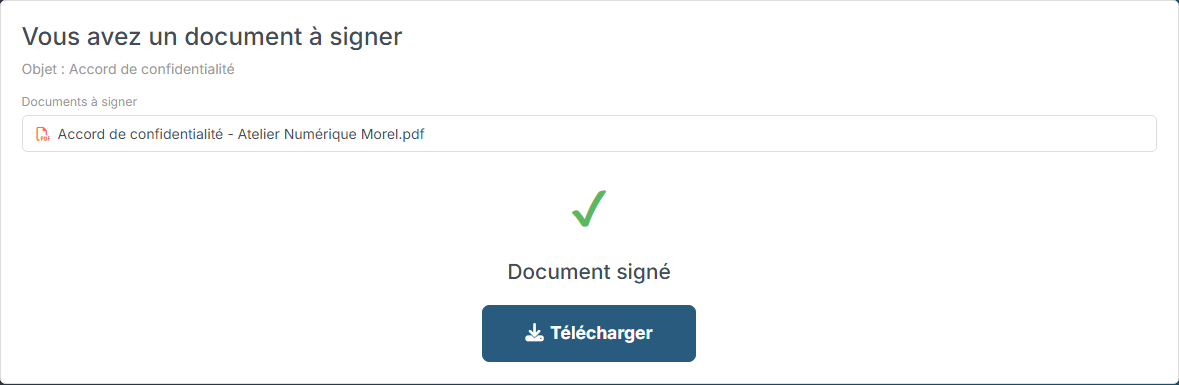
The Document signed message is displayed with a Download button. The signatory can come back to the same link later to download the signed document.
The signed document
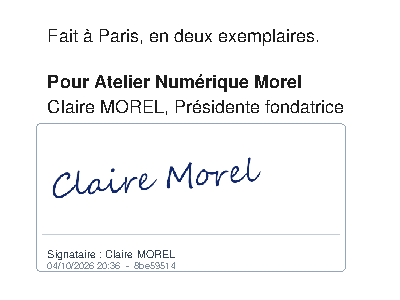
Each signature is stamped on the PDF with a caption showing the signatory, the date and time, and the reference of the request. The signed document replaces the original in the Documents tab of the record.
When all signatories have signed:
- the signatories, the people in copy and you receive a Document signed email;
- you receive a Signature validated notification in Nicoka;
- a Document signed activity is added to each signatory's history.
For each signature, Nicoka keeps a time-stamped record: verification code used, IP address and browser.
Track a signature request
In the Documents tab, a signature icon appears at the end of the line: orange while the signature is in progress, green once the document is signed, red if the request was cancelled. Hover over it to see the sending date, click it to open the tracking window.
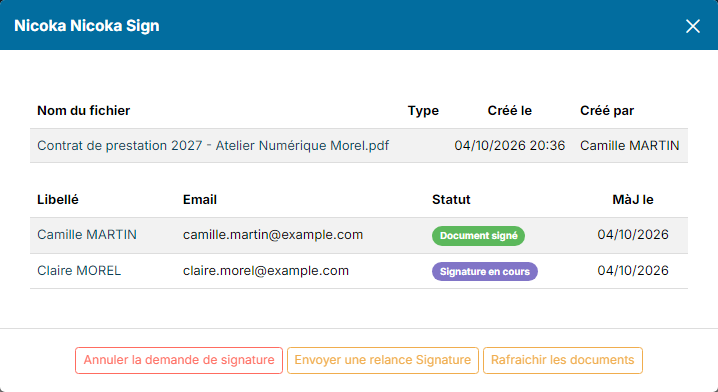
The window lists the document and each signatory with their status (On going Signing, Document signed or Signature canceled). While the request is in progress:
- Send a reminder Signing sends the signing email again to the signatories who have not signed yet;
- Cancel signature request closes the request: the signing link no longer works.
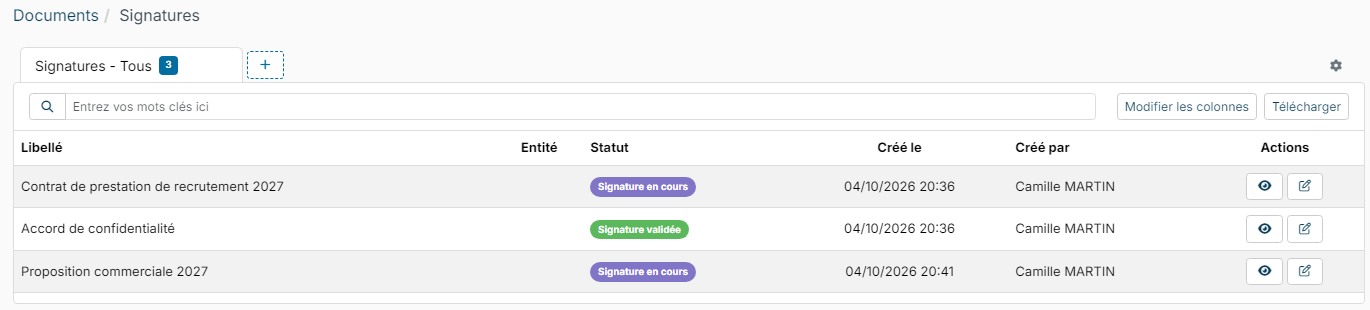
To follow all your requests in one place, open Customizing > Employees, click Documents, then Signing. The list shows each request with its status and a search field.
Good to know
- One document, one request: a document already sent for signature is no longer listed in Documents to sign, even after a cancellation. To send it again, add it to the record again.
- Several signatories: they all receive the request at the same time. The document is signed when the last one has signed.
- Signature zones: a document generated from a Nicoka template can define where signatures and initials go. See Creating an Employment Contract Template.
- Read receipt: for a simple read or acceptance confirmation by an employee logged in to Nicoka, use the document read and signing requests instead. See Sending documents with a read or signature receipt request.
To organize your documents and their access rights, see Document Management.