Sending documents with a read or signature receipt request
From an employee's file, you can send them a document and ask for:
- a read confirmation: they confirm they have read the document;
- a signature: they approve the document by confirming their Nicoka login and password.
Nicoka keeps track of each request: who received it, who confirmed, and when. This suits internal documents for which proof of reading or acceptance is enough: company rules, internal memo, IT or remote-work charter, equipment handover, HR policy…
This approval does not produce a signed PDF. To have a contract or an amendment signed electronically, with the signature stamped on the document, use Nicoka Sign.
Send a request to an employee
The employee needs access to Nicoka: they confirm the reading or sign once logged in.
- Open the employee's record, then their Documents section.
- Choose the folder, then drag and drop the file or click Add a file. The PDF format keeps the layout intact.
- On the document line, open the ⋮ menu, then click Requests.
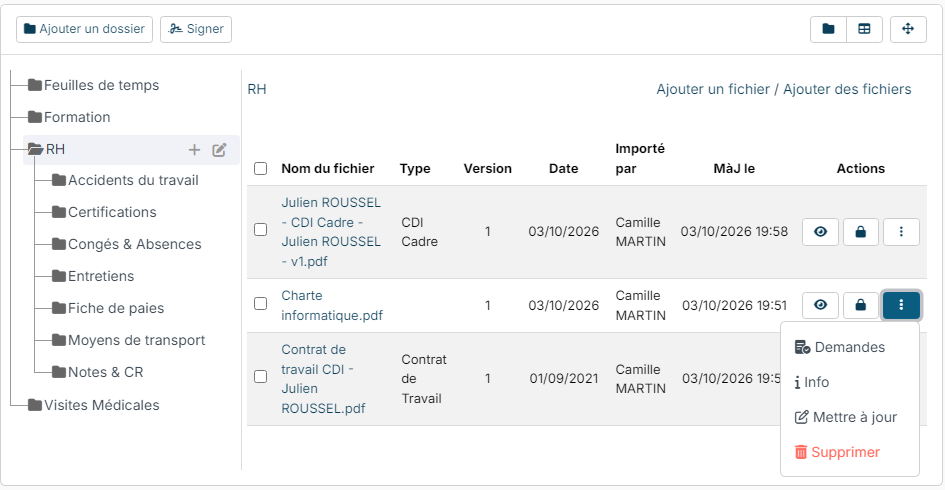
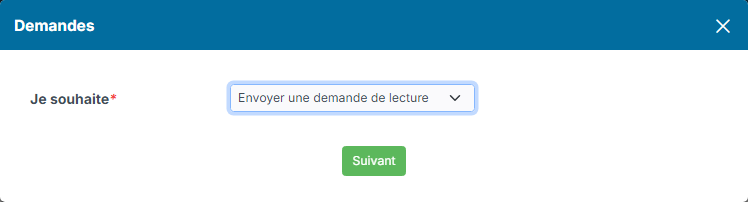
- In I want to, choose Send a read request or Send a signing request, then click Next.
- The email is pre-filled from the template set for this type of request. Choose the employee's address in Recipient, adjust the subject and the message if needed, then click Send.
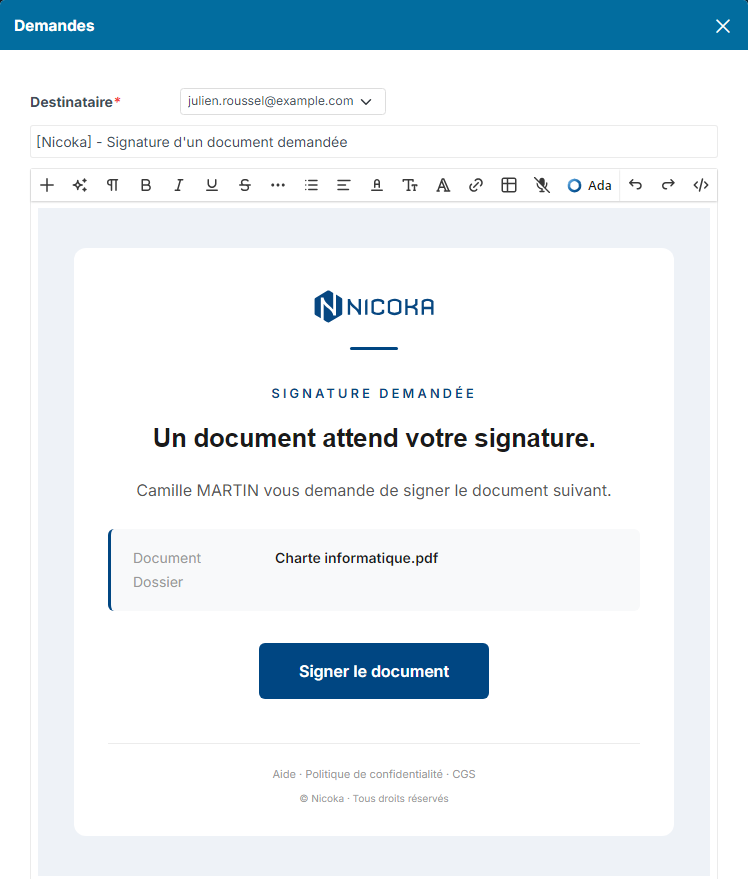
The email templates used (read request, signing request, reminders) are chosen in Customizing > Store, Documents card, Customizing Points.
What the employee sees
The employee receives the email and clicks the link to the document. Once logged in to Nicoka, a yellow banner is displayed above the document.
- Read request: they read the document, then click I confirm having read this document.

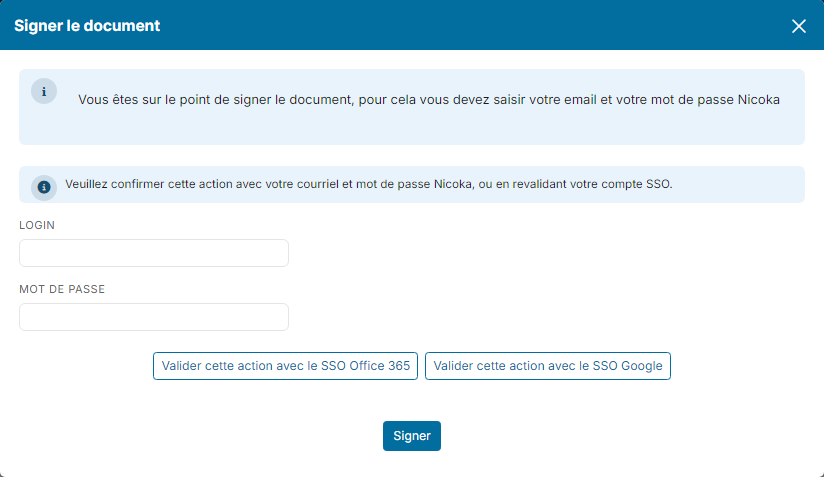
- Signing request: they click Sign. In the Sign Document window, they enter their Nicoka Login and Password or, if your company uses single sign-on (SSO), revalidate their account with the matching button, then click Sign.
Track the requests
- On the document line, open the ⋮ menu and click Info.
- The Requests tab lists each request with its type, its status and the number of people who approved out of the number of people asked.

The Read by and Signed by tabs show, person by person, the status (pending or Validated), the date of the last reminder and the update date. The Download button exports this list.
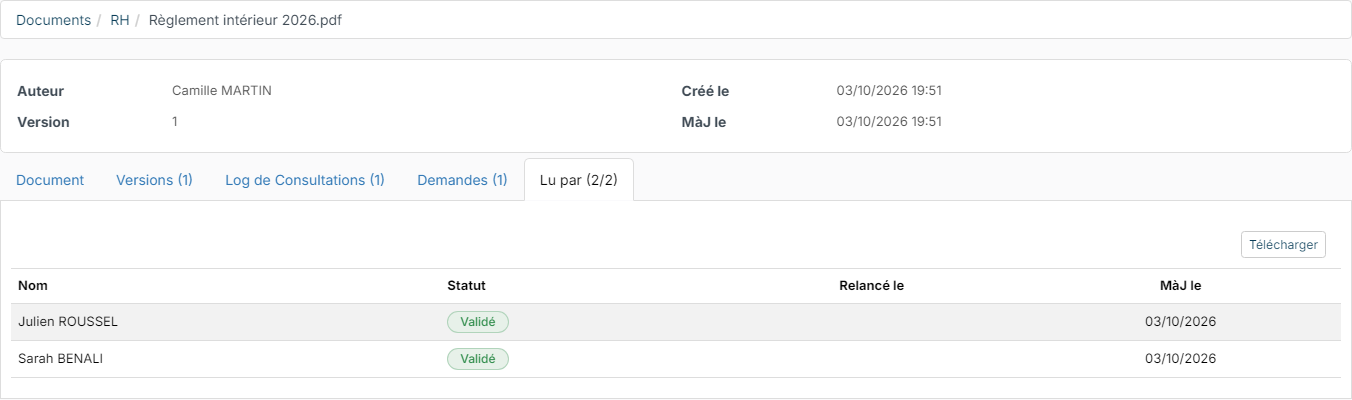
To remind the people who have not confirmed yet, click the envelope icon of the request in the Requests tab: a reminder email is sent to them. The Viewers log tab shows who opened or downloaded the document.
Best practices
- State in the message the date by which you expect the confirmation: the request itself has no deadline.
- Prefer the PDF format so the document looks the same for everyone.
- To inform or ask several employees about a company document (company rules, charter…), use the sharing of Company documents: see Document Management.