Document Management
Document management in Nicoka brings together two families of documents:
- company documents, shared with all or some employees: company rules, IT charter, company agreements, notices…;
- each employee's documents, stored in their file: employment contract, payslips, residence permit, certificates…
You decide who can see and edit each folder, you share a document with a read or signing request, and you find all employee documents in a single list.
Set up the Documents module
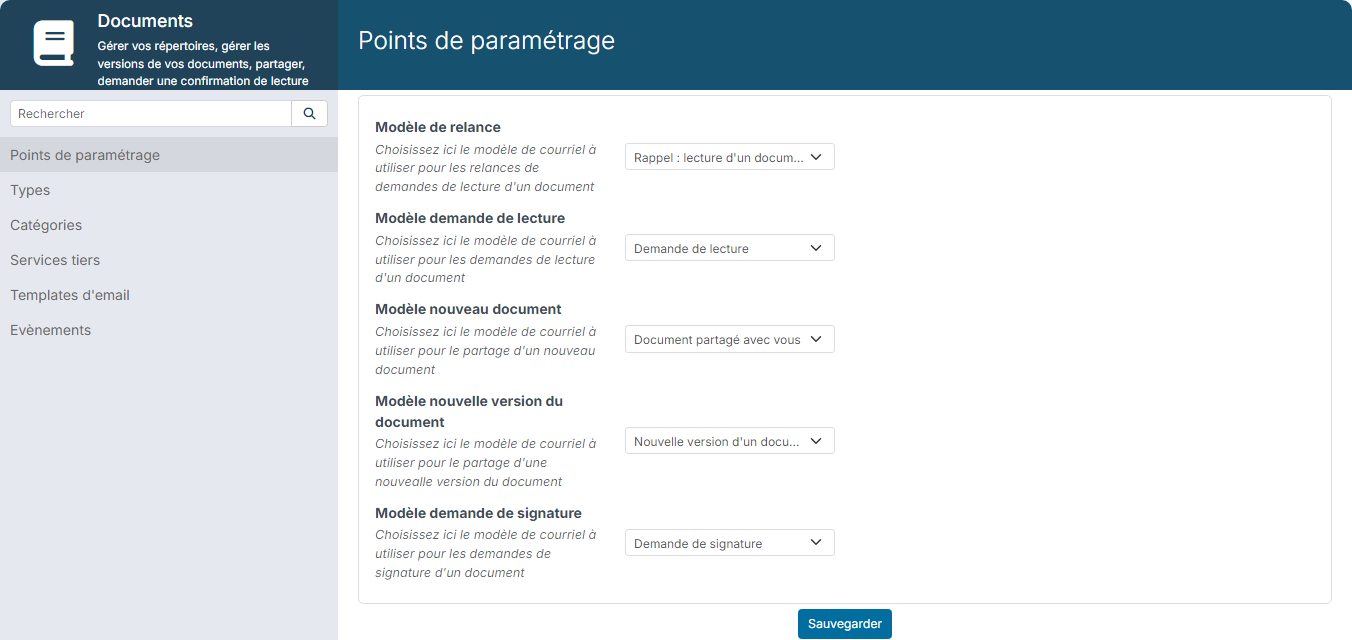
In the side menu, open Customizing > Store, then click Customize on the Documents card. The module menu offers:
- Customizing Points: the email templates used for read and signing requests, their reminders, and the sharing of a document or of a new version;
- Types and Categories: the document types and the folders they are stored in;
- Third party services: electronic signature, with Nicoka Sign (see Document Signing);
- Email Templates: the content of these emails, which you can edit;
- Events: automatic actions related to documents.
Categories (folders)
Each document is stored in a category, which is a folder or a sub-folder. For employees, a new category applies to every employee file.
- Open an employee's record, then their Documents section.
- Click Add a folder. To create a sub-folder, hover over the parent folder and click +.
- Fill in the category window, then click Create.
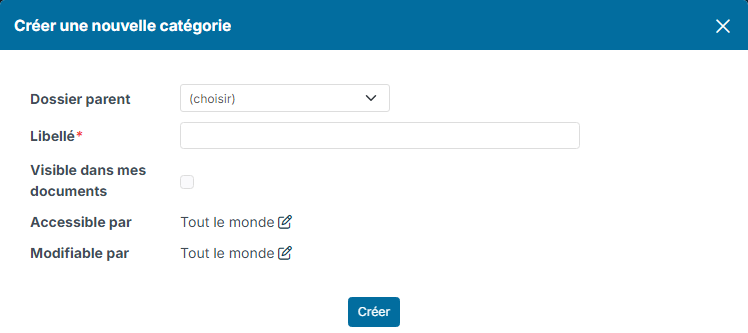
- Visible in my docs: the employee sees this folder and its content in their My documents space. Leave it unticked for folders reserved for HR.
- Available for and Updatable by: restrict viewing and editing, usually to administrators or the HR team.
Document types
The type qualifies a document when it is saved, for example "Employment contract" or "Residence permit". Each type belongs to a category. List your types before you start and avoid duplicates with similar labels: searching will be all the more efficient.
To create a type, open Types in the Documents module settings, then click Create a new type.
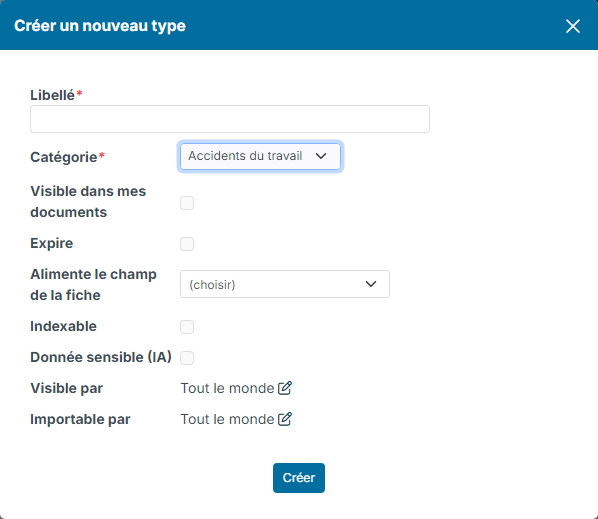
- Label and Category: the name of the type and the folder its documents go to;
- Visible in my docs: the employee sees the documents of this type in My documents;
- Expires: documents of this type have an expiry date (residence permit, accreditation…). Feeds record field copies this date into a date field of the record;
- Indexable: the content of documents of this type is indexed for search;
- Sensitive data (AI): documents of this type stay out of reach of the Ada assistant;
- Visible by and Uploadable by: who can view and who can upload documents of this type.
Documents generated from a template (an employment contract, for example) get a type named after the template. Remember to attach it to the right category and set its visibility. See Creating an Employment Contract Template.
Company documents
Click the book icon in the top bar to open the company Documents space. This is the shared company space, not your personal file.
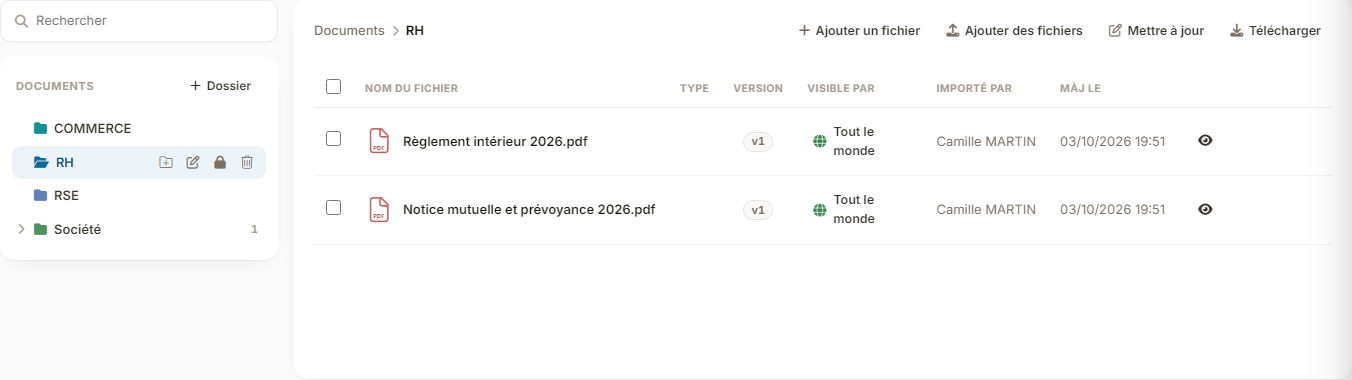
- + Folder creates a folder. When you hover over a folder, its icons let you add a sub-folder, rename it, manage its access (padlock) or delete it.
- Add a file or Add files uploads documents to the open folder.
- The Visible by column shows who can view each document; click it to change its access.
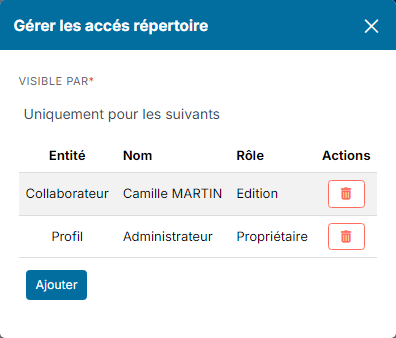
The padlock of a folder opens the Directory Access Management window. In Visible by, choose everybody or only the people you list, then add people or profiles with a role:
- Owner: manages the folder and all its documents;
- Read & Write: adds and edits documents;
- Read Only: views and downloads documents.
Share a document
On a document line, the icons show a preview, edit its information or open its details. The … menu offers Share, Public link, Download and Delete.
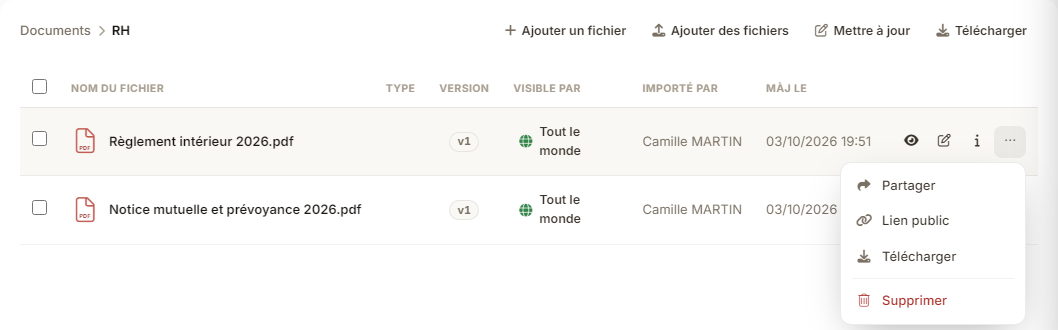
- Click Share.
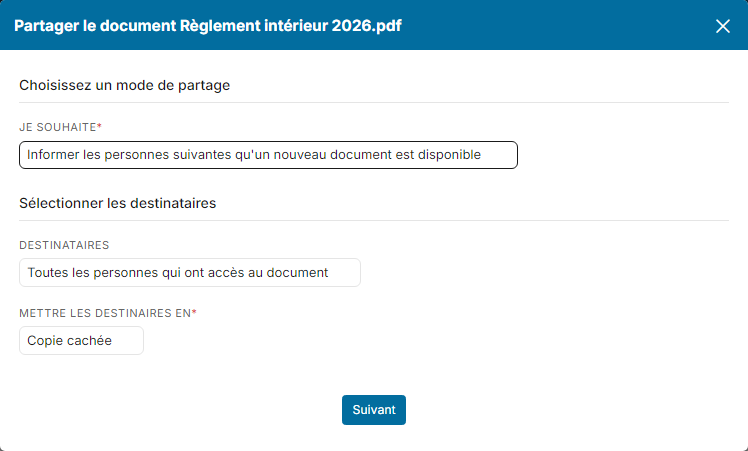
- In I want to, choose:
- Tell the following people that a new document is available: an email with the link to the document;
- Send a read request to the following people: each person confirms they have read the document;
- Send a signing request to the following people: each person approves the document by confirming their Nicoka login and password.
- In the recipients section, keep all the people who have access to the document or pick some of them, choose whether they are recipients, in copy or in blind copy, then click Next.
- Check the email, then click Send.
The signing request of the sharing is an approval inside Nicoka: it does not produce a signed PDF. Tracking the requests (Requests, Read by, Signed by tabs) and sending reminders are described in Sending documents with a read or signature receipt request.
Share a document through a public link
The sharing described above sends an email to the people you choose. For a document meant to be widely distributed or inserted in an email template (access map, notice, company rules), use the public link instead: the document no longer needs to be attached to each email, which makes your emails lighter and improves their deliverability.
- On the document line, open the … menu, then click Public link.
- Copy the address with Copy link. The window also shows the generation date and the expiry date of the link.
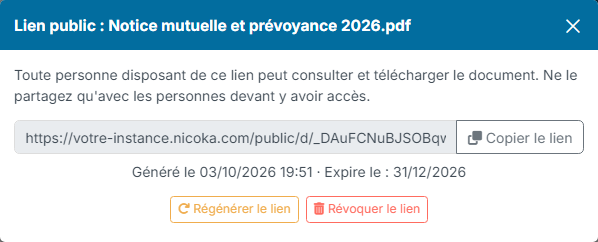
Anyone who has this link can view and download the document: only share it with the people concerned. Two buttons keep you in control:
- Regenerate the link: a new address is created and the old one stops working;
- Revoke the link: access is cut off immediately. The document itself stays in Nicoka.
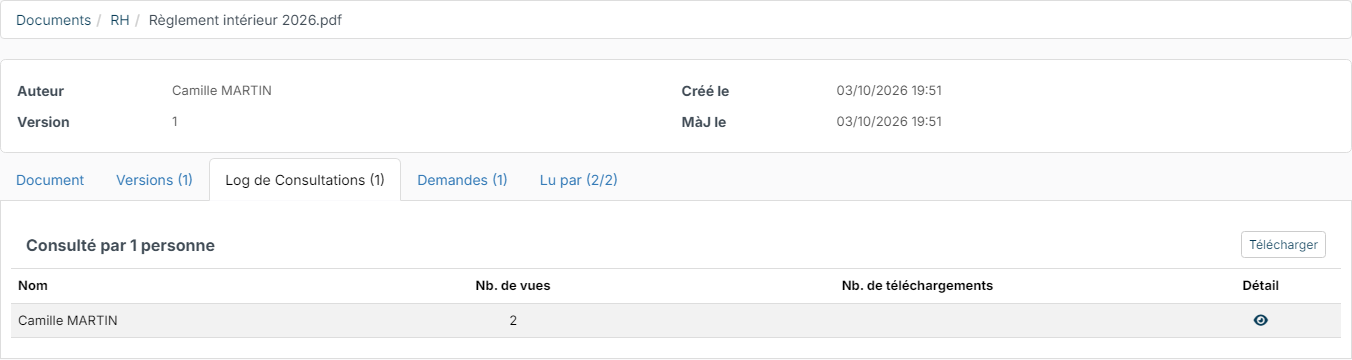
Views are tracked: in the document details, the Viewers log tab shows, person by person, the number of views and downloads. The Download button exports this tracking.
Employee documents
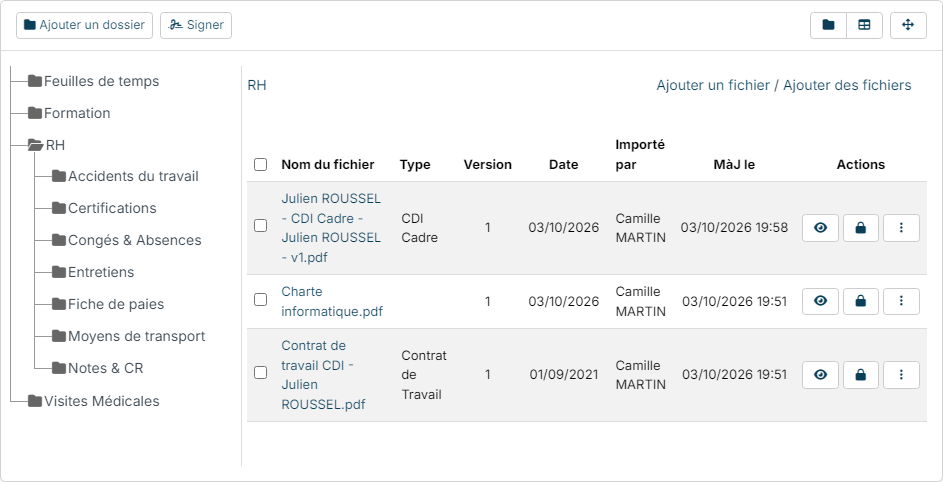
Each employee's file works like the company documents: a folder tree, files uploaded by drag and drop or with Add a file, and a ⋮ menu on each line (Requests, Info, Update, Delete). In My documents, the employee finds the folders and types ticked Visible in my docs.
To ask an employee to read or approve a document, see Sending documents with a read or signature receipt request.
Have a document signed electronically
When Nicoka Sign is active, a Sign button appears in the employee's Documents section. It sends a PDF document for electronic signature: the employee signs it online and the signed document replaces the original in their file. The full procedure is described in Document Signing.
Search for a document
To find a document among those of all employees, open Customizing > Employees, then click Documents.
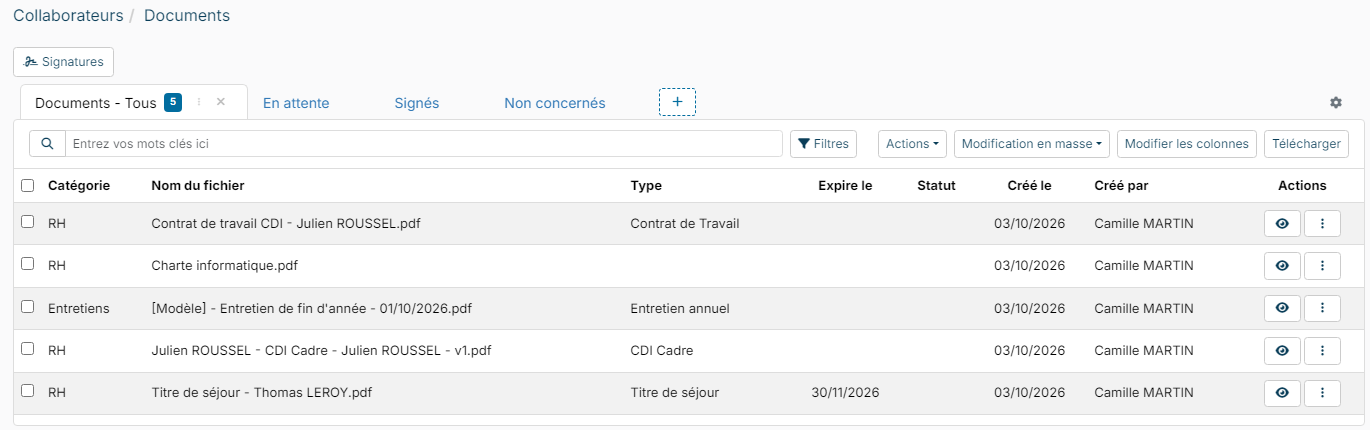
- Type a word of the file name in the search bar, or use Filters.
- The Pending and Signed tabs isolate the documents sent for electronic signature; the Signing button opens the list of signature requests.
- Create your own tab (variant) with + to find, for example, all residence permits in one click.
Get an alert before a document expires
When a document type has an expiry date (Expires box), an alert can warn a manager before the deadline, by email or notification. Open Customizing > Store, click Customize on the Resources card, then Reminders in the Employee section, and create a new alert. Choose the Employee - Document entity, the delay before the expiry date and, in the rules, the document type concerned. Alerts are described in detail in Alert and Event.
Always test a new alert once to check that it triggers as expected.