Creating an Employment Contract Template
Nicoka saves you time when drafting employment contracts, amendments and other HR documents: you prepare a template once from your Word document, then generate each employee's contract in a few clicks, filled in with their data. You then send it for electronic signature with Nicoka Sign, the signature built into Nicoka.
You will learn how to:
- create a contract template from your Word file;
- place the employee's data, conditional clauses and signature zones in it;
- generate an employee's contract, send it for signature and track the signature.
Open the list of templates
- In the side menu, open Customizing > Store, then click Customize on the Resources card.
- In the Employee section, click Document Templates.
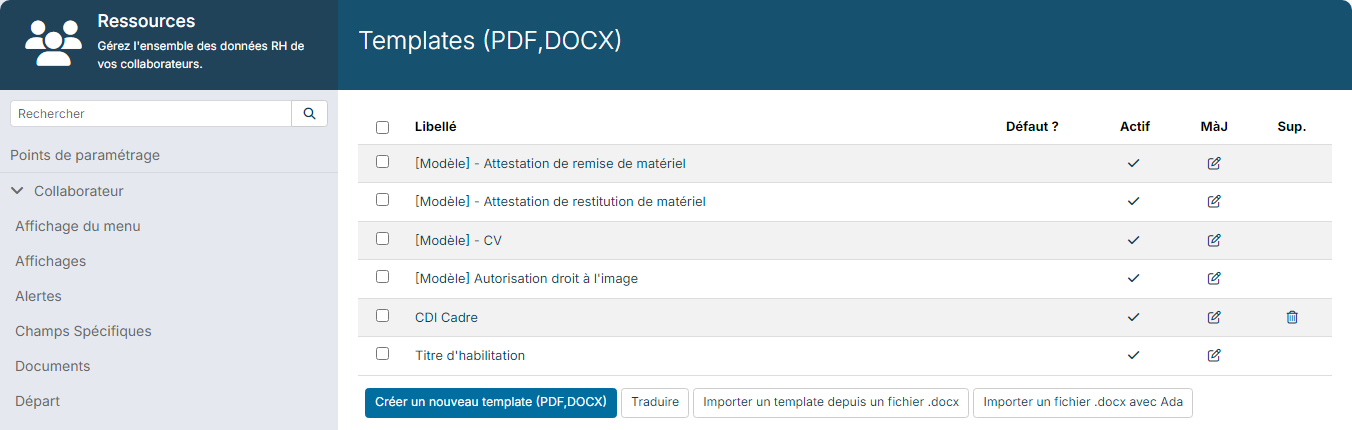
Import your Word template
- Click Import a template from a .docx file.
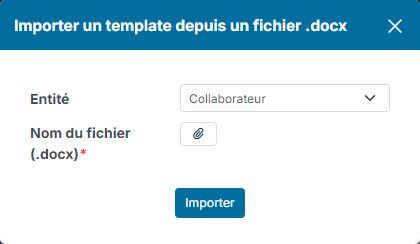
- Leave the Entity on Employee, choose your .docx file, then click Import.
The content of your document is copied line by line into the editor. With Import a .docx file with Ada, a banner also offers Analyze with Ada: Ada spots the texts to replace with the employee's data and binds them once you confirm.
You can also start from a blank template with Create a new document Template.
Set up the template
At the top of the editor, fill in:
- Label: the name of the template, for example "Executive permanent contract";
- Layout: portrait or landscape;
- Type: PDF, or Word if you want to be able to edit the generated contract;
- Available for: Everybody by default, or a restricted group of users;
- Language, Background image and File naming rule, if needed;
- Don't display the header on the first page and Don't display the footer on the first page, depending on your layout.
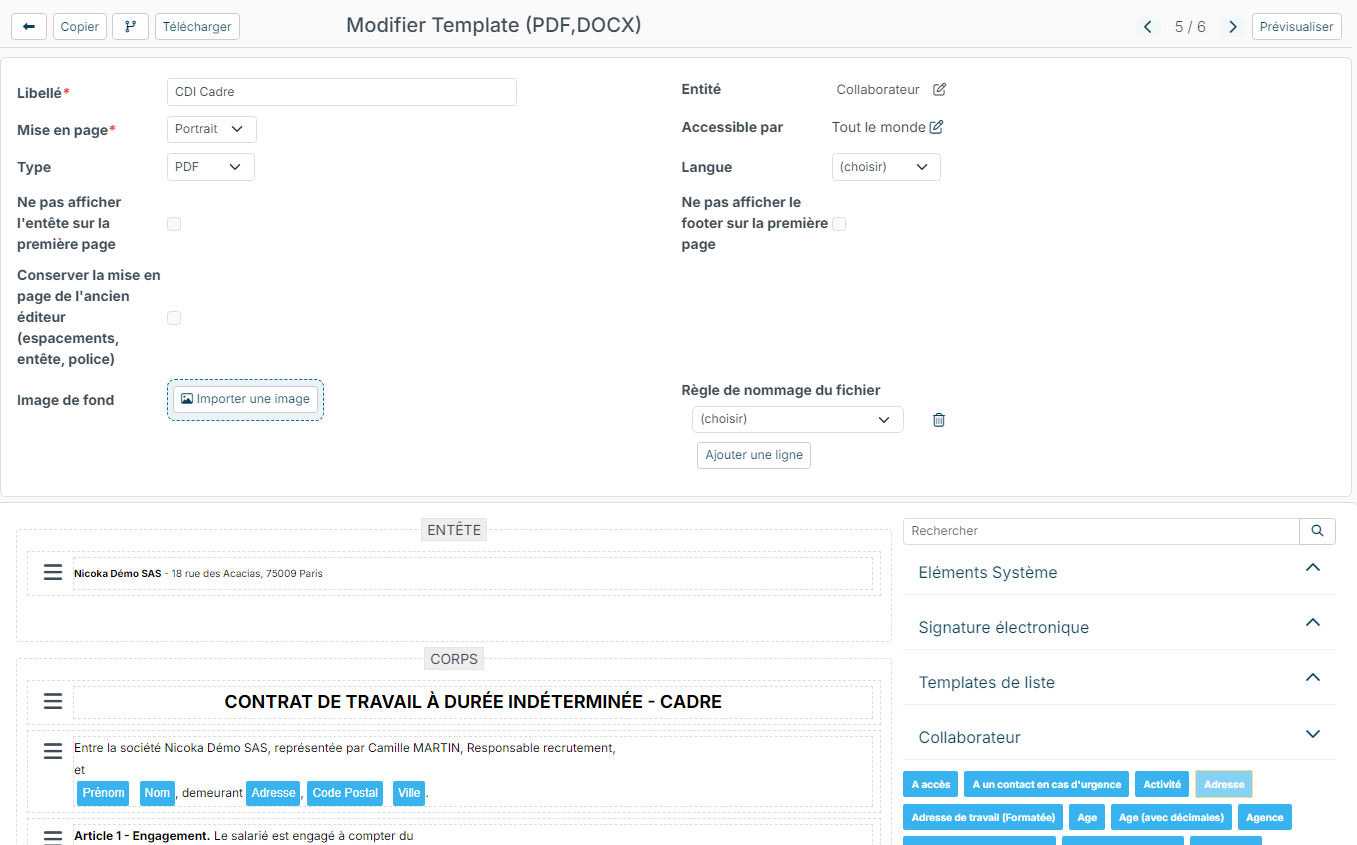
Remember to save regularly with the Update button at the bottom of the page. The Preview button, at the top right, shows the rendering of the template.
Write the content
The template has three parts:
- the header, repeated at the top of each page: company name, address, logo…;
- the body: the text of the contract and the employee's data;
- the footer, repeated at the bottom of each page: legal notes, initials…
The available data are grouped by theme in the palette on the right (Employee, Electronic signature…), with a search bar. Drag a piece of data (first name, last name, address, hire date, job title…) to the right spot: it will be replaced by the employee's value when the document is generated.
The ≡ icon at the start of each line opens its actions: Delete, Display Rules, Copy, and the + button to add a row, a table or a page break.

Add clauses depending on the employee
Some clauses only concern part of your employees: non-compete clause for sales people, mobility clause… Display rules show them only when a condition is met.
- On the line of the clause, click ≡, then the Display Rules icon.
- Choose If, the data to test, the comparison (Equal to, Different than, contains…) and the value. In the example, the line is displayed if the employee's department is "Ventes" (Sales).
- Add an Else line if needed, then click Save.
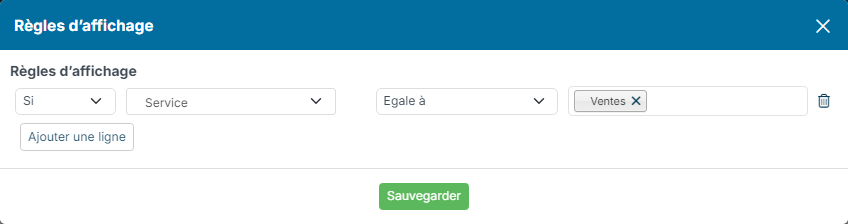
Apply the same rule to every line of the clause.
Place the signature zones
The Electronic signature block of the palette contains the signature tags: Signature zone, Full name, Comment, Signature date, Checkbox and Attachment for signatories 1 to 4, plus the initials tag.
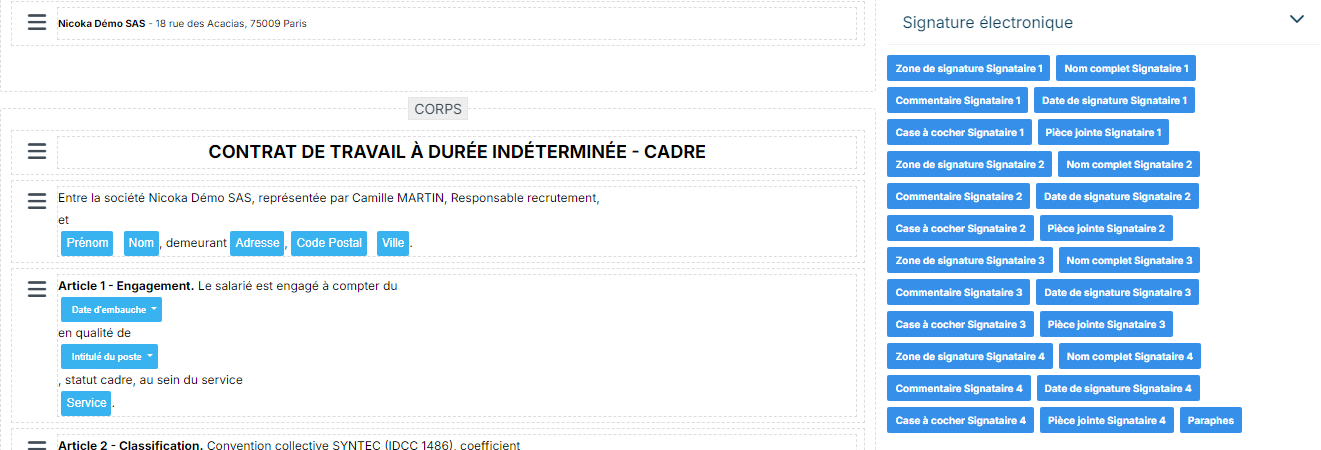
- Drag a Signature zone where each party signs, for example under "The employee" and under "The employer".
- Place the initials tag in the footer to have each page initialled.
- With Nicoka Sign, the signatory is taken from one zone to the next: only the signature zone and initials tags are used.
- To show the company stamp, insert the Company data and choose Stamp with signature in its list.
To have the employer sign every contract, choose them in the Customizing Points of the Resources module, Signing section, first signatory employee field: this employee is added as the first recipient of every signature request for an employee document.

File contracts automatically
Documents generated from the template get a type named after the template. To have them stored in the right folder of the employee's file, open Customizing > Store, Documents card, Types: on the line of the type, choose the Category, and tick Visible in my docs if the employee should find it in their space. See Document Management.
Generate an employee's contract
- Open the employee's record, then their Forms section.
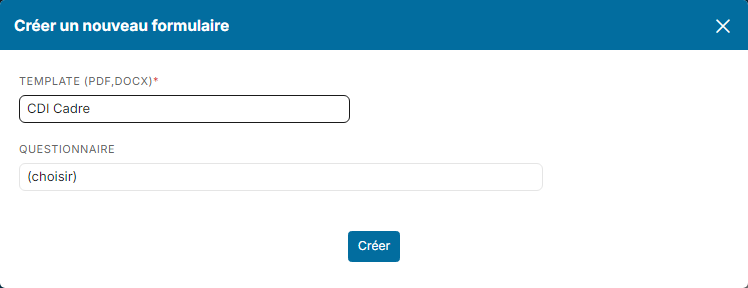
- Click Create a new form, choose your template in Document Template, then click Create.
On the form line, the eye icon shows the contract filled in with the employee's data. Check it before sending it.
Send the contract for signature
Nicoka Sign must be active: see Document Signing.
- On the form line, click the signature icon (Request Signature for this document).
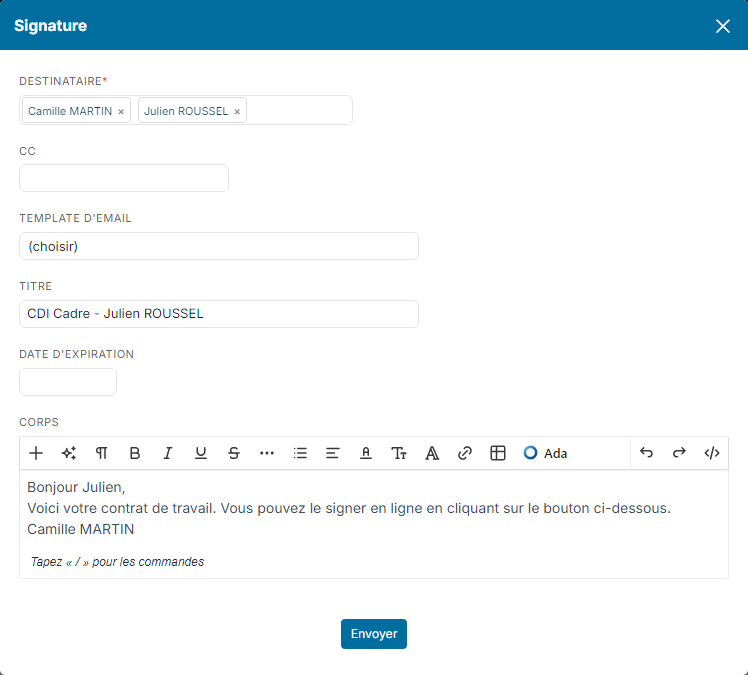
- In the Signing window, check the Recipient field: the first signatory employee and the employee are suggested.
- Choose an Email Template if needed, complete the Title and the Body, then click Send.
The contract PDF is generated when the request is sent, if it has not been generated yet. Each signatory receives an email with a link to sign online, after verifying their identity with a code sent by email. The signatory's journey is described in Document Signing.
To simply send the contract by email, without electronic signature, use the envelope icon of the line.
Track the signature
During the signature, the form is locked and its line offers:
- the i icon, which shows the date the request was sent;
- the eye, to view the document;
- the circular arrow Send a reminder Signing, which sends the email again to the signatories who have not signed yet;
- the cross Cancel signature request.

When all signatories have signed, the eye shows the signed contract, and you receive an email and a notification. The signed contract is also stored in the employee's Documents section, in the folder of its type (see "File contracts automatically").