Create an onboarding checklist for a new employee
Nicoka HRIS lets you prepare an onboarding checklist, so that nothing is forgotten when a new employee arrives and each person involved plays their part: HR, manager, IT department… Hiring is good; onboarding well is even better.
1. Set up the onboarding checklist
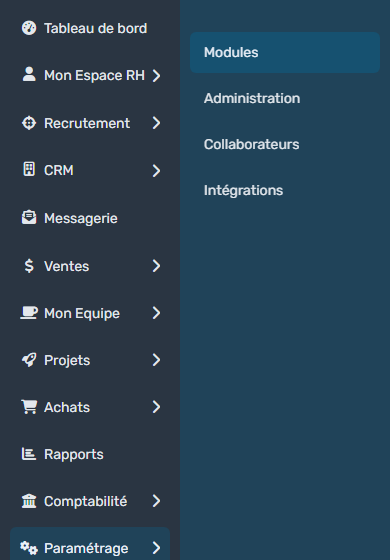
- In the side menu, open Customizing > Store, then click Customize on the Resources card.
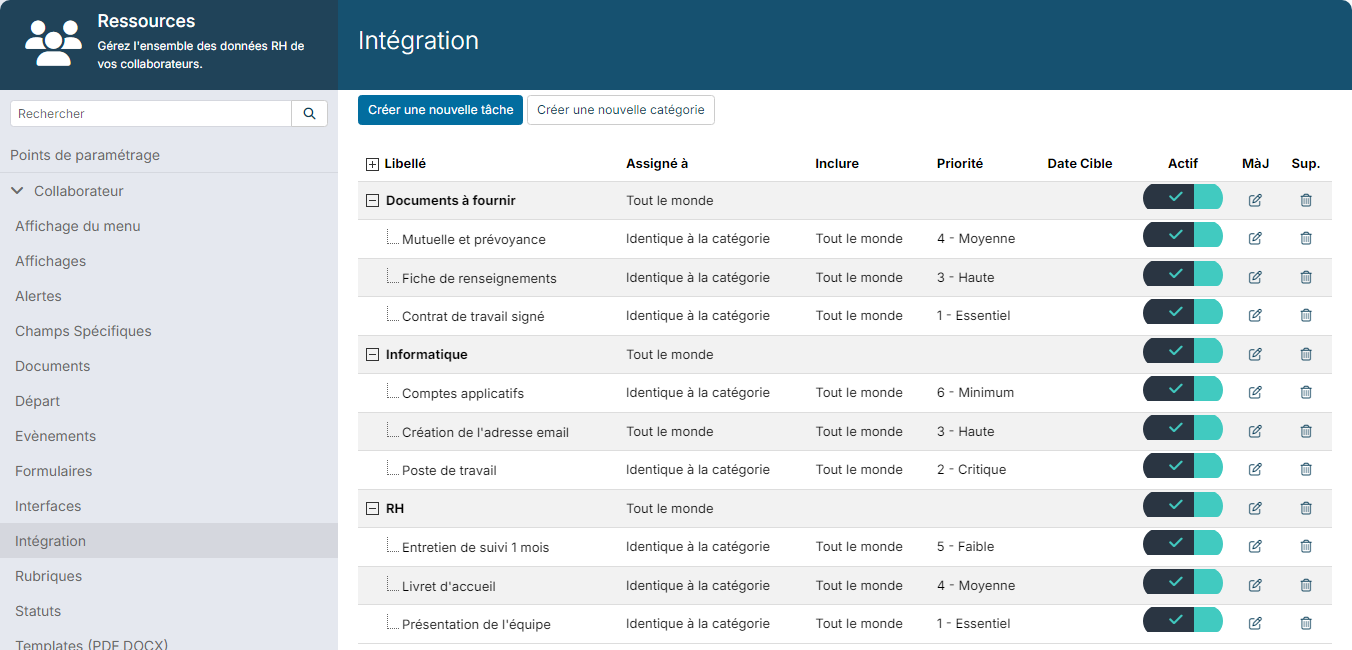
- In the Employee section, click Onboarding.
The checklist is made of categories, which group tasks.
Create a category
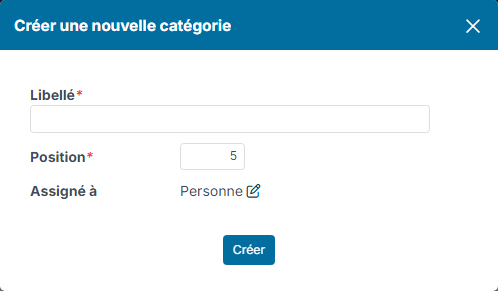
Choose categories that suit the way you work: by chronological step or by theme. Click Create a new category and fill in:
- Label: a name everyone understands;
- Position: the display order of the category in the checklist;
- Assign to: the person or people in charge of the tasks of the category.
Some examples to give you ideas:
- by step: D-15 before arrival, D-1, D-day, D+30;
- by theme: documents to provide, registration with bodies, IT and phone access…
Create a task
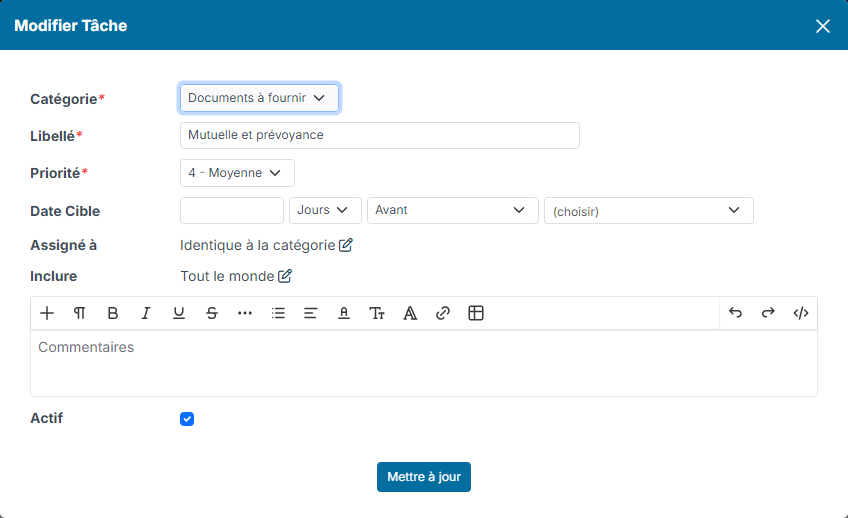
Click Create a new task and fill in:
- Category: the category it belongs to;
- Label: a name everyone understands;
- Priority: from 1 to 6;
- Assign to: Inherit from category by default. You can assign the task to other people;
- include: Everybody by default. You can restrict the task to part of the newcomers (a location, a department, a contract type…);
- comments, if needed.
Once the task is created, open it with the pencil icon to set its Target Duedate: a delay calculated from a date of the employee's record, for example 15 days before their hire date.
The switch in the Active column lets you remove a task from the checklist without deleting it.
2. Start the checklist for a new employee
The employee must first be created in Nicoka.
- In the side menu, open Customizing > Resources, then click the employee's name.
- In the sheet menu, click Onboarding.
- Click Generate Tasks from template.
The tasks are created with their target due date, and the people they are assigned to receive an email listing them.
3. Follow the onboarding
For one employee
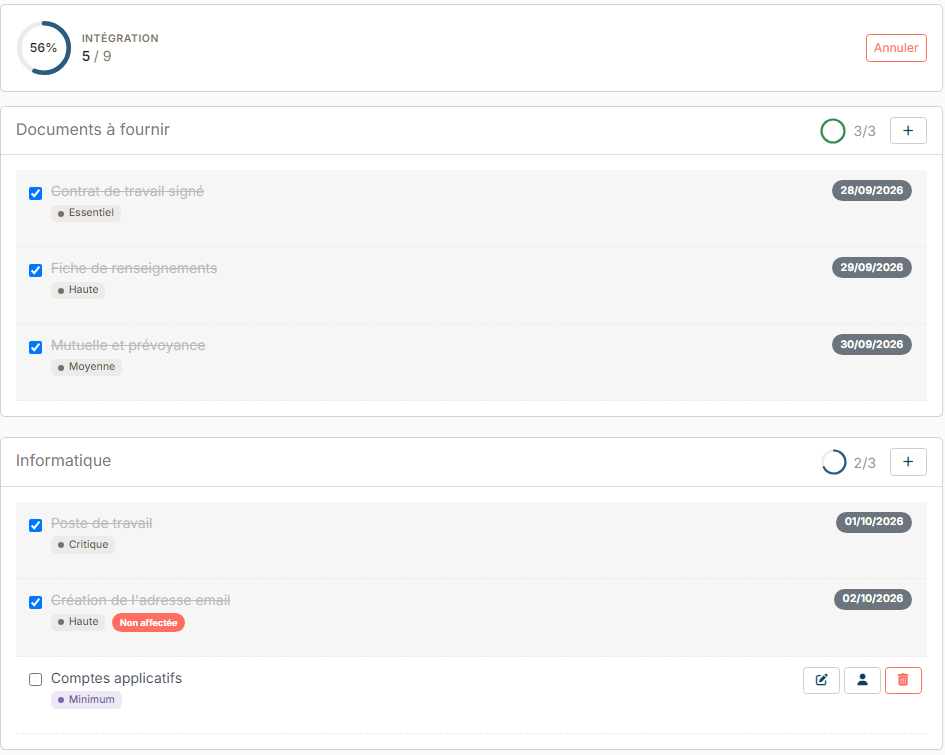
In the Onboarding section of their sheet, tick each task once done. The progress is shown at the top of the section and for each category. The + button of a category adds a task specific to this employee, and the buttons of a task let you update, assign or delete it. The Cancel button deletes the employee's checklist.
For all newcomers
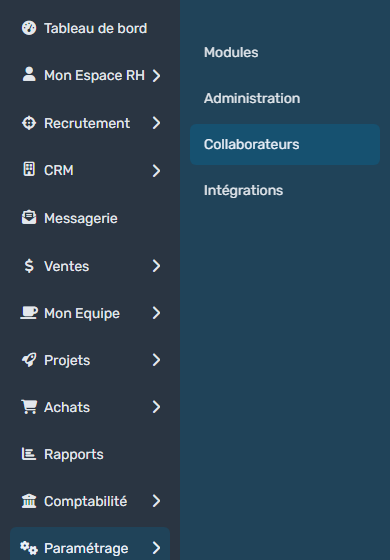
- In the side menu, open Customizing > Resources.
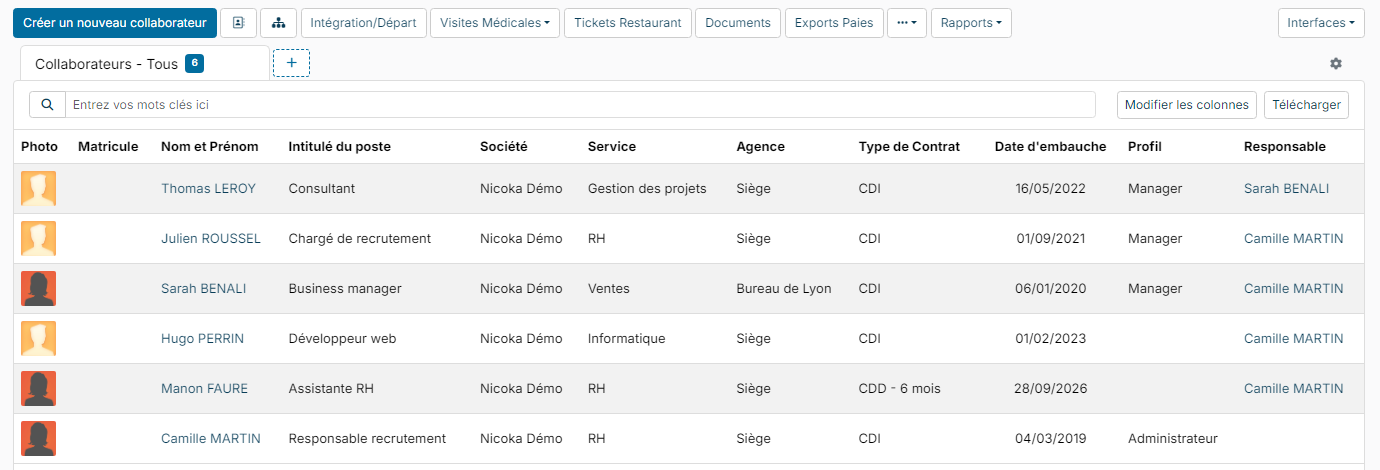
- Click the Onboarding/Offboarding button.
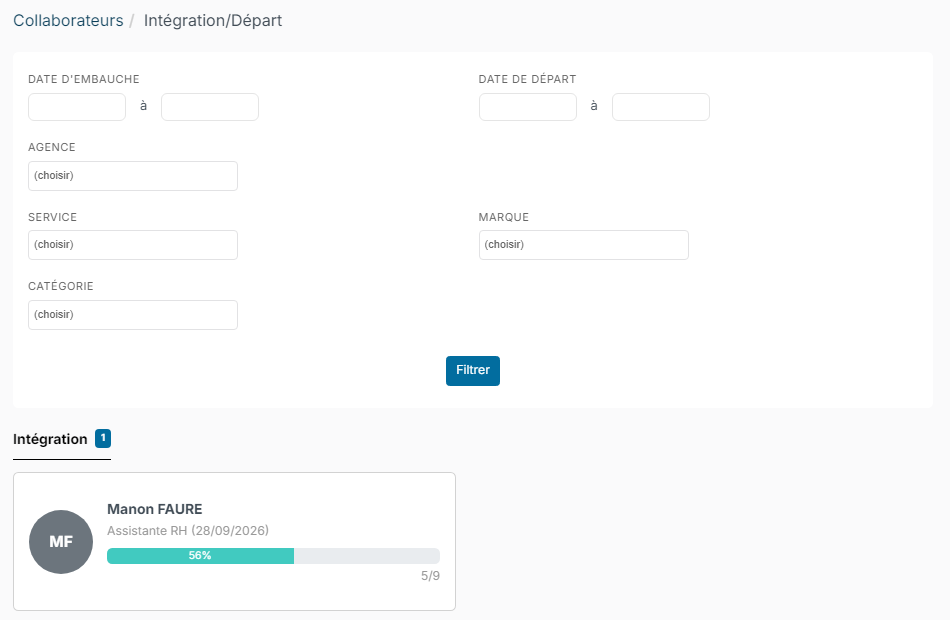
The screen shows the progress, as a percentage, of each onboarding in progress. Filter it if needed by hire date, leave date, location, department, division or category, then apply the filter.
What about departures?
The same mechanism exists for an employee's departure: Offboarding section of the customizing and of the sheet. See Managing an employee's departure.